
New Windows operating system is on its way
Microsoft is reportedly working on a new, lightweight version of Windows. The operating system (OS), currently known as “Windows Lite,” is said to be Microsoft’s answer to Google’s Chrome OS. There are still plenty of unanswered questions about the OS, but here’s what we know so far. What is Windows Lite? Windows Lite is a more flexible, trimmed-down OS designed for casual, lightweight computing. This means users can expect shorter startup times, faster performance, and a less complex system. If it’s trying to compete with the likes of Chrome OS, then it’s possible that Lite will have syncing features that save your preferences, files, and settings across your personal devices. Windows Lite will initially be tied to a series of devices Microsoft has called Centaurus and Pegasus. The former refers to dual-screen, notebook-like devices, while the latter denotes compact laptops specifically designed to run the OS. From a design perspective, the OS won’t stray too far from the familiar taskbar and start button layout to avoid making the same mistakes as Windows 8. Also, users should expect somewhat limited windowing and multitasking features in Lite like in Chrome OS and other mobile operating systems. Due to this, tabs in Windows programs will likely be a common feature. Experts speculate that Windows Lite could be announced as early as the second half of 2019. It may even have a different name by the time it’s officially announced. What does this mean for businesses? Windows Lite may not have the features for heavy-duty computing, but it does have all the features required to work remotely. For starters, the OS has deep integrations with Office 365 apps, which provides users with Word, Excel, Outlook, and Teams. The OS also works with other cloud-based applications, including your favorite video streaming apps and social networking sites. Lite’s minimalistic and cloud-oriented features also make it much easier to manage, especially when compared to remote Windows 10 devices. All in all, the OS may significantly grow in popularity as more businesses rely on the cloud and adopt remote working policies. Keep in mind that these are early reports about the new OS, and they must be taken with a grain of salt. Microsoft will probably add even more features down the road, which is why it’s crucial to follow our blog on the latest Microsoft developments. In addition to providing news and tips, we’re also experts in managing various Microsoft products, so call us today if you need expert IT support! Published with permission from TechAdvisory.org. Source.
Recover your privacy in Windows 10

Advertisers are able to target their consumers more effectively thanks to social media. But did you know that your operating system might also be giving away information about your online searches to advertising agencies? Learn more about Windows 10’s not-so-private settings and how these can be fixed. Turn personalized advertising off For those unaware, Windows 10 assigns each user an “advertising ID” to personalize your ad experience based on your recent browser history. If you’re okay with seeing generic ads targeted to you based on demographics rather than your ID, we recommend turning this feature off. First, click on the magnifying glass symbol next to the Windows logo, at the bottom left of your screen. Next, type in Privacy; click on it, and select General. Check your computer’s privacy settings for any changes. Lastly, open your web browser and go to this link. Once there, select Off for :Personalized ads wherever I use my Microsoft account” and “Personalized ads in this browser.” This resets your ad ID, allowing you to experience the joys of web surfing without the creepy targeted advertisements. Disable Cortana Voice-controlled digital assistants have become big business. Microsoft capitalizes on this market with Cortana, an incredibly resourceful, built-in assistant that allows you to quickly set reminders, schedule events, and send email, among many other intuitive features. It uses the information it collects similarly to how Google’s Android-based assistant does it. However, Cortana can become overbearing at times. To turn it off, click on the Cortana icon in the taskbar, followed by the notebook icon on the left hand side of the pop-up panel. Click on Settings; this should present you with the first option that says, “Cortana can give you suggestions, ideas, reminders, alerts and more”. Slide that to Off. Once disabled, the Cortana option disappears, and you’re now presented with a search bar that you can use to search for things online or on your desktop. Stop peer-to-peer file sharing With peer-to-peer (P2P) file sharing enabled, Windows 10 shares downloaded updates to your PC with other Windows 10 users by default. This helps other users update their systems faster, and speeds up your upgrade downloads, as well. However, if you are unhappy with your files being utilized by other users, you can turn it off. Head over to Settings once again. Click on Update and Security > Windows Update > Advanced Options, and finally select Choose how updates are delivered. By default, the “Updates from more than one place” setting is on, followed by two options: distribute updates only to PCs on local network, and shut off P2P updates entirely. If you want to disable this feature entirely without worrying about specifics, then move the slider to Off. If you want to share your files with PCs on your in-house network only, leave the slider in the On position and select PCs on my local network. For more detailed instructions on how to stop P2P updates, click here. Blunt Microsoft’s Edge Remember Internet Explorer? Think of Microsoft Edge as the same, just on steroids. The tech giant’s fancy new browser is chock-full of features — such as Cortana Integration and typing prediction — which may make you uncomfortable, since all the features send data back to Microsoft. To turn off these intrusive functionalities, open Edge and click on the menu icon in the far right corner (three horizontal dots). Once in, click on View Advanced Settings. There you have the option to disable Adobe Flash — which stops those Flash cookies from going anywhere. You’ll also encounter a bunch of settings you might want to disable under the Privacy and Services section. These simple security tips will stop Microsoft from tracking your online movements for good! In case you’re interested in protecting your privacy, don’t hesitate to contact us today for all matters security related. Published with permission from TechAdvisory.org. Source.
Beware of apps bundled with Windows 10

While you might think that getting free software with your new Windows 10-powered device sounds like a good idea, it’s not. Beyond taking up storage space and diverting processing power, pre-installed software such as trial versions of video games, antivirus programs, and web browser toolbars — collectively called “bloatware” — can make your device vulnerable to cyberattacks. Read on to learn how to be bloatware-free. In the middle of 2014, Lenovo users noticed something awry with their web browsers: banner ads were breaking webpage layouts and pop-ups made surfing unpleasant. A deep dive into the problem led to the discovery of a pre-installed software called Superfish — adware that jumps in the middle of your internet connection to stuff web pages with ads. Not only was this bloatware irritating, but it also made connections unsecure, leaving users vulnerable to hackers. Software behemoth Microsoft has developed and deployed its fair share bloatware as well. The Windows 10 operating system, in particular, has plenty of them, such as: 3D Viewer (previously called Mixed Reality Viewer) Calculator Calendar Candy Crush Soda Saga Disney Magic Kingdoms Groove Music Mail Movies & TV Paint 3D Snip & Sketch Sticky Notes Voice Recorder These programs are called bloatware because users don’t necessarily want them, yet they’re already installed on computers and take up storage space. Some of these even run in the background and slow down computers without users knowing it. While many of these programs are pleasant add-ons for those who find value in them, many users prefer to start with a leaner operating system due to storage space and processing power concerns. If they want a particular software, they prefer to download it themselves. This gives them greater control over their machines and how they experience their hardware and software. Like Superfish, other Windows 10 bloatware can also cause critical vulnerabilities. The most ironic example of this was a pre-installed version of Keeper Password Manager. Instead of keeping passwords safe, it allowed malicious people behind any website to steal passwords. While Windows 10 users needed to enable Keeper to store their passwords for them to become vulnerable, it makes you wonder why such a flawed password manager app is there in the first place. How to rid yourself of bloatware Removing inclusions you did not ask for is a hassle in and of itself, but thankfully, the process is not too tedious: Click the Start menu, then the gear icon. In the Settings window, select Update & Security. On the left-hand side, click Recovery. Select Learn how to start fresh with a clean installation of Windows and follow the instructions. Bloatware not only clutters your laptops and PCs, but it can render your business vulnerable to cybersecurity breaches as well. Save yourself from tons of headaches down the line; learn more about protecting your computers from bloatware. Call our team of IT experts today! Published with permission from TechAdvisory.org. Source.
Know all about Windows 10 build 18305 for PC
Microsoft is releasing Windows 10 build 18305 with a number of major features and improvements for the Start menu, Windows Security, Task Manager, File Explorer, and the Settings app. Start menu This now has a new single-column layout with reduced top-level tiles. This layout appears when you’re creating a new account, setting up a new device, or after performing an installation. Windows Sandbox Using hardware virtualization and Microsoft Hypervisor tech, this feature lets you build a lightweight environment to safely install and run untrusted applications without adversely affecting your installation. There’s no need to create a virtual machine, and when you’re done testing the app, the environment and app will automatically be deleted. Clipboard Build 18305 updates the Clipboard interface (Windows key + V). Every item on the clipboard is now smaller, which allows more entries to be displayed. Accounts You can now use an SMS code to sign in and continue setting up your Windows 10 account if your account is connected to your phone number. Windows Hello Instead of creating a password that is complex and easy to forget, Windows Hello lets you use a look or a touch to sign in to your Windows 10 devices. Build 18305 improves the PIN reset experience by giving the interface design for web and mobile the same look and feel. You’ll also come across the same interface design when performing actions that requires authentication, such as creating a new user account or verifying your account. Settings The Settings app has a new homepage that shows user information and provides quick access to frequently used settings. Troubleshoot Windows 10 will be able to automatically restore default settings for some services. Depending on your hardware configuration, it will adjust feature settings and apply changes to keep your device running smoothly. It will also recommend troubleshooting suggestions for non-critical issues. For example, it may recommend that you disable a setting that causes an application to crash mysteriously, until the next update becomes available. Windows Security Starting with build 18305, the Protection history page (found in Windows Security > Virus & threat protection > Threat history) will continue to list antivirus detections, but now you’ll see more details that are easier to grasp. In addition, any pending recommendation will have a red or yellow state throughout the experience in the history list. Tamper protection In Windows Security > Virus & threat protection > Virus & threat protection, you’ll find new Tamper protection settings that prevent unauthorized changes to your security settings. Final thoughts Enjoy the latest enhancements that Windows 10 build 18305 has to offer, but do be wary of installation problems, sign-in difficulties, and app crashes. To maximize the benefits while minimizing the risks, consult with us. Our experts know how to pick and implement the latest tech advancements that will further your business goals. Published with permission from TechAdvisory.org. Source.
Simplify logging in with Windows Hello

Just like in sci-fi movies, Microsoft’s biometric logins can now recognize your face, fingerprint, or eyes when you attempt to access your device. Here’s everything you need to know when setting up Windows Hello. Say hello to fingerprint, iris, and facial scans Windows Hello is an advanced biometric identity and access control feature in Windows 10. It allows you to log in to your computer without the need to enter a password. All you need is a fingerprint, iris, or facial scan. If you’re worried about your privacy, rest assured that your biometric data is only saved in your device, never on Microsoft’s servers. It’s still best to handle this technology with caution, but Microsoft assures users that third parties cannot access your biometric data. How to set up Windows Hello A laptop or desktop with Windows 10 and a compatible webcam are all you need to set up Windows Hello. There is a full list of supported hardware here. To get started with Hello, click the magnifying glass on your Start bar and open the Settings window. From there, choose Account, followed by Sign-in options. Then, under the Windows Hello section, you’ll see setup options for face, iris, or fingerprint scans. Select which method you want to set up and follow the prompts to create a login profile. You can even save your biometric data or scan more than once to boost accuracy. The system collects more data every time you scan, so it’s better to complete a few scans before enabling the login feature. After setting up your account, you can start adding family members who share the same device. Each of them can set up their own biometric profile in a separate account. Passwords can still be an option when using Windows Hello in case your camera isn’t working. There are several Windows features that can make your life easier. Our IT experts can help you get more out of your Windows devices. Contact us today! Published with permission from TechAdvisory.org. Source.
Get rid of these 5 types of PC clutter

Is your PC running slowly? It could be because of all the digital clutter it has to deal with. Clutter can impede your computer’s performance and eat away at its memory. To have your computer performing at top speed again, you need to get rid of these five types of clutter. Here’s how to do it using built-in tools from Windows. There are five types of clutter that may be causing your computer to perform so slowly. Usually, simply resetting or refreshing Windows will help you solve these issues. Windows updates – includes failed update downloads. While Windows will delete some of these corrupted and unusable files, others will hang around forever unless you reset Windows. Registry bloat – includes files and applications you’ve deleted in addition to every action performed in Windows, which is recorded in your computer’s registry. Redundant entries bog down your PC, and the solution is to reset Windows. Error logs – log files kept by Windows whenever software in your system encounters errors in processing or crashes altogether. And, as with registry bloat, these log files accumulate and slow down your computer. To remove these space-eating files, reset Windows. User bloat – refers to large numbers of your own files, especially if they’re unorganized. Refreshing Windows will take care of this problem. Bloatware – refers to unwanted preinstalled software. It takes up tons of CPU, RAM, and disk space, as well as poses a raft of security risks. To get rid of it, use Windows 10’s Fresh Start feature, which basically reinstalls Windows 10 while backing up your data, settings, and native apps. It will get rid of most apps from your system, including bloatware. As mentioned, you can either reset or refresh Windows to remove clutter of all types. When you reset, a brand new copy of Windows 10 is installed and your system is “reset” to its original state, which may include non-Microsoft apps and bloatware added by the hardware manufacturer. On the other hand, when you refresh, your PC reinstalls Windows 10 free of any bloatware. Both will delete Windows 10 apps and your customized settings, and will give you choices of keeping your old files or deleting them. To get started, go to Start > Settings > Update and Recovery > Recovery. If you want to reset Windows, choose Reset this PC > Get Started and then follow the instructions. If you want to refresh Windows, you first need to find out what your Windows update version is, since the processes are a bit different. For the Windows 10 Anniversary Update, start by going to Settings app > Recovery > Reset this PC. This will reinstall Windows from local system files and not the latest version. This also gives you the option of deleting all your data. For the Windows 10 Creators update, begin the refresh process by following the same procedure as above. But this update also has the Fresh Start feature, which you’ll find by going to Windows Defender > Device Performance & health. You’ll find Fresh Start toward the bottom of the menu; click Additional info > Get started. With Fresh Start, you’ll get the latest version of Windows plus all the updates. There are innumerable ways to make your computer perform faster and more efficiently, and our Windows experts are equipped with all the tricks of the trade. Give us a call today. Published with permission from TechAdvisory.org. Source.
When Microsoft stops supporting Windows
Microsoft only supports each version of Window for a certain period and the end of its support for a software product can be a significant challenge for businesses. Currently, Windows 7 is on “extended support” until January 14, 2020. What does it mean when Microsoft terminates support of your Windows version? Let’s have a closer look. No more security updates End of support for Windows means Microsoft stops issuing security updates for that operating system (OS). For example, Windows Vista and Windows XP can no longer receive security updates despite the substantial security holes found in them. On January 14, 2020, the same will be true for Windows 7. From there, you’ll be on your own. You can still use antivirus tools and other security software for protection, but they won’t be enough to defend against bigger threats. Security software will also gradually drop support for older versions of Windows. Large organizations can sign “custom support” contracts to keep getting security updates while they transition to a new OS. But Microsoft will ratchet up the price going forward to encourage those organizations to move to a new version of Windows. Software companies will halt support too When Microsoft ends support for an OS, that’s also the signal for third-party companies to stop supporting that particular version of Windows with their own software and hardware. This doesn’t happen immediately but it does eventually. For example, Windows XP support ended on April 8, 2014, but Chrome didn’t stop supporting Windows XP until April 2016, two years later. Mozilla Firefox stopped supporting Windows XP in June 2018. Steam will officially drop support for Windows XP and Windows Vista on January 1, 2019. On the other hand, software companies dropped support for Windows Vista more quickly, as it was much less popular than Windows XP. New hardware may not work New hardware components and peripherals will stop working on your system too. These need hardware drivers, and manufacturers might not create those hardware drivers for your old, out-of-date OS. Presently, the latest Intel CPU platforms don’t even support Windows 7 and 8.1. However, the operating systems are technically still in “extended support.” You can keep using your old OS with your current software and hardware, but you have no guarantees of future updates or compatibility. When will Microsoft end support? Microsoft has a well-defined support lifecycle for its software products. They come ahead of time so they’re never a surprise. The agreement includes the assurance that Microsoft is committed to providing products with improved security. While they may be unable to provide security updates for older products, they do advise customers to install the latest product releases, security updates, as well as service packs to remain as secure as possible. Upgrading is better than using unsupported Windows The support lifecycle is rapidly fading away as Microsoft shifts to its Windows as a service and Office 365 subscription models. If you want to prevent security frustrations, it’s best to upgrade to a newer version of Windows. Should you need help in upgrading, or have further concerns about your current Windows, give us a call. Published with permission from TechAdvisory.org. Source.
4 handy Cortana commands for you
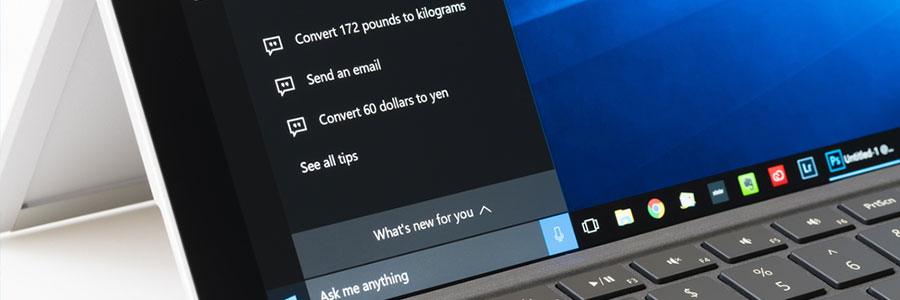
You’ll find Cortana, Microsoft’s voice-activated personal assistant, extremely helpful for daily tasks, like rescheduling meetings, drafting an email, or dealing with several other time-consuming work. Learn how to use the following Cortana commands to make life so much easier for you. Hey, Cortana Before asking her to do anything, we need to get Cortana’s attention by clicking or tapping the Cortana button on the taskbar. If you do not see Cortana on your taskbar, right-click the taskbar and go to Cortana > Show Cortana icon. To enable Hey, Cortana, simply say ‘Hey, Cortana,’ followed by your question. If you’re using a Windows Phone, you can press and hold the search button to activate Cortana. Basics tasks If you want to launch a program or open a website, simply use the word ‘Launch’ or ‘Open’ followed by the website’s name. Make notes by uttering the words ‘take a note’ or ‘note it down’. As for making drafts, start with ‘Write an’ followed by ‘email’ or ‘text,’ and end with the contact name and the message itself. Lastly, ‘Show me emails from [contact]’ will display all the emails sent from the specified contact. Scheduling/Reminders It’s important for small- and medium-sized business owners to stay on top of their schedules. Take a glance at your calendar events with commands such as ‘How’s my schedule looking?’ or ‘What do I have next week?’. Add or move appointments with ‘Add’ or ‘Move’ followed by the appointment and time. Reminders are easily scheduled by uttering the words ‘Remind me’ followed by whatever you need to be reminded about and when. Search If you can’t locate the file you need, don’t worry. By asking Cortana to ‘Find’ a document, video, or picture on your device from a specific time frame, she will sift through everything quickly to find what you need. You can easily initiate search queries with ‘Can you find’ followed by whatever you are looking for. You can even look at basic search results without having to open a browser window: Simply ask whatever question you have and enjoy combing through the results. Window’s voice-activated personal assistant, Cortana, helps you accomplish daily tasks with ease and efficiency — but only if you use the right commands. If you have further questions or would like to know more Cortana commands, feel free to contact us. We’re ready to help! Published with permission from TechAdvisory.org. Source.
Fix these five problems in Windows 10 now
Although Windows 10 is packed with wonderful new features, it’s far from perfect. Users have complained about storage, connectivity, and update issues, among other things. If you’ve encountered any of these issues, no need to panic. We have listed down five simple fixes to the most common Windows 10 problems. 1. Less storage space When you upgrade to Windows 10, your old software is not actually deleted but stored in your hard drive as “windows.old”. While this is a smart move that allows users to downgrade their software if they want, it also consumes a lot of space that you can use to store more important files. If you want to delete this previous version to free your storage space, first type “cleanup” on the Windows search bar to pull up the Disk Cleanup app. From there, you can either click on OK right away, or you can choose Clean up system files to ask Windows to scan your system. Either of these options will open a pop-up box that will ask whether you would like to delete previous Windows installations.Then, select the files you want to delete and click OK. 2. System Restore isn’t enabled In Windows 10, System Restore isn’t enabled by default. To turn it on, go to the Start Menu and type “Create a restore point.” Next, choose the system drive and click the Configure button, then select Turn on system protection. Use the slider to set an appropriate amount of maximum disk space to be used for restoring the system (about 5 GB should be enough). 3. Updates won’t work First off, check if you’ve upgraded to the most recent stable update. Users should hold off on installing the Fall 2018 update until issues are resolved. If your updates still don’t work, download and run Windows Update Troubleshooter and try to update again. 4. Privacy violations Windows 10 faces a lot of criticism over data privacy settings. We recommend you review them from time to time, especially after every update is released. To change the privacy settings, go to Start Menu > Settings > Privacy. On the left-hand side, you’ll see a list of features and data Windows has access to that you can disable, including the computer’s camera, microphone, account information, and so on. Turn off the ones that you don’t want Windows to have access to. If you use Windows Defender, go to Update & Security, and decide whether you want to enable cloud-based detection and automatic sample submission, which uploads suspicious files to Microsoft Servers for analysis. 5. Windows 10 uses up all the 4G data Windows 10 allows you to connect to the internet via cellular data, just in case the Wi-Fi is slow or unavailable. However, it can use up all your data if you’re not careful. To avoid this, go to Settings > Network & Internet > Data Usage. Select Cellular Data from connection options, and then click on Set Limit where you can adjust how much data your computer uses. We hope these five fixes will help enhance your Windows 10 experience . But while there are some issues you can fix by yourself, others are more complicated and would better be handled by IT experts. Call us today, and let our staff get rid of all your Windows 10 headaches. Published with permission from TechAdvisory.org. Source.
Cool new Windows 10 features are coming!

Windows 10 is developed as a service, and regularly receives patches and bug fixes. It also gets feature updates at least twice a year, and 2018 is no different. This October, Microsoft unveiled the October 2018 update, also known as Redstone 5, which comes with some amazing new features. Your Phone Windows 10 is getting a built-in app called “Your Phone” that makes it easier to integrate your phone’s features with your PC. For instance, it will let you send texts and instantly access photos from your phone’s library on your computer. There’s also talk about syncing notifications between devices in future updates. Currently, the iPhone has limited compatibility with this app, but Microsoft promises additional features will be added later. Clipboard History The Clipboard app has been revamped and now allows you to access a list of items you’ve copied to your clipboard, pin frequently used images, and sync your clipboard across your devices. All you have to do is hit Windows key + V to pull up your clipboard history and copy-paste items without having to constantly switch between windows. SwiftKey Windows touchscreen devices like the Surface Pro will come with SwiftKey functionality, which lets you type by swiping your finger from letter to letter rather than tapping each one. According to Microsoft, this feature produces accurate autocorrections and makes typing faster once you get used to it. Dark Mode All Microsoft apps will now support Dark Mode, which can be enabled by going to Settings > Personalization > Colors. This improvement may seem small compared to other features in this list, but Dark Mode reduces eye fatigue and saves battery life. Cortana Search When you use Cortana’s search functions, she’ll now provide previews to give you more information. For instance, if you use Cortana to search the web, Bing search results will be displayed on your Start menu. Or, if you search for an application, Cortana will show you its download page. Windows Security Windows Security will replace the Windows Defender Security Center program and add even more safeguards for your devices. It will have a “Block Suspicious Behaviors” setting that detects and prevents app and file activities that can leave you open to attacks. What’s more, Windows Security keeps track of all the antivirus software, firewalls, and other security measures on your device, so you can see threat reports and manage your device’s cybersecurity in one place. Predictive Updates If you’re tired of Windows 10 restarting your computer at the worst times, you’ll love the new predictive updates feature. This function uses machine learning to study your computer habits and predict the best time to restart and update your PC. These are only a few of the features that Windows 10 has in store for users. Microsoft will likely release dozens more in future updates, so tune into our blog to learn about the latest Windows developments. Published with permission from TechAdvisory.org. Source.