
How to install Windows 10 on your laptop
Unboxing a new Windows 10 laptop is exciting, but before you start using it, there are a few things you need to do. You can ask a technician for help in setting up your new device, but here are a few things you can do on your own. 1. Set up how your device checks for updates Your new laptop should check for updates automatically, but you can also do this manually. Just click the gear icon above the Start button to go to Settings, choose Update & Security > Windows Update, and then click Check for updates. You can also type “updates” into the search box and click Check for updates. 2. Choose a restore point If something goes wrong with your laptop, you can save a lot of time if you have a restore point, which is a backup of your entire operating system. To set up a restore point, type “restore” into the search bar and click Create a restore point. You’ll be taken to the System Protection tab of the System Properties window. From there, you can choose what you want to be included in the backup. Click the Configure button to apply your choices. Enable “Turn on system protection” if it’s not already on. You can choose how much disk space to reserve, usually no more than 2% or 3%. 3. Pick a power plan If you want to prolong your laptop’s battery life, you can choose from Windows 10’s Power Saver, High Performance, and Balanced power plans. Type power plan in the search button and choose either “Edit power plan” or “Choose a power plan.” Choosing the Edit power plan option allows you to set when the laptop display will be automatically turned off and when to put it to sleep. When you pick “Choose a power plan,” it will take you to a page where you can create and customize your plan. The default recommended plan is Balanced, but if you want to create your own, click on the “Create a power plan” option on the left part of the screen. You can choose from three options depending on how you plan to use your laptop: Balanced, Power Saver, and High Performance. After selecting your preferred plan, click on the Next button to set the display and sleep settings for your laptop. Once done, click on the Create button and you’re good to go. 4. App installation tolerance level To restrict which apps can be installed on your laptop, go to Settings > Apps > Apps & features and choose whether to permit installations from only the Windows Store, any app installations (with a warning), or unrestricted app installations. 5. Remove bloatware Vendors package new laptops with bundled apps and software, which are mostly unnecessary and unwanted programs called bloatware. Windows 10 offers an easy way to see which apps are installed on your new laptop and a quick way to uninstall those you don’t need. Head to Settings > Apps > Apps & features and peruse the list. If you don’t want an app and are 100% certain that your computer doesn’t need it, click the Uninstall button. 6. Anti-ransomware Ransomware is a form of malicious software (malware) that locks all your data until you pay a ransom to hackers. To minimize the risk of ransomware attacks, type “Windows Security” into the search bar at the bottom of your screen, click it, and go to “Virus & threat protection”. Here, you’ll be able to enable a new option called “Controlled folder access,” which protects you against ransomware attacks. By default, the Desktop, Documents, Music, Pictures, and Videos folders are protected, but you can add other folders too. There are myriad ways Windows 10 can be configured for optimization and security. This article barely scratches the surface of Window 10’s security and efficiency settings. Call us today for a quick chat with one of our Microsoft experts about taking your operating system to the next level. Published with permission from TechAdvisory.org. Source.
Get more work done by getting rid of desktop clutter
A cluttered computer desktop can hamper productivity. When a bunch of files, folders, and applications are fighting for space on your desktop, it can be difficult to look for the ones you need. You may not realize it, but the clutter affects the way you work and slows you down. Follow these tips to get rid of the mess on your desktop. Do a bit of recon Before you go on a deleting spree, sort out the files and folders on your desktop to know what you need to keep. An easy way to do this is to right-click on an empty area of your desktop and select Auto arrange icons. This will organize your icons into a grid format that makes it easier for you to view all the icons on it. Then, right-click on the empty space and hover your mouse over “Sort by” and select Date modified to arrange the icons by the date they were last opened, with the latest on top. Create holding and app shortcut folders People often use their desktop to hold downloads, photos, screenshots, email attachments, and other files, which easily messes up the desktop. In truth, you probably don’t need all these shortcuts on your desktop. To prevent shortcuts piling up, create a folder on your desktop for all nonessential files and folders. Use this folder to store temporary items, including those you don’t intend to keep for long. Then, delete the files inside the folder once you no longer need them. It also helps to create a shortcut folder. When you install new programs on Windows, a shortcut icon is often automatically added to your desktop. However, desktop shortcuts should be for frequently used programs only, so create a separate folder for shortcuts to seldomly used programs. Be ruthless in decluttering Once you have your folders set up, it’s time to get rid of the clutter. If you haven’t used a file or folder in the past two months or so, you should seriously consider getting rid of it. Uninstall programs you no longer use, delete images you no longer want or need, move unimportant files elsewhere, and place the rest in relevant folders. Once completed, take a look at your browser to see where it stores downloaded files. If your browser downloads files to your desktop by default, go to Settings and change the target location to the Downloads folder. Stick with your plan Once you have decluttered your desktop, try to stick with the rules you’ve made. Whenever you download something, ask yourself whether it should go to the desktop or someplace else. Of course, sticking with these rules won’t always be easy, so aim to clean up your desktop at least once or twice a month. Use the taskbar or Start menu for apps Pinning apps to the Start menu and the taskbar is a great alternative to simply having program shortcuts on your desktop. To pin apps, open your apps list (click the down arrow from the Windows Start screen) and right-click on the application you would like to pin. Then, simply select Pin to Start or Pin to taskbar. Strategically position your wallpaper An interesting way to minimize clutter is to pick a wallpaper that you like, which could be your favorite picture or slogan. Frame the image so the focus is in the center of your desktop. Then, place your icons around the image in a way that allows you to still see the image. If you can’t see the image, that means you have too many icons and it’s time to get rid of a few. Having a wallpaper that you like can serve as a reminder to keep icons to a minimum. If you are looking to learn more about using optimizing your Windows PC, contact us today for more tips and tricks from office IT experts. Published with permission from TechAdvisory.org. Source.
Are your Windows 10 updates taking too long? Here’s what you need to do

Windows 10 users are well aware that installing updates can take a long time. We hear users complaining about it all the time. Why are Windows 10 updates so slow, and what can users do to speed things up? Here’s our take. Windows 10 updates take a while to complete because Microsoft is constantly adding larger files and features to the operating system. The biggest updates, released in the spring and fall of every year, take upwards of four hours to install if there are no unexpected glitches. The process takes even longer if you have a fragmented or nearly full hard drive. In addition to the large files and numerous features included in Windows 10 updates, internet speed can significantly affect installation times. This is especially true if your office network is overburdened by multiple people downloading the update at the same time. However, if you still experience slow speed even when there aren’t simultaneous downloads, then it’s likely that there is a problem that is preventing the installation from running smoothly. When you experience slow updates, try the following: 1. Free up storage space and defragment your hard drive Windows 10 updates often take up a lot of hard drive space, so you need to make room for them to speed up the installation. This means deleting old files and uninstalling software you no longer need. You’ll also want to defragment your hard drive, a process that organizes how data is stored on your hard drive so it can create, open, and save files faster. Defragmenting a drive is as easy as pressing the Windows button and typing Defragment and Optimize Drives. From there, just select the hard drive, click Analyze, and if the drive is more than 10% fragmented, press Optimize. 2. Run Windows Update Troubleshooter If faulty software components are causing installation problems, Windows Update Troubleshooter may be able to fix the issue and decrease download and install times. Simply press the Windows button and type Troubleshoot Settings. That will open a new window with an option for Windows Update. 3. Disable startup software Before your update begins, you should also disable third-party applications that might cause disruptions. To do this, press and hold Ctrl + Shift + Escape to access the Task Manager. In the window that opens, click the tab labeled Startup. This will show you all the apps that have permission to open themselves when you log in to Windows 10. Right-click any apps that aren’t important and select Disable (don’t disable Microsoft tasks) to speed up the update installation process. 4. Optimize your network Sometimes, a faster connection is all you need. Consider upgrading to a fiber optic connection or purchasing more bandwidth from your internet service provider. It’s also a good idea to use bandwidth management tools to make sure sufficient network resources are reserved for things like Windows 10 updates, rather than bandwidth hogs like Microsoft Teams or YouTube. 5. Schedule updates for low-traffic periods Massive updates with long installation times are unavoidable sometimes. So instead of installing them during the day, schedule them for after hours when your computers and office network aren’t in use. Go to Settings > Update & Security and specify when you prefer updates to be installed. If you need help with any of the tips above, we’re always here to help. Call us today to meet with our Windows specialists! Published with permission from TechAdvisory.org. Source.
Free up disk space on your PC with Disk Cleanup

Hard disk drive capacities are increasing exponentially over time, yet somehow they always seem to fill up. This rings even more true for solid-state drives, which cost more but offer less storage space than conventional mechanical hard disks. If you’re brushing against your PC’s maximum storage capacity, using Disk Cleanup should help you free up space by getting rid of unimportant files and programs cluttering up your hard drive. What is Disk Cleanup? Disk cleanup is a tool that scans your computer’s hard drive for files that you no longer use. These include temporary files, cached web pages, and deleted items stored in your system’s Recycle Bin. Unless you periodically purge these files, they accumulate over time and take up a lot of space on your PC. Disk Cleanup categorizes the identified files as well as the amount of storage space that each category occupies within your hard drive. From these items, you decide which ones to delete according to their importance to you and the amount of storage space that you’ll be able to recover. How to use Disk Cleanup In Windows 10, you can access Disk Cleanup by going to the Start menu and scrolling to Windows Administrative Tools. Once opened, this tool automatically selects Drive C (though you can switch to other drives) and shows a list of file locations containing files that can be removed. Each file location has a corresponding checkbox that needs to be selected in order to delete the files it contains. Upon clicking a file location, a description of the files it contains will appear at the bottom of the window so that you’ll know exactly the types of files you’ll be removing. When Disk Cleanup is finished, you’ll need to restart your system to remove unnecessary Windows Update files. Remember, the Disk Cleanup tool only removes Update files that are no longer needed, hence usually very few are deleted. The benefits of Disk Cleanup Using the Disk Cleanup tool can help improve your computer’s performance by: Maximizing your drive’s memory – The ultimate benefits of cleaning up your disk are maximized computer storage space, increased speed, and improved functionality. These enable you to use your device to run at peak performance levels. Making your computer more reliable – Some programs that are downloaded through the internet may be infected with viruses that can decrease your computer’s reliability. The Disk Cleanup tool can clean your computer and rid it of unwanted programs as well. Saving time and increasing efficiency – The traditional way of opening folders to find and delete old files may be sufficient for some, but not for those who prioritize productivity. Although files can be deleted manually, Disk Cleanup can do this much faster. The Disk Cleanup tool is as simple to launch and operate as any basic program. If you are looking to further improve the speed of your systems or are interested in other tech solutions, contact us today to learn more. Published with permission from TechAdvisory.org. Source.
Improve your Windows 10 experience with these features

Windows is the most popular operating system in history, but despite its popularity, many users still do not know about all of its functionalities. Here are some Windows 10 features from the latest update that you might have missed. Night light This feature lets you reduce the amount of blue light emitted from your screen, which helps reduce eye strain and boost sleep efficiency. Night Light is disabled by default, so you need to enable it by following these steps: Click the Start Menu. Open the Settings app (or press the Windows key + I to quickly open Settings). Select the System icon followed by the Display option in the left-hand pane. Set Night light to “On” or “Off.” Taskbar pin Opening browsers and typing in web addresses are simple tasks as they were, but Windows 10’s taskbar pin feature makes it even easier than before. This is an essential shortcut for anyone who relies on specific web-based apps such as email or company intranets. Simply right click on the app or document you wish to gain easy access to and choose “Pin to Taskbar”. Organize your open windows Do you struggle to organize a screen cluttered with open windows? Holding the Windows key and pressing an arrow should solve most of your problems: Windows key + Left – Resize the current window’s width to half the size of the screen and align it to the left Windows key + Right – Resize the current window’s width to half the size of the screen and align it to the right Windows key + Up – Maximize the current window to fit the entire screen Windows key + Down – Downsize the current window When none of those keys are enough to set you straight, holding the Windows key and pressing the Tab button will show you all the apps you currently have open. Focus Assist Notifications are frustratingly distracting. Windows 10’s Focus Assist feature helps you tackle this issue by customizing which contacts and applications can interrupt you during predetermined periods of time. Try it out by: Opening the Settings window Clicking the System icon Selecting Focus Assist from the left-hand pane Adjusting the notifications settings based on your preference If you wish to disable Focus Assist and receive all notifications, simply click Off. These are just a few of our favorites. For more software and productivity recommendations, give our experts a call today. Published with permission from TechAdvisory.org. Source.
What’s in store for Windows users in 2021?

If you’ve been waiting for updates on Windows 10, here’s some good news and more! Microsoft will very likely release big updates to the OS in 2021. Additionally, the tech giant is expected to introduce new services designed to maximize user experience across a wide range of devices. What’s new on Windows 10? Microsoft tends to release major updates followed by several smaller ones meant to implement minor feature changes and improvements. This likely won’t be the case in 2021. Sources indicate that the first of two updates will be released sometime in the spring next year. It will be a servicing style update similar to those released in the latter halves of 2019 (19H2) and 2020 (20H2). To illustrate, the 19H2 update included improvements in battery usage efficiency, while the 20H2 update focused on enhancing general performance and quality. The spring update (21H1) will likely be in preparation for the bigger one (21H2) coming around the fall. Next year’s major update will likely enable x86 64-bit Windows 10 to be emulated on computers that use ARM processors. This is good news if you use ARM-based computers, such as Microsoft’s very own Surface line of notebooks. With the update, you will be able to run legacy Windows programs on your device. Windows 10X Google’s Chrome OS might not be as feature-rich as Windows 10, but its lightweight nature and simple interface make it a hit among users who want a fast and straightforward operating system. That it is exclusively built into light, compact, and affordable notebooks — called Chromebooks — certainly adds to its appeal. Microsoft’s Windows 10X is purportedly its answer to Chrome OS. It’s a lightweight version of Windows 10 designed to perform well even on low- to mid-range computers. Windows 10X also boasts an updated, modern-looking interface, formidable security, and excellent battery efficiency. Like Chrome OS, Windows 10X will be exclusive to a specific line of computers which, according to reports, may include ARM-based and foldable devices. Windows 10X will likely become available in the earlier half of 2021. Cloud PC Windows 10 Cloud PC is a service that allows you to install applications to a version of Windows found on the cloud. Both the apps and the OS are streamed to your computer and use very little of the machine’s power. This makes it a great service for computers with low memory or ones that suffer from weak performance. Any apps installed via Cloud PC will appear on your Start menu as if it were installed locally on your machine. Cloud PC will likely be an integrated service with both Windows 10 and Windows 10X. Windows 10X devices likely will not come with win32 local support, although the feature may be added in a future update. You can resolve this issue by installing your win32 programs on Cloud PC and streaming them via your Windows 10X device. Microsoft has yet to confirm the exact nature and scope of their upcoming updates and services, but we can make educated guesses. In any case, it seems users can look forward to improved performance on Windows 10, as well as more opportunities to save money and get more out of their tech investments. If you need recommendations on how to take full advantage of these updates and new services, just give our experts a call. Published with permission from TechAdvisory.org. Source.
Windows 10 October 2020 Update: Features to watch out for

Microsoft started rolling out the Windows 10 October 2020 Update in recent weeks. While this update is relatively modest in terms of size and features, it boasts of several design and functionality upgrades that will enhance user experience. Here’s what you can expect from the update. Start menu’s new look The Start menu gets a makeover with “theme-aware” tiles, or tiles that take on the dominant color of your theme. Microsoft has removed the accent color behind tiles in the apps list, replacing it with a uniform translucent background in light mode and a solid black background in dark mode. Theme-aware tiles give the Start menu a more modern, streamlined look. However, you still have the option to use accent colors for the Start menu, taskbar, and action center when you enable dark mode. Just go to Settings > Personalization > Colors. From the dropdown menu, choose Dark to enable dark mode, then pick an accent color from the swatches below. To apply your chosen color to the Start menu, taskbar, and action center, tick the box next to the “Start, menu, and action center” option at the bottom of the Colors menu. Alt + Tab changes You can now switch seamlessly between open tabs in your browser with the new and improved Alt + Tab keyboard shortcut. Pressing Alt + Tab opens the task switcher, which will now show you all open tabs in Microsoft Edge, not just the active one. This way, you can go to the browser tab you want straight from the task switcher interface without first opening the browser window. If you’d rather not see all open tabs at once, you can configure the task switcher’s settings by going to Settings > System > Multitasking. Then, choose from the following options: Open windows and all tabs in Edge Open windows and 5 most recent tabs in Edge Open windows and 3 most recent tabs in Edge Open windows only Taskbar tweaks If you’re like a lot of Windows users, you probably have your most visited or favorite websites pinned to the taskbar for ease of access and convenience. Having sites pinned to your taskbar lets you open a website or switch to the most recent app quickly. With the Windows 10 October 2020 Update, you can now see all open tabs in your pinned websites by simply hovering over the website icons on the taskbar. This eliminates the need to search through open tabs and browser windows just to find and switch to the specific tab you need. The taskbar also has a new layout, but this is limited to first logins to a new PC or new account creations. The taskbar will be personalized depending on the user’s preferences. For instance, if the user has an Android device, the Your Phone app will be automatically pinned to the taskbar. Less intrusive notifications Microsoft also made minor tweaks to the notification panel. Now, all notifications have an X icon at the top right corner so you can quickly dismiss them with a click. All notifications will also show the app logo so you can easily tell which app has sent which notification. Additionally, by default, Focus Assist will no longer show you a summary of any notifications you missed while the feature was enabled. To change this setting, go to Settings > System > Focus assist, then tick the box next to “Show me a summary of what I missed while focus assist was on.” Enhanced Edge If you haven’t gotten around to installing the new version of Microsoft Edge, you’ll be glad to know that the Windows 10 October 2020 Update comes with the browser preinstalled. The new version of Microsoft Edge is based on Chromium, the same technology on which Google Chrome runs. As such, it offers a range of features designed to maximize performance and thus improve your browsing experience. What’s more, Edge affords users more control over their data, ensuring that their privacy online will always be protected. Microsoft is constantly developing new features designed to keep Windows 10 devices running smoothly and securely. Drop us a line today to learn more about the latest Windows 10 features and how they can benefit your business. Published with permission from TechAdvisory.org. Source.
How to back up your files using Windows 10

Business owners are becoming more aware of the damaging effects of data loss. Companies now realize that without safe and reliable data backup, important business information can fall into the wrong hands or be lost forever. Fortunately, Windows 10 offers easy-to-use tools like File History and OneDrive. File History in Windows 10 Serving as the main backup utility, File History enables users to regularly schedule backing up of files on their PC and store them on an external drive. That means you can connect your PC to a network or USB drive and make backups as needed. However, be sure to regularly connect the external drive if you intend to use File History for backups. Otherwise, Windows will prompt you that your files have not been backed up every day. You can ignore this warning at your own risk. If you back up to a mapped network that is unavailable, File History will commence backup in the local disk until the network drive becomes available. Setting up File History Anyone can set up File History. After all, it was designed to make data backup and recovery easy for users. By default, File History backs up the main file folders, but you may also pick which folders you want to back up and bring in folders from other parts of the PC to do this. From the Start menu, click on Settings > Update & Security > Backup. Once in Backup, you can connect to an external drive. Click on Add a drive to see a list of external hard drives hooked up to your PC and choose one. When you return to the Backup section, you will see that the Add a drive option has changed to Automatically back up my files (by default). This allows backups to be created at periodic intervals, which you can set to anywhere from every 10 minutes to once a day (the default option is once every hour). You may also set how long to keep the backups. Restoring files that have already been backed up is just as easy as setting up backups. Simply type “File History” in the search bar. Then, you will see the “Restore your files with File History” folder. Selecting this opens a new window showing the folders backed up onto your external drives. Setting up OneDrive backup option If you have access to a network drive or the cloud, back up to it instead of locally. One such cloud option is OneDrive. You can prompt OneDrive to automatically back up your files. Just click on the cloud icon in the Windows notification area, then select More > Settings > Backup > Manage backup. Not only will selected folders sync in OneDrive, but new and existing files will also be backed up to OneDrive, so they can be accessed using other devices in case something happens to your PC. Making system image backups A system image is an exact replica of your entire operating system, along with all the programs, settings, and files. If you created a system image backup using the Windows 7 Backup and Restore tool in Windows 7, it will still work in Windows 10. To use this feature, access the Backup and Restore (Windows 7) option from the Control Panel. Click on Create a system image, choose where to store the backup (i.e., an external hard drive, network drive, or DVD), and which drives or files to back up. You will then be asked to make a system repair disc, which you can use to start a PC and restore the image backup. Never worry about losing files in Windows 10. For more tips on how to successfully back up and restore data, contact us today. Published with permission from TechAdvisory.org. Source.
Which Windows 10 version should you choose?
With its fast performance, regular updates, and helpful digital assistant, Windows 10 is a must-have operating system (OS) for both individual users and businesses. But before you purchase it, you have to decide which among Windows 10 Home, Windows 10 Pro, and Windows 10 S you’ll be getting. Read on to know which option is best for your needs. Windows 10 Home As its name suggests, Windows 10 Home is designed for home and personal use. It comes bundled with key Windows 10 features, such as the Microsoft Edge browser and the voice-enabled virtual assistant Cortana. It also gives access to Microsoft’s cloud storage service OneDrive and provides 5 GB of cloud storage per individual user. However, Windows 10 Home doesn’t come with Office apps like Word, Excel, and PowerPoint. Instead, it gives you a 30-day free trial of Microsoft 365. In terms of security, Home has fairly basic protections. It has Windows Defender Antivirus software, Windows Hello biometric logins that use face or fingerprint authentication, and rudimentary device encryption to keep data breaches at bay. Those with multiple Windows devices will also love the mobile device management app, which allows them to track and control app usage for connected smartphones and tablets. To explore new apps, Home users can sign up for the Windows Insider program, but since this version is light on features, there is usually a limited selection of early release apps to play with. Windows 10 Pro If you plan to use your computer for work, the Pro version is the right OS for you. One of its most notable features is Hyper-V, which allows you to create virtual machines (VMs) on Windows 10. These VMs can be used to deliver computing resources from a powerful computer to other machines connected to the network, making resource provisioning a breeze. Considering that businesses are usually targeted by cybercriminals, Windows 10 Pro offers more robust security than Home. In addition to Windows Defender, this version comes with whole disk encryption, Enterprise Data Protection, and Azure Active Directory — an identity management service used to set up and enforce access policies for apps and devices. Rolling out updates for all computers is also incredibly easy with Pro’s Windows Update for Business service. From a central console, you can manage how and when Windows 10 devices are updated so that they don’t disrupt day-to-day operations. Windows 10 S Windows 10 S is focused on simplicity, security, and speed. More specifically, it greatly restricts security and other settings, resulting in faster performance. In fact, while S-powered computers have fewer features than Pro, they are reported to boot 15 seconds faster than Pro machines. Windows 10 S’s relatively low hardware requirements make it perfect for startups and schools that tend to purchase low-cost PCs. And if you want more features, you can upgrade from 10 S at an affordable price. What sets 10 S apart from the other Windows 10 versions is that it can only run applications available on the Windows Store. What’s more, it requires you to use Microsoft Edge for surfing the web. Although these restrictions mean you don’t get to enjoy third-party apps, it also protects users from downloading dangerous apps and helps Microsoft easily root out malware. Still not sure about which Windows 10 version you should purchase? Contact our experts today to get deeper insight. We’ll even install and maintain Windows for you so you can focus on being productive! Published with permission from TechAdvisory.org. Source.
7 Customization features to try on Windows 1o
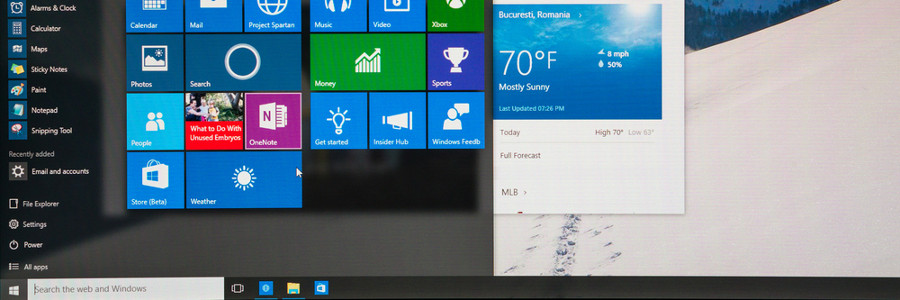
Windows 10 offers a wealth of customization features designed to provide users with a truly personalized and intuitive experience. Whether it’s changing the color of your windows or rearranging the tiles on the Start menu, these features will make your Windows PC a better match for your needs and preferences. Check out some of them below. Change your themes The most notable way to personalize Windows 10 is by changing your background and lock screen images. Do this by right-clicking anywhere on your desktop and choosing Personalize. Here, you can choose and preview different backgrounds and themes you can use. You can even add new themes by using images from your gallery or by clicking Get more themes in the Microsoft Store. Use dark mode Want to give your Windows 10 an edgier feel? Right-click on your desktop and choose Personalize. Go to Colors. Under Choose your color, select Dark. This changes the colors of your windows and menus from white or gray to black, and text from black to white. The colors on websites and third-party apps remain unchanged, however. To restore your default settings, repeat the process but click Light. Virtual desktops If you’re having trouble separating your work files from your personal files, try creating a virtual desktop. Press the Windows key + TAB to show all your open windows. Click on the Add a new desktop button at the upper left corner of your screen to create a virtual desktop. While viewing your open windows, you can click and drag windows from one desktop to another. To quickly switch between desktops, use the keyboard shortcut CTRL + Windows key + left/right arrow. Remove a virtual desktop by pressing Windows key + TAB. Click on the X button on the desktop you want to erase. App snapping App snapping is not exactly a new feature, but Windows 10 lets you snap any app in place. Snap an app window by dragging it into any of the four corners of your screen. This changes your window to a fourth of your screen size, allowing you to view multiple windows at once. You can have a maximum of four separate windows simultaneously open in your monitor. Reorganize your Start Menu To add a little more “you” to your Windows PC, you can customize how your apps are arranged on the Start menu. For one, you can resize the Start menu by simply dragging the top or right side of the menu. You can also resize the live tiles by right-clicking on them and selecting Resize. You can also rearrange application tiles by dragging them anywhere around the Start menu. If you won’t be using a particular application, simply right-click the tile and select Unpin from Start. On the other hand, if you want to pin applications to the Start menu, right-click on an app and choose Pin to Start. For even faster access to apps, simply pin the programs to the taskbar. Change color themes Is the plain black Start menu not doing it for you anymore? Just right-click on your desktop, choose Personalize, go to Color, and select any accent color that pleases you. Tick the checkboxes under Show accent color on the following surfaces if you want this color applied to the Start menu, taskbar, action center, and title bars. Disable notifications We don’t know where you stand on app notifications, but if you absolutely hate them and wish to never get them ever again, press the Windows key and click on the gear icon to open your Settings. Click System and select Notifications & Actions. Switch off whatever app notifications you don’t want. Switch up and personalize your Windows 10 however you like by using some or all of these options. If you want more ways to personalize your desktop or if you need information on anything Windows 10-related, give us a call and we’ll be happy to help. Published with permission from TechAdvisory.org. Source.