
How to cut your data center expenses

Many business owners tend to ignore the server room or pretend that it doesn’t exist. But this won’t change the fact that it can wreak havoc on your electric bills. Before you suffer, read this article to lower your energy bills. Perform an energy audit There’s a good chance your IT staff has never thought about how much energy your server room and data center are consuming. The first thing to do to rectify the problem is to identify how much power is being used. To get you started, here are a few questions to ask: How much of the data center’s power budget goes to support systems? How much goes to IT systems? How much IT output do you get for every kilowatt/hour of power used by your data center IT systems? Answering these questions will help you determine just how efficient, or inefficient, your data center is. Decrease IT workload When you save a single watt of energy at the server level, you save nearly 3 watts in data center costs. How do you decrease the IT workload? Virtualization is a common and effective tactic. Instead of wasting money on cooling the servers in your data center, have them hosted by your IT provider and have their technology delivered to you via the internet. This allows you to eliminate some servers from your office and reduce cooling costs. For alternate ways to decrease server workload, you can also: Eliminate unused servers Consolidate servers Purchase more energy-efficient technology Mind humidity and temperature levels Because many non-IT personnel don’t understand the data center, they assume incorrectly that the room must be kept as cold as the North Pole to protect sensitive data. This is not true. While excessively high temperatures, humidity, or dry conditions can harm your data, most modern-day data center equipment can withstand a wide range of humidity levels and temperatures. Because of this, you need less cooling and dehumidification. Consult an IT professional for the right temperature. You can also cool down your data center with an economizer system. This technology uses cool air from the outside to provide “free” cooling cycles for your data center. Want more tips on reducing your overall IT bill? Curious to learn more about virtualization? Call us today to talk to our experts. Published with permission from TechAdvisory.org. Source.
Why virtualization fails

Virtualization has become commonplace in small- to medium-sized businesses (SMBs). After all, the idea of gaining the benefits of having an IT infrastructure without actually having to purchase pricey and space-consuming physical equipment makes it an appealing option. While virtualization is popular, migrations from physical to virtual systems are not always successful. Following are six of the more popular reasons why they can fail. Resource distribution The way virtualization partitions systems can result in varied ways — some might function really well, and others might not provide users access to enough resources to meet their needs. Resource distribution problems often occur in the shift to virtualization and can be fixed by working on capacity planning with your service provider. VM Sprawl VM sprawl, the unchecked growth of virtual machines in a virtual environment, as any virtualization admin knows, can cripple an otherwise healthy environment. It is problematic because its underlying cause often stays hidden until it manifests in resource shortages. You should look at how virtual machines will be managed, who will be doing what, and what systems you’re going to use. One of the optimal times to develop an overall management plan is when you’re in a testing phase, before migration. Backward compatibility Using legacy systems can cause problems with newer virtualized software programs. Compatibility issues can be time-consuming and difficult to solve. A good provider may be able to suggest upgrades and workarounds to ensure that everything functions the way they should. Performance monitoring Virtualized systems don’t lend themselves to the same kind of performance monitoring as hardware like mainframes and hardware drives do. Try tools like VMmark to create benchmarks that measure performance on virtual networks and to monitor resource usage as well. Backup In a virtualized environment, there is no actual hard drive on which data and systems can be backed up. This means frequent software updates can make it difficult to access backup at times. Software programs like Windows Server Backup tools can make this process easier and allow backups to be stored in one place for easier tracking and access. Security Virtual systems could be vulnerable when users don’t keep them secure and apply best practices for passwords or downloads. Security then becomes a problem for virtualization, but the isolation of each VM by the system can mitigate security risks and prevent systems from getting breached or compromised. Unlike some tech solutions, virtualization is not really a “set it and forget it” type of solution. You will need to manage it from the start if you want to be able to get the most out of your systems. This includes ensuring resources are being allocated properly, machines are created and shut down properly, apps and systems are updated, and more. While virtualized solutions do require less management than their physical counterparts, they still require some management and you will need people to help you do that. One of the best solutions is to work with an IT partner like us who can help manage your systems and ensure that they are working efficiently. In fact, we offer a wide variety of virtualization solutions. We can take on your virtualization initiatives so that you can focus on running your business. If you would like to learn more, contact us today to see how we can help. Published with permission from TechAdvisory.org. Source.
Why it’s costly not to virtualize

You’ve probably heard that virtualization saves money, but how can you take advantage of this? Did you know that choosing not to virtualize can hurt your business? Answer these four questions to discover why virtualization is good for you. Studies have shown that over 70% of IT budgets go to “keeping the lights on.” If that sounds like a lot of money, it is. You could be spending thousands of dollars powering your IT equipment and paying your staff to manage it, but it doesn’t have to be that way. Virtualization can reduce your expenses without keeping you awake at night. If you’re ready to learn how, here are four questions you need to ask: 1. What’s the cost of your data center? We’re talking about the whole kit and caboodle: your servers, backup power supplies, air conditioning, security devices, and the overhead costs for the space to store everything. 2. How much do you spend cooling your servers? Keeping your servers cool is a fact of life. Have you ever considered how much this is costing you? 3. What is your budget for cabling and adapters? Don’t forget these. Aside from purchasing physical cables and adaptors, what’s the cost of maintaining them? 4. How much does your IT staff spend to manage these resources? It takes time for your staff to manage your IT, and time is money. How does virtualization eliminate these costs? With virtualization, you can kiss the data center, servers, cables, and adapters goodbye (hello, new office space). Instead, equipment is stored off-site and delivered via the internet. Your computers and network continue to function normally. The only difference is they’re out of sight. This equals lower maintenance costs, fewer overheads, less equipment, and fewer headaches. And let’s not forget the time it takes to manage all of your IT equipment. Virtualization frees up your IT staff, allowing them to focus on more important things, like your business’s IT strategy and market. You may even have the option to completely eliminate your in-house IT staff. How’s that for cost savings? Ready to make the switch to virtualization? Need more questions answered? Let’s talk. Published with permission from TechAdvisory.org. Source.
What makes hypervisors weak?

Hypervisors have changed the game of cybersecurity. They provide unmatched cyber protection for your data as they keep it in the cloud. However, hypervisors still have vulnerabilities that hackers can exploit. Find out how their weak points can be addressed. A hypervisor is a software application that distributes computing resources (e.g., processing power, RAM, storage) into virtual machines (VMs), which can then be delivered to other computers in a network. This gives people the resources they need to run resource-intensive applications without having to rely on powerful and expensive desktop computers. System administrators can also use a hypervisor to monitor and manage VMs. So if hackers manage to compromise hypervisor software, they’ll have unfettered access to every VM and the data stored on them. While hypervisors are generally well-protected and robust, security experts say hackers will eventually find a bug in the software. So far, there have been limited reports of hypervisor hacks; but in theory, cybercriminals could run a program that can break out of a VM and interact directly with the hypervisor. From there, they can control everything, from access privileges to computing resources. Another point of vulnerability is the network. Since hypervisors distribute VMs via the company network, they can be susceptible to remove intrusions and denial-of-service attacks if you don’t have the right protections in place. If those attack methods aren’t possible, hackers can always break into server rooms and compromise the hypervisor directly. So what can you do to protect against these threats? Create separate VM and management networks Keeping your VM network away from your management network is a great way to secure your virtualized environment. If malware compromises your VMs, it won’t be able to affect your hypervisor. Set access privileges Ideally, only you, your system administrator, or virtualization provider should have access to your hypervisor console. You need to set strict access restrictions on the software to prevent unauthorized users from messing with VM settings and viewing your most sensitive data. Disable unnecessary services Off-the-shelf operating systems will have many unnecessary services and apps that increase the attack surface of your VMs. If you can’t tell which ones to disable, consult with a virtualization specialist. Pay attention to physical security Breaking into a server room is the easiest way to compromise hypervisors, so make sure your physical servers are behind locked doors and watched over by staff at all times. Install top-notch network security tools Due to network intrusions affecting hypervisor security, installing cutting-edge firewalls and intrusion prevention systems is highly recommended. These security tools monitor network traffic for abnormal behavior to protect you from the newest exploits. Stay on top of hypervisor updates Hypervisors must be updated to defend them against the latest threats. But if you’d rather spend your time on more important projects, you can always entrust the security of your hypervisors to a highly experienced and certified managed services provider, like us. Contact us today to see how we can protect your virtualized environment. Published with permission from TechAdvisory.org. Source.
Best practices for virtualization first-timers

Virtualization’s benefits are numerous: centralized IT management, faster hardware resources, improved business continuity, and reduced overhead costs. It makes perfect sense for everyone to jump on board. But to maximize virtualization’s benefits, beginners should start doing the following best practices. Conduct an assessment Evaluating your IT environment is an important step in the implementation process. After all, you can’t just go around virtualizing everything without a plan. An IT assessment performed by an impartial managed services provider (MSP) like us helps you understand what type of virtualization solution you need. For example, if the report shows that your computers don’t have enough processing power to run certain apps, desktop virtualization — which consolidates operating systems and apps into a single powerful server — is an ideal solution. From there, you should be able to estimate costs and set realistic timelines for its implementation. Don’t forget about hardware Just because virtualization frees up space in your server room, does not mean hardware is no longer an issue. No matter what type of solution you opt for, the servers you use must be strong enough to support the entire company’s computing demands. This means you must take stock of your apps and their hardware requirements and make sure your server has all the processing power, RAM, network capacity, and storage necessary to run them. Underutilized servers are excellent candidates for virtualization, but purchasing new equipment may pay dividends in the long run. If you choose the latter option, ask your provider for recommendations. Chances are they’re partnered with virtualization-optimized hardware vendors that offer top-of-the-line servers. Prevent VM sprawl Virtualization allows you to deliver computing resources to workstations in your network via virtual machines (VMs), which can be created on a server in just a few minutes. While this lets you scale and provision resources quickly, there are risks if you don’t have someone regularly reviewing which VMs are worthwhile and which are outdated. You could be losing out on cost savings and efficiency benefits. When too many VMs are created, they can quickly consume server resources and complicate licensing and asset management. To prevent sprawl, you must establish policies and restrictions for VM creation. For instance, users must have a solid justification for creating a VM (e.g., testing software or provisioning apps for new users). Prioritize business continuity You must also protect the hardware running your virtual servers. Make sure to lock up server rooms and have secondary servers available in case the first one breaks down. While you’re at it, take advantage of automated backup solutions that make copies of your VMs and their files regularly. Work with experts Building and maintaining a virtual infrastructure is no simple task. That’s why you’ll want to work with a virtualization specialist who can guarantee a seamless implementation and provide continuous management services. For more tips on virtualization, call our experts today! Published with permission from TechAdvisory.org. Source.
Stop ransomware with virtualization

Ransomware is a type of malware that encrypts your data and makes it impossible to access unless you pay a ransom. While it may appear to be difficult to stop, you should never give in to the hacker’s demands. Before you end up being a victim of ransomware, protect yourself with virtual disaster recovery (DR) solutions. Virtual DR Virtual DR solutions allow you to create point-in-time copies or “snapshots” of operating systems, data, and virtual machines as they appear at a given point in time. These snapshots can then be loaded onto any workstation with everything still intact. In the event of a ransomware attack, administrators can essentially roll back the system to a point before the malware struck. What’s great about point-in-time copy features is that they are automated. Just schedule the snapshots and your virtual DR software will do the rest. Although virtual DR solutions vary, most of them have the capacity to store thousands of point-in-time copies, giving you plenty of restore points to choose from. Why virtual DR trumps traditional DR Most traditional DR methods don’t have point-in-time copy features. Even though most computers have a system restore functionality, they can be disabled by newer ransomware strains. On the other hand, virtual DR software isolates point-in-time copies and restores functionality from virtual machines. This means they can’t be affected if one virtual machine was compromised with ransomware. Another reason why traditional DR is not as good of an option is that there is more tedious configuration involved. You have to copy all your data onto a backup drive, reinstall applications, and reconfigure hardware. By the time you’ve recovered from the ransomware attack, the financial and reputational damage caused by downtime will have taken its toll on your business. When recovering your system, you want as little hassle as possible. With virtual DR, you can load a clean, ransomware-free snapshot onto your system in less than an hour. However, implementing virtual DR can be complex, especially if you’re not experienced. But if you partner with us, this won’t be a problem. Call us today to get robust solutions that guarantee business continuity. Published with permission from TechAdvisory.org. Source.
Will virtual containers change IT?
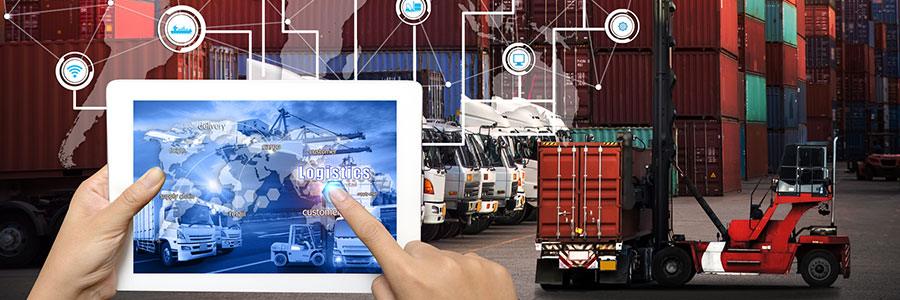
As technical as virtualization and virtual containers are, there’s no reason your company shouldn’t benefit from them. IT specialists all over the country are setting up and supporting these technologies for small businesses to increase efficiency and cut down on technology costs. What are containers and why are they so popular? Virtual containers are like digital versions of shipping containers, which use uniform packaging to simplify the portability and transportation of goods. Virtual desktops, the predecessors to virtual containers, let users simply log into a web-based desktop, complete with a Recycle bin, Start bar, you name it. They’re wonderfully convenient, but require a fair amount of computing power to run. The next logical step was to let users work from non-cloud desktops, but connect them to individual apps powered by servers across a local network or internet connection. A qualified IT professional just needs to gather everything an app needs to run, put it in a container, and give users a way to access it. The servers that make this possible are designed to do all the work so users don’t need high-end computers or specific operating systems to take full advantage of the app. What are the benefits of containers? The best thing about virtual containers is its simplicity. Your IT technicians can make important applications available to the entire office without having to install them on each computer. This also means you don’t need to worry about computers with limited hard drive space, incompatible operating systems, or slow processors. Furthermore, when containers are updated on the server, the changes are immediately applied to any computer connected to the app. The biggest obstacle to taking advantage of these benefits is the amount of technical expertise required to set them up and support them. It’s not something most in-house technicians can keep up with if they’re also in charge of day-to-day troubleshooting. Thankfully, the fact that containers can be accessed over the internet means IT providers can take care of most of the work remotely. Want to maximize your business potential through virtualization and containers but need outside help? Call us today. Published with permission from TechAdvisory.org. Source.
The different types of virtualization

One of the biggest money-saving IT trends of the past two decades is the cloud, but due to popular demand, virtualization technology has also become an important business improvement trend in recent years. Here are a few ways virtualization is used to improve efficiency and productivity in the office. What is virtualization? By virtualizing any of the items below, you can trick software into recognizing hardware when none actually exists. The easiest way to explain this is with examples from the most common type of this technology: hardware virtualization. If you have one high-powered computer processor, virtualization allows you to split it up and run four separate operating systems (Windows, Apple OS, etc.), each seemingly running on a standalone, low-powered processor. In this case, virtualization is like creating different partitions within one processor, each with an independent environment for different uses. Conversely, virtualization can also be used to connect four high-powered processors to create what your operating system will recognize as one ultra-fast piece of hardware. This technology can be applied in a number of ways for more efficient resource utilization and cost savings. #1 Desktop virtualization Sometimes referred to as cloud desktops, this form of virtualization grants you access to a fully functioning computer via a local network or the internet. Somewhere, a server has allocated a portion of its hardware resources for your virtual desktop. With a keyboard, monitor, mouse, and extremely low-end computer, you can connect to this virtual desktop and utilize all the processing power and storage the server has set aside for it. #2 Application virtualization By installing a program on a server hard drive, your employee workstations can use their computing resources to run the program, but restrict data from being stored on their hard drives. The program and the documents it creates will never leave the server hard drive, making it much harder for hackers to compromise them. With more advanced virtualization solutions, your server can also allocate the computing resources necessary to run the program, meaning your workstations are merely a window to your server. #3 Storage virtualization Similar to hardware virtualization, this strategy makes it easy to organize how your data is stored. In addition to combining hard drives across several computers into a massive virtual drive, storage virtualization also stores data based on how important it is. Frequently used documents are saved to your fastest drives and can be automatically backed up to the cloud. #4 Network virtualization If your office has more than 10 workstations, it makes sense to consider network virtualization, which allows you to separate vulnerable devices. For example, if you had one server that handles a lot of web traffic and another that stored sensitive documents, you might want to connect them to different networks to avoid cross-contamination in case of a virus attack. Network virtualization would allow you to do that without buying any new hardware! Even with our simplified explanations, virtualization is still a complicated subject. Rather than try to figure it out in a few hundred words, give us a call and we’ll show you in person! Published with permission from TechAdvisory.org. Source.
Why too many VMs is a bad thing

Desktop virtualization allows you to deliver computing resources to workstations in your network. Those resources are packed into virtual machines (VMs), which can be deployed as easily as any file. However, there are risks associated with trying to manage an overwhelming number of VMs. The problem with VM sprawl VM sprawl is a phenomenon that occurs when there are too many virtual machines on a network. Keep in mind that VMs have the same licensing, security, and compliance requirements as your other computers and servers. So when administrators are given free rein to create as many virtual instances as they want, issues concerning the security and management of VMs begin to appear. Having too many virtual instances running at the same time exhausts server resources. In fact, a majority of virtual servers are idle, which means companies are paying for licenses they’re not using. Unused VMs are also not patched and maintained properly, enabling attackers to infiltrate a network. However, there are some things you can do to prevent VM sprawl. VM creation policies Businesses should have policies in place for limiting the creation of unnecessary VMs. For instance, you can have a policy that forbids users from deploying a new VM unless they specify a good reason. This way, they’re more likely to think twice before requesting resources they may not need. You should also place limits on how many VMs each department can create to keep your virtualized environment small and manageable. VM inventory Documenting every VM in your network should be standard protocol in your company. They should be organized by their purpose (e.g., backups, app testing, resource-intensive software usage), who they are assigned to, and when their software was last updated. This will make it easier to review which VMs are necessary to your operations and decommission the ones that no longer serve a purpose. Life cycle management For businesses with large-scale VM deployments, life cycle management tools can give you total visibility into how many VMs are running on the network, how they’re being utilized, and who created them. Such tools allow you to set time-based policies that remove VMs that were needed for only a short time (e.g., those used for app testing). This ensures you’re not wasting resources on idle VMs. Although virtualization is a powerful solution, it must be carefully managed if you want to realize its cost-cutting and efficiency-boosting benefits. If you want to truly benefit from virtualization, call us today. Published with permission from TechAdvisory.org. Source.
Use virtualization to protect your devices
Cybersecurity threats are increasing for both small and large businesses, which means solutions that protect mobile devices are no longer just nice-to-have solutions. As more work is handled outside of the office, the risks to your data increase. Virtualization vendors are leading the charge to tackle these challenges with innovative solutions. Mobile device management and virtualization Mobile device management (MDM) is about controlling how users on any device — from laptops to internet-connected printers — view, share, and store sensitive information. For example, if you have a user who accesses data via a company-provided laptop, an office copier, and a personal smartphone, IT administrators can install an application on each device to enforce policies from a centralized console. There are dozens of standalone MDM solutions that consolidate device administration, but by using one that integrates with your virtualization platform, you can standardize policies for any industry across a range of company-owned, line-of-business, and personal devices. Users are constantly picking up and discarding devices. Solutions like VMware’s AirWatch and Citrix’s XenMobile mean you no longer need to manage security settings for each device; instead, you can configure one virtualized environment for one employee, and its settings will be applied regardless of which device it’s accessed from. What are the benefits? Beyond a centralized approach to device management and data access rights, virtualized MDM solutions allow you to enjoy a number of other benefits. For example, IT administrators can remotely lock or erase data on employee devices if the device has been lost or stolen. You can also benefit from Single Sign-On security. This means your users need only one set of login credentials to access all their applications. Technically, each application will still use a different username and password, but your virtualized solution will securely store each of the credentials and automatically log in users whenever they sign in to your MDM platform. Hardware and software are evolving so fast that it’s almost impossible to secure them without extensive IT training. With a little help from trained professionals, virtualization is one of the easiest and most cost-effective ways for business owners to simplify user settings and management. It only makes sense that the next step would be unifying virtualized desktops, laptops, smartphones and other mobile devices under a single solution. Call us today to get started. Published with permission from TechAdvisory.org. Source.