
Cloud ERP: Streamlining your business operations in the digital age

The cloud has revolutionized the world of enterprise resource planning (ERP), enabling companies to access their ERP software and data from any location with an internet connection. This has made it possible for businesses of all sizes to leverage advanced ERP capabilities and features without requiring on-site hardware or IT resources. So, what exactly is cloud-based ERP, and why would an organization consider adopting it? What is cloud-based ERP? Cloud-based ERP is a type of software that allows businesses to manage their operations, resources, and data through a centralized system that is hosted and managed by a third-party provider, who is responsible for maintaining the hardware, security, and upgrades of the system. This system is accessible over the internet, enabling users to access their ERP software and data from anywhere with an internet connection. This eliminates the need for businesses to invest in on-premises hardware and IT resources to manage their ERP system, which can lead to significant cost savings. What are the benefits of cloud-based ERP? Cloud-based ERP systems offer a range of benefits, such as: Cost savingsCloud-based ERP systems typically require less upfront investment in hardware and IT resources, reducing the total cost of ownership. This allows businesses to reallocate resources toward other critical areas of their operations. ScalabilityCloud-based ERP systems can quickly scale up or down as the business grows or changes, making it easier to accommodate evolving business needs. The ability to add or remove users, features, and functionalities can be done quickly and easily, ensuring that the system stays aligned with business goals. FlexibilityCloud-based ERP systems provide greater flexibility in terms of access and integration with other systems. Users can access the system from anywhere with an internet connection, and the system can be integrated with other cloud-based or on-premises systems as needed. Enhanced securityTypically, cloud-based ERP providers have more robust security measures in place than many businesses could afford on their own. This includes regular backups, disaster recovery plans, and advanced encryption methods to protect sensitive data from natural disasters, cyberattacks, and human error. Real-time dataCloud-based ERP systems provide real-time access to data, such as inventory levels and order status to financial metrics and customer behavior. This allows businesses to make more informed decisions quickly. Improved collaborationInvesting in a cloud-based ERP system can help improve collaboration and communication between different departments and locations. Users can access the same information from anywhere in real time, reducing the need for manual data entry and the risk of errors. If you are thinking about implementing a cloud-based ERP system, but are unsure of where to begin, give us a call today. Our experts can assist you in finding the most suitable solution for your requirements.
Protect your business with a disaster recovery plan

No organization wants to experience the nightmare of losing valuable customer data, financial records, or confidential documents. Unfortunately, unless proper steps are taken to safeguard your business from these disasters, you may be unknowingly putting your data at risk of getting lost or compromised. Taking proactive measures and creating an effective disaster recovery plan (DRP) can make all the difference when it comes to defending your business from data disasters. Here’s how to create a DRP that works. A DRP is a documented set of processes and strategies that an organization puts in place to be able to recover and restore its critical data and systems in case of a disaster or an unexpected event. The plan outlines the steps to be taken before, during, and after a disaster to minimize the impacts on the organization’s operations and ensure business continuity. To create an effective DRP, follow these steps: Conduct a risk assessment A risk assessment is a critical component of any DRP, as it helps identify potential hazards, vulnerabilities, and risks that could impact an organization’s operations in the event of a disaster. By conducting a risk assessment, you can identify and prioritize the risks your organization faces and develop appropriate strategies and actions to mitigate those risks. Develop a recovery strategy Design a strategy to address each risk identified in the assessment phase. This could include developing backups of data or systems, investing in cloud-based services, using redundant hardware, or establishing alternative physical locations for your business operations. Establish availability requirements Availability refers to the ability of an organization’s systems, applications, and data to be accessible and functional in the event of a disaster or an outage. To determine your company’s availability requirements, identify the resources (e.g., servers, databases, etc.) and services (email, customer service) that are critical for your business operations and determine how quickly they need to be restored following an incident. Set up backups Select the most appropriate backup strategy (i.e., full or incremental) for your needs and devise the best plan for storing your backups safely off site so that you can access them when needed. Without backups, important data and information can be lost permanently, resulting in significant financial and reputational damage to your organization. Backups are also used to restore systems and data to a state before the disaster occurred, helping ensure business continuity while minimizing the impact of the disaster on your business operations. Test your plan Test your DRP periodically to make sure it will work as planned when an incident occurs. A DRP is only useful if it can be executed properly, and testing helps identify and address any gaps in the plan. Testing a DRP also provides an opportunity to identify weaknesses that could be improved or procedures that need adjustments. It allows you to verify that the plan is complete, up to date, and relevant. Train your employees Your employees are often your first line of defense when a disaster strikes, and their actions can significantly affect the outcome of a recovery effort. Training employees on the DRP helps ensure they understand exactly what they need to do during an emergency. It also provides them with the knowledge and skills needed to carry out their duties effectively, minimizing the risk of errors or delays in the recovery process. Are you concerned about data safety? Don’t leave it to chance — call us for all your DRP needs! With our cutting-edge technology, dedicated team, and industry-leading expertise, you can rest assured that your data and systems are in expert hands.
Does password autofill make hacking easier?

Password autofill is undeniably convenient, but do you know the dangers of using this common browser feature? Here’s what you should be aware of when using it and how to secure yourself from potential cyberattacks through this feature. The risks of password autofill Password autofill is a convenient feature found in most browsers and password managers. This feature allows users to automatically fill out login credentials on websites and applications. While it may seem like a time-saver, it’s crucial to be cautious when utilizing this feature. Hackers can easily gain access to saved passwords and personal information stored in autofill, leaving users vulnerable to identity theft and other forms of cyberattacks. All they have to do is sneakily place an invisible form on a compromised webpage. When your browser or password manager automatically fills in your login details, then it’s game over for you and hackers win. Autofill also tracks users Did you know that the password autofill feature could be used to track your online activity? Irresponsible digital marketers can exploit this tool to keep tabs on your behavior. Similar to how hackers do it, they place hidden autofill forms on their websites and use them to collect your information without your consent, which they then sell to advertisers. While some may claim they’re not after your passwords, there’s still a chance that your sensitive data could be compromised. How to protect yourself When it comes to keeping your online accounts secure, you might want to turn off password autofill. This quick solution can help protect your personal information from prying eyes. Here’s how you can disable this feature on different browsers: Microsoft Edge: Go to Settings and click Profiles. From here, select Passwords and disable Offer to save passwords. Google Chrome: Head to the Settings window and select Autofill. Disable Offer to save passwords and Auto Sign-in. Firefox: Click Passwords from the browser’s menu. Click Options from the logins menu, which will lead you to the “Privacy & Security” panel. Under the “Logins and Passwords” section, uncheck Autofill logins and passwords. Safari: Open Preferences and select the “Auto-fill” tab to turn off any autofill options related to usernames and passwords. Being proactive and implementing more robust security strategies helps protect your personal data from malicious actors. Reach out to our cybersecurity experts for more information on staying safe online.
5 Tips to boost your desktop productivity

Working on a computer all day can be tedious and tiring. And doing the same things over and over again can affect your morale, which, in turn, can impact your productivity. Here are five essential tips for PC users that can help boost your productivity in the workplace. Keep tabs on your productivity level Say goodbye to aimless browsing on social media and welcome a more efficient workday. Start by keeping track of your daily activity with apps such as RescueTime. This handy Chrome extension will show you how much time you spend on different websites and provide you with a productivity rating. By identifying where you’re spending too much time, you can make changes to better manage your day. Follow through with your to-do lists Digital to-do lists such as Google Tasks and Trello can help you tackle big projects by breaking them down into smaller, easier-to-manage tasks. With features like deadline setting and clear instructions, you’ll find getting things done a breeze. And the best part? The satisfaction of crossing items off your list and seeing your progress in real time. Remove clutter and distractions By removing outdated files, uninstalling unused or outdated programs, and categorizing documents into appropriately labeled folders, you can reduce distractions and enhance your productivity. This also simplifies the process of locating files and boosts your computer’s performance. You can also declutter your email inbox with features such as Priority Inbox in Gmail or Clutter in Outlook to weed out unimportant messages and keep your inbox free of spam. Restrict time-wasting websites Scrolling through Facebook, Instagram, and Twitter can be a slippery slope, taking up precious hours of productivity. But you can easily take control by either blocking access with URL filters or using browser extensions such as StayFocusd or Strict Workflow that limit your time on non-work-related sites. Avoiding these distractions can help you make the most out of your workday. Maximize keyboard shortcuts Using keyboard shortcuts simplifies and speeds up the execution of tasks that would typically require a mouse. While there are over a hundred helpful shortcuts, the following are the most frequently used: Ctrl + C, Ctrl + V, Ctrl + X: copy, paste, and cut selected items Ctrl + Z: undo an action Alt + Tab: toggle between open applications Alt + F4: exit the active application For more keyboard shortcuts for Windows, refer to this updated list of advanced shortcuts. Don’t be afraid to experiment with different productivity hacks until you find the one that works best for you. If you need help taking your productivity even further, don’t hesitate to contact us. We can give you detailed insights into how we can make sure that you efficiently and effectively reach greater heights.
5K – MULTIFACTOR AUTHENTICATION INSTRUCTIONS
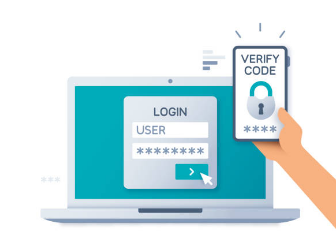
[img src=”/wp-content/uploads/2021/11/image1-5k-multifactor-authentication-instructions.png” class=”alignright”] What is Multi-Factor Authentication? Multi-Factor Authentication (otherwise known as MFA, 2FA or ‘two-step verification’) is a security feature that protects your Office 365 account. MFA effectively makes it far more difficult for hackers to access your account, thus providing a further layer of protection for your data. MFA differs from using only a traditional username and password in that it also requires confirmation of the device that you are accessing your account from. Two-factor verification is more secure than just a password because it relies on two forms of authentication: Something you know, like your password. Something you have, like a phone or other device that you carry. Two-factor verification can help stop malicious hackers from pretending to be you. Even if they have your password, the odds are that they don’t have your device, too. What You Will Need Your desktop/laptop Your email account password How To Setup Multi-Factor Authentication? https://prontomarketing.wistia.com/medias/rcb6esrno2?embedType=iframe&seo=false&videoFoam=true&videoWidth=800 Download and install the Microsoft Authenticator app. (It is available at Google Play or Apple Store) Go to www.microsoft.com. Click on Sign in, located on the right side of the webpage. Type your email address in the box provided. Type in your password. On more information required screen, click Next. On the Additional security verification page, select Mobile app from the Step 1: How should we contact you area. Select Receive notifications for verification from the How do you want to use the mobile app area, and then select Set up. The Configure mobile app page appears. Open the Microsoft Authenticator app, select Add account from the Customize and control icon in the upper-right, and then select Work or school account. *Note If this is the first time you’re setting up the Microsoft Authenticator app, you might receive a prompt asking whether to allow the app to access your camera (iOS) or to allow the app to take pictures and record video (Android). You must select Allow so the authenticator app can access your camera to take a picture of the QR code in the next step. If you don’t allow the camera, you can still set up the authenticator app, but you’ll need to add the code information manually. Use your device’s camera to scan the QR code from the Configure mobile app screen on your computer, and then choose Next. Return to your computer and the Additional security verification page, make sure you get the message that says your configuration was successful, and then select Next. The authenticator app will send a notification to your mobile device as a test. On your mobile device, select Approve. On your computer, add your mobile device phone number to the Step 3: In case you lose access to the mobile app area, and then select Next. **We strongly suggest adding your mobile device phone number to act as a backup if you’re unable to access or use the mobile app for any reason. Select Done. If you have any issues or need assistance, please call us at 469-656-3159.
5K Technical Services Ranked Among World’s Most Elite 501 Managed Service Providers

JULY 28, 2020: 5K Technical Services has been named as one of the world’s premier managed service providers on the prestigious 2020 annual Channel Futures MSP 501 rankings.
Top 12 Tech Gifts of 2017

[row] [column span=”3″] [img src=”/wp-content/uploads/2017/12/Tech-Gifts.png” class=”aligncenter”] [/column] [column span=”9″] At 5K Technical Services we like tech, it’s what we do. As the holiday shopping season kicks into overdrive, we are bringing you 12 of the most requested, most wanted tech gifts for 2017 and why you should check them out! [/column] [/row] 1. The Apple iPhone X There’s little denying that this year’s “must have” tech item must be the new iPhone X from Apple. The iPhone X (pronounced “ten”) arrives during the tenth anniversary of the original iPhone back in 2007. Apple has released their iPhone 8 this year as well, but the big dog here is the iPhone X. Sporting a 5.8-inch, OLED super retina HD display, the screen is capable of 4K video up to 60 frames per second, stunning colors, true blacks, and a 1,000,000 to 1 contrast ratio. It’s the largest iPhone screen to date. It sports dual 12 MP cameras that use facial recognition to unlock your phone. The phone is water and dust resistant and covered front and back in the most durable glass in a smartphone. If all this sounds like your cup of tea, prepare to empty the bank to get one. The 64 GB model will run you $1,000 while the 256 GB model goes for $1,150. It comes in both silver and space gray. All Apple stores, carriers, and retailers have limited stock with several not shipping until mid-December. It’s best to get your order in as early as possible. 2. Microsoft Xbox One X If you’re a gamer, especially a console gamer, you’ve no doubt heard of or are watching the Xbox One X. Microsoft has taken its flagship console, the Xbox One, and turned it up a few notches. Sporting 40% more power than any other console on the market and a 6 teraflop GPU (that’s crazy fast), it’s able to produce true 4K visuals. The new Xbox comes equipped with a 4K Blu-ray disc drive (only console that has this), 4K DVR and 4K streaming, fastest load times of any console on the market, and is compatible with all of your Xbox One games and accessories. The Xbox One X comes with a 1TB hard drive and retails for $499.99 and is in stock at most retailers but you might want to check availability before driving down to your local retailer. 3. Sony Alpha 6000 Digital photography is becoming easier to do with your smartphone, some phone cameras even rivaling some of the lower end cameras. But for those purists out there, it’s tough to beat the value you get with the Sony Alpha 6000. The camera is a mirrorless design with interchangeable lenses and takes photos at 24 mega pixels, that’s double what the iPhone X offers. The body design is the perfect size for the average human, not too small nor too large. It fits just right in your hand. It offers fast, continuous shooting (up to 11 frames per second) all while maintaining autofocus and auto exposure, and is sports a quicker autofocus than the leading DSLR camera. The A6000 also shoots video in 1080p and comes equipped with HDMI output. A great camera for the price, you can snag one with a 16-50mm lens for around $550. More lenses are available but will quickly run up the price. 4. Google Home Mini Google has been hitting the market over the past year with their own devices to rival their competition in tech market. One of these innovations is the Google Home Mini. The Mini is considerably smaller than their standard Google Home device ($129) and sports a smaller price tag accordingly. The Mini is built with families in mind and works in conjunction with Chromecast to control your TV, stream movies, and send music to your speakers. You can also have the Google Mini play from the device itself. It recognizes your voice, so multiple users can access their own playlists, calendars, and more. It also features hands-free calling for those times when too busy to hold a phone to your ear. The mini can control your lights, thermostat, and more with a voice command, but those require external devices and/or apps. Overall, for only $49 it does a solid job of bringing your entertainment into the next generation without depleting your rainy-day fund. 5. Nintendo Switch Nintendo knows how to get people excited, and excited they are to get the newest Nintendo console, the Nintendo Switch. The biggest draw might be the ability to play on your TV at home then remove it from its docking station and continue playing on the go as a handheld system. The console seamlessly transitions from one mode to the other, allowing you to take the game with you. Attached to your TV, the Switch docking station connects via HDMI and gives you true HD gameplay. The controller, the Joy-Con, separates into two controllers for multiplayer or the two can be attached to the sides of the console for gaming on the go. The Switch comes with a tiny 32GB of internal storage, but that can be easily upgraded to 2TB with a micro SD card. Unlike previous Nintendo consoles, or even the Xbox and PlayStation, the Switch doesn’t use discs. Instead, it uses small cartridges, like the games on the 3DS handheld system. At only $299.99 it’s an affordable piece of hardware with a unique array of software already available for it. It doesn’t play DVDs or Blu-rays, but it makes up for it with fun and exciting games such as The Legend of Zelda: Breath of the Wild and Super Mario Odyssey. Nintendo has said that they are doubling their production on the Switch, so it should be in ample supply this holiday. 6. Samsung Q7F 4K TV You’ve purchased the new Xbox One X or a PS4 Pro, and now you can’t wait to get gaming. Or maybe the console purchase was for a spouse and/or child. Sure, your run-of-the-mill HDMI