
Monitor your business with Google Alerts

You can keep tabs on your business online and in real time using Google Alerts, a free and easy- to-use content change detection and notification service. You can even use this tool to monitor your competitors. Read on to learn how it can help you. What is Google Alerts? Google Alerts allows you to monitor the web for interesting new content on topics of interest to your business. It can also be used to alert you whenever your business is mentioned anywhere online, whether on Facebook, Instagram, Twitter, or wherever. How do You Sign Up For Google Alerts? Signing up and using this service is easy peasy! Just visit the Google Alert website, log in to your preferred Google account (if you have multiple accounts), and type in the words and phrases for which you want to receive alerts. How does Google Alerts Work? Just type your business’s name into your Google Alerts account, and whenever Google encounters relevant posts that mention your company, it will send you an email alert. This is an easy way to get notifications about articles featuring you or your business as soon as the posts go live. Modify how often you want to be alerted An avalanche of notifications can be overwhelming, especially if they’re cluttering your email. The great thing about Google Alerts is that it’s completely customizable. If you find that a keyword isn’t relevant to you anymore, you can change or delete it. You can even choose how frequent you want to receive emails and tweak the settings so you can receive the same alert across multiple email accounts in just a few clicks. The benefits With Google Alerts, you can easily keep track of your business without having to filter through irrelevant pieces of information that you come across when scrolling through your feed. With this tool, you can record all reviews about your business, competitors, clients, and suppliers in real time, allowing you to stay prepared and one step ahead of the competition. Explore the myriad tools and services built to make your life easier. Call us today! Published with permission from TechAdvisory.org. Source.
Tips on how to best use G Suite

G Suite is Google’s powerful productivity and collaboration platform. The suite includes popular Google apps like Gmail, Docs, Sheets, chat and video-conferencing apps, and so on. Many people are already familiar with these apps, but even those who use it every day may benefit from learning a trick or two on how to further maximize G Suite apps. Monitor past activities in Google Docs Google Docs makes collaboration so easy and convenient, with members of your team able to comment, revise, suggest, and chat in real time on the same document. With the Activity feature, you can check when people last worked on a document. The Activity feature applies not just to Docs but also to Sheets and Slides. Get valuable work insights on the new business dashboard The Work Insights dashboard can provide valuable information that helps you manage your work processes better. Reports and charts can show how people use Gmail, Google Docs, Calendar, and other apps. And you can use Work Insights to see how everyone in your company uses the entire suite. You’ll get insights on how different teams are collaborating across your company. Combining data is now possible in Sheets Even those who are already quite adept at using Google Sheets may be glad to know that you can pull up data from another spreadsheet using the IMPORTRANGE function. Importing data is more useful than just copy-paste. Should you revise any data from the original spreadsheet, that will automatically update in the new spreadsheet. Close caption function in Google Slides Here’s a nifty feature when you’re presenting using Google Slides. To enable the “closed captioning” feature, click the Present option, then click on Closed Captioning. This enables Slides to transcribe whatever you’re saying on the slide. Smart Compose is on G Suite Smart Compose is a predictive writing suggestion feature that allows Gmail to intelligently autocomplete your email as you compose it. It fills in common or frequently used phrases, relevant addresses, and perhaps in the future, even your favorite greetings. It learns as you compose more emails. You can enable or disable this option in your Gmail general settings. Jamboard goes beyond the digital whiteboard Jamboard is an interactive 55-inch digital whiteboard designed to be used in conference rooms and with mobile devices. Anyone using G Suite has the Jamboard app; it’s integrated with other Google services, so you can add Docs, Sheets, and Slides to a jam. And Jamboard is designed to interact with tablets and smartphones. Anyone with a stable internet connection can collaborate, even if they’re not physically present. A quick and easy shortcut to create new files Creating a new file usually begins with going to your Drive, pressing New, then choosing the file type. Now here’s an even faster way, using your browser’s search bar. First, make sure you’re logged in to your Google account on your browser. Then in the search bar, type the G Suite file you need, followed by a period, then the word “new”. For example: For a new Google Doc, type “doc.new” in the search bar For a new Google Sheet, type “sheet.new” in the search bar For a new Google Slide, type “slide.new” in the search bar Want to know more about the latest updates on G Suite and other Google products? Get in touch with our experts who can help you become more productive. Published with permission from TechAdvisory.org. Source.
5 Reasons to use Google Data Studio now

Google is well known for its powerful search engine, but did you know it also offers intuitive business intelligence tools? Google Data Studio is one of the tools in the Google Analytics 360 Suite, and many companies are already raving about it. What is Google Data Studio? Google Data Studio is a data visualization tool that enables you to turn raw data into detailed and digestible reports. It pulls information from data collection platforms and centralizes it in a single dashboard. At first glance, Data Studio may seem like any run-of-the-mill reporting software, but it has plenty of features worth mentioning. Compatible with several data sources Google Data Studio naturally collects data from Google Ads, Analytics, and YouTube. However, you can also import from various third-party services like Facebook, Twitter, MailChimp, Salesforce, and MySQL, just to name a few. By consolidating all this information in one dashboard, you’ll be able to gain valuable insights into your operations, finances, and marketing campaigns. Fully customizable Data Studio lets you customize your reports however you like. You can start with a blank template or use pre-packaged templates. From there, it’s easy to drag and drop widgets, charts, graphs, and data onto your dashboard. You can even customize aesthetics by changing colors, formatting, and fonts. Interactive real-time reports The reports you create are also dynamic. Whenever you add information on one of your data sources, Data Studio will automatically update the reports. What’s more, you can filter reports based on date, time, users, and other parameters to get the metrics you need. Seamless collaboration Working with your colleagues on Google Data Studio is as straightforward as using Google Docs. To share reports, all you have to do is send your coworkers a link and give them permission to comment and edit the information. There’s also no need to install local software on your machine. Data Studio is fully cloud-based, meaning authorized users can access your reports from any approved internet browser. It’s free! That’s right, Google Data Studio and all its robust reporting features come at no additional cost to your business. Although there are paid alternatives that claim to have better features, Data Studio is constantly getting feature updates and support from Google, so it’s a no-brainer. If you want to learn more about Google Data Studio for your business, call us today. While it is fairly straightforward to use, we can show you how to make the most out of the software. We even provide comprehensive support services for all things IT. Published with permission from TechAdvisory.org. Source.
Google Chrome: New money-saving alert

Over the years, Google Chrome has had several versions, with each one providing new benefits to users. In December, Google will launch the 71st version of Chrome, introducing a money-saving feature to users. How will it do that? The money-saving warning The Google Chrome update aims to protect users from websites with “insufficient mobile subscription information.” These are online businesses that offer subscription services, but don’t provide users with enough billing information, either due to poor website design or a deliberate attempt to deceive. To curb this, Chrome will show a warning page that says “The page ahead may try to charge you money” and offers options to proceed or go back to the previous page. Some users may know that they’ll incur charges when they hit “proceed” but may not be aware whether the charges will be one-time or recurring. The new Chrome warning will serve as a reminder for this. How will it benefit users? The Chrome warning’s main benefit will be removing surprise charges. Many users don’t always know what they’re agreeing to when they click a link, and being reminded that they’re about to spend some money is definitely advantageous. In fact, some merchants (e.g., mobile gaming companies) require users to input their mobile number without specifying that doing so entails paying for a subscription service, much less indicating the amount being paid. A recent study shows that more than 50% of internet users browse sites using a mobile device, with this number expected to increase in the next few years. Considering that not all websites are optimized for many types of mobile devices, this update is certainly a welcome one. In addition, Google recently reported that millions of Chrome users may be tricked into paying for site services that have “insufficient mobile subscription information.” According to the tech company, billing information should be obvious. The new warning page will be integrated into those sites with unclear mobile billing features. If you don’t want to go through the hassle of asking a merchant for a refund for products and services you didn’t intend to purchase to begin with, this new feature will be a tremendous help. Whether you want protections like this on your mobile devices, laptop, or desktop, our IT experts can offer money-saving IT tips, tricks, and recommendations. Give us a call today. Published with permission from TechAdvisory.org. Source.
Boost productivity with machine learning

Ever wonder why Google goes through all the trouble of remembering your searches and online shopping history? It’s not only for the company’s benefit, but also to make tasks and scheduling easy for you. By predicting work patterns and files that you are more likely to use, something called machine learning boosts your productivity. Based on thousands and possibly millions of recorded actions and data, machine learning analyzes your past actions to guess what you need to do next. Machine learning can suggest specific documents, launch apps, schedule meetings, and send emails depending on your email writing schedule, the device you’re using, and apps you’re using at the time. How does machine learning work? One great example is using the Explore button on Google Sheets. It’s a small cross icon button on the lower right portion of the screen that reveals data trends. Through machine learning, Explore can also analyze written data, and suggest the best layout and settings for you. It can even help you format and design your file! Machine learning ultimately helps you avoid menial tasks, like locating a document that’s lost in years of saved random documents in one folder. Machine learning automatically suggests files or websites that you usually open during certain times of day. Other routine tasks like searching for and downloading files, sorting emails, and launching apps are also made easier through machine learning. Imagine the time and effort that you’re going to save if you’re only focusing on jobs that actually require your brain cells to work! No more spam emails One of the best benefits of machine learning algorithms is the significant reduction of spam in your emails. Manually managing emails and sorting them into folders can take hours. That’s a huge waste of time and money if you’re paying employees for other, more technical, skills. If you still think of Gmail as a low-level consumer app, it’s time to reevaluate that assumption. Upgrading to the business subscription gives you greater control over the spam filter and malware detector so you can boost employee productivity. Replying to emails can be a monotonous task sometimes. But with Smart Reply, getting to inbox zero can be accomplished in minutes. Gmail suggests reply templates for each mail you receive. It’s already a great feature when you need to respond with something basic like, “Yea, that time works for me!” but it gets more accurate and intelligent every time you add a hand-typed a response to the database. All these features make work collaboration more accessible and way faster. This makes Google Apps perfect for businesses that require remote and constant collaboration with colleagues. For more information about these features, contact us today. Published with permission from TechAdvisory.org. Source.
4 Tips to improve your SMB’s Google indexing
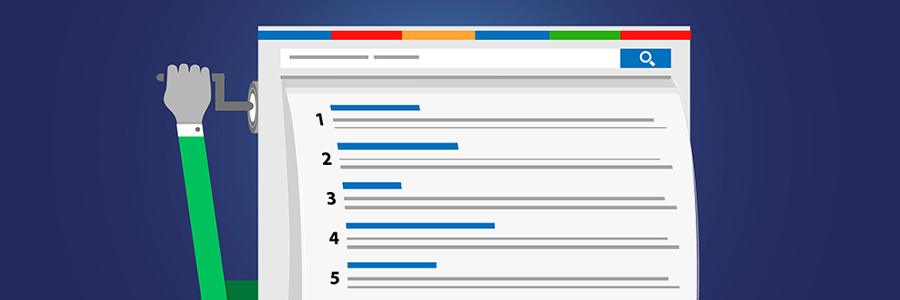
Google receives millions of search requests everyday. It’s no surprise that people have dedicated their entire careers to mastering how this process takes place and how they can boost sites’ ranking for their own financial gain. Here are four quick tips and tricks for improving your Google search ranking. Make sure you’re indexed by Google Go to Google.com and search ‘site:’ with your website domain listed after the colon (example: ‘site:acme.com’). If you don’t see any results from your page listed, that means Google hasn’t added your site to its search results yet. Although some advisers recommend filling out a request form that Google offers, there is a much faster way to get recognized by the search giant. Google is constantly scanning web pages for updates in content to include in their search results. When they see a link to an external site on one of their already indexed pages, Google will add that link to the queue of new sites to be scanned and indexed. If you can get your domain name linked on a popular or trusted page, you’ll start seeing your page in the search results in no time. Go out and get more links The more links to your site from external pages, the higher you climb in the search results. Other than getting affiliate businesses to link you on their pages, consider managing a blog or RSS feed. Content generation not only promotes interest and traffic in your site, it also lets you submit yourself to blog directories or news aggregator sites like Feedly and Alltop which compile source materials and get you those external links. Fine-tune your content Be very careful not to change any of your core ‘permalinks’. If users have links that direct them to pages that can’t be found, it could affect your site’s ranking. Keep your pages live, and keep them named efficiently. Some website platforms, like WordPress, use default link structures that create complicated, number-based links that can be off-putting to users and confusing to administrators and search engine indexers. If possible, make sure your links use category and page title references for more appealing links and organizational structure. Measure and track your ranking Just because you believe your site has achieved a desirable ranking on Google doesn’t mean it will stay there. Stay proactive and never let yourself get lazy with your content production, site management, and SEO monitoring — it could mean the difference between moving up the search page, and disappearing from it altogether. Online tools like Cyfe and Google Analytics give you a more in-depth look at your site traffic and external links so you’re always ahead of the competition. Optimizing your Google page indexing can be daunting. For more information on how to get your site moving up the ladder. Contact us today. Published with permission from TechAdvisory.org. Source.
G Suite Apps Basics

Cloud computing is a trend among businesses, and one company that’s leading it is Google. After years of development and upgrades, they’ve released a cloud-based productivity suite known as G Suite. G Suite puts all of Google’s most popular apps into one package. Let’s take a closer look at all it has to offer. Gmail Gmail is Google’s webmail service, with over 1 billion users worldwide. Although Gmail is available free of charge, you can get extended features for a low monthly fee, including custom company email addresses, unlimited group addresses, 30GB of inbox storage, and 24/7 help desk support. Hangouts Hangouts offers instant messaging, audio/video chat, and screen sharing features. It allows you to create virtual rooms where employees can share files, organize projects, and even conduct virtual presentations for video conferences. Hangouts runs on any internet-enabled device with a camera, speakers, and microphone. Calendar Google Calendar allows you to stay in sync with your colleagues from anywhere, and on any device. These shareable calendars integrate seamlessly with Gmail, Drive, and Hangouts, so you can easily manage events, view and edit your schedule, and check your coworkers’ availability. Google+ Google+ is a social network platform designed to help you connect, share, and collaborate with your team members. You can customize and filter the dashboard’s contents to display the news and updates that are relevant to you. Drive Google Drive is an online cloud storage platform that can be accessed by authorized users within your company from any device. It gives you as much storage space as you need and allows you to view common file formats without having to install extra software on your device. Docs With Google Docs, you and your colleagues can work on the same documents in real time, allowing for better collaboration and efficiency. You can also leave comments and communicate through a built-in chat box. What’s more, edits and changes are automatically saved, and you can restore previous versions of the document if necessary. Sheets Google Sheets is a cloud-based spreadsheet. Whether you’re looking to create tables and charts, perform calculations, or generate pivot table reports, Sheets has all these capabilities and so much more. Forms Forms allow you to build professional-looking surveys and questionnaires. You can collect answers by sending the URL to respondents. You can even track and analyze responses in real time to gain valuable insights from your surveys. Slides With Slides, you can work on a single presentation online with your colleague, your whole team, or even external contacts. It comes with a wide variety of design templates and custom animations to add some flair to your presentations. Just like Sheets and Docs, you can control who gets the permission to edit or view the slides with just a few clicks. Sites Want to build a project site for your team? These can be done easily, and without any prior coding experience. Simply choose a template from Sites and determine what needs to be put in place to make your website successful. Google is constantly adding new features to each of these apps, so if you want to learn more about any of them, give our cloud computing professionals a call. Published with permission from TechAdvisory.org. Source.
Productivity secrets of Google Drive

If you’re a regular Google Drive user, you already know how it can make your business more efficient and productive. But are you getting the most out of the service? Not everyone who uses Google Drive is aware of all of its productivity secrets. So we’ve come up with these five tips to help you better utilize it in your business. Use keyboard shortcuts Keyboard shortcuts are all the rage these days, and Google Drive is not immune to this phenomenon. Here are a few that are quite helpful: n: rename a selected item d: show or hide the details pane /: search Drive z: move selected item to a folder Shift + s: add a new spreadsheet Shift + p: add a new presentation Shift + t: add a new document For a complete list of all Google Drive shortcuts, check out the official Google page. Utilize revisions Perhaps you want to see the revisions a coworker made to one of your documents. Or perhaps you hate your latest draft and want to recover an older version of it. With Google Drive, it’s all possible. Simply open the desired document, click File>See revision history, and all your revisions will appear in a sidebar to the right of the document. Then click on the revision you wish to see. If you’d like to revert to an older version, instead of your current draft, click on Restore this revision in the right sidebar. Benefit from Suggesting mode If you’re collaborating with another person on a document, Suggesting mode allows you to make suggestions to it without actually changing the text. Your suggestions will be seen by the initial writer, and he or she can then either approve or disapprove of them. To switch to Suggesting mode, click on the pencil shaped icon in the upper right corner of a document. When the drop down menu appears, click on Suggesting (Edits become suggestions). Share large files There has likely been an occasion where you wanted to send a very large file to another colleague, friend or family member, and were unable to do so through a free service. Google Drive offers a workaround for this dilemma. To take advantage of it, create a shared folder and upload your file to that folder. Once complete, you can share the file with whomever you wish by right-clicking on it, selecting Share, and then entering the person’s email address of who you wish to share it with. They’ll receive an email with the link to the file, and can access it from there. Try Google Drive add-ons Add-ons have become quite popular with Google Drive. To discover the wonderful world of Google Drive add-ons for yourself, click Add-ons in between Table and Help in the upper menu (above the toolbar). There are plenty of helpful add-ons to choose from, including tools such as writing aids, mind mapping, charts, music notation and more. Once you install an add-on, it will appear in your Add-ons drop down menu. If you follow these five Google Drive tips, you are one step closer to getting the most out the service. If you’d like to learn how else you can leverage Google’s products to better your business, don’t hesitate to get in touch with our experts. Published with permission from TechAdvisory.org. Source.
Google Pixel 3 rumor roundup

New Google smartphones are expected to be released in late 2018. So far, details of the new device — which will most likely be dubbed Google Pixel 3 — have been scarce, but we’ve rounded up all the latest leaks. Read on to find out more. Design What we’re hearing through the grapevine is that the Pixel 3 will look a lot like its predecessor, featuring its classic backside shade, a USB-C port, and speakers in the bottom bezel. However, the larger Pixel 3 XL model could have a notch for the front-facing camera just like the iPhone X. The Pixel 3 will be around 5.3 inches, while the 3 XL version will be around 6.2 inches. Google also hinted that there might be a third model released this year that could be a more compact, mid-range model for consumers on a budget. Wireless charging Leaked images show that the Pixel 3 has a glass back like the iPhone X and Samsung Galaxy S9 series. Although nothing is set in stone, this could be an indication that the Pixel 3 will have wireless charging features. Improved camera While several other companies’ smartphones come with two rear cameras, it looks like Google is sticking with one. However, the single-lens rear camera will probably be powered by Google’s AI camera technology to take higher-quality photos with more background blur. Faster hardware Experts anticipate that the Pixel 3 will have significant improvements in its internal components. One leak has revealed that the Pixel 3 model will have at least 4GB of RAM and a modern, 2.8 GHz smartphone processor. That’s as fast as some mid-range laptops today, making the Pixel 3 an attractive option for executives who need a bit more power in their mobile devices. Release date Google has typically unveiled Pixel phones in early October, so look for the Pixel 3 and Pixel 3 XL sometime this autumn. It’s also expected to be the first device to come with the highly anticipated Android P operating system, so think of it as an early Christmas present. But remember, Google is still working on the Pixel 3 and Pixel 3 XL, so there’s plenty of time for more changes and more updates. To follow all the updates about the Pixel 3 and be the first to hear about the release date, stay tuned to our blog. We stay on top of the latest tech trends to help you sharpen your competitive edge. Published with permission from TechAdvisory.org. Source.
Chrome to mark HTTP as ‘not secure’

Google Chrome currently marks HTTPS-encrypted sites with a green lock icon and “Secure” sign. And starting in July, Chrome will mark all HTTP sites as “not secure.” Google hopes this move will nudge users away from the unencrypted web. Read on to learn more about the forthcoming changes. For several years, Google has moved toward a more secure web by strongly advocating that sites adopt the Secure HyperText Transfer Protocol (HTTPS) encryption. And last year, Google began marking some HyperText Transfer Protocol (HTTP) pages as “not secure” to help users comprehend risks of unencrypted websites. Beginning in July 2018 with the release of a Chrome update, Google’s browser will mark all HTTP sites as “not secure.” Chrome’s move was mostly brought on by increased HTTPS adoption. Eighty-one of the top 100 sites on the web default to HTTPS, and the majority of Chrome traffic is already encrypted. Here’s how the transition to security has progressed, so far: Over 68% of Chrome traffic on both Android and Windows is now protected Over 78% of Chrome traffic on both Chrome OS and Mac is now protected 81 of the top 100 sites on the web use HTTPS by default HTTPS: The benefits and difference What’s the difference between HTTP and HTTPS? With HTTP, information you type into a website is transmitted to the site’s owner with almost zero protection along the journey. Essentially, HTTP can establish basic web connections, but not much else. When security is a must, HTTPS sends and receives encrypted internet data. This means that it uses a mathematical algorithm to make data unreadable to unauthorized parties. #1 HTTPS protects a site’s integrity HTTPS encryption protects the channel between your browser and the website you’re visiting, ensuring no one can tamper with the traffic or spy on what you’re doing. Without encryption, someone with access to your router or internet service provider (ISP) could intercept (or hack) information sent to websites or inject malware into otherwise legitimate pages. #2 HTTPS protects the privacy of your users HTTPS prevents intruders from eavesdropping on communications between websites and their visitors. One common misconception about HTTPS is that only websites that handle sensitive communications need it. In reality, every unprotected HTTP request can reveal information about the behaviors and identities of users. #3 HTTPS is the future of the web HTTPS has become much easier to implement thanks to services that automate the conversion process, such as Let’s Encrypt and Google’s Lighthouse program. These tools make it easier for website owners to adopt HTTPS. Chrome’s new notifications will help users understand that HTTP sites are less secure, and move the web toward a secure HTTPS web by default. HTTPS is easier to adopt than ever before, and it unlocks both performance improvements and powerful new features that aren’t possible with HTTP. How can small-business owners implement and take advantage of this new interface? Call today for a quick chat with one of our experts to get started. Published with permission from TechAdvisory.org. Source.