
Ransomware wants to get in your Android device
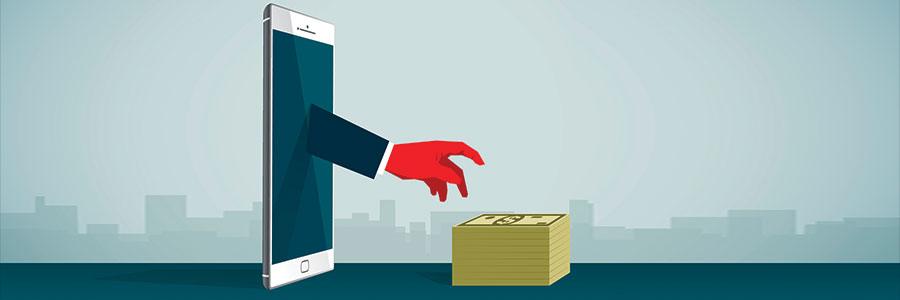
The increasing usage of mobile devices, specifically by businesses, will naturally entice more hackers to develop mobile ransomware. What is this form of malware, and how can you keep it from invading your Android device? How does ransomware make it onto your Android device? Like its desktop equivalent, mobile ransomware needs to be installed on your device before it can do damage. For Android devices, this means mobile apps that hide their true intent. There are two ways to install programs on your mobile device: downloading them from app stores like Google Play and Amazon Appstore, or downloading them directly from websites and email links. Surprisingly, both come with risks. Unverified sources often advertise free apps that hide malware, and the best of these can occasionally avoid detection and be allowed into monitored app stores. What does mobile ransomware look like? Similar to ransomware on personal computers, mobile ransomware holds data stored on your device hostage and demands ransom. For example, the popular Russian social network app OK was infected by ransomware in early 2018. The malware prompted users to change device settings. There was no option to close the prompt, and tapping Accept locked everything down and left victims with nothing but a ransom note. How do you protect yourself from mobile ransomware? First and foremost, avoid downloading apps directly from websites or third-party app stores. Additionally, make sure you turn on Google’s security system — Verify Apps — which scans all the apps about to be installed on your device for potential threats. You can do so by opening Settings > Security > Verify Apps, and activating :Scan device for security threats.” Second, install antivirus software on your device and keep it up to date. Third, back up important files from your device to either a USB disk, a computer, or any cloud-based service. This way, you won’t lose valuable data if you are forced to factory-reset your smartphone or tablet. Last, if ransomware made its way onto your device, don’t pay. According to IT security company ESET, mobile ransomware very rarely includes programming to reverse the damage it has done. Losing any type of data is at least an annoying inconvenience or at most an enormous legal liability. Businesses need to be especially careful about careless employees. Data loss could result in lawsuits or regulatory fines, so it’s important that everyone knows how to safeguard their Android devices against ransomware. For more in-depth advice on how to protect yourself and your business from this threat, get in touch with our experts today. Published with permission from TechAdvisory.org. Source.
Simple hacks to extend your Android’s battery life

Android phones are at the forefront of innovation in the smartphone industry. However, many of their cutting-edge features and applications are real energy sinkers. Even though the battery life of Android phones is improving with each passing year, it’s still not enough to keep pace with all the power-hungry applications and hardware. Here are some tips to make the most out of every charge. Use power saving mode The quickest way to conserve your battery life is by activating the power saving mode found in the settings of most Android phones. As of this writing, you can do this by going to Settings > Device maintenance, then tapping the Battery icon at the bottom left corner. This mode limits your phone’s processor and reduces the screen’s brightness display, thereby using only the bare minimum power to keep its critical functions running. This means that even with the power saving mode on, you’ll still have access to apps for texting, web browsing, and social media. What’s more, this feature can be set to automatically activate when your Android phone’s battery drops to a certain level, so you can implement this tip once and enjoy longer battery life without worrying about it again. Set brightness manually While using auto-brightness on your Android phone is convenient, it also drains your battery faster, because the system actually sets the brightness at a higher level than what you really need. To extend your battery life, adjust the brightness manually by going to Settings > Display. To save even more power, you can set the screen timeout interval to be as short as 15 seconds, so that your phone screen goes back to black faster when not in use. Offload unused or infrequently used apps The more apps there are on your phone, the more power your phone uses to keep them running in the background. If you want to extend your battery life, then you’ll have keep your apps to a minimum. Do you really need four photo editors? Do you need separate news site apps when you can access them all on Twitter? You can delete unnecessary, redundant, or infrequently used apps by going to Settings > Apps. From the complete list of all your applications, choose the ones that you can live without, and uninstall them. Organize your home screen Since most Android phone users don’t realize that a cluttered home screen sucks away their battery life, they load it with tons of apps and widgets. Don’t fall into this trap by keeping your home screen minimalist. Only keep the essential apps on your screen and do away with live wallpapers, as those consume more battery than regular pictures. A completely black wallpaper is also known to reduce battery life considerably in newer Android phone models. Turn off sound and vibration Sounds and vibration lets you know about incoming calls, messages, and notifications. But in some cases, too much of these can drain your battery life. If you have a very active group chat, for example, or if you subscribe to a lot of feeds, then you should consider turning off the sound and vibration for these apps. Anyway, even if you have them turned off, you can still see notifications via banners or message previews. Eliminate sound and vibration options by going to Settings > Sounds and Vibrations. Hide all notifications If you want to further extend your battery life, then turn off notifications completely. Ask yourself, “Do you need to know every time someone posts to or comments on your Facebook page? Do you want to hear about the latest deals and offers from your application?” If you don’t really need to be notified about these things, then do away with them by going to Settings > Notifications, then toggle off the All apps setting. Check your location services settings Some apps like Google Maps and Waze require you to turn on location services to display your surroundings and give you directions. But location services chip away at your battery life very quickly and you should turn it on only for as long as you need to. If you have to really use location services but you’re running out of juice, you can go for lower location accuracy by going to Settings > Connections > Location > Locating method, then tick the Battery saving option. Battery power shortage can be a frustrating issue for Android phone users, but following the simple hacks above can help you extend your battery life and avoid emotional breakdowns because of technology. To learn more about how to preserve battery life on your Android devices, give us a call today. Published with permission from TechAdvisory.org. Source.
Protecting your Android mobile devices

When personal and professional information live on one mobile device, a small breach can have huge impacts. As the adoption of bring your own device (BYOD) policies increase, employee awareness of cyberthreats becomes critical. Here are five tips for avoiding common Android-based security risks. Unsafe devices Sometimes, the device itself might not be safe due to faulty production or configuration. In fact, Avast recently found hundreds of Android devices that were infected out of the box.This means that the infection was not caused by users, but the malware was installed via apps somewhere along the sales and delivery process. Malicious apps Although Google employs strict security measures when it comes to allowing apps into the Play Store, some developers find a way to hide malicious code in their programs and still have them approved. Simple Call Recorder, for example, tricked users into downloading an additional app, which purported to be an Adobe Flash Player update. Believe it or not, Simple Call Recorder lasted for a year on the Google Play Store and had been downloaded over 5,000 times before it was taken down. Information leakage from useful apps Many applications are installed for legitimate uses. But don’t let that fool you, as these apps can be used to extract confidential information such as contact information from your mobile device. Timehop, a popular app that retrieves old photos and posts from social media accounts, recently suffered a data breach that affected 21 million accounts. Compromised information included names, email addresses, and phone numbers. The attack was due to cybercriminals tapping into the company’s cloud computing account using an administrator’s sign-in credentials. Banking malware Most forms of banking malware involve creating a fake login window that mimics one from a reputable institution. It could be a fake website or app that users type their username and password into, only for that information to be sent to a hacker. According to Security Intelligence, Google recently removed 29 apps from the Google Play Store after nearly 30,000 users accidentally downloaded banking malware. The victims were tricked by personalized phishing forms based on the apps they use. While the programs were attributed to different developers, researchers discovered common code within them, implying that they were all created by the same threat group. The malware enabled attackers to send and receive text messages, impersonate software from victims’ financial institutions, and download additional apps. Ransomware Ransomware is a type of malware that makes data on a device inaccessible and demands a payment to unlock it. In 2017, WannaCry spread like wildfire and wreaked havoc on the global healthcare industry. Ransomware continues to be a cyberciminal’s weapon of choice and according to Malwarebytes, 35% of small- to medium-sized businesses have experienced a ransomware attack in the past year. If you think ransomware is bad, ransomworms are even worse. Basically, they are ransomware programs that spread themselves across a local network, eliminating the need for human error. All this sounds horrific, but the worst is yet to come if you don’t act fast. Having said that, here are some security best practices that will help keep your Android devices secure: Set up a lockscreen passcode Monitor mobile device access and use Patch mobile apps and operating systems quickly Forbid unapproved third-party application stores Control physical access to devices Conduct regulatory compliance assessments Implement an incident response plan for lost or stolen mobile devices While it’s easy to turn a blind eye toward cyberthreats, the question is are you willing to take that chance? If you’re looking for an advanced security solution to keep your Android device safe, give us a call and we’ll be happy to help. Published with permission from TechAdvisory.org. Source.
Is Google’s newest smartphone right for you?

Companies that want their employees to have the best mobile devices for work usually choose one of three devices, a Pixel, one of the Galaxy S phones, or an iPhone. The Pixel phone is Google’s flagship device, and although it’s price isn’t much different from the competition, it’s packed with business benefits. Let’s review the latest iteration. Models and pricing The Pixel 3 comes in two models, each with two price points depending on how much storage you need. The smaller device has a 5.5-inch screen with a slightly higher resolution, 2160×1080, than standard HDTVs. It’s $799 for 64GB of internal storage and $899 for 128GB. The Pixel 3 XL comes with a jump in screen size and resolution, 6.3 inches at 2960×1440. The XL also comes with a slightly bigger battery to power the larger screen. It’s $899 for 64GB of internal storage and $999 for 128GB. Google Assistant If you or your employees use Google’s AI assistant to schedule meetings, send emails, or set reminders, the Pixel delivers a few features you won’t find anywhere else. For one, you can squeeze the side of the phone a bit harder than usual to summon the voice assistant. Pixel 3s also come bundled with Google’s Buds headphones, which make it easier to interact with Assistant without looking at the screen. Your notifications, reminders, and emails can be read to you as they come in and voice commands let you respond to text and email messages. The voice assistant can even answer spam phone calls on your behalf, showing a live audio transcription on your screen in case you decide to take the call. Software Having the latest version of Android installed on your phone is extremely important. It keeps you safe from malware designed for mobile devices and vulnerabilities in wireless networks, such as KRACK. If your smartphone is manufactured by a company other than Google, you have to wait for that company to release a modified version of Android for that device. Even big-name manufacturers like Samsung take months to release these updates. With the Pixel 3, the latest version of Android — along with all its feature and security updates — is always available to you on day one. Ancillary features Google’s flagship phone is IP68 water and dust resistant, which is great if you or your employees work in harsh environments. Pixel 3s also support wireless charging so you never have to plug in your phone again. Just set it down on a charging mat to juice it up. Could you get through an entire day of work without your smartphone? Probably not. The Pixel 3 is an excellent option for staying productive anywhere you need to be, especially if you’re already using the Google Assistant. If you have any questions about optimizing Android devices for your work environment, give us a call today. Published with permission from TechAdvisory.org. Source.
7 of the best apps for Android devices

With literally millions of Android apps out there, choosing the ones that will help you get the most out of your smartphone or tablet can be daunting. The fact that there are countless options that offer basically the same features doesn’t help. Luckily, our list of some of the best Android apps will ensure you find the ones that suit your needs and your device. Google Drive Google Drive gives you 15GB of free cloud storage (you can purchase additional storage as needed), plus access to Google Docs, Sheets, Slides, and Keep to do both work and personal tasks even while on the go. It also includes Google Photos, which you can use to store, view, and share photos and videos. Microsoft Office apps The Microsoft Office apps bring you all the essential tools you need to get work done. They encompass all the familiar Office apps, including Word, Excel, PowerPoint, and more. Create and edit documents anytime, anywhere, on any internet-connected device. And with these apps’ integration with OneDrive, Microsoft’s cloud service, your documents are automatically saved and easily shared with others. Evernote Trouble keeping track of your tasks and ideas? Then Evernote is the app for you. Create handwritten notes, or notes that take the form of a voice memo, photo, screenshot, or an excerpt from an online article. And with their smart search tools, finding the notes or notebooks you need is a breeze. The Premium and Business options offer even more features. For example, the Business plan includes Spaces, which you can use to organize notes in separate notebooks that different teams in your company can access. AirDroid Exclusive to Android, AirDroid is a file-sharing app that lets you wirelessly transfer files from a smartphone or tablet to a PC, and vice versa, all at lightning speed. It also allows you to access your device from your computer — manage your messages, contacts, camera, media files, and apps from your laptop’s or desktop’s web browser. Pocket Save content from a wide range of sources for offline viewing with Pocket. If you come across an interesting article on a news site or a video on Twitter, simply tap on the Share button in your device’s menu or the share menu in an app to save it onto Pocket. You can add tags to your saved content, so that they’re easy to find and pull up when you need them. And if you’re happy with your picks, share them with others through their Pocket accounts or social media. CamScanner This nifty application allows you to use your Android tablet’s camera to scan documents such as invoices, forms, and receipts, and have them exported as PDF files. You can store, sync, and collaborate on these documents across a variety of web-enabled devices. The app also comes with support for sending faxes, OCR (optimal character recognition), printing, and more. LastPass Memorizing all your passwords for all your social media accounts, apps, and websites is a pain, and that’s why a good password manager like LastPass is essential. This app quickly generates strong and secure passwords, and automatically logs you into various apps and websites across all your devices. With LastPass, you don’t have to remember a password ever again. This list is far from being a comprehensive one, but these apps can help you get the most out of your device. If you want to learn how to use Android devices to boost your business’s efficiency, give us a call today. Published with permission from TechAdvisory.org. Source.
5 tricks you can do with Android and Chrome
Using a Google account across your devices makes many things like email, web browsing, and managing your calendar a lot more convenient. Here are five tricks you might not yet know you can do when you sync Chrome with your Android phone. Send directions from Google Maps to your Android phone While Google Maps works great on smartphones, it’s often easier to use on larger screens. To send driving, walking, or commute directions from your PC to your Android phone, do the following: Click on a specific location on Google Maps (or enter a location in the search field and click on the desired result). Click on the Send to your phone button in the pane on the left side of your screen. Choose to have the directions sent to your phone via text or email. Sync your computer’s Chrome tabs with your phone This is especially useful when you need to bring your work outside of the office. Here’s all you need to do: Open the Chrome App on your Android phone. Tap the three-dotted menu icon beside the search field. If you’re not using multiple Google accounts, go straight to Step 4. Otherwise, tap Settings > your user icon > Sync > Sync to > your desired Google account, then press the back button until you see the three-dotted menu icon. Press it once more. Tap Recent tabs. You’ll see all the tabs you’ve opened recently while logged in to a particular Google account regardless of device. Finding your phone Simply entering “find my phone” in the Google search bar will display the current or last known location of your phone. On top of that, you can also ring your device for five minutes — even if it’s set to silent — in the hopes that you or some kind soul answers it and tells you where you can pick it up. Use your phone to control your computer For this trick, start by installing the Chrome Remote Desktop app from the Google Play Store on your Android phone (or even on your iPhone) and the Chrome Remote Desktop extension app for Chrome on your computer, regardless if it’s running on ChromeOS, Windows, macOS, or Linux. Each device you want to connect must have Chrome installed, and each Chrome browser must be signed into the same account. With everything in place, you can remotely control a system that’s switched on, such as your desktop, via your phone or Chromebook, or allow one-time access to give or receive remote support. Set reminders for yourself via Google Assistant or Google Keep You can use voice commands on your Android phone to set reminders. Say “OK Google” or press the mic icon to activate Google Assistant, then say “Remind me to buy milk at the grocery store” or whatever it is you want to be reminded of. Once the Add a reminder screen appears, you can edit reminder details, such as when you want to be given a heads up or where you want to be alerted (such as when you enter a grocery store). Alternatively, you can install the Google Keep extension app in Chrome or the Google Keep app on your Android. Simply open the app, click the Take a note field, type in your reminder, click the Remind me icon, then click on either Pick date & time to set when you want to be reminded or Pick place to set where you want to be notified. As long as you have syncing turned on for your Google account, you can use Google Calendar, Google Assistant, or Google Keep on one device to unleash reminders across all your devices. Syncing lets you make the most of your devices and makes you feel that you’re using one machine. For any questions regarding the Android/Chrome combo, feel free to give us a call anytime! Published with permission from TechAdvisory.org. Source.
Useful Google Assistant commands

Google Assistant is a significant change to Google’s search features on mobile devices. Like Apple’s Siri, Google Assistant interacts with your Android device to do a wide range of tasks. If you’ve got an Android phone, pick it up and give a few of our favorite voice commands a whirl! Before you can start playing with Google’s AI, you need to turn on the service. On your Android device, press and hold the home key at the bottom of the screen. This will open the Google Assistant interface. Tap Next on the “Meet your personal Google Assistant” screen, then tap Continue on the next screen to enable permissions. If you’re prompted to configure voice activation, simply repeat “OK Google” three times and you’re good to go! Turn it on and try some of the examples below. Tip #1: Reminders Google Assistant helps with information discovery, but what about when you just need a little help managing your calendar? The phrase “Remind me to [action] + [time]” is all you need to set a quick reminder before you have a chance to manually add it to your calendar. And if you’re not sure when you need to be reminded, ask Google to set the notification based on location. If you have location services enabled, your phone will prompt you next time you’re near the store. For instance, if you set a reminder to get eggs at the supermarket, your phone will prompt you next time you’re near one. Tip #2: Anything involving your clock app Whether you want to “Set an alarm/time for [time]” to achieve productivity goals, or you need to know “What time is it in [location]” before calling a client in another time zone, Google Assistant can essentially perform any task from your native clock app with a simple request. Tip #3: Convert/calculate anything You can even command Google Assistant to calculate currencies, units of measurement, and simple sums. For example, “What is X dollars in euros?” could help you easily convert the price of an invoice, or “How many feet are in X yards?” could shorten the time required to calculate how much material you need to order for a new product. Tip #4: Retrieve documents from Gmail You may have also noticed that important documents from your email account occasionally show up at the top of a search page. That’s because Google can recognize official documents such as flight itineraries, hotel receipts, and utility bills. Just say “Show me my flight to Phoenix” and Google Assistant will pull it up immediately. Tip #5: Basic phone commands The majority of the applications that came with your phone can receive voice commands. “Take a photo,” “Open acme.com,” “Turn on Wi-Fi,” and “Open Salesforce1,” are just some of the ways you can minimize the time you spend tapping your phone. Believe it or not, there are dozens more commands that can make your life easier. Spend a few moments tinkering with your Google Assistant and give us a call today to find out more. Published with permission from TechAdvisory.org. Source.
Malware threats for Android phones

Smartphones are like palm-sized computers, and they deserve the same protection as desktops and laptops. While you don’t need to install bulky security software to protect against cyberthreats, there are steps you can take to keep cybercriminals at bay. Mobile malware MO Mobile malware can be as harmful to a business’s network as infected desktops and laptops. Potential problems include overcharges on phone bills, stolen data, intercepting messages, tricking users with phishing attacks, and sending fake notifications to one’s contact list. Most malware comes from applications downloaded from third-party app stores and give hackers access to passwords, user account information, and other sensitive personal data. Since many business users link their Android devices to each other, malware could transfer from one device to the next. Who is responsible? The burden doesn’t fall solely on smartphone users. App stores such as Google Play Store are responsible, too, such as in the case of the malware-ridden banking and weather apps that were downloaded from the Google Play Store. In these cases, the companies that were affected were urged to provide updates regarding the malicious apps so they could be removed from the store. How to avoid being victimized by malware The Google Play Store isn’t 100% secure, but downloading from established app stores — and not from little-known and less secure ones — reduces the probability of downloading malicious apps. In cases when an infected app makes its way to the store and starts getting lots of downloads, Google will be quick to remove it from the store and make everyone aware of it. Despite app stores’ best efforts, it’s nearly impossible to prevent mobile malware from getting through to the store. That’s why it pays to read user reviews where infected users post detailed warnings. Also, regularly updating your mobile device’s operating system and security software helps prevent infection as the latest versions of those are patched against the latest known threats in app stores and elsewhere online. Malware doesn’t discriminate, so regardless of your computer or mobile device of choice, it will find a way to infect you if your software isn’t up to date. To find out whether your business devices are safe and fully protected, consult our cybersecurity experts today. Published with permission from TechAdvisory.org. Source.
Android repurposing: 5 awesome ideas
It’s a fact of life that electronic devices don’t stay on top of the market for very long. That nice new Android tablet with all the latest apps and games will soon be replaced with a newer version, and you have the decision to upgrade or be left with a useless piece of metal and plastic. Fortunately, there are five ways to repurpose that old Android tablet into something useful. With new technological devices released almost on a daily basis, your new Android tablet can become obsolete before you’ve even gotten any productive use out of it. But instead of tossing it into the drawer with your other gadgets, you should recycle it into something you can use long into the future. It doesn’t take long for your stylish new electronic device to become just another outdated model in the waste pile. Your once-fresh Android tablet might have done its due a long time ago, but there’s no need to discard it. There are many things you can do to repurpose your old Android tablet and make it fresh again. Read on to find five popular new uses for your old Android tablet! Security camera As long as your Android has a workable battery and screen, you can turn it into a webcam security system. Simply download a security app like Salient Eye (easily found on Google Play) or AtHome Video Streamer, set it up, and place it strategically. It can even be rigged to turn on as it senses movement. Digital camera photo frame Don’t spend $30 on a digital picture frame when you can use an old Android tablet. Again you will have to visit Google Play, search for a program similar to Photo Slides, plug the Android into a wall socket, and you have pictures you can scroll through and display on your mantel. Portable reference library You have probably used your Android for book storage already, so why not turn it into a functional library? Visit Amazon Kindle or Google Play Books and download your choice of reference books and eBooks. Kwix, the offline version of Wikipedia, can provide you with encyclopedia-like entries without having to go online. Radio or wireless-only device You can download Pandora or iHeartRadio, and use your Android to play your favorite music without interfering with other open computer programs and without using valuable memory. Universal remote It is so easy to lose the remote in the folds of the couch or slots in a magazine rack. By contrast, it’s not so easy to lose an Android tablet. By installing a universal remote app like Peel Smart Remote, AnyMote, or Irdroid, you can use your old Android as a universal remote for televisions and other electronic systems in the office. There is no reason to throw your old Android tablet into a drawer when you upgrade because there are many apps that can help you repurpose it. For more information on how to recycle your old tech devices, give us a call. We’ll be glad to help you save money and find a new use for your old tablet. Published with permission from TechAdvisory.org. Source.
Reduce data usage on your Android device
Letting data consumption go unchecked on mobile devices can cause serious problems. It can mean slower connections, decreased battery life, and expensive fees — things you want to avoid. Here are some tips to help you use less data on an Android phone. Delete data-draining apps Apps that keep your phone running at its capacity cause serious problems for Android users. These app result in accelerated hardware deterioration, inefficient battery use, and unnecessary data consumption. Facebook is a prime example of this and can be reigned in by accessing it via a web browser or a ‘Lite’ version of the app. Consider deleting any app that sucks up too much data. To find out what’s consuming the most data on your Android, go to Settings, then Data usage. From there you can see which apps are consuming the most data and delete the worst offenders. Restrict background data One of the biggest culprits for unnecessary data consumption is ‘background data’. This pesky Android feature allows apps to keep downloading information when the app isn’t open or the phone is locked. To prevent this from happening, return to the Data usage menu and look for Restrict Background Data. Beware of auto-updates It’s usually better to wait for a WiFi connection before updating your apps unless there’s a security issue involved. You may not even realize updates are happening if you have the auto-update setting enabled. Turn it off by opening the Google Play Store, clicking the three horizontal lines in the upper left corner, tapping Settings, then Auto-Update Apps, and choosing Auto-update Apps over Wi-Fi Only. Avoid streaming music Sometimes you need YouTube or Spotify for business reasons, or just to stay sane, but most of the time streaming media can be cut down. In fact, some apps don’t put a cap on media resolution, so you could be wasting data on ultra high-quality audio that’s barely any better than a lower resolution version. Look for settings to restrict these downloads, or for ways to download media over WiFi for later offline use. Take your apps offline Some apps even include an option to access them offline and without consuming data. For example, Google Docs lets you choose which documents you’d like access to while disconnected from the Internet. Make it a habit to check for offline access options and enable them whenever possible. These are some quick and easy tips for IT novices, but if you’re on the hunt for expert solutions and support for Android devices, get in touch with our team today. Published with permission from TechAdvisory.org. Source.