
Uninstall these sneaky Android adware apps now
Google Play recently removed 17 apps identified by security company Zscaler to contain malicious adware code. These apps bombard users with unwanted advertisements and collect marketing-type data about them. If you’re one of the thousands of users worldwide who downloaded at least one of these apps, here’s a quick guide to finding and uninstalling them. Sneaky adware apps These potentially malicious apps are disguised as harmless system or utility apps. They pose as image editors, photo or document scanners, and even messenger apps. Their names even resemble those of legitimate system apps, chosen for the express purpose of tricking Android users into installing them onto their devices. These apps are: All Good PDF Scanner Blue Scanner Care Message Desire Translate Direct Messenger Hummingbird PDF Converter – Photo to PDF Meticulous Scanner Mint Leaf Message-Your Private Message One Sentence Translator – Multifunctional Translator Paper Doc Scanner Part Message Powerful Cleaner Private SMS Style Photo Collage Talent Photo Editor – Blur focus Tangram App Lock Unique Keyboard – Fancy Fonts & Free Emoticons How to remove these adware apps It’s important that you immediately remove these apps from your device to prevent them from exposing you to all kinds of IT security threats, like man-in-the-middle attacks. One way to do this is to use an anti-malware app that scans and automatically removes malicious software from your device. You can also check your phone or tablet’s app permissions to see if any questionable apps have permission to access your text messages, contact list, etc., and manually uninstall the dubious apps. However, some apps are harder to detect because they display two different sets of names and icons — one on your device’s Settings app and another when they’re actually running. This makes it more difficult to identify and uninstall the malicious apps on your device, which is exactly what the developers want. On the other hand, some apps appear on your app tray, but launching one triggers a message that says the app is incompatible with your device. You will then be redirected to a random page on Google Play. And when you return to your app tray, you’ll find that the app’s icon has disappeared. If there’s no icon, how can you uninstall the app? Andrew Brandt, a researcher at Sophos, says deleting adware apps will require a little bit of digging on your part, as there’s no icon that you can click and drag to the top of the screen and into the trash. To do this, you have to first identify the adware apps. Go to Settings > Apps & Notifications. This will direct you to a page that displays the most recently opened apps on your device. Next, check if any of those apps have the generic greenish-blue Android icon and/or have generic-sounding names such as Back Up, Update, and the like. If they do, they’re likely adware. Finally, tap the icon and then select Force Stop > Uninstall. Note that a legit system or utility app will have a Disable option instead of an Uninstall option. There may be similar apps that are yet to be identified and are likely to be made available on Google Play in the future. The key takeaway here is to be mindful of what you download, even if it’s from Google Play or other official platforms. Check out the reviews — the reported adware apps got poor reviews from users who complained about getting a lot of pop-up ads. Remember that malware can be hiding in even the most innocuous apps, and downloading them gives bad actors the chance to access any confidential information on your device. For advice on how to keep your Android devices safe from adware and other malicious malware, give us a call today. Published with permission from TechAdvisory.org. Source.
How to tell if an Android app is legit
More and more people are relying on Android devices for remote work, which is why cybercriminals are taking advantage and creating counterfeit Android apps to try and misguide users. These apps typically collect users’ sensitive data or infect devices with malware, which can lead to fraud and financial crimes. The problem is, even a tech-savvy user may struggle to identify these bad apps. How can you protect yourself and make sure that your Android device is running only safe applications? Enable Google Play Protect Google Play Protect proactively checks every app before you download them and rechecks your device regularly to ensure it’s free of dangerous software. The service helps keep your device safe and secure by: Running a safety check on apps from the Google Play Store prior to installation Checking your device for potentially harmful apps downloaded from other sources Removing known harmful apps and warning you about any potentially harmful ones that are detected Notifying you about detected apps that violate Google’s Unwanted Software Policy Sending you privacy alerts about apps that can get access to your personal information, violating Google’s Developer Policy If it finds a potentially harmful app, it will do one of these three things: Send you a notification that will prompt you to remove the app Disable the app until you uninstall it Remove the app automatically Google Play Protect is enabled by default, but you can turn it on or off by following these steps: Open the Google Play Store app. Go to Menu > Play Protect > Settings. Toggle on Scan apps with Play Protect. Download from a trusted source Make sure to download only from well-known and legitimate sources like the Google Play Store, Samsung Galaxy Store, or Amazon Appstore, as these are routinely monitored and scanned for fraudulent apps. However, bogus apps still make it into these stores from time to time, so it’s important to check the ratings and reviews of an app before downloading it. It’s also well worth checking its privacy policy so you know how the app will handle and protect your personal information. Use third-party antivirus software Because the market for tablets is growing, more and more companies are offering mobile antivirus solutions. Although there are free antivirus software that are legitimate and effective, the better option is to purchase security solutions from well-established companies to get maximum protection. Third-party antivirus software may come with monthly or yearly subscriptions, as well as different premium rates for different types of security measures, but their benefits far outweigh the cost of purchase. Be vigilant There are many effective steps you can take to make sure your tablet or smartphone is safe against fake apps: Before downloading from a trusted source, read the fine print as well as user reviews, and look out for evident security risks. Uninstall unused apps. This will not only help you avoid any unnecessary risks with potentially vulnerable apps, but also make more room on your device. Update your software. Patches from software updates can fix bugs of vulnerabilities, which, in turn, can thwart cyberattacks. To avoid software update inconveniences, enable automatic updates on your Android tablet or smartphone. If you are looking to learn more about protecting your Android device, we can help. Contact us today. Published with permission from TechAdvisory.org. Source.
Disabling Android location settings
The location tracking feature in Android smartphones makes it easier to use certain apps like Google Maps. With this feature turned on, it’ll be easier to locate, for example, the nearest diner. However, enabling this feature has security implications. Hiding your location may require extra steps when you use certain apps, but at least you and your device would be more secure. If you wish to change your phone’s location settings, read on. Photos and GPS tagging Your Android smartphone’s geolocating or GPS tagging function lets you attach GPS coordinates to the pictures you take. This allows you to arrange pictures in albums by location. Geolocating images in itself isn’t a bad thing, but you can get into trouble when you broadcast sensitive locations to the world. For instance, a picture of your expensive watch with a GPS tag of your house could attract wrongdoers. Here are four ways to control geotagging photos: Go to your camera settings and you’ll find an on/off toggle. Go to Settings > Location and from there, you can decide if you want the location saved along with your images. Download an EXIF editor and manually remove the location information from specific images. You can also turn off location services altogether by going to Settings > Location. Discrete location settings Apart from location settings in photos and GPS tagging, Android has three discrete location settings that allow you to set the level of accuracy of your location reporting. You can find these in Settings > Location. Note that this affects your smartphone’s battery life immensely. High accuracy – This uses the GPS radio in your phone to pinpoint its exact location using data from satellites while making use of nearby Wi-Fi and cellular networks too. Battery saving – This mode only uses Wi-Fi networks and mobile networks to identify locations, and while it might not be as accurate as the high accuracy setting, it will help your battery last longer. Device sensors only – This only uses the GPS radio to find you. It may take a little more time to find your location since it doesn’t use nearby Wi-Fi and mobile networks to get your general location first. This also uses more battery. Turning off your location settings will not only help keep your smartphone’s security intact, but it will also help preserve your battery life. Interested in learning more about Android phones and their functions? We have solutions for you and your business. Call our experts today. Published with permission from TechAdvisory.org. Source.
How to reduce data usage on Android devices
If you don’t have an unlimited data plan for your Android device, uncontrolled download habits will result in a slower connection, poor battery life, and higher bills. But did you know that you can reduce your data consumption without affecting your mobile experience? Follow these handy tips. Delete data-draining apps Apps constantly consuming your mobile data can cause serious problems such as accelerated hardware deterioration and inefficient battery use. Facebook, Google Maps, and YouTube are prime examples of such apps. Consider deleting any app that consumes too much data. To identify these apps, go to Settings, then tap Data usage. From there, you can see which apps are consuming the most data, and you can delete the worst offenders. Restrict background data One of the biggest culprits of unnecessary data consumption is background data. This Android feature allows apps to use the data connection when the app isn’t open or the phone is locked to provide real-time updates. To prevent this from happening, go to the Data usage menu and tap Restrict Background Data. Beware of auto-updates It’s better to wait for an available Wi-Fi connection before updating your apps, unless there’s a security issue involved. You may not even realize updates are happening if you have the auto-update setting enabled. Turn it off by opening the Google Play Store, tapping the three horizontal lines in the upper left corner, opening Settings, selecting Auto-update apps, and tapping Over Wi-Fi only. Avoid streaming music Media streaming is another data-drainer, but it can actually be controlled. Some apps don’t put a cap on media resolution, so you could be wasting data on high-quality audio that’s barely better than the lower-resolution version. Go to the settings of each of your media-streaming apps to restrict these downloads or for options to download media over Wi-Fi for later offline use. Take your apps offline Some apps include an offline access option. For example, Google Docs lets you choose the documents you’d like to access while disconnected from the internet. Check regularly for offline access options and enable them whenever possible. These are some quick and easy tips for IT novices, but if you’re on the hunt for expert solutions and support for Android devices, get in touch with our team today. Published with permission from TechAdvisory.org. Source.
Recommended malware removal on Android devices

Cybercriminals infect Android apps with their malware in order to infiltrate your devices. In fact, your Android smartphone or tablet may already be infected. If you want to minimize device, data, and business damages caused by malware, then follow these tips on how to remove malware from your Android device. Confirm the malware infection Android devices usually exhibit strange behavior when they’re infected with malware. Their speed may suddenly slow to a crawl or the battery may drain faster than expected. Other telltale signs include an abundance of pop-up ads, unusual apps installed on your home screen, unexplained data usage, and unauthorized in-app purchases. However, it’s not always easy to tell if your device has been compromised since hackers are becoming more proficient at concealing their actions. The best way to check for malware is to run an antivirus scan using a mobile security solution. How to get rid of malware If your device is infected with malware, the most important thing to do is quarantine the threat as soon as possible. Start by rebooting your device in safe mode, which can be selected when you hold down the power button. Not all versions of Android are the same though, so if this isn’t an option, try restarting your device and holding the volume-down button when the manufacturer’s logo appears. Once you’ve entered safe mode, go to Settings, then Apps, and uninstall any suspicious apps. Do a quick Google search or ask your cybersecurity technician to help you determine whether or not an app is dangerous. If you can’t uninstall the software, it may have administrative privileges. To fix this, open the Advanced settings menu from the Settings app, then select Security, then Device administrators, remove any app that shouldn’t have privileged access, and return to the Apps menu to uninstall it. Mobile security software should also be able to remove hidden malicious programs in your device. If the malware persists, you’ll have to do a factory reset. This option is usually located in the Backup & reset configurations within the Advanced settings menu. Keep in mind that you’ll lose the apps and files stored in your device, so it’s important to back up your data beforehand. Protecting your device from malware After you’ve successfully recovered from a mobile malware infection, make sure to update your device and security software to prevent another infection. Enabling Google Play Protect from within the app store also safeguards your device from rogue apps. Ultimately, the best defense is to develop good security habits. Be cautious of everything you see online. Make sure to thoroughly vet apps before downloading them, and don’t click on links from unsolicited texts and emails. Also, avoid public Wi-Fi networks or, at the very least, use a virtual private network (VPN) to secure the connection. Malware attacks can be devastating to your bottom line, but these tips should help mitigate the risks. If you want to learn more about how you can safeguard your Android devices, our experts are always willing to assist you. Contact us today. Published with permission from TechAdvisory.org. Source.
Make life easier and sync your Android to Chrome
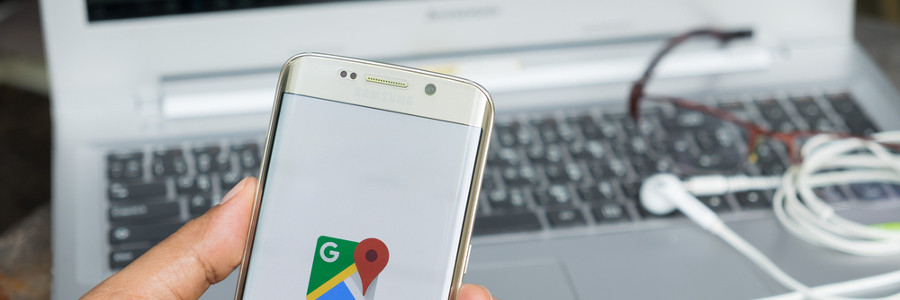
People lead fast-paced lives nowadays, and living on the go means having the tools to jump from desk to destination at a snap of a finger. This is why Google Chrome-Android sync features are more important than many people realize. Here are some things you can do with the combined power of Chrome and Android. Send directions from your laptop to your Android phone While Google Maps works great on smartphones, it’s often easier to use on larger screens. To send driving, walking, or commuting directions from your PC to your Android phone, do the following: Click on a specific location on Google Maps, or enter a location in the search field and click on the desired result. Click on the “Send to your phone” button in the pane on the left side of your screen. Choose to have the directions sent to your phone via text or email. Sync your computer’s Chrome tabs with your phone This is especially useful when you need to bring your work outside of the office. Here’s all you need to do: Open the Chrome App on your Android phone. Tap the three-dotted menu icon beside the search field. If you’re not using multiple Google accounts, go straight to Step 4. Otherwise, tap Settings > your user icon > Sync > Sync to > your desired Google account, then press the back button until you see the three-dotted menu icon. Press it once more. Tap Recent tabs. You’ll see all the tabs you’ve opened recently while logged into a particular Google account regardless of device. Find your lost mobile device Simply entering “find my phone” in the Google search bar will display the current or last known location of your phone. On top of that, you can also ring your device for five minutes — even if it’s set to silent — in the hopes that a kind soul answers it and tells you where you can get your phone back. Use your phone to control your computer For this trick, start by installing the Chrome Remote Desktop app from the Google Play Store on your Android phone and the Chrome Remote Desktop extension app for Chrome on your computer, regardless if it’s running on ChromeOS, Windows, macOS, or Linux. Each device you want to connect must have Chrome installed, and each Chrome browser must be signed into the same account. With everything in place, you can remotely control a system that’s switched on, such as your desktop, via your phone or Chromebook, or allow one-time access to give or receive remote support. Set reminders via Google Assistant or Google Keep You can use voice commands on your Android phone to set reminders. Say “OK Google” or press the mic icon to activate Google Assistant, then say “Remind me to buy milk at the grocery store” or whatever it is you want to be reminded of. Once the “Add a reminder” screen appears, you can edit reminder details, such as when you want to be alerted. For instance, you may want your device to remind you of your grocery list when you enter a grocery store. Alternatively, you can install the Google Keep extension app in Chrome or the Google Keep app on your Android. Simply open the app, click the Take a note field, type in your reminder, click the Remind me icon, then click on either Pick date & time to set when you want to be reminded, or Pick place to set where you want to be notified. As long as you have syncing turned on for your Google account, you can use Google Calendar, Google Assistant, or Google Keep on one device to unleash reminders across all your devices. Syncing lets you make the most of your devices giving you the illusion that you’re using one machine. For any questions regarding Android/Chrome pairing, feel free to give us a call anytime! Published with permission from TechAdvisory.org. Source.
Android tip: Track your data use

Android devices are most effective when they have a stable network connection. The problem is that many mobile networks limit how much data you can use during a subscription cycle. Instead of upgrading to a more expensive plan, consider paying closer attention to how and when you use data and scaling back. It’s easier than you think. Here are three things you can do to track and subsequently optimize the amount of data you are using on your Android device. Tip #1: Turn off or limit your mobile data consumption Using Wi-Fi is one of the easiest ways to reduce data consumption. These networks are everywhere nowadays, even malls and shopping centers often offer free Wi-Fi. In fact, Android devices can automatically switch between Wi-Fi and cellular connections. There is a chance, though, that your phone may lose a Wi-Fi connection and switch to a data network without your knowledge. Preempt this issue by disabling mobile data entirely. You can often accomplish this by pressing your finger along the top of the screen and dragging downward to reveal important phone settings, including enabling or disabling mobile data. Another option is to open your Android’s Settings app and search for the menu that contains your mobile data configurations. From there, you can turn off data entirely or set data limitations based on your service plan’s allowance. Tip #2: Limit background data Even if you don’t realize it, many of your apps use data while your Android device is locked. They keep running in the background and their data usage can take significant chunks out of your monthly allowance. To limit the use of background data, follow these steps: Open your Android’s Settings app. Select the Apps menu (the name varies based on the device manufacturer; look for the menu that lists all your apps). Tap on an app that you don’t want to use background data. Select Restrict app background data. The Apps menu provides plenty of information about how much data various apps are using, both in the foreground and background. Even if you don’t use this menu to configure background data allowances, it’s a great place to learn about data hogs. Tip #3: Use Chrome’s data compression All Android devices have the Google Chrome web browser installed right out of the box. Before you consider trying another browser, keep in mind that Chrome has some of the best data-saving features. For example, when data compression is enabled, the websites you visit are sent to Google’s servers to ensure they are optimized for mobile devices and unnecessary information is removed. To turn this feature on, take these steps: Open the Chrome app. Tap the button with three dots in the upper right corner. Select Settings > Data Saver. Toggle the On switch. Google claims this can save up to 60% of data usage in the browser and that it detects malicious websites and harmful content. There are dozens of other ways you can protect yourself and save data when using your Android device. If you’d like additional assistance, contact us today. Published with permission from TechAdvisory.org. Source.
2020’s best office apps for Android

More and more companies are adopting remote work policies, offering myriad benefits to both employers and employees. Having the right tools at your disposal will ensure that you and your remote staff can be as productive and efficient as possible. Here are some of the best office suite apps for Android devices. Microsoft Office View, edit, share, and collaborate on documents using the Microsoft Office suite of mobile apps. Familiar favorites like Word, Excel, and PowerPoint can be downloaded for free, and you can unlock additional features and functions by getting an Office 365 subscription. Any document, presentation, or spreadsheet you create or edit will be synced to OneDrive so you can access your files at any time, from anywhere, on any device. Google Drive More than just free cloud storage, Google Drive for Android offers a whole suite of office apps. Get Google Docs, Google Sheets, Google Slides, and Google Photos for free, and for as low as $1.99 per month, you can get additional storage for all of your documents, spreadsheets, presentations, and images. Another great feature of Drive is that you can still view and edit documents even if you’re not connected to a Wi-Fi or mobile network, making working more convenient. Office Suite Office Suite supports all basic Microsoft formats (DOC, DOCX, XLS, XLSX, etc.) as well as other common file formats (PDF, ODT, OOS, ODP, etc.). It also lets users access and sync files in Google Drive, OneDrive, Amazon Cloud Drive, Dropbox, Box, and MobiSystems Drive. The free version has all the basic features such as creating and editing documents. Meanwhile, the paid versions — which run from $19.99 to $29.99 — allow PDF scanning, spell-checking, and chat capabilities, among other additional functionalities. Polaris Office Polaris Office has a similar interface and features to Office Suite. It is compatible with other office apps for Android and supports different file formats, including PDF. Polaris Office has pointer and pen features that allow users to edit, create, and open files, as well as take down notes with ease. Users can sync all their documents on Polaris Drive, or access files stored in other cloud storage platforms such as Google Drive and Dropbox. WPS Office WPS (Writer, Presentation, and Spreadsheets) Office is an all-in-one office app that supports all the basic features of Microsoft Office and Google Drive. Use it to create and edit presentations, spreadsheets, word documents, and PDFs, which you can save to and access from the cloud storage platform of your choice. It also has a free PDF reader, converter, and editor, allowing you to view and add annotations as well as your signature to any PDF file. Docs to Go Work from anywhere on your Android smartphone or tablet using Docs to Go. This document viewing and editing app allows you to connect to and sync files on your device to the cloud. It also enables you to send and receive supported email attachments using Gmail or other email apps. Docs to Go’s find and replace feature makes editing any document easy. What’s more, paid versions of the app give you the option to open password-protected Word, Excel, PowerPoint, and PDF files. Smart Office Not only does Smart Office have all the capabilities you’ll need in an office app, but it’s also an invaluable tool for meetings and presentations. Easily format and add graphics to your slides, manage their sequence and transitions, and present them directly on your mobile device or through a projector. Smart Office also has a wireless printing function, enabling you to print from thousands of supported printer models. Enjoy the freedom of working on the go and on any Android device with these productivity-boosting office apps. Give us a call today if you need help choosing the right app for your needs. Published with permission from TechAdvisory.org. Source.
Get more from Android devices with the right accessory

Android devices are known for their versatility, a quality that’s made possible not just by the sheer variety of applications they support, but also by the many accessories you can use with them. Knowing what these accessories are and how you can connect them will help you get more out of your Android device. USB keyboards, mice, and gamepads Android phones and tablets don’t usually have standard, full-size USB ports, so you can’t plug a USB accessory directly into it. To connect such an accessory to the device, you’ll need a USB on-the-go (OTG) cable. This is a micro-USB adapter that you can purchase from any computer store for a couple of dollars. From there, your accessories should work without needing any further configuration. In fact, USB OTG allows you to use other USB devices, such as a flash drive, with your Android device. Keep in mind that not every Android device has the port that’s required to support USB OTG. This is the case with some smartphones. To avoid wasting money, be familiar with your device’s specs and ports before you purchase a USB OTG cable. Bluetooth keyboards, mice, and gamepads USB OTG cables sure are handy, but they can make your supposedly portable device not so portable anymore. Bluetooth technology effectively remedies the problem. Most Android devices allow you to connect wireless mice, keyboards, and gamepads directly by pairing them through the Bluetooth settings. Using each accessory All accessories should work in a plug-and-play manner. Here’s what you can do with some of them: Keyboard – Once connected, you should be able to use this accessory to type on your Android tablet as you would on the onscreen keyboard. Many of the keyboard shortcuts work as they do on computers, too. These include Alt+Tab for switching between apps, and Ctrl+X, C, or V for Cut, Copy, and Paste respectively. Mouse – Connecting a mouse will allow you to navigate and click on things using a mouse cursor instead of tapping on the device itself. You can still use the touchscreen while the mouse is connected. Gamepad – While gamepads can be used to navigate through your Android’s home screen interface and launch applications, they’re better used with games that support controllers. There are so many ways to have fun and extend the functionality of your Android device. If you have any questions about Android or are looking to integrate it into your business, give us a call and we’ll be happy to advise you. Published with permission from TechAdvisory.org. Source.
The definitive Android tablet gift guide for 2019

It’s the season of giving, and there’s no better way to show your generosity than by giving an Android tablet as a gift. But with the seemingly endless choices of tablets in the market, how do you choose the perfect gift? Look no further and start here. What’s your budget? Giving gifts shouldn’t burn a hole in your pocket. The great thing about Android is that there are tablets available for a wide budget range, from the ridiculously affordable yet highly praised Amazon Fire HD 10 (from $149.99 on Amazon.com) to the top-of-the-line Samsung Galaxy Tab S6 (from $795.99). What do reviews say about the product? Consider expert reviews before buying an Android tablet. There are a ton of websites dedicated to reviewing tablets and other mobile devices. Take for example the well-known Engadget, or Trusted Reviews. Sites like these generally give a good overview of new and popular devices. However, pay close attention to the criteria used, as some review sites tend to only look at basics, such as battery life and design, without going too deep into the tablet’s usability. It is also important to look at actual user reviews. The best place for these is Amazon.com, as almost all reviews of devices on the site are submitted by users. While some reviews may be overly positive or negative without actually revealing reasons, they provide an accurate real-life picture of the pros and cons of buying the device. What will the tablet be used for? Many tablets offer special features and functions aimed at different types of users. For example, if the user will use the tablet for artistic pursuits, then you should pick a tablet with pen support, which turns the tablet into a drawing pad. If the user is likely to use the tablet for gaming, then consider how well the device can display graphics, how fast it can run popular games, and how much storage it has. Who will be using the tablet? Tablets have become specialized, with specific designs catering to specific markets. You can narrow down your options by taking into consideration the age of the person you’re giving the tablet to. For instance, if the tablet is going to be used by kids, then shop for one that’s specifically made for them, like Amazon Fire HD 8 Kids Edition and Samsung Galaxy Tab E Lite. These tablets have bright, kid-friendly interface and design as well as hard cases built to withstand boisterous play. Most kiddie tablets also come with a warranty should unfortunate incidents happen. Consider also the user’s technical ability. Older adults with limited technology knowledge tend to use tablets for non-complicated tasks like reading, taking pictures, and playing movies. Tablets like Lenovo Tab 4 and Dell XPS 10 have simple interface, big screens, and pre-installed apps that are perfect for them. On the other hand, advanced tech users like programmers prefer tablets with high performance, long battery life, and options for keyboard and Bluetooth connection. For these users, you can get a tablet PC, or a PC with a detachable screen that can double as a tablet. If you’re struggling to find the perfect tech gift or Android tablet this holiday season, let our experts help you find what you need. Contact us today. Published with permission from TechAdvisory.org. Source.