
The importance of disabling location settings on your Android device
It’s easy to overlook the potential risks of leaving your Android device’s location settings on. However, it’s crucial to understand the implications and take control of your privacy, security, and device performance. Here’s why you should consider turning off your Android device’s location settings. Safeguards your privacy Enabling location services on your Android device allows apps and services to track your whereabouts. While some apps genuinely require location data for their functionalities, others may exploit this information for targeted advertising or to build a detailed profile of your habits and preferences. By turning off location settings, you regain control over your privacy and limit the access that apps have to your personal information. You can choose to share your location only when necessary, granting permission on a case-by-case basis, rather than leaving it constantly exposed. Enhances your security Leaving your Android device’s location settings on can potentially expose you to security risks. If your location data falls into the wrong hands, it could be used for malicious purposes such as stalking or even physical harm. Additionally, apps that have access to your location can indirectly reveal sensitive information related to your daily routine, including your home address, workplace, or frequently visited places. By disabling location settings, you minimize the chances of such data breaches and protect yourself from potential security threats. Improves your device’s battery life and performance Constantly communicating with GPS satellites and Wi-Fi networks to determine your location consumes significant power. This leads to faster battery drain, so you may find yourself frequently charging your device. This can be particularly inconvenient for users who rely on their devices throughout the day. When location services are disabled, your device no longer has to continuously track your location and communicate with external sources. This reduction in background activity not only conserves battery but also frees up system resources, improving your device’s speed and performance. How to disable the location settings on your device If you want to disable your Android’s location settings, just follow these simple steps. Unlock your Android device and go to the home screen. Open the Settings app. You can usually find the app in the app drawer or by swiping down from the top of the screen and tapping the gear-shaped icon in the notification panel. In the Settings menu, scroll down until you see the Location Services or Location option. It is typically located under the Privacy or Security & Privacy section. Tap on the Location option to access the location settings. On the Location settings screen, you will see a toggle switch or checkbox labeled Use location or Location services. Tap on it to disable location services. A confirmation dialog may appear, warning you about the implications of disabling location services. Read the message carefully and tap OK or Disable to confirm your choice. Once you disable location services, the toggle switch or checkbox should be grayed out or turned off, indicating that location services are now disabled. Please note that the exact steps and naming conventions may vary slightly depending on the Android device model and the version of the operating system (OS) it is running. However, these steps should apply to most Android devices. It’s also worth mentioning that disabling location services may affect certain apps or features that rely on location information, such as maps, weather apps, ride-hailing services, or location-based recommendations. If you want to use these services again, you can follow the same steps mentioned above and re-enable location services. If you’re looking for more ways to optimize your Android devices, give our experts a call today.
A guide to verifying Android apps
Verifying the authenticity and safety of apps before installing them is crucial to protect your device and personal information. There are numerous malicious apps in the digital landscape, so it’s important to ensure you only download trustworthy apps. Here’s an essential guide on how to verify Android apps effectively. Check app permissions and reviews When considering an app for installation, start by reviewing the app’s permissions and user reviews. Android apps typically require certain permissions to function correctly, but excessive or unnecessary permissions could indicate a potential security risk. Review the requested permissions and compare them with the app’s intended functionality. If the permissions seem irrelevant to the app’s purpose, it might be best to avoid installing it. Additionally, pay attention to reviews that highlight any security or privacy concerns, as they can provide valuable insights into the app’s trustworthiness. Leverage Google Play Protect Google Play Protect helps ensure the security of your apps and the privacy of your data. This robust feature conducts comprehensive checks on both apps and devices, proactively identifying and flagging any potentially harmful behavior. From running safety checks on apps prior to downloading from the Google Play Store to alerting you about potentially risky apps, Google Play Protect offers a range of safeguards to keep your Android experience secure. Download apps only from trusted sources To reduce the risk of installing malicious apps, it is recommended to download apps only from trusted sources, such as the official Google Play Store, Amazon Appstore, and other reputable third-party app stores. These platforms have measures in place to detect and remove potentially harmful apps, providing an additional layer of security. Note, however, that even reputable app stores are not completely safe. In any case, it’s best to avoid downloading apps from unfamiliar websites or sources, as they may distribute modified or counterfeit versions of popular apps that contain malware. Perform a background check Before installing an app, take a moment to research the developer and their reputation. A simple Google search can reveal valuable information about the developer’s track record, any past security incidents associated with their apps, or any notable controversies. Established developers with a positive reputation are more likely to prioritize user security and privacy, making their apps a safer choice. If the developer’s background raises concerns or if there is limited information available, exercise caution and consider alternative apps from more reputable sources. Use mobile security solutions Installing a trusted mobile security solution on your Android device can provide an extra layer of defense against malicious apps. These security apps can scan downloaded apps for potential threats, identify suspicious behaviors, and even block installations of harmful apps. Look for reputable security apps in the official app stores, read user reviews and ratings, and choose one that suits your needs. Regularly update the security app to ensure it stays current with the latest threats. Need assistance in safeguarding your mobile devices and/or computers? Contact our team of IT professionals for valuable insights and expert guidance.
Clearing the clutter on your Android device
If you’ve just bought a new Android device, there’s a good chance that it came pre-installed with some apps that you don’t want or need. Find out how to clear the clutter from your Android device and get rid of those unwanted apps. What is bloatware? Bloatware is software that comes pre-installed on computers and other digital devices, such as mobile phones. It’s intended to increase the value of the device for customers, but in reality, bloatware does nothing but slow down performance by taking up valuable processing power and memory. It can come in the form of trial versions of applications, advertisements, or unnecessary installations that lack real usefulness. Ultimately, bloatware drains your device’s resources, keeping it from running at peak performance. Why does bloatware get a bad rep? Though bloatware is not inherently harmful and despite some users finding value in these preinstalled apps, many Android users take issue with the fact that they weren’t given a choice as to whether to install these applications. Is there a way to remove bloatware? Unfortunately, removing bloatware isn’t always possible. Some bloatware can be uninstalled but there are others with no delete option. Despite this situation, there’s no need to worry. Here are two viable alternatives you can explore. 1. Disable bloatware on your device On newer Android phones, you can disable bloatware by following a few simple steps. Select Apps from your device’s Settings menu. Select the app you want to disable from the list. Depending on the available option, proceed to press Uninstall or Disable. Once you confirm the action, you will no longer be able to access the selected app from your device’s home screen and the app shouldn’t run in the background anymore. 2. Purchase devices without bloatware Purchasing from a carrier typically requires agreeing to the installation of certain apps, but this can mean a lower cost for the device. However, if cost is not an issue, you may want to consider getting your device from big-box stores or retailers. These stores often offer a wider selection of devices and usually ensure you have control over what apps come with your device. It’s also best practice to ask for more details from a salesperson or read online reviews if you’re still unsure whether or not your preferred device comes with bloatware. With the right tools and knowledge, cleaning up your Android device and managing bloatware has never been simpler. If you need help tackling this task, don’t hesitate to contact our tech experts for more information.
Everything you need to know about mobile threat defense
The use of mobile devices skyrocketed in the latter half of the 2000s, so it was only a matter of time before hackers took advantage. To protect users from attacks, mobile threat defense (MTD) technology surged onto the scene. MTD has revolutionized security measures, not only with its seamless integrations but also through solutions such as endpoint detection and response that have been designed to defend against cyberattacks. What is mobile threat defense? MTD provides a comprehensive safeguard against cyberattacks on Android and other mobile devices. It constantly scans for malicious activity, allowing you to identify any potential threats before they become an issue. Through proactive monitoring and mitigation efforts, MTD ensures that your organization’s mobile devices remain safe from security threats. How does MTD work? MTD defends against potential threats on three fronts: On mobile devicesMTD technology on mobile phones not only scans for potential vulnerabilities, such as outdated OS versions and system parameters, but it also inspects devices for system misconfigurations that could lead to a data breach. In addition, these applications constantly examine user activity for suspicious behavior such as privilege escalation that could grant anyone remote access to your network. On applicationsOn the application level, MTD platforms can identify data spills and other security issues. These issues often occur when apps access information in other applications. This can be problematic if private data is exchanged between private apps and those approved by an enterprise on one device. Some MTD tools are designed to restrict the installation of specific apps not approved by your IT team. On the networkMTD solutions continuously scan network traffic for suspicious activity. This allows them to identify invalid and spoofed certificates, as well as any security weaknesses that can be exploited in a man-in-the-middle attack. Benefits of MTD The key benefits of implementing MTD solutions include: Increased confidence in implementing a BYOD policyWith MTD solutions, you can rest easy knowing that your staff will be protected while using their personal mobile devices for work. Faster threat responseMTD will actively prevent malicious attacks on users’ mobile devices before they can cause significant damage. Improved visibilityWith MTD, you’ll gain invaluable insight into the security posture of your mobile workforce. Compliance with data protection regulationsMTD guarantees the security of your organization’s confidential information regardless of where that information is stored or accessed. To learn more about how MTD can keep your network secure, talk to one of our security experts today.
Your guide to reducing your Android’s data consumption
In recent years, mobile data consumption has soared. Today’s apps require extensive data resources and continually ask users to update them with newer versions. However, relying heavily on your mobile data can quickly deplete your monthly allocation. Without an unlimited plan, this could lead to unwanted extra charges. If you’re looking for simple and cost-effective ways to reduce your data usage, here are some useful tips that can help. Monitor your apps’ data usage To effectively reduce data consumption on your Android device, it is essential to identify the source of the issue. A great first step in this process is reviewing your current data usage. If you’re running an older version of Android, go to Settings > Network & Internet > SIM card & mobile network > Data usage to see your current data usage. For newer Android versions all the way up to 2021’s Android 12, go to Settings > Network & Internet > Mobile network > App data usage. Carefully examine the details and identify data-hungry apps on your device. Social media apps and streaming services are likely the ones that are consuming too much mobile data. Disable background data usage Apps such as Facebook, Skype, and other similar services tend to continually keep in touch with their parent servers to refresh data at regular intervals. Even if you aren’t actively using these apps, they continue to run in the background and can use a huge amount of data. You can easily prevent these apps from draining your cellular data by disabling background data use. Here are the steps to do it. Go to Settings > Apps. Select the appropriate app from the displayed list. Under App info, go to Mobile data and deactivate the Background data option. Use Wi-Fi By regularly connecting to Wi-Fi networks, you can reduce your use of costly cellular data. To make sure you’re connected to your Wi-Fi network, go to Settings > Network & internet and turn on the Wi-Fi option. If you’re outside and want to connect to a public Wi-Fi network, make sure you’re using a virtual private network. This prevents hackers from spying on your online activities. Limit the use of streaming apps When using your device’s mobile data, it’s best to avoid streaming music and videos. Instead, opt for storing them locally or downloading them when you are connected to Wi-Fi to minimize data consumption. For more Android tips and tricks, give our experts a call today.
What you can do with the combined power of Android and Google

Google offers several features to help you stay organized and make the most of your digital life. One of these is being able to sync across devices, which allows you to access data stored on your phone, tablet, or computer, and makes it easy to manage tasks across multiple devices. Here are five things you can do when you sync your Android device with Google. Access browsing history and recently opened tabs When you sync your device with Google’s native browser Chrome, you can view and access your browsing history and recently opened tabs. This makes it easy to quickly find the websites you’ve visited and pick up where you left off. Here’s how to access your browsing history and recently opened tabs on your computer from your mobile device: Open the Chrome browser app on your device. Tap the menu button, or the three vertical dots at the top right corner of the screen. Select History if you want to access your browsing history or Recent Tabs if you want to view recently opened tabs. You can now sift through all the pages you’ve visited while logged into your Google account, regardless of which device you used to browse them. Remotely access your computer You can connect your Android device to your computer, regardless of its operating system, as long as you have the Chrome Remote Desktop app installed on your phone or tablet and the Chrome Remote Desktop extension on your computer or desktop. Keep in mind that for this feature to work, each device you want to connect must have Chrome installed and be signed into the same account. With this feature, you can control your computer from your phone or tablet and do things like rearrange the desktop, access and edit files, and even run programs. You can also use this feature to remotely help friends and family with their computer problems. Send directions directly to your phone or tablet You can use your computer to plan a route in Google Maps and then send it directly to your phone or tablet. All you need is an up-to-date web browser and operating system. This feature is very useful if you’re on the go and can’t bring a bulky laptop. To send directions directly to your Android device: Open Maps in your computer’s browser. Find the destination you want to send. Click the “Send to your phone” button below the search box, then choose the device you want to send the directions to. There’s also an option to send the directions via email or text message if there aren’t any listed devices. You’ll get a notification on your phone or tablet once the directions are sent. Set reminders via Google Assistant or Google Keep You can use Google Assistant or Google Keep to create reminders that sync across all connected devices. This is great if you need to set a reminder for yourself and want it to be accessible from all your available devices. To ask Google Assistant to set a reminder for you, speak into your device’s microphone and say something like, “Hey Google, set a reminder…” or “Hey Google, remind me to…” followed by the task you need to remember. The “Add a reminder” screen will pop up soon after, allowing you to change details like when and where you’d like to be notified. You can also set up a reminder by downloading the Google Keep extension for Chrome or the Google Keep app on your phone or tablet. To do so, open Google Keep and select Take a note. Type what you want to be reminded of and click the “Remind me” icon. You can then select the date, time, and place you’ll be notified. Find your lost device If you’ve misplaced your Android device but you’ve synced it with Chrome, you can easily find it by signing in to the same account on your computer. Once you’re signed in, type “find my phone” in the Google search bar. You’ll be presented with a list of devices associated with your account and their last known location. By syncing your Android device with Google Chrome, you can access a wide range of features and tools to make your life easier. For more helpful tech tips and tricks, contact our experts today.
Android accessories you need to have
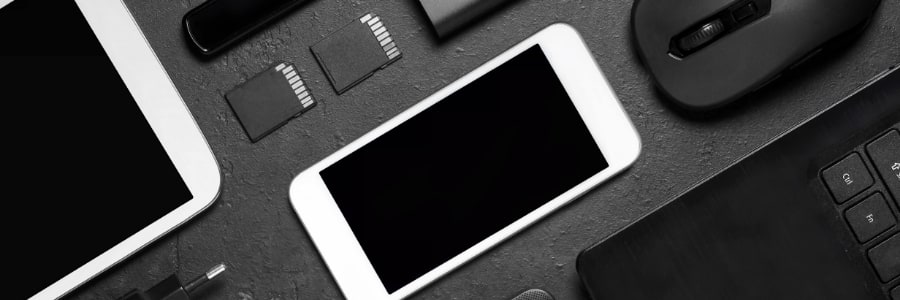
With the vast number of Android smartphones on the market, there are endless options for phone accessories. However, it’s difficult to determine which products are worth your time and money. To save you the trouble, we’ve compiled a list of the best Android smartphone accessories available. Camera lens add-ons Most smartphones have high-quality cameras, but a camera lens add-on can take your photography to new heights. These tiny lenses are significantly less bulky than a real camera and far more affordable. Want to mimic the look of a professionally taken photo? A fisheye lens or even a macro lens can provide stunning results. Waterproof pouch Have you ever wanted to go water skiing or kayaking? Most smartphones today are resistant to water, but they aren’t entirely waterproof. When going to the beach or on a boat, take a waterproof pouch with you to preserve precious moments without risking damage to your phone. Waterproof pouches function like Ziploc bags, sealing your device in and keeping water out. Some come with air cushions that ensure your phone will stay afloat in case you accidentally drop it in a pool or the ocean. Phone sling A phone sling is a versatile accessory that you can wear around your neck, across your body, or over your shoulder. Whether you’re taking a short stroll down the street or jogging in the park, this accessory lets you carry and access your smartphone without the need to reach into your bag or pockets. Motorized smartphone mount Have you ever wished a professional photographer could take beautiful photographs and videos for you? Have you ever wanted to make mind-blowing time-lapse films like those on Instagram? Perhaps you want a completely automated video recorder for your vlog or YouTube videos? If so, then you should get a motorized smartphone mount. These mounts come with a motorized head you can control using a remote or an app via Bluetooth. Its features include auto-tracking, 360-degree horizontal rotation, and smart capture. Wireless earphones With most current smartphones having no headphone jacks, getting a good set of wireless earphones is a must. There are various selections available, ranging from budget-friendly to more expensive ones. You can choose subtle, lightweight earphones or over-the-ear headphones that are excellent at noise cancellation. With wireless earphones, you can listen to your favorite album or podcast while traveling, working out, or relaxing without worrying about tangled wires. These Android accessories let you enhance the capabilities of your smartphone, whether it’s in terms of protection, music, or photography. They also let you customize your phone so that it reflects your personality and style. If you want to learn more about Android devices, call us today. Published with permission from TechAdvisory.org. Source.
How to easily transfer files from an Android device to a PC or Mac
There may be times when you need to transfer files from an Android device to a PC or Mac. This article will discuss several ways to do that. Through a USB cable Using the USB cord that came with your phone is probably the most convenient way to transfer files to your computer. If your phone has a newer USB Type-C-to-Type-C cable and your desktop or laptop does not have a USB-C port, you’ll need to use a hybrid USB-C cable or a USB-C cable adapter. You can easily find these in your local hardware or computer store. The rate of data transfer is determined by the type of cable and storage you have on both devices. For example, a phone with an embedded MultiMediaCard will transfer data slower than one with Universal Flash Storage. Additionally, moving files to a computer with a solid-state drive is faster than on those using traditional hard drives. To transfer files from your Android device to your Windows or Mac via a USB cable, follow these steps: Windows Connect your device to your PC using the USB cable. Tap on the notification that will appear to go to the USB Preferences menu. Tap on the File Transfer option. Select from one of the provided options on what to do with the connected device, including: Import photos and videos – When you choose this option, Windows will automatically search and display all the videos and images stored on your device. You can use the checkbox to choose which ones you want to transfer to your computer. Windows will also assign a default destination folder where your photos and videos will be saved, but you can change it by clicking on the Change destination option below the default folder destination. Open device to view files – Choosing this option will bring up File Explorer. From there, you can choose the files on your device that you want to transfer by copy-pasting them or simply dragging them to a specific folder. Once the file transfer is complete, disconnect the USB cable from your computer. Mac To transfer files from your device to a Mac computer using a USB cable, you first need to install an official Android file transfer app. Once you’ve done that, simply follow these steps: Connect your device to your Mac using the USB cable. When the USB Preferences notification appears, choose the File Transfer option. Open the Android file transfer app. From there, you can transfer your files by dragging them to the Finder window. Via Bluetooth If you don’t have a USB cable, you can use Bluetooth to transfer your file. However, the transfer speed is significantly lower via this method. Here’s how to transfer your files using Bluetooth: Enable Bluetooth on your Android device and PC or Mac. Search for available devices. When you find your device, tap on it to pair with it. Your computer will ask you to confirm a PIN before both devices can be connected. There’s an extra step you have to take if you’re using a Mac. Go to System Preferences > Sharing and choose the Bluetooth Sharing option. From there, you can set the default folder where the files will be stored. Tap on the files on your device you want to transfer, then tap the Share icon and choose Bluetooth. Choose your PC or Mac from the list of connected devices. On a PC, right-click the Bluetooth icon on the Taskbar and select Receive a File. Windows will automatically save the files in the Documents folder. On a Mac, the files you shared will be sent to the folder you specified in the Bluetooth Sharing option. If you follow these steps, you’ll be able to transfer your files in no time. If you want to learn more Android tips and tricks, call our specialists today. Published with permission from TechAdvisory.org. Source.
Android ransomware: How it works and how to protect yourself from it

In recent years, ransomware has become increasingly sophisticated and widespread, infecting not just Windows PCs but also Android smartphones and tablets. If you’re concerned about the security of your Android devices and your business, read on for tips on how to protect yourself from mobile ransomware. How does mobile ransomware work? Android users may unknowingly download mobile apps riddled with ransomware from third-party app stores or even legitimate ones like Google Play Store. Once these apps are installed, the ransomware is launched, locking the device and encrypting the data it contains. The victim may see a ransom note on the screen demanding payment, usually in cryptocurrency, in exchange for unlocking the device or for the decryption key. In 2020, Microsoft reported on a particularly sophisticated ransomware strain. It locks a mobile device’s screen and shows a message telling the user that they committed a crime and must pay a fine. The message purports to be from the police, and users cannot dismiss the ransom note. Cybercriminals have been using this technique to make their victims panic, making the latter more likely to pay up. What should you do if your Android device is infected? Just as with ransomware that affects computers, there’s no guarantee that paying the ransom will restore access to the device and/or encrypted data. This is why cybersecurity and law enforcement professionals advise against giving in to cybercriminals’ demands. To prevent further infections within your network, experts recommend that you immediately disconnect the infected smartphone or tablet from your business’s Wi-Fi or home network and other devices it’s connected to. Next, report the incident to your in-house IT staff or managed services provider, who can help find out what type of ransomware you’re dealing with. They can also figure out the best way to remove the ransomware and help you regain control of your device. How do you protect your business from mobile ransomware? Remind your employees to download from official app stores only; they should never download from third-party app stores and websites, as well as online forums. Additionally, make sure they turn on Google’s security system, Verify Apps, which scans apps for potential threats before these can be installed. Employees can do this on their Android devices by going to Settings > Security > Verify Apps and enabling “Scan device for security threats.” Another step you can take is to ensure that all your employees’ mobile devices have antivirus software installed, and that these devices are always kept up to date and running the latest version of Android. Google releases security updates regularly, which often include fixes for newly discovered vulnerabilities. Finally, regularly back up important files on mobile devices to either a USB drive, a computer, or any cloud-based storage service. This helps ensure your staff won’t lose valuable data if they need to reset their smartphone or tablet. By following these tips, you can help keep your Android devices and business safe from mobile ransomware attacks. Stay vigilant. Don’t hesitate to contact us if you have any questions on how to protect your business from different kinds of cyberthreats. Published with permission from TechAdvisory.org. Source.
How to organize Android apps
Is your Android device’s home screen packed with randomly arranged apps — including those you’ve never used before? A cluttered screen makes it difficult to find the app you want to use. One way to access these apps quicker is to organize them in folders, and this guide will show you how. Creating a folder in Android This process is fairly similar across most Android devices. Just follow these steps: Go to the home panel where the apps you want to organize are located. Press and hold the icon of one app and drag it over another app you want to group with the first one. This will automatically create a folder with both apps inside. Renaming a folder in Android Some devices will automatically assign a folder name depending on the apps that are grouped together. If you want to use a custom name for a folder, do the following: Press and hold the folder you want to rename. Choose Rename from the menu. Type in the new name of the folder, and press OK. Alternatively, you can follow these steps to rename a folder: Tap on a folder. Tap on the current folder’s name and change it. Adding more apps to a folder If you want to add more apps to the folder you created, follow these steps: Locate the app you want to add to the folder. Press and hold the app icon, and drag it onto the folder. The app should now be in the folder you created. Removing apps from a folder If there are apps in the folder you no longer need and want to remove, this is how to do it: Tap on the folder where the app is located. Press and hold the icon of the app, and drag it outside of the folder. Another way to do this is to long-press the app icon and choose Remove or Uninstall from the menu. Deleting a folder in Android If you want to delete a folder on your device, there are a couple of ways to do it: Tap and open the folder you want to delete. Drag the apps out of the folder. Once this is done, the folder will automatically disappear. Another way of deleting a folder is to press and hold the folder icon and select the Remove option. Take note that deleting a folder will not delete the apps in it. The apps will still be installed on your device unless you remove or uninstall them manually. Folders are a perfect way to keep your apps organized and your device’s home screen clutter-free. Get in touch with our specialists today if you want to learn more about organizing your Android apps Published with permission from TechAdvisory.org. Source.