
Alexa voice control has arrived on Android!

Alexa, how’s the weather outside? “Alexa, can you order me a pizza from Dominos?” “Alexa, do you know Siri?” These are just some of the questions you might enjoy asking Alexa on your smartphone now that Amazon has brought the voice control feature to the Android version of the app. But before you start geeking out, here’s the rundown of the most recent update: Until recently, the Amazon Alexa app could only be used to control settings for the Echo, Dot, and other supported devices. Considering what the AI-powered assistant is actually capable of, this is nothing to get excited about. But now all that has changed as Amazon brings voice control to the Android version of the app, making Alexa a full-fledge digital assistant on Android handsets. The update was initially available to the US, UK, Germany, and Austria, and is expected to roll out to more countries via the Amazon Appstore and Google Play over the course of the coming days. Activating Alexa on your newly downloaded or updated app The first thing you need to do is grant it permission to use your device’s microphone and then your location. With the new voice feature, you can use Alexa to play music, get weather forecasts, and easily enable Alexa Skills. You can also make calls and send messages to your home Echo device. The update is on the way to the iOS App Store, although it is not known when the update is set to reach Apple devices. Unfortunately, Alexa app for Android currently does not support the wake word function, so you will need to press the Blue button whenever you want to activate Alexa. The hands-free experience is still exclusive to Alexa-integrated smartphones such as HTC U11, Huawei Mate 9, and Motorola Moto X4. Alexa for everyday use With more than 25,000 skills available on the Alexa Skills store, you might be wondering where to get started. We’ve highlighted some ways Alexa can help with your daily activities: Ride services – enabling ride-hailing apps like Uber and Lyft is a breeze. Simply say “Alexa, enable Lyft (or Uber)”, plug in your account and payment details and your smartphone now has the ability to order you a ride. News – Alexa can keep you updated on current events. For example, the NPR Hourly News Summary skill can be prompted by saying “Alexa, what’s my Flash Briefing?” or “Alexa, what’s in the news?” This will give you a 5-minute briefing of the day’s headlines. Other news channels such as Bloomberg, CNN, the Associated Press, WSJ, The Economist, and BBC are also available. Organization – whether you are super organized or can’t seem to keep anything together, Alexa is there to help. It is capable of managing your Google calendar, making restaurant reservations, reminding you about important events, updating grocery lists, ordering items from Amazon Prime, and tracking Amazon packages, just to name a few. Media – besides streaming music directly from Spotify, Pandora, and iHeartRadio, you can also listen to audiobooks and podcasts or stay updated with your favorite sports teams with skills such as NFL, NBA, MLS, MLB, and many more. Health – the AI assistant might be the closest thing you can get to having a personal trainer with a collection of skills available to help you stay on track of your health and fitness goals. Some popular skills include the activity tracker Fitbit, 7-Minute Workout, and relaxation-inducing skills such as Ambient Noise, Stop, Breathe & Think, and Meditation Timer. With Amazon clearly flexing its muscles in the voice assistant category, along with Apple’s HomePod set to release in the near future, 2018 is shaping up to be an exciting year for tech. As AI assistants like Amazon Alexa, Google Assistant, Apple’s Siri, Microsoft Cortana, and Samsung’s Bixby continue to make appearances in our homes, cars, and personal devices, we are excited to see them pave their way to the workplace. That said, may the best AI assistant win. If you’d like to stay updated on the latest AI trends or need help with anything AI-related — like Alexa for Business or Microsoft Cortana integration for your business — give us a call today. Published with permission from TechAdvisory.org. Source.
How to move files from Android to computer

There’s a lot of good things to say about how-to articles. They’re simple, practical, and if we follow instructions correctly, they can give us a sense of accomplishment. From basic life skills such as learning how to change a lightbulb or how to fry an egg to more technical topics like learning how to write JavaScript or how to perfect a soufflé, there’s always someone out there who is going to need a how-to article on something. If you’re that somebody today wondering how to transfer your files from your Android phone to your computer, here is how you do it: What you need: Your Android phone A computer with a USB port A USB cable What you need to do: If you have a Windows computer… Start by plugging your phone into the computer via USB port. Turn on your phone’s screen and unlock the device. At this point, your Android device should only be connected for charging. Swipe down from the top of your screen and tap on USB for charging to view more options. Select Transfer files in the menu that appears. On your computer, search for your Android device on the File Explorer. Click on the icon that represents your phone and you should be directed to your phone’s internal storage. Drag and drop the files or folders into your preferred location, such as the desktop or documents. If you want to save videos and pictures, you can find them in the DCIM folder. Once you are done, right-click your device’s name. Click Eject before unplugging the phone and USB cable. If you have a Mac… If you’re using a Mac desktop or laptop, the first thing you need to do is to download Android File Transfer, an official Google app that works on Macs running on OS X 10.5 or later. Afterwards, the process is pretty similar to how it’s done on Android, and you can easily transfer files even without an internet connection. Download and install Android File Transfer on your computer. Plug your device into your Mac USB port with the USB cable. Unlock your phone and swipe down on your screen. Tap on USB for charging to view more options. Select Transfer Files. The application should run automatically on your Mac. You can also open the Mac Finder or Spotlight Search and look for the Android File Transfer on the list of programs. Double click the Android drive icon. Browse the files and folders on your Android device and transfer files to your computer. Once you are done, open the Finder sidebar and find your device under Devices. Click on Eject and unplug the phone and USB cable. You can also go to the desktop and drag your device to the Trash. And voilà! — you’ve just learned an essential Android skill. Keeping a copy of personal or business data you care about is a task that should not be overlooked, since your valuable information can be wiped out in a matter of seconds due to human error, natural calamity, or unexpected downtime. Securing a backup of files in your mobile device may be easy peasy, but how do you make all important data in your business devices and computers disaster-proof? Our team can offer regular backup solutions to ensure that your business will be able to weather the storm when it strikes. Call us today to discuss backup options available to your business. Published with permission from TechAdvisory.org. Source.
Tips to protect your smartphone

Cyber criminals will always be eyeing your data regardless of where it’s stored. That means even your trusty Android phone or iPhone isn’t safe. In fact, it may be more exposed to security risks than you think. These tips can help increase your mobile’s security. Set a strong password Whether your device requires a 4-set or 6-set numerical PIN, a fingerprint, or a facial scan, set a lock that’s difficult to crack. This is not the strongest security measure by any means, but they provide a necessary initial barrier for intruders. Major manufacturers like Apple and Samsung are innovating their products’ locking mechanisms and you’re doing yourself a favor by using them. To manage your device’s locks, follow these steps: iOS – Go to Settings > Touch ID & Passcode, enter your passcode, and switch on ‘Require Passcode.’ This is also where you can manage your Touch ID settings and adjust access controls (Recent Notifications, Today View, and more). If you’re using an iPhone X, go to ‘Face ID & Passcode.’ Android – Go to the Settings page > Lock Screen and Security to set your passcodes. These feature names may vary per device. Download applications only from official stores For iPhone users, download only from the App Store, and for Android phones, Google Play Store. Downloading apps only from these platforms doesn’t guarantee that your phone will be 100% safe from malware, but doing so greatly reduces the likelihood of you downloading malicious programs disguised as legitimate apps. Even Apple, which used to be the gold standard for software security, is no longer immune to system vulnerabilities. Despite having a strict policy on downloads (iPhone users can download only from the App Store), those with ‘jailbreak apps’ are exposed to a multitude of malicious entities. As a further precaution, download only apps that have high ratings and steer clear of downloads from unknown links. Check your apps’ permissions When you download certain apps, you’ll be asked to grant permission for it to access your data (files, contacts, photos, etc.). What most users don’t know is that some of these permissions also gain access to hardware controls such as those found in the device’s camera and microphone. And if a malicious app happens to slip through the cracks, these permissions can serve as a gateway for hackers. Android and Apple have already improved their respective OS’s mechanisms to control what apps can access, but you can take it up a notch. Follow these steps to manage what apps can access on your phone: iOS – Go to Settings > Privacy to see your apps’ access level. For example, if you tap on Microphone, you’ll see all the apps that have access to your iPhone’s Microphone. If you wish to deny access to it, you can do so by turning privacy off. Android – Go to Settings > Apps, select an app, then tap ‘Permissions.’ From here, you can control every individual app’s access to your devices’ files. Update apps and security software We cannot stress this enough: As soon as they become available, download and update your OS and apps’ software. In exceptional cases where certain versions of an OS are known to have bugs, not patching your device doesn’t make it any less exposed to risk. And here’s why: Most older OS versions have had to be patched because of a software vulnerability, and delaying its update to the latest version doesn’t make it safer. In fact, it’s far riskier to remain unpatched and wait for the next update. These basic yet critical tips will help keep all your gadgets safe and your business data unharmed by cyber criminals. Boost your devices and your business’s defenses with dependable cyber security from our team — call us today! Published with permission from TechAdvisory.org. Source.
MTD enhances your business’s security

More and more customers are using their smartphones and tablets to browse and purchase products. That is why many businesses are adopting a mobile-first strategy and shifting their focus on improving their websites on mobile platforms. But to stand a better chance of enhancing business security, you need to adopt mobile threat detection (MTD) tactics. How machine learning helps Mobile threat detection is an all-around solution that protects the physical device, its network traffic, and the applications from malware. It is augmented by a machine learning mechanism, which allows devices to recognize usage patterns and identify potentially malicious behavior without additional programming. Not only is it able to identify abnormal behavior, it’s also useful in cases involving multiple mobile devices. For example, you’re monitoring a hundred Android mobile devices running on a specific OS version and one deviates from the rest; machine learning makes it easy to spot that anomaly and detect possible threats. Is MTD effective in detecting malware? It’s no secret that most malware are cleverly disguised as useful programs or apps, making them difficult to detect. The key to finding — and defending against them — is recognizing irregular patterns in user behavior and how individual devices function. For this reason, a simple scan is not enough, especially for cyber crimes like phishing scams directed toward individual recipients. Machine learning integrated into mobile threat detection helps by observing both the app and the user’s behavior. But despite this formidable combination, cyber criminals continue to develop more sophisticated ways to attack computer systems and mobile devices. As such, mobile security needs to cover applications, networks, and devices to be effective. How to adopt MTD solutions MTD is an essential part of mobile security and is widely offered by various vendors. However, implementing one requires a thorough evaluation of important factors, including industry regulations and the level of sensitivity of the data stored and/or exchanged in your mobile devices. Your chosen MTD solution should also be able to inspect mobile devices’ hidden weaknesses that can make individual devices and your entire network vulnerable to malware. Moreover, it should be able to identify suspicious connections and unusual network traffic. Developing strong defenses for mobile devices is fast becoming a critical component in many businesses’ cyber security strategies. And although mobile threat detection remains an imperfect means to detect malware, it is far more powerful than traditional anti-malware solutions. Businesses like yours need comprehensive security solutions to fend off cyber attacks, whether on your PCs, laptops, or smartphones. For expert IT security recommendations, call us today! Published with permission from TechAdvisory.org. Source.
How to connect accessories on Android
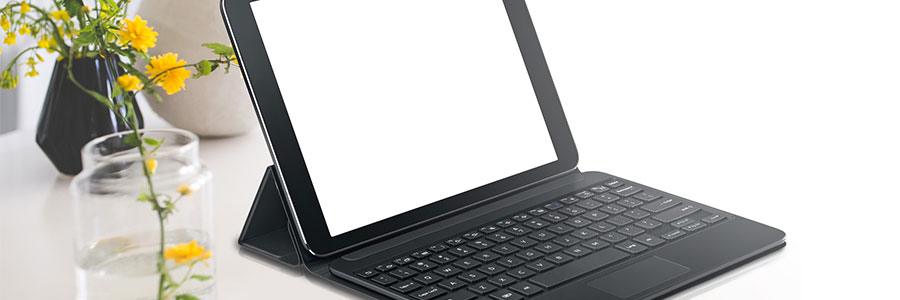
Did you know that you can connect a mouse to your Android tablet, or even an Xbox 360 controller to play a game console-style? The truth is many Android devices support a wide range of accessories. Here’s everything you need to know. USB keyboards, mice, and gamepads Android phones and tablets don’t come with standard, full-size USB ports so you can’t plug a USB accessory directly into it. To connect, you’ll need a USB on-the-go (OTG) cable, which is simply a micro-USB adapter that can be purchased from any computer store for a couple dollars. From there, your accessories should work without any further configuration. In fact, USB OTG even allows you to use other USB devices with your Android, like a flash drive. Keep in mind that not every Android device has the port that’s required to support USB OTG. Such is the case with a Nexus 4 smartphone. Make sure to Google your device’s specs before purchasing a USB OTG cable. Bluetooth keyboards, mice, and gamepads While USB OTG works well, wires do add clutter to what is supposed to be a portable device. This is where Bluetooth technology comes in. Most Android devices will allow you to connect wireless mice, keyboards, and gamepads directly by pairing them with your Android Bluetooth settings. Using each accessory All your accessories should work in a plug-and-play manner, and here’s what you can expect from each of them. Keyboard: Once connected, you should be able to use it to type on your Android tablet just like the onscreen keyboard. Many of the keyboard shortcuts work like they do on computers, too. These include Alt+Tab for switching between apps, and Ctrl+X, C, or V for Cut, Copy, and Paste. Mouse: Connecting a mouse will allow you to navigate and click on things you’d normally tap on your Android device with a mouse cursor. You can still use the touchscreen while the mouse is connected. Gamepad: While gamepads can be used to navigate through your Android’s home-screen interface and launch applications, they’re better used with games that support controllers like Sonic and many others. You’ll be surprised at the number of things you can do to get the most out of your Android device. If you have any questions about Android or are looking to integrate it into your business, give us a call and we’ll be happy to advise. Published with permission from TechAdvisory.org. Source.
Key security enhancements in Android 8.0

Oreo is Android’s latest and greatest operating software to date. With sleek new enhancements such as a picture-in-picture functionality, smarter Wi-Fi toggling, customizable application notifications, and more, Android users have plenty to get excited about. However, its key security updates aren’t getting as much attention even though they’re just as important to the all-new Android interface. More secure booting Android’s Verified Boot feature was introduced in 2013 and has been fine-tuned since. In Oreo, it performs a quick inspection of a device’s software before it starts up. The Verified Boot functionality prevents the device from starting if it detects that its OS reverted to an older version, which can expose it to security risks resulting from the older version’s vulnerabilities. With this upgrade, any attempts to exploit your device and data can be foiled by a system reboot. Chip-embedded security If you’re worried about physical attacks compromising your device’s security, Oreo covers that front by enabling a chip-based feature that fortifies security for Android devices. Integrating chip technology into supported devices’ security system makes tampering and other forms of physical intrusion extremely challenging for hackers, giving users greater protection. Stricter app permissions It’s tempting to simply click ‘OK’ whenever downloaded apps request permission to access your data and perform certain functions during installation. Android has limited what apps can actually gain access to your data with the System Alert Window feature. The system alerts on previous Android OS were supposed to allow apps and programs to interact with the users by sending pop-up boxes and similar elements that usually cover up the device’s entire screen. However, Android developers detected a potential for its abuse. For example, hackers can easily use similar pop-up boxes that purport to be from legitimate apps. With the new System Alert Window in Oreo, the pop-up boxes have been modified so that they’re easier to dismiss, limiting what malicious apps can do to trick users into clicking them. Two-factor authentication support Two-factor verification has become a standard feature in cyber security because it adds a much-needed layer of protection in accessing a password-protected account. It typically works by prompting a user to enter another piece of information in a separate device (e.g., a smartphone) or any physical token, which only the account owner would have. Android 8.0 integrates a two-step verification that allows the use of a security key, which can easily connect to an Android device. Currently, it works only on apps that support it, but it won’t be long before more apps adopt it as an essential security protocol. Stronger Sandboxing Sandboxing essentially does one crucial thing for security: isolate compromised or problematic areas within a software or system so that they don’t infect the rest of the system. Android Oreo beefs up its sandboxing capability by deploying a filter that prevents malicious apps from accessing the OS’s command center, thereby limiting their interaction with the system and other safe apps. These security improvements aren’t the most noticeable features in Android Oreo, but they’re worth paying attention to. If you need to learn more about your systems’ and devices’ security features, get in touch with us today. Published with permission from TechAdvisory.org. Source.
Microsoft Edge goes mobile
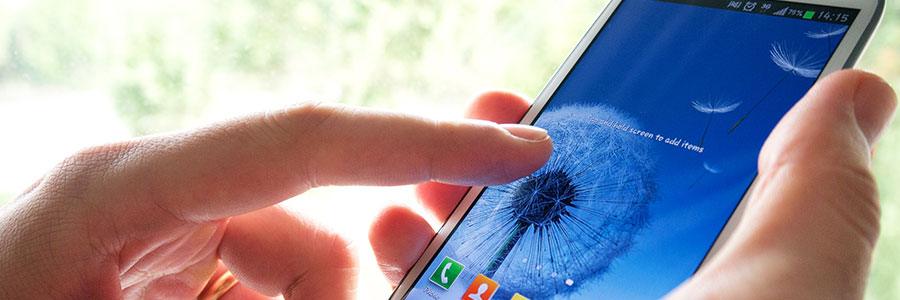
Microsoft Edge is a great browser — it’s fast, clean, and has every feature you need. But alas, few people use it. So in an attempt to encourage PC users who also own an Android or iOS device to use Edge, the company is moving the browser to mobile platforms. Read on for more details. Why Microsoft is expanding Edge to mobile Microsoft’s Windows Phone is dead. So as a new mobile strategy, Microsoft has decided to bring the Edge browser to iOS and Android phones in hopes of expanding the browser’s reach. Doing so helps with Microsoft brand recognition, and gives mobile users a reason to stick to Windows-based desktops. What’s new in Edge for Android The highlight of Microsoft Edge for Android is the “Continue on PC” feature, which enables you to move between mobile and desktop browsers without starting a browsing session from scratch. Beyond convenience, this feature is also helpful for viewing sites that aren’t optimized for mobile devices. Edge for Android also syncs Favorites, New Tab Pages, and Reading Lists between your phone and PC. And even if you’re not using Edge for the cross-comparability with your desktop, the clean Reading View feature is an excellent way to declutter articles on your mobile device. If you assumed Microsoft would restrict Edge’s search engine to Bing, you’d be wrong — the default search engine can be set to Google, Yahoo, or others. How to get the beta version You can try the beta Microsoft Edge for Android by signing up for the preview in the Google Play Store. For now, Edge for Android is in US English only, but the company said it plans to include other languages as the preview expands. The official launch of Microsoft Edge for Android will be later this year. It will likely come with other announcements, such as tablet support. Whatever device or platform you use — whether it’s Microsoft, iOS, or Android — make sure you get the most benefits from its features. Our IT experts keep themselves up to date with the latest IT news and know how to help you reap the benefits of the technology you have. Contact us today. Published with permission from TechAdvisory.org. Source.
Try these hidden Android Oreo features
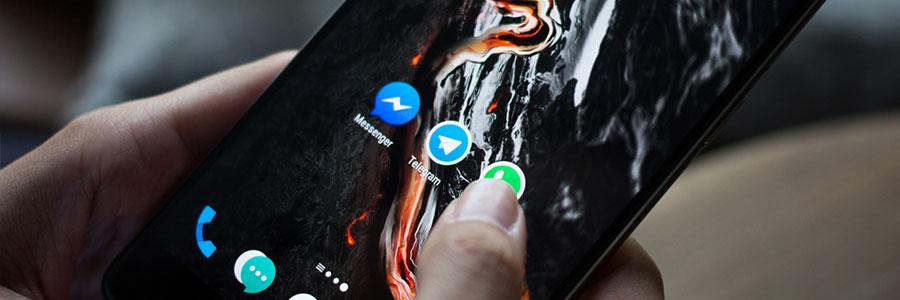
If you’re a long-time Android user, chances are you already know that your device (or devices) are chock full of features just waiting to be discovered. If you’re unsure where to start, you’re in luck. We’re here to discuss Android Oreo’s useful hidden features that help you work more efficiently. Notifications More applications mean more notifications to manage. Fortunately, there are a handful of ways you can adjust your notifications other than simply turning them on or off. Snooze Notifications – Getting notifications from all your apps is distracting and reduces productivity. You can prevent them from appearing in the Notifications shade for a specified amount of time by swiping an alert in a left-to-right motion, whereby options to snooze it — for 15 minutes, 30 minutes, 1 hour, and so on — will appear. Notification Dots – Important notifications within the Notification shade can get lost amid non-essential ones. There is a hidden feature that lets you view notifications and actions from only high-priority apps, such as a productivity platform or a messaging tool. Just press and hold an app icon and the notifications for that app will appear. Notification Channels – This feature gives you even greater control over managing your device’s notifications by letting you categorize them according to the level of priority, update status, and more. Simply swipe a notification alert from left to right, then tap ‘All Categories’ under the gear icon to adjust notification categories. Wi-Fi Settings Automatically turn on Wi-Fi – Every time you’re near a ‘high-quality saved network,’ your Wi-Fi will turn on automatically and connect to that network, saving you a few taps. To activate this setting, toggle ‘Turn on Wi-Fi Automatically’ under your device’s Wi-Fi settings, and make sure the device is not in battery saver mode and that its location service is on. Wi-Fi Assistant and Google VPN – Oreo’s enhanced Wi-Fi Assistant lets users automatically connect to open Wi-Fi networks with a secured VPN connection from Google. This means you can connect to that coffeeshop wifi without worrying about how unsecure it is. Battery Inactive apps that run in the background are a big drain on your battery. Fortunately, a battery-optimizing feature in Android Oreo solves this problem. But first, you’ll have to determine which apps consume the most battery while running in the background. Go to Settings > Battery > “App usage since full charge,” and turn off Background Activity for apps that have high “While in background” times. Data Autofill and Storage The Autofill function analyzes your personal data, saved passwords, and other information based on the content on your screen and your general usage. What’s more, it can be used even for non-Google apps. You can activate it under Settings > System > Languages & input > Advanced > Autofill service. When your device is running low on storage, Oreo’s improved Smart Storage feature frees up space by automatically deleting photos and videos that have already been backed up in Google Drive. Many businesses rely on mobile devices not just for company communications but also for productivity, and these are just some of the tips that help maximize your devices’ usefulness. Get in touch with us today for more money-saving and efficiency-enhancing tips and tricks. Published with permission from TechAdvisory.org. Source.