
Microsoft Office 2019 vs. Office 365: A comparison
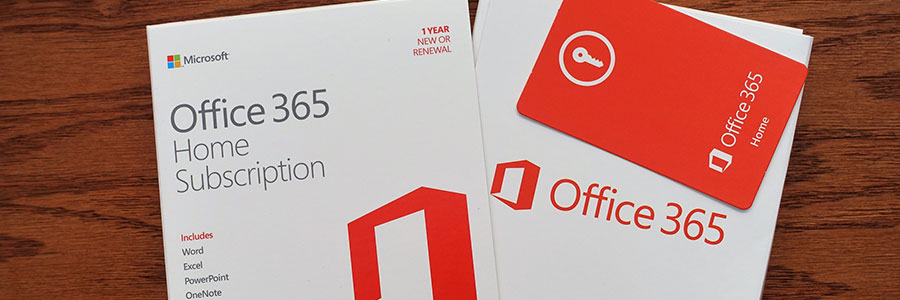
Microsoft Office is one of the most popular productivity suites for businesses. Over the years, Microsoft has released several versions of the product, all of which were designed to target different users or update outdated features. Two of the suite’s latest iterations, Office 365 and Microsoft Office 2019, contain many of the same standard applications, but users should pay close attention to their differences when deciding which one to purchase. What is Microsoft Office 2019? Microsoft Office 2019 is the latest version of Microsoft’s popular Office suite. With apps like Word, PowerPoint, Excel, and more, it is mostly similar to all previous versions of Office. Upon purchase, you receive a license that lets you install and use the version on one computer. This license also covers all security updates, although it does not cover the upgrade to follow-up or future versions of Office. Microsoft Office 2019 is sometimes known as a “perpetual” version. This is because after making a one-time payment, the license to use the program is yours for life. You may even keep using Office well beyond its natural life cycle, although at this point, you will no longer receive any security updates. To regain patches and support, you need to upgrade to a new version or buy a new product. What is Office 365 for business? Office 365 gives you the same apps offered by Microsoft Office 2019, but with other tools, features, and benefits mixed in. Unlike the latter, which is available only on the lone computer it’s installed on, Office 365 is cloud-based and can be used by up to six people at any given time. Additionally, Office 365 is available only via monthly or yearly subscription services. You can also choose from several plans, all of which are optimized for varying user needs. For instance, the “Office 365 Personal” plan, which gives you access to all the apps in the suite, 1 TB of storage space on OneDrive, and Skype minutes, is great for single users. Office 365 is also available to teachers and students as a free service, as long as you can provide a valid school email address. For your business, you may choose between Office 365 Business and Office 365 Enterprise plans. Which is better for business? Most businesses will benefit more from Office 365 because of its extra features and its superior level of security. Furthermore, the monthly per-user cost is usually lower when compared to the cost of licensing the same version of Office 2019 for each individual. The other benefits Office 365 for Business include: All users are on the same version of Office – Because Office 365 for Business is based in the cloud and is managed via a central admin panel, you can ensure that all users have exactly the same version of Office, which in turn ensures that your files will be compatible with any user. Reduced licensing costs – If you purchase individual versions of Office 2019 for your employees, you could end up paying over USD $440 for the Professional version, which can only be installed on one computer. Compare this with Office 365 Business Premium, which costs USD $12.50 per user, per month, and offers the same version of Office, along with more features. Enhanced security and uptime – Microsoft guarantees that Office 365 software will be up and running 99.9% of the time, which means the programs you rely on will be available when you need them. It’s more mobile – With Office Web Apps and Office 2019 mobile apps you can take your work anywhere. Combine this with solutions like SharePoint that allow you to store documents in a central location, making it easier to access your files while out of the office. Furthermore, if you would like to use the Office mobile apps, you will need an Office 365 subscription. Understanding your business’s unique needs will help you choose the best Microsoft Office version for your company. In any case, never hesitate to ask for assistance from IT experts in identifying the applications and software plans that will truly empower your company. Published with permission from TechAdvisory.org. Source.
3 Cloud service models for your business

Cloud computing has become a staple in business strategy and IT architecture over the past couple of years. The functions and benefits of using the cloud let businesses seek to adopt new business models, obtain valuable insights from massive amounts of data, manage workloads, and gain competitive advantage. But cloud adoption can be tedious, and knowing the right kind of cloud to adopt for your business is critical to your success. This article will help you understand the three types of cloud service models. 1. Software-as-a-Service (SaaS) Easily the largest and most well known cloud-based service, SaaS uses the cloud to deliver apps to users, and these apps are then usually accessed via a web browser. This means users who have access to the internet can access the software from any device, at any time. Unlike physical software that you install on your computer, SaaS solutions are hosted on a provider’s servers. In a nutshell, SaaS is: Available over the internet Hosted on a remote server by a third-party provider Scalable, with different tiers for small, medium, and enterprise-level businesses Inclusive, offering security, compliance, and maintenance as part of the cost With SaaS, your provider is responsible for software maintenance and updates, which means users will all be using the same version of software and get updates at the same time. As a business owner, this means that managing the software on all of your computers is not only easier, but more affordable. SaaS software solutions include office document creation suites, accounting software, email, HR solutions, content management, customer relationship management (CRM), and more. 2. Platform-as-a-Service (PaaS) PaaS is primarily used by developers who need a virtual environment for developing and testing their own custom software or applications. This means developers don’t need to build and maintain their own infrastructure (which is comprised of networking devices, storage, servers, an operating system, and other necessary hardware and software) from scratch when developing applications, saving the firm time and money. Most companies who utilize PaaS do so to either host or develop their own software solutions, or to provide support for software used by employees. PaaS platforms are: Accessible by multiple users Scalable — you can choose from various tiers of resources to suit the size of your business Built on virtualization technology Easy to run without extensive system administration knowledge While PaaS is gaining in popularity with many small businesses, most won’t have firsthand interaction with this type of cloud because they won’t need to build their own software or app. 3. Infrastructure-as-a-Service (IaaS) IaaS offers services such as pay-as-you-go storage, networking, and virtualization. The most popular and well-known type of IaaS is the virtual machine — a digital version of a computer or server that is accessed over an internet connection. IaaS gives users cloud-based alternatives to expensive on-premises infrastructure so businesses can use their funds to invest in other things. In other words, if you are looking to virtualize your systems via the cloud, IaaS is a good place to start, as it allows you to move existing support systems into the cloud. Other solutions can then be migrated or introduced as needed. IaaS is essentially: Highly flexible and scalable Accessible by multiple users Cost-effective While the cloud offers a wide variety of benefits and solutions, choosing the service which is best for your company’s needs can be tedious. To ease this burden, get in touch with us today. We’ll help you find the best solution your business needs and ensure proper migration and implementation so you can focus on running your business. Published with permission from TechAdvisory.org. Source.
5 IT investment mistakes to avoid

Business owners aren’t perfect. They’re human and sometimes make costly mistakes. If you want to succeed as a business owner, learn from others and try to avoid making bad moves. Be wary of the things you purchase and think twice before parting with your hard-earned money. Here are five mistakes to avoid when investing in new technology. Spending without finding the perfect fit Advertisers like to make you believe that the newest technology will solve all your problems. While the latest cloud or virtualization offering is likely to make things better for many companies, they won’t work for everyone. Don’t let the flash and hype of new products deceive you. Take time to think about the results you want to achieve with technology. Make a list of your goals and check if they can be fulfilled with your new IT investment. A good IT provider should guide, not confuse you. That provider should see to it that you make the best choice. Believing everything will magically work together As technology evolves, it becomes easier to use. User-friendly products help people work better and faster. However, not all products follow that route, and many business owners wrongly assume that the new technologies they invest in will work well with the other IT systems they already have. This mistaken belief can get them in trouble. While many technologies are compatible with one another, those that don’t work together can result in massive and costly downtimes that can cripple your business. So, don’t push your luck. Be smart, do some research, or consult an IT professional before making a purchase. Not training your team Now that you’ve found the perfect fit technology that will integrate with your current IT, go ahead and purchase it. After that, you think you can relax and let your sparkly new IT solution power your company to new levels of success and profits, right? Wrong! Don’t forget that not all employees will be comfortable with your new investment. Nor will everyone know how to use it. That’s the time to consult an IT provider for support and training. If this is not possible, look elsewhere or think twice before buying anything. Forgetting your budget More and more IT solutions are packaged with pay-as-you-go monthly pricing. While this is a great way to help you avoid a large upfront capital investment, implementing too many different technologies quickly without thinking about recurring costs can eat up your money. Think carefully before opening your wallet. Do a little research, draft a budget, or get help from a consultant. This will spare you a lot of frustrations. Not getting feedback It’s wise to consult employees who will be using the new technology on a daily basis. Do this even before you make a purchase. Remember that not everyone may feel at home with the new product. They might even discover some downsides you aren’t aware of. Talk to people to get important feedback, or you may find it difficult to convince them to use it. Need an IT professional to create a complete technology solution for your business? We’re happy to serve you. Published with permission from TechAdvisory.org. Source.
An introduction to Microsoft 365

Are you bothered that Office 365 and Windows 10 are sold separately? If so, you’re not the only one, and thankfully, Microsoft has devised a solution to streamline your purchases. Here’s everything you need to know about Microsoft 365. Microsoft 365 caters to the workplace by combining Office 365 and Windows 10 into one solution, which is available in two plans: Microsoft 365 Business and Microsoft 365 Enterprise. Microsoft 365 Business Designed for small- to medium-sized companies, this bundle includes some of the best productivity tools, security, and device management capabilities that Microsoft has to offer. Productivity apps: Access, Publisher, OneNote, Outlook, PowerPoint, Excel, and Word SharePoint, Microsoft Teams, Skype for Business, OneDrive, and Exchange Business tools from the Office suite (Microsoft Invoicing, MileIQ, Outlook Customer Manager, and Bookings) Enterprise-grade security and device management capabilities: Intune App Protection for Office and other mobile apps Exchange Online Archiving to back up, preserve, and protect your data Windows Defender Exploit Guard and Office 365 Advanced Threat Protection to keep your system safe from sophisticated malware and external threats like phishing Additional services: Regular updates for Windows 10 and the Office 365 apps Automatic installation of Office apps on all Windows 10 devices An admin console for managing and setting up devices and users Microsoft 365 Business is available in three pricing plans: Office 365 Business Essentials, Office 365 Business Premium, and Microsoft 365 Business. Microsoft 365 Enterprise Microsoft 365 Enterprise is designed for larger companies. Productivity cloud-based and local apps: Office 365 ProPlus, including apps like Outlook, PowerPoint, Excel, and Word for your Mac or PC Online services for meetings, collaboration, file storage, email, and more Windows 10 Enterprise, which includes app and device management features, providing users with the most secure version of the operating system yet You can subscribe to Microsoft 365 Enterprise through three plans: E3, E5, and F1. By choosing the right subscription model, you’ll be able to make the most out of Microsoft’s growing number of service offerings. If you’re looking to upgrade to Windows 10 and have any questions about the operating system, or are wondering which of the two plans to choose, give us a call today. Published with permission from TechAdvisory.org. Source.
Represent your business properly on social media

Social media accounts for businesses are invaluable tools enterprises use to reach out to their client bases to fully understand their needs and wants. Make sure your social media manager understands the proper way to interact with people online, especially those with bad things to say about the company. Online reputation management mistakes As long as you have a successful business or brand, people will always have something to say about it. And when it comes to online reputation management, the goal is to create positive engagement with your customers. So if the discussion about your brand swings negative, here are a few online reputation blunders to avoid. Reacting to negative commentary – Negative commentary is generally any commentary that constitutes a verbal attack. As a rule, if it isn’t constructive criticism, it’s probably negative commentary. Feel free to ignore these comments because engaging with them will escalate the conversation further, and fueling those flames are never good for business. It is one thing to stand up for values and principles in a diplomatic manner, and it is a completely different thing to engage in a word war with online commenters who will likely not endure any adverse effects to their negative commentary. Reacting emotionally – If your reaction to negative comments is to fire back with negative comments, you’ll appear unprofessional. Customers want to do business with a brand that is professional. If you react emotionally or negatively to a customer online, who’s to say you wouldn’t do the same in real life to the person reading it? As a social media manager, you are the voice of the business. If your voice is abrasive, immature, and easy to bait into a pissing contest, best believe that your customers will see your business in the same light. How to resolve negative commentary While a negative comment about your brand may upset you, don’t let your emotions get the better of you and post something you’ll later regret. Instead, calm down, compose yourself, and follow these guidelines. Figure out what the customer really wants – Every customer wants their problem to be resolved, but how they want their issue fixed will vary. Some customers want an apology, others want a refund, and some may simply want the product they ordered but did not receive. Just because the customer’s comments are poorly phrased doesn’t mean that they don’t have a legitimate grievance. Learn to ignore the personal attack and carefully draw out the true cause for concern. Stick to the facts – When engaging with a customer online, the initial comment can quickly turn into a back-and-forth discussion. If this happens, don’t get off topic when addressing the problem. The customer may try to engage you in a he-said-she-said battle, but avoid taking the bait. Respond with facts, stick to the matter at hand, and don’t get caught up in personal accusations. Turn the negative into a positive – Negative feedback is an opportunity to improve your business. So be honest with yourself and, if there’s truth in the comment, take a good hard look at your company. Did the commenter point out a glaring problem you can improve upon? Remember, a business is nothing without its customers, so it makes sense to do your best to please them. To learn more about how to best manage your online reputation, or for assistance with any of your IT needs, get in touch with our experts today. Published with permission from TechAdvisory.org. Source.
A complete guide to juice jacking

Smartphones have become such a vital component of the modern lifestyle to the point that we are always glued to them. And as our time with our gadgets increases, the need to recharge them while we’re on the go also increases. When you’re nowhere near your charger and your juice runs out, that public charging kiosk can look pretty promising. But what you might not know is that recharging phones through public chargers can make you a victim of “juice jacking.” If you’re not sure what that is, read on to find out what makes it dangerous. What’s juice jacking? While newer phones have ditched the cable charger and moved on to wireless charging, older models still rely on power cords to transmit power to the mobile device. The problem with this setup is that the cable used for charging can also be used for transferring data. This setup is easily exploitable, and trust opportunists to do just that. When you use a public cable, they gain user access by leveraging the USB data/power cable to illegitimately access your phone’s data and/or inject malicious code into your device. Attacks can be an invasion of privacy: your phone pairs with a computer concealed within the charging kiosk, and information such as private photos and contact information are transferred to a malicious computer. The computer can then access a host of personal information on the device, including your address book, notes, photos, music, SMS database, and keyboard cache. It can even initiate a full backup of your phone, all of which can be accessed wirelessly anytime. But attacks can also be in the form of malicious code directly injected into your phone. A public USB hub can be used to transmit malware-ridden programs or tracking applications to the user’s mobile phone. All it takes is one minute of being plugged into a harmful charger. How to avoid juice jacking The most effective precaution is simply not charging your phone using a third-party system. Here are some tips to help you avoid using a public kiosk charger: Keep your battery full. Make it a habit to charge your phone at your home and office when you are not actively using it or are just sitting at your desk working. When unexpected circumstances happen and you get stuck outside, your phone has juice. Carry a personal charger. Chargers have become very small and portable, from USB cables to power banks. Always have one in your bag so you can charge your phone securely from a power outlet or on the go using a power bank. If possible, carry a backup battery. If you’re not keen on bringing a spare charger or power bank, you can opt to carry a spare battery if your device has a removable battery, or a battery case (a phone case that doubles as a battery). Lock your phone. Without the proper PIN code, fingerprint scan, or face ID, your phone cannot be paired with the device it’s connected to. Use power-only USB cables. These cables are missing the two wires necessary for data transmission and have only the two wires for power transmission. They will charge your device, but data transfer is impossible. Technology threats are all around us. Even the tiniest detail like charging your phone at a kiosk charger could affect the security of your device. Looking to learn more about today’s security and threats? Contact us today and see how we can help. Published with permission from TechAdvisory.org. Source.
Android tablets do’s and don’ts

Going mobile is a standard strategy for businesses today. With the heavy adoption of devices like Android tablets, business owners are able to connect with the office from nearly anywhere. This is great news and one of the mains reasons why so many businesses are thinking about integrating Android tablets at work. For those who are, here is a brief guide on some do’s and don’ts for Android in the office. Do: Use separate profiles – Recent versions of Android allow you to set up multiple accounts on one device. This means you can have a personal account and a work account on the same device without the two crossing over. Each account can be protected with a unique password and has its own apps and layout, an ideal setup for staff who use their personal devices for work. Pick responsibly – Android tablets come in all shapes and sizes, and with different versions of the operating system. That’s why it’s a good idea to do some research before you buy one for your business. Take the time to try and identify what you will be using the device for, what features you would like, and most importantly, if the device is compatible with your existing systems. We strongly recommend going with one of the big-name brands like Google, Samsung, or Asus. Develop a usage and management plan – Before you integrate the device into your system, plan ahead for how the device will be used and managed. Will each employee be in charge of managing their own device, or will your IT partner manage the devices for you? Develop a list of approved apps for work, including important ones like email and messaging. Then, make sure employees are trained to use these business apps properly and securely. Look into accessories – One common factor many businesses forget to look into when implementing Android devices is the numerous accessories available for tablets. In order to extend the life of the devices, it is a good idea to get protective cases and screen covers. Also, look and see whether or not the device you have chosen has a removable battery or SD card. If it does, you may want to invest in extra batteries and cards. Don’t: Skimp on security – As Android tablets become more popular, they become more attractive targets for cybercriminals. You must mandate security measures on all devices. This includes an antivirus scanner and daily check for app updates. Also, educate staff on how to spot fake apps, how to enable secure browsing on the web, and why they should avoid unsecured public Wi-Fi networks. Allow third-party app stores – Android is an open-source operating system, meaning you can install apps from almost any location. This has resulted in many third-party app stores (stores not run by Google) popping up. Some of these stores host a wide array of apps, including ones that may contain malware. To keep your business safe, prevent employees from installing apps from third-party stores, and only allow apps that have been thoroughly vetted on Google Play. Worry about fragmentation – Yes, Android is very fragmented — devices are running different versions of Android. While this may seem like a big deal, it doesn’t have to be. We recommend limiting your tablet purchase to those with the most recent version of Android. Once you get used to the tablet, the issue of fragmentation will usually disappear, especially if everyone in the office is on the same version. If you are looking for help in selecting and managing an Android device for your office, contact us today. We have a team of Android experts who can support you at any time. Published with permission from TechAdvisory.org. Source.
10 Essential virtualization terms

Virtualization, or the act of moving physical systems to a digital environment, has become one of the most sought-after tech solutions by small- to medium-sized businesses (SMBs). While the technology is popular, it has many potentially confusing terms associated with it. To help, we have created a short glossary of 10 popular virtualization terms. 1. Virtual machine (VM) You will often hear virtualization experts discuss the term VM. What they are talking about is the virtual machine. VMs are essentially virtual representations of the computer on your desk. They can do everything a physical machine does, only everything is virtual and usually delivered over a network connection. Because VMs are software-based, you can often run more than one VM on the same physical machine. This could be two separate versions of Windows running at the same time, or even running a different operating system (OS), say Windows on your MacBook. 2. Virtual server A virtual server is a specific type of VM running in a virtual environment. A common setup many offices use is to have one physical server on-site. This server hosts separate virtual servers that, in turn, host different services like email, networking, and storage, among others. Other businesses choose to rely completely on virtual servers. This is where another company hosts the servers delivered to you over the internet. This way, virtual servers appear to be present on the network just like physical ones. 3. Virtual desktop Much like the virtual server, the virtual desktop is a specific type of VM. In this case, it is a virtually delivered version of an operating system like Windows, Linux, or even macOS. Since the advent of virtual desktops, the idea that companies have to limit a machine to its OS has become irrelevant. For example, if you own a Mac and need to access a Windows-based program, you could set up a virtual desktop that runs Windows. 4. Hypervisor The hypervisor is essentially a small OS that enables virtualization. It takes physical hardware resources and combines them into a platform delivered virtually to one or many users. 5. Host system The host system, also referred to as the parent, is where the physical hardware and software are installed. These physical components are then copied by the hypervisor and delivered in a virtual state to the user. If you are creating a virtual desktop environment, then the host system will have the desktop’s OS installed on it, along with the necessary software. 6. Guest system The guest system, also referred to as the child, is where the VM is accessed. From the example above, the OS installed on the host machine is replicated by the hypervisor and the copy is then delivered to the user. The user can interact with the OS just as they would with the physical host machine, because the guest system is an exact copy of the host. The guest machine, in contrast, is virtual instead of physical. 7. Virtual Infrastructure By combining a bunch of different types of VMs together into one solution such as hardware, storage, desktops, and servers, a virtual infrastructure is formed. This is ideal for organizations looking for an entirely virtualized solution. In this setup, the whole IT infrastructure is virtualized and combined into one solution. Many companies look for a solution like this because it reduces the need for on-premises hardware, while making it easier for an IT partner to manage. 8. P2V P2V, or physical-to-virtual, refers to the act of migrating a physical system to a virtual one. A common example is the merging of physical servers into a virtual environment hosted on one server. 9. Snapshot A snapshot is an image of the state of the virtual machine at a specific point of time. This includes all of the data, configurations, and even windows or programs open at that certain moment. Snapshots are like the save button on video games — they save your progress. When you next load up the VM, your data, programs, and configurations will be right where you left them. Snapshots are also kept in case something goes wrong with the VM. Then, you can easily revert back to an older snapshot, one that was taken before the problem occurred. 10. Clone The action of taking one VM and creating an exact copy that can be used by another computer or user. If you are looking to learn more about virtualization, contact us today to see how we can help. Published with permission from TechAdvisory.org. Source.
Ensure the privacy of iPhone text messages

If you’re a business owner who is constantly on the go, you may have become too comfortable texting confidential information using your iPhone. Thankfully, getting back on track is easy. Here are three iPhone privacy settings that will give you an added layer of comfort and security. Turn off message previews How many times per day do you leave your iPhone unattended, sitting face up for any passerby to see? It sounds harmless, but that’s all it takes for the wrong person to glimpse a confidential message. Here are steps to prevent this from happening: Open your iPhone’s Settings app Select Notifications Tap Messages Disable the Allow Notifications option With the preview setting turned off, you’ll be alerted to a new text message but will have to open the app to see the message contents. Automatically delete texts If you lose your phone or someone steals it, thousands of your conversations with your closest confidantes are up for grabs. The easiest way to prevent this nightmarish accident is to configure your iPhone to delete texts after a certain period of time has passed. Follow these steps for this additional security: Open the Settings app Tap Messages Expand the Keep Messages section From this window, you have options to automatically delete messages after 30 days, a year, or to keep them forever. Turn off read receipts When the word “Read” appears under a text message you’ve sent, that word is a read receipt. It lets you know you that the receiver of the text has opened your message. Sometimes it’s convenient, but it does clue people into what you’re doing. To keep the people you text from seeing read receipts, choose Messages from within your Settings app and disable Send Read Receipts. These three simple privacy measures will prevent countless awkward, problematic, and possibly dangerous situations. Want more iPhone tips or need a technology question answered? Don’t hesitate to give us a call today! Published with permission from TechAdvisory.org. Source.
Which is best, HDD or SSD?

The hard disk drive (HDD) has been the primary storage device for desktop computers and laptops for a long time. But with the invention of solid state drive (SSD) technology, consumers are now able to choose between the two. So which one should you go for — HDD or SSD? Read on to find out. What is an HDD? A hard disk drive (HDD) is a computer storage device that’s comprised of metal platters with a magnetic coating, spindle, and various moving parts to process and store data. The common size for laptop hard drives is the 2.5” model, while a larger 3.5” model is usually found in desktop computers. What is an SSD? A solid state drive (SSD) is another type of data storage device that performs the same job as an HDD. But instead of storing data on metal platters, an SSD uses flash memory chips and an embedded processor to store, retrieve, and cache data. It is roughly the same size as a typical HDD and looks like a smartphone battery. . HDD and SSD comparison Now let’s take a closer look at the two devices. We break it down into the following main categories: Speed This is where SSDs truly prevail. While HDDs need a long time to access data and files because the disk must spin to find it, SSDs can complete this task 200% faster since data is instantly accessed through flash memory chips. This is why an SSD-equipped PC will boot within seconds and deliver blazing fast speeds for launching programs and applications, whereas a computer that uses an HDD will take a much longer time to boot the operating system, and will perform slower than an SSD during normal use. Capacity As of writing, SSD units max out at 60 TB storage capacity. Although there are large SSDs, anything that’s over 512 GB is beyond most people’s price range. HDDs, on the other hand, have large capacities (1–2 TB) available for much more affordable prices. Durability HDDs consist of various moving parts and components, making them susceptible to shock and damage. The longer you use your HDD, the more they wear down and eventually end up failing. Meanwhile, SSDs use a non-mechanical flash storage mounted on a circuit board, providing better performance and reliability, and making it more likely to keep your files and data safe. Noise An HDD can sometimes be the loudest part of your computer. Even the highest-performing HDDs will emit some noise when the drive is spinning back and forth to process data. SSDs have no moving parts, so it makes no noise at all. Heat More moving parts means more heat, and HDD users will have to accept that their device will degenerate over time because of the heat HDDs produce. An SSD uses flash memory, generating less heat, so they have a longer lifespan. Cost SSDs are much more expensive than HDDs, although today the price difference has narrowed considerably. This is why most computers with an SSD only have a few hundred gigabytes of storage. HDDs are about twice as cheap as SSDs. Despite the higher costs and lower storage capacity, SSD is the clear winner over HDD in terms of performance. While you’re paying more for less memory with an SSD, you’re investing in a faster and far more durable data storage option in the long run. We recommend using an SSD as the primary storage for your operating system, applications, and most-used programs. You can install an HDD on the same computer to store documents, movies, music, and pictures; these files don’t need to leverage the incredible access times and speed of SSD. Published with permission from TechAdvisory.org. Source.