
Security audits are more crucial than they seem

Security audits are an excellent way to set the benchmark for your company’s data integrity. It is also a reliable way of identifying gaps in your system before they can be exploited by hackers. Auditing and the security strategy Audits are necessary to maintain system integrity and uphold quality. These system checks help identify security gaps and guarantee business stakeholders that the company is doing everything in its power to ensure that all of its information is uncompromised. The three key procedures of an audit are assess, assign, and audit. Having a methodical way of auditing helps you avoid missing important details. It is also crucial that each stage is treated with the same level of importance to ensure thorough and comprehensive auditing. During the assessment phase, have your IT partner look at the security system you have in place. All of your business computers and servers need to be checked, as well as every program and every user. Doing an assessment should give you an overview of how secure your business currently is, along with any weak points that need to be improved. After the assessment, you may begin assigning solutions and solution providers. Ask your IT provider about solutions they can provide for each of your network/system gaps. And for issues that they can’t handle (perhaps because certain machines and software are highly specialized), ask your IT provider for their whitelist of partners. Finally, you conclude your audit cycle with an “audit” — one last look-around before releasing the system back into the wild. Make sure that installations, patches, and upgrades are integrated properly and working seamlessly. For future reference, you’ll also want to take down notes just in case you need information about software and hardware improvements done during this audit cycle. What exactly should be audited? When conducting an audit, there are three factors you should focus on: The state of your security – Security — especially digital security — is never at an impasse, and it is always in flux. Why? Because according to the Clark School at the University of Maryland, hackers attack every 39 seconds. And that’s not even accounting for other cyberattacks such as phishing, ransomware, and malware. This means that system security has shorter and shorter expiration dates nowadays, which makes audits all the more crucial to accomplishing your security strategy. The changes made – The key to having long-term data integrity is a continuity plan — and not just one that addresses severe business disruptions such as those caused by calamity or disaster. A true continuity plan tries to address every conceivable risk realistically, especially those that can trip up business operations, such as cyberattacks. This can only be possible if you know what kind of hardware and software comprise your system, as well as their respective updates and improvements. Who has access to what – Data systems — even proprietary ones — should allow administrators some control over who sees what. Total accessibility is a very dangerous prospect, especially since business nowadays is increasingly hinged on internet presence. An audit will let you check on user access so that you can make necessary adjustments to protect your data. If you are looking for help in developing a security strategy for your business, contact us today to see how our managed solutions can help. Published with permission from TechAdvisory.org. Source.
The definitive Android tablet gift guide for 2019

It’s the season of giving, and there’s no better way to show your generosity than by giving an Android tablet as a gift. But with the seemingly endless choices of tablets in the market, how do you choose the perfect gift? Look no further and start here. What’s your budget? Giving gifts shouldn’t burn a hole in your pocket. The great thing about Android is that there are tablets available for a wide budget range, from the ridiculously affordable yet highly praised Amazon Fire HD 10 (from $149.99 on Amazon.com) to the top-of-the-line Samsung Galaxy Tab S6 (from $795.99). What do reviews say about the product? Consider expert reviews before buying an Android tablet. There are a ton of websites dedicated to reviewing tablets and other mobile devices. Take for example the well-known Engadget, or Trusted Reviews. Sites like these generally give a good overview of new and popular devices. However, pay close attention to the criteria used, as some review sites tend to only look at basics, such as battery life and design, without going too deep into the tablet’s usability. It is also important to look at actual user reviews. The best place for these is Amazon.com, as almost all reviews of devices on the site are submitted by users. While some reviews may be overly positive or negative without actually revealing reasons, they provide an accurate real-life picture of the pros and cons of buying the device. What will the tablet be used for? Many tablets offer special features and functions aimed at different types of users. For example, if the user will use the tablet for artistic pursuits, then you should pick a tablet with pen support, which turns the tablet into a drawing pad. If the user is likely to use the tablet for gaming, then consider how well the device can display graphics, how fast it can run popular games, and how much storage it has. Who will be using the tablet? Tablets have become specialized, with specific designs catering to specific markets. You can narrow down your options by taking into consideration the age of the person you’re giving the tablet to. For instance, if the tablet is going to be used by kids, then shop for one that’s specifically made for them, like Amazon Fire HD 8 Kids Edition and Samsung Galaxy Tab E Lite. These tablets have bright, kid-friendly interface and design as well as hard cases built to withstand boisterous play. Most kiddie tablets also come with a warranty should unfortunate incidents happen. Consider also the user’s technical ability. Older adults with limited technology knowledge tend to use tablets for non-complicated tasks like reading, taking pictures, and playing movies. Tablets like Lenovo Tab 4 and Dell XPS 10 have simple interface, big screens, and pre-installed apps that are perfect for them. On the other hand, advanced tech users like programmers prefer tablets with high performance, long battery life, and options for keyboard and Bluetooth connection. For these users, you can get a tablet PC, or a PC with a detachable screen that can double as a tablet. If you’re struggling to find the perfect tech gift or Android tablet this holiday season, let our experts help you find what you need. Contact us today. Published with permission from TechAdvisory.org. Source.
6 Signs it’s time to replace your Mac

Apple computers are built to last. However, you’ll eventually experience some issues with their machines and have to replace it with a new one. But how do you determine if it’s finally time to put your Mac to rest? Let’s highlight some of the signs you need to look out for. Your device can’t support the latest macOS version Apple releases a new version of macOS every September or October. Typically, Mac models from the past several years are supported. So if your device can’t update to the latest version, it’s a sign that you need to have your Mac replaced. As of this writing, the latest macOS version is 10.15 Catalina. Here are the following Mac models that support the update: MacBook (2015 and later) MacBook Air (2012 and later) MacBook Pro (2012 and later) iMac (2012 and later) iMac Pro (2017 and later) Mac Pro (2013 and later) Mac mini (2012 and later) This means that devices made earlier than those in the list cannot install macOS Catalina. For instance, if you have a 2010 Macbook Pro running Mac OS X Lion, it cannot support Catalina. Your device is likely to be deemed obsolete, and while you can continue using it as usual, you won’t get any new features, and you might experience productivity issues. You’ve run out of free space File sizes are constantly growing, which means that they are bound to take up more space in computer hard drives. If your Mac only has 128 or 256 GB of storage space, you’ll find yourself freeing up space for new files often. You have the option to purchase flash drives or external hard drives, but these aren’t built into your system, so the chances of losing them — and your files — are very high. It would then be more ideal to just purchase a new Mac. Newer versions offer 1 TB of storage, which offers significantly bigger storage than older Macs. Your Mac has poor specs If frozen screens, slow-loading apps, and poor battery life are already a part of your typical day while using your Mac, then it might be time to replace it. For instance, the performance of a hard disk drive (HDD) slows down with age, which could cause your computer to load files and programs sluggishly. The same principle applies to your battery. You may experience short standby and usage times, or the device could just shut down by itself. There’s the option of plugging in your device to an outlet while using it, but this sacrifices portability. To mitigate these issues, you can add more RAM, swap out the HDD, or replace the battery. It’s important to note that some components are soldered to the motherboard, so replacing them may not be an option. The money you would spend on upgrading your Mac would be better put towards a new machine, which will not only be faster, but also much more reliable. Your Mac has hardware damage You need to replace your Mac if it has suffered serious physical damage. This could range from a broken display, damaged hard drives, missing keyboard buttons, or nonfunctioning USB and charging ports. It’s easy to have your device fixed, but it’s not the most financially sound decision to invest money in an obsolete machine when you can buy a new one that will last longer. Remember that small issues can also become major problems. Let’s say you’re using your Mac with a heavily cracked screen. The device might be usable for a while, but the display might stop functioning anytime, and this would be an inconvenience if you’re in the middle of something important. If problems on your Mac are already affecting your productivity, consider replacing it with a newer version that performs much better and has no hardware damage. You’re experiencing software issues An outdated Mac can experience software problems such as unresponsive apps, visual glitches, and random shutdowns. If your Mac is running an old operating system (OS), it might run into software compatibility issues. For instance, a program may refuse to run because your OS is outdated. You can usually fix these problems by freeing up your random access memory (RAM) or storage space. Reinstalling macOS is also a good option. If the problems persist, however, you should consider investing in a new Mac. It’s important to have a Mac that not only performs well, but also helps you become more productive and efficient. If you want to learn more about replacing your Mac, drop our experts a line today and we’ll be in touch. Published with permission from TechAdvisory.org. Source.
Choosing an office Wi-Fi router

Selecting a Wi-Fi router, much like selecting any other piece of equipment for your business, can be a complicated task. There are a variety of models available that it can be a chore to work out the best option. However, if you know what features to look for, it’s much easier to make the right decision. Network type Look at any router and you will quickly see that there are a number of different networks available. The four most commonly found are 802.1b, 802.1g, 802.1n, and 802.11ac. These designations indicate how fast the router can transfer wireless data, with 802.11ac being the fastest of these four. Those who want to connect multiple devices via Wi-Fi or cable may do better with 802.11ac router. Throughput This is closely associated with the router’s network type, and is usually one of the first things listed on router boxes and specifications. To spot the router’s throughput, look for Mbps. This indicates the speed at which the router is supposed to transmit data from your connection to users. Keep in mind that if you have a 100Mbps internet connection, but a router that is only, say, 80 Mbps, then the total speed will be the lower figure. Therefore, it would be a good idea to get a router with a higher throughput to accommodate faster connections. Range This is particularly important for users who will be connecting via Wi-Fi as they will likely not be sitting right beside the router. The farther you are from your router, the slower and weaker your connection will be. Typically, 802.11ac will offer the strongest connections and greatest range. Bands On every single router’s box, you will see numbers like 5Ghz and 2.4Ghz. These indicate the wireless radios on the router. A dual-band router will have both 5Ghz and 2.4Ghz radios which allow devices to connect to different bands so as not to overload a connection. Those who connect to a 5Ghz band will generally have better performance, but the broadcast range will be much shorter than the 2.4Ghz radio. Quality of service (QoS) QoS is a newer feature that allows the router administrator to limit certain types of traffic. For example, you can use the QoS feature of a router to completely block all torrent traffic, or limit it so that other users can have equal bandwidth. Not every router has this ability, but it is a highly beneficial feature for office routers. Beamforming Beamforming is a recent feature that’s becoming a standard in mid- to high-end routers. It is a form of signal technology that allows for better throughput in dead areas of a business. In other words, it can help improve the connection quality with devices behind solid walls or in rooms with high amounts of interference. By utilizing this technology, routers can see where connection is weak and act to improve it. While this is available on routers with many network types, it is really only useful with routers running 802.11ac. Those who don’t mind paying a higher price point for an increase in network performance should consider this feature. Multiple input, multiple output (MIMO) MIMO is the use of multiple antennas to increase performance and overall throughput. MIMO-enabled routers ensure that more devices can connect to one router with less interference. When it comes to real-world tests, there is often a slight improvement if antennas are configured and aimed properly. However, getting a high-end router with six or more antennae may be an unnecessary cost for small businesses. There’s a lot to consider when it comes to picking a router, which is why we recommend you contact us. We can evaluate your networking needs and help you find the best set up for your business. Published with permission from TechAdvisory.org. Source.
TDoS: An attack on VoIP systems
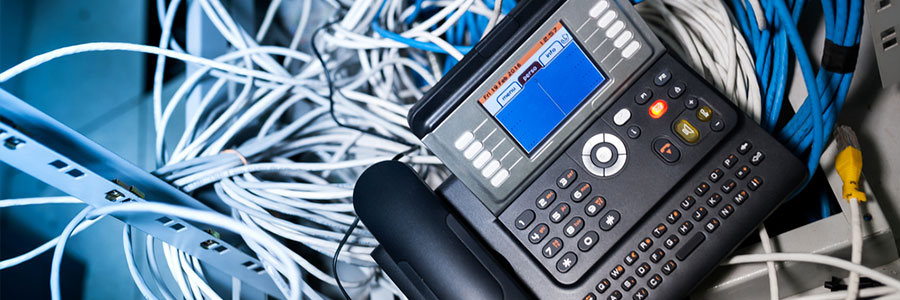
Denial-of-service (DoS) attacks are nothing new. But most businesses have no idea how to prevent this type of attack on their Voice over Internet Protocol (VoIP) system. If you’re one of those businesses, we have everything you need to know right here. Denial-of-service attacks The end goal of any DoS attack is to overwhelm a system with so many requests that the system is eventually forced to shut down. Telephony DoS (TDoS) attack is a subcategory leveled at VoIP systems. Alarmingly, this attack is commonly used against hospitals and 911 phone lines. Much like ransomware, some TDoS attackers even demand a ransom to halt the attack. They take advantage of cryptocurrencies and caller-ID spoofing to make it incredibly difficult to identify attackers. TDoS attacks generally employ fewer resources than the DoS attacks that are designed to cripple IT systems such as networks, servers, and software. At its most basic, all that a TDoS attack requires is an automated phone dialer that calls a target phone number and hangs up — over and over. That very simple strategy can stop anyone else from getting through the line. What organizations need to do Counterintuitive as it might sound, locking down your VoIP system with complicated and unnecessary security measures will ultimately do more harm than good. Most businesses can’t operate if they can’t communicate with their customers. Although VoIP may be a digital resource similar to your other IT systems, the very nature of phone lines makes it impossible to hide them behind firewalls and other protections. However, there are new solutions that offer protection to VoIP systems. There are now new security protocols that can protect your communication infrastructure against those who try to use force to gain access to your directory information. These protocols can also identify, reroute, and filter calls coming from known attackers. If you’re experiencing any abnormalities with your VoIP system, or if you want to deploy the most up-to-date solution that the market has to offer, our expert staff is ready to help you at the drop of a hat — just call today. Published with permission from TechAdvisory.org. Source.
Office 365 feature highlight: Predictive forecasting

Familiarize yourself with Office 365 Power BI’s predictive forecasting and how it can help your business.
Secure your data in the cloud

Data breaches are a common occurrence in today’s business environment. While many businesses have turned to cloud apps for better productivity, scalability, and savings, some worry that the cloud is more vulnerable to data breaches than an on-premises data center. The truth is that any computing environment is vulnerable if you don’t take steps to prevent a data security breach. Here are simple steps to protect your data in the cloud. The cloud opens up some great benefits for businesses and is here to stay. However, as with all technology advancements, you need to also be aware of its vulnerabilities and security issues. If you want to proactively prevent data security breaches in the cloud, then here are five tips to follow: Know your cloud apps: Get a comprehensive view of the business readiness of apps. Ask questions like: Which ones render you more or less prone to a breach? Does an app encrypt data stored on the service? Does it separate your data from that of others to limit exposure when another tenant has a breach? Migrate users to high-quality apps: Cloud-switching costs are low, which means that you can always migrate apps that best suit your needs. If you find ones that don’t fit your criteria, take the time to talk to your vendor or switch. Now more than ever, you have choices. Find out where your data is going: Take a look at your data in the cloud. Review uploads, downloads, and data at rest in apps to get a handle on whether you have potential personally identifiable information (PII), or whether you simply have unencrypted confidential data in or moving to cloud apps. You wouldn’t want cloud and data breaches with this critical data. Look at user activities: It’s important to understand not only what apps you use but the user activity of your data. Ask yourself: From which apps are people sharing content? Does the app enable sharing? Knowing who’s sharing what and with whom will help you understand what policies to best employ. Mitigate risk through granular policy: Start with your business-critical apps and enforce policies that matter to your organization in the context of a breach. For example, block the upload of information covered by certain privacy acts, block the download of PII from HR apps, or temporarily block access to vulnerable apps. The key to preventing a data security breach in the cloud lies in careful attention to your cloud applications and user activity. Analyzing your apps and looking into user activities might be time-consuming, but the minimization of cloud and data security breaches makes this task worthwhile. Looking to learn more about today’s security? Contact us and let us manage and minimize your risks. Published with permission from TechAdvisory.org. Source.
BI is not just for the big boys

Most of us don’t normally associate Business Intelligence (BI) with small- or medium-sized businesses (SMBs). The huge investment required to hire data-delving specialists makes us think BI is only for larger organizations. But this is no longer the case. Not only does a growing selection of self-service tools make BI more affordable for SMBs, but it also makes data management more efficient, given that your business probably creates and holds more data than you realize, making it easier for you to get going. It’s time you start harnessing data that will help you to make more strategic business decisions. You’ve already got the data you need It’s easy to underestimate the amount of data your SMB already has at its disposal. In every area of your business, from finance and sales to customer relations and website management, the software packages you use to simplify your everyday operations are packed with reams of information that most of us don’t even think twice about. By talking to key stakeholders in your organization’s various departments, you can get an idea of the kind of data you already have, how it’s generated, and where it’s stored. You can then start to think about using BI tools to transform that information into meaningful business insights that will inform your decision-making. No need for you to invest in time-consuming data generation from scratch! Self-service BI tools are plentiful — and affordable The emergence of self-service BI puts useful business analytics within reach of smaller business owners who lack the fancy-pants budgets of larger corporations. In fact, there are numerous self-service BI tools that you can use to get started in this area without even spending a dime. Microsoft Power BI is a powerful application that’s pleasingly user-friendly, and most businesses will find the functions they need in the free version. Zoho Analytics has a low entry-level cost, too, and the slightly pricier yet still affordable Tableau is another option that’s worth exploring. It’s easy to get started BI is an intimidating term, especially for the average business owner. But by taking small steps, it’s easy for anyone to get started — and before you know it, you’ll be enjoying the benefits of having data-driven, intelligence-based insights that will enable you to make better business decisions. Most self-service BI tools come with built-in suggestions for reports that businesses commonly run and find useful. Other worthwhile statistics to explore include the percentage of your clients who cancel within a set period, website landing pages that generate the longest visits, your most profitable individual products or services, the days or months in which you generate your highest revenues, and which of your clients bring in the most revenue and profit. Truly harnessing data is the future of the business world — it’s how companies like yours can make smarter decisions that increase efficiency and profitability. And having self-service tools available means SMBs no longer need a crazy budget to be able to afford the benefits of BI. To find out more about putting in place the tools that can help you do smarter business, just give us a call. Published with permission from TechAdvisory.org. Source.
What to expect from Windows 10’s November 2019 Update

Microsoft recently released the latest version of Windows 10, so it’s time to update your PC’s operating system. While it’s practically just a service pack, the update has some useful improvements to your computer’s performance. Here’s a list of the features the November 2019 Update brings. Also known as Windows 10 version 1909 or 19H2, the Windows 10 November 2019 Update can be installed by heading to Settings > Update & Security > Windows Update. Click Check Updates > Download and install now. Once the update is installed, that’s it — there are no long reboots and old Windows installation purges needed, unlike with previous updates. Just restart your PC and enjoy the small but helpful tweaks to your OS. Windows Search and File Explorer integration Previously, files on OneDrive were considered separate from those on your computer. Later versions of Windows 10 allowed file syncing between OneDrive and your PC. Doing a “This PC” search would show you a long list of the files stored on both OneDrive and your computer. With Windows 10’s latest update, Windows Search indexes your computer. As such, typing a filename into the search box in File Explorer brings up a dropdown menu with a list of suggested files on both your local drive and OneDrive cloud. You also have the option of right-clicking on one of the search results to open the file’s location. This means you don’t have to sort through all the files that come up during a search, saving you some precious time. You could still search non-indexed locations by pressing Enter after typing in the filename you’re looking for. Battery life and other performance improvements In general, some PCs will experience an improved battery life with the new update. This also means better power efficiency that leads to longer battery life for your laptop. The November 2019 Update also brings improvements to the scheduling on multicore CPUs, rotating work better among the cores to enhance performance and reliability. Also, if your computer has digital inking features, you’ll experience lower latency with the new update. This means fewer lag or delay issues when you’re drawing, so you can complete tasks much faster. Activate Alexa on the lock screen Cortana’s not the only digital assistant with access to your computer’s lock screen anymore. A tweak in the November 2019 Update now allows you to voice activate third-party digital assistants from the lock screen. Those “third-party digital assistants” actually mean just Amazon’s Alexa for now, but this change could pave the way for a future wherein you could use several digital assistants on a single device. In fact, earlier this year, Microsoft announced the Voice Interoperability Initiative (VII). This would enable users to use several wake words on a single desktop or laptop, including those running on Windows 10. For instance, you could use Spotify’s own voice-guided navigation directly if you want to play a specific song. This is opposed to how current AI assistants work; right now, if you want to play a song on Spotify, you’d have to direct your request through Cortana or Alexa. VII basically does away with this extra step. But again, the tech is limited to launching just Alexa from the lock screen — at least, for now. Add new events to your Calendar from the taskbar Windows 10’s calendar application is a nifty tool for staying organized and on top of tasks. The latest update makes it even easier to use by allowing you to create calendar events directly from the taskbar. Simply click the clock on the taskbar to open the Calendar. Click on a date and type in the name, time, and location of the event or task in the textbox that comes up. You can also view and edit any events or tasks you create here in the Calendar app. Other useful tweaks The Start menu has been made more user-friendly. Hovering over icons in the navigation pane on the left side of the menu shows what you’re about to click on, so it’s easier to understand what the icon does before you click on it. Also, Microsoft’s screen reader Narrator tells you where the Fn key is located on your keyboard and whether it’s locked or unlocked. This is especially helpful to users who can’t easily see the keys. Finally, before the November 2019 Update, you had to disable notification sounds separately for each app that shows notifications. But now you can easily mute all notification sounds by going to Settings > System Notifications > Notifications & Actions. Microsoft is always seeking ways to improve their products and, in turn, user experience and productivity. If you want to learn more about the different Microsoft products and devices, drop our experts a line today. Published with permission from TechAdvisory.org. Source.
How to strengthen your BYOD security

Mobile technology has drastically changed the way we live. And just as many people have “cut the cord” in their homes and now rely on their smart devices, businesses are now adopting the bring your own device (BYOD) trend culture. But BYOD also opens your organization up to cybersecurity risks. Here’s how you can improve BYOD security. Whether your employees are using smartphones, tablets, or laptops, you need a BYOD security policy. Additionally, you need to be aware of the key BYOD security risks: Loss or theft of device – Employees often bring their personal devices wherever they go. This means there’s a higher chance of devices being lost or stolen, and a greater risk of the company data that’s stored or accessed on these being compromised. Data loss – In the event that a device is lost, stolen, or damaged, any locally stored data may be lost permanently if it’s not backed up in real time. Man-in-the-middle (MITM) attacks – Public Wi-Fi spots are convenient for getting some work done, but they’re also popular hunting grounds for cybercriminals who use MITM to intercept data being transmitted over public networks. Jailbroken devices – Jailbreaking is the process of removing the restrictions imposed by the manufacturer of a device, typically to allow the installation of unauthorized or third-party software. This increases the risk of an employee inadvertently installing malicious software on a personal device. Security vulnerabilities – Every operating system (and the software that runs on it) has its own unique set of security flaws and vulnerabilities, which means that allowing staff to use any device and operating system increases the risk of a data breach or malware infection. Malware – A personal device that has been infected with malware can spread that malware to other devices connected to the company network and cause data loss and downtime. To mitigate risks, it’s important to devise a BYOD security policy that works for the needs of your business as well as the needs of your employees. Here are some tips: Make passwords compulsory on all BYOD devices Prevent unauthorized access to company data by enforcing the use of passwords on all BYOD devices. Passwords should be long and unique. Create a blacklist of prohibited applications Blacklisting involves prohibiting the installation of certain applications on BYOD devices that are used for work purposes. This includes applications such as file sharing and social networking apps. The simplest way to blacklist applications is through a mobile device management platform that enables IT administrators to secure and enforce policies on enrolled devices. Restrict data access Adopt the principle of least privilege on both BYOD and company devices. This means that a user is able to access only the data and software required to do their job. This can reduce the effects of certain types of malware and limit the fallout in the event of a data breach. Invest in reliable security solutions for devices Protect BYOD devices with reputable antivirus software to identify and stop threats before they can make changes to the device. This is vital for protecting mission-critical data and avoiding downtime. Backing up device data A well-thought-out BYOD policy can go a long way toward minimizing the risk of a security breach, but if something manages to slip past your defenses, you need a process in place for restoring your data to its former state. Have a comprehensive backup strategy to ensure that any data stored locally on a BYOD device can be quickly recovered. Educate your staff about security The vast majority of BYOD-related security risks involve human error. Educate your employees about proper mobile safety. This includes how to spot apps that could contain malware, sharing security threat updates, and teaching them how to secure their devices by going beyond default security settings. It’s also a great idea to work with an IT partner like us. As experts, we keep tabs on the latest trends and innovations related to BYOD and will recommend solutions that work for your company. Contact us today to see how we can help. Published with permission from TechAdvisory.org. Source.