
Security tips for businesses that use IoT devices

Internet of Things (IoT) devices are increasingly becoming a ubiquitous part of modern offices. Make sure that they don’t become entry points for hackers with the following tips. Set passwords Many users fail to realize that they can set passwords for IoT devices. Failing to do so makes their gadgets easy to hack. You have to make sure to create strong passwords — preferably with a combination of upper- and lowercase letters, numbers, and symbols — and also put a smart and proactive password policy in place. Make use of all security options at your disposal, such as two-factor authentication (2FA) and regular password resets. Disable Universal Plug and Play Universal Plug and Play (UPnP) helps IoT gadgets discover and connect with other network devices. However, this feature can also be exploited as a gateway for hackers to infiltrate your devices and network. To prevent this, disable this feature. Create a separate network It’s a good idea to keep your IoT devices connected to a network separate from your main office network. This way, gadgets can connect to the internet but won’t have access to mission-critical files. You can also invest in device access management tools. These allow you to control which devices can access what data, and prevent unauthorized access. Update your firmware You need to keep your software up to date if you want to secure your devices against cyberattacks. Manufacturers regularly release patches for the latest vulnerabilities, so make it a habit to check and install IoT firmware updates regularly. If you have several devices, use patch management software to automate patch distribution and schedule regular updates. Unplug it Simply disconnecting your devices or turning them off when not in use can significantly reduce your vulnerability to cyberattacks. It removes potential entry points into your network and minimizes the chances of unauthorized access to your network. With the advent of IoT devices in homes and offices, hackers also developed more cunning ways to exploit them. Adopting the abovementioned security habits can prevent a variety of IoT attacks, but if you need to beef up your security, contact us today. We have robust security solutions to keep your hardware and systems safe. Published with permission from TechAdvisory.org. Source.
5 VoIP services to help your business

More and more business owners are becoming aware of Voice over Internet Protocol (VoIP) and its features and advantages over conventional landlines. As technology progresses, the options available for VoIP also increase. Read on and find out which service is best for your particular business. There’s a VoIP service perfect for every business setup. Do you rarely leave your house and office, or are you usually on the move? If you’re a business owner, what’s the size of your company, and what factors matter most to you? Let’s take a look at some of the VoIP services available on the market to help you make a better decision regarding your means of telephony. Residential VoIP services For this type of VoIP, you use an adapter to connect your landline phone to a Wi-Fi modem to make and receive calls over the internet. Depending on the plan you choose, you’ll be billed each month for either unlimited services or for minutes you actually use. Examples of this include VoIP.com and Lingo. Device-based VoIP services This involves purchasing a VoIP device from a service provider and plugging it into your existing phone set so that you can make free calls within the United States. This means not having to pay a monthly bill, and you need no other devices besides your old landline telephone. Solutions like MagicJack and Ooma are great examples of device-based VoIP services that allow you to maximize the technology you already have. Software-based VoIP services This is the most common type of VoIP, and many of us already use it on a daily basis. You either access a web-based application, or install its software on your computer. Then you use your computer’s audio input and output device to talk and listen. A well-known example of this is Skype. Mobile VoIP services Like software-based VoIP services, mobile VoIP is also an application. However, it is installed on mobile phones instead of computers, thus enabling you to make and receive calls no matter where you are as long as you have a good internet connection. Three of the most familiar mobile VoIP services are Skype, WhatsApp, and Google Hangouts. Business VoIP services VoIP for business can either be on-premises or cloud-based. Both provide much more cost-effective communication solutions than traditional landlines, and they also offer a variety of useful features for businesses. These include video and audio conferencing, screen sharing, interactive voice response, automated attendants, call queues, and call reports. Not only are these features scalable, but you’ll also get complete technical support when you sign up for them. For on-premises VoIP systems, businesses need to purchase all the equipment and house them in their property. This alone requires huge capital expenses. And on top of it, businesses also have to pay fees for system maintenance, repair, and upgrade on a regular basis. The upside is you’ll have total control over your hardware. On the other hand, when you choose cloud-based VoIP systems, you outsource the phone system to your VoIP provider. This means there’s no need to purchase hardware or invest in maintaining the systems; your provider will take care of everything for a fixed monthly fee. You can also add or remove users easily. The downside is that you’re not in total control of the hardware, and you need to rely on your provider’s expertise to ensure system reliability and security. Want more detailed information about VoIP to help you choose the most suitable VoIP provider? Talk to our professionals today. They have extensive knowledge about this efficient, low-cost communication technology and can explain everything to you in plain English! Published with permission from TechAdvisory.org. Source.
Take notes the modern way with OneNote

Note-taking is a vital skill in life. Whether you’re in a board meeting, conference, or lecture, you’re bound to list, quote, or summarize certain points in order to recall them later and understand them better. Thanks to new technologies, you now have more ways of taking down notes than just a pen and paper. Using your mobile device and Microsoft OneNote, you can easily record your notes and have the bonus features of customizing and sharing them. Discover the ins and outs of this incredible app by reading on. Organize your digital notebook While both Microsoft Word and OneNote let you create text-heavy documents, they store and display saved information differently. Word displays one document at a time, but OneNote shows you all your documents at once. When you open the desktop version of OneNote for the first time, it shows you a default Notebook called “My Notebook.” If you want to create another Notebook, click on the < beside the name of your current one, then choose +Notebook at the bottom of your screen. You can customize a Notebook by separating it into subcategories called Sections, which are like dividers in a physical notebook. For instance, you can dedicate one Section for the notes regarding a particular client. Sections are shown as color-coded tabs along the top of the screen, next to the name of your Notebook. You can add more by clicking on +Section at the bottom left of your screen. You can add individual pages to a Section by clicking +Page, and you can use this feature to separate information. For example, you can add pages pertaining to a client’s contact details, project statuses, and billing information. You can rename your Notebook, or any Section or Page, by right-clicking on it and choosing the rename option. Start experimenting There’s no hard-and-fast rule to enjoy OneNote because each person’s note-taking habits are unique. The only way to find out if OneNote works for you is to try out all the features and decide which method is most effective. Here are some things you can try to get a feel of the OneNote experience. Add tags to your notes so you can search for them efficiently Instantly turn your drawings into shapes or text using the Ink to Shape and Ink to Text functions, respectively Solve equations by using the Ink Math Assistant (which can help you graph or solve math problems) Use Immersive Reader to read texts out loud Write on a web page in Microsoft Edge and save your annotations to OneNote Keep in mind, however, that these work only in OneNote for Windows 10. If you’re using an older version, you’ll need to upgrade to the latest version to enjoy these benefits. Share your OneNote So you’ve created a detailed plan for an upcoming event complete with visual pegs and handwritten instructions, and you want to share this with your team. That’s easy as pie with OneNote. Just go to the upper right corner of your ribbon, click on the Share button, and type in the email addresses of the people to whom you wish to send your notes. You can also set the sharing permissions to either “can view” or “can edit,” giving you more control over your data. OneNote has numerous tricks up its sleeve and it can take months for you to master all of them. Call us today, and we’ll make sure you’ll get the hang of OneNote in no time. Published with permission from TechAdvisory.org. Source.
Gear up your network equipment with UPS
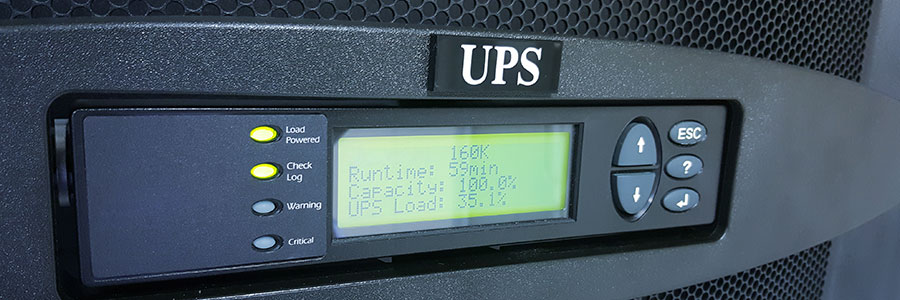
During a power outage, responsible business owners use emergency power to keep desktop computers from unexpectedly shutting down. While that’s certainly a good strategy for keeping machines operational and preventing data loss, there’s something else you can do to ensure that your staff remains productive while weathering a storm: uninterruptible power supply (UPS) for networking equipment. UPS for network equipment UPS systems provide backup power in case of outages and protect against power surges, which don’t just damage computers but also make you lose unsaved work. Deploying them for Wi-Fi routers and modems allows you to stay connected to the internet in what is typically a chaotic time. Moreover, it makes sense not to just keep your PCs powered up, but to also have internet access during a disaster. This strategy works relatively well if your staff are predominantly laptop users, as that means you only need power for your Wi-Fi gear. Better than generators Although generators are indispensable for certain businesses, they also require greater upkeep. Small- and mid-sized businesses (SMBs) may not have enough capacity to maintain them because they typically require a utility crew who can manage high-maintenance equipment. What’s more, extreme mishaps when misused or mishandled could result in generator-related fatalities. On the other hand, misusing a UPS unit could result in the loss of a day’s work, but it’s unlikely to lead to anything as extreme. Why internet access is important during a disaster UPS-supported modems or routers help you stay online for as much as 90 minutes, which should be enough time to get your bearings before power finally runs out. Internet service providers (ISPs) are usually prepared for catastrophes and would normally have an emergency power source to stay operational. And if you can stay online via Wi-Fi during an emergency, you get the following benefits: Internet speed that’s faster than cellular access No extra telecom costs resulting from overreliance on cellular data All devices stay online using a stable Wi-Fi connection Devices don’t have to rely on cellular data-equipped phones for internet connection Plug in your network gear now Businesses that aren’t located in disaster-prone areas probably don’t give much thought to installing UPSs for their computers, let alone their modems. But accidents and emergencies are inevitable. And when they happen, you’ll find that having internet access is one of the most important things you need to ensure business continuity. Think of an emergency power supply source like a UPS as an investment that not just protects your systems from data loss but also keeps your Wi-Fi equipment functioning in emergency scenarios. Call us today for productivity-saving tips and other hardware hacks for your business. Published with permission from TechAdvisory.org. Source.
Use single sign-on for login efficiency

Cloud subscriptions are undoubtedly valuable, but creating a new set of login credentials users have to memorize adds another level of inefficiency. With single sign-on (SSO), you can create one user profile that logs you into all of your online accounts. If you’re overwhelmed by the need to create and manage strong passwords, SSO is for you. What is SSO? Single sign-on allows you to create one username and one password that thousands of websites will recognize. If you’ve ever clicked “Continue with Google” on a non-Google website, you’ve already enjoyed the benefits of SSO. It’s faster, simpler, and more secure. Now, small businesses can accomplish the same level of efficiency between their employees and cloud platforms. Instead of requiring everyone in the office to track separate accounts for Office 365, Slack, Trello, and other cloud apps your company uses, you can give them a single set of credentials and manage what they have access to remotely. Employees come to work, enter their designated username and password, and they’re all set for the day. Why is SSO more secure? There are a number of ways to set up a small business SSO solution, but most of them focus on removing login information from your servers. Usually, you’ll provide your employees’ logins to an SSO provider (sometimes referred to as an Identity-as-a-Service provider) and each employee will receive a single login paired with a secondary authentication — like a fingerprint or an SMS code to a personal device. Every time one of your employees visits a cloud platform, such as Office 365 or Google Apps, the SSO provider will verify the user’s identity and the connection’s security. If anything goes wrong, your IT provider will be notified. Should your network or any of its devices be compromised, hackers would find nothing but logins to your SSO accounts, which are meaningless without fingerprints or mobile devices. How to get started with SSO The first step is making sure you have a healthy and responsive IT support system. You need a team that’s constantly available to review suspicious alerts and troubleshoot employee issues. If you don’t currently have that capacity, contact us today and we’ll help you out! Published with permission from TechAdvisory.org. Source.
Guide to removing these 5 PC clutter types

It doesn’t take long for computer desktops and hard drives to become cluttered, and it’s probably why your Windows 10 PC has been so slow lately. This blog post will show you how to get rid of digital clutter so that your computer will be performing like new in no time. 5 Types of PC clutter There are five types of clutter that may be causing your Windows 10 computer to underperform. Windows updates – This includes failed update downloads. While Windows will delete some of these corrupted and unusable files, others will hang around forever. Registry bloat – This includes files and applications you’ve deleted in addition to every action performed in Windows, which is recorded in your computer’s registry. Redundant entries bog down your PC. Error logs – These are log files kept by Windows whenever software in your system encounters errors in processing or crashes altogether. Just like with registry bloat, these log files accumulate and slow down your computer. User bloat – This refers to large numbers of your own files, especially if they’re unorganized. Bloatware – This refers to unwanted preinstalled software. It takes up tons of central processing unit (CPU), random access memory (RAM), and disk space, as well as poses a raft of security risks. How to remove PC clutter To remove these five clutter types and bring back Windows 10 to optimal performance, try these easy ways. Below too are actual Windows 10 screenshots to guide you. Run Disk Cleanup Windows has a built-in tool called Disk Cleanup that removes hidden junk files. To run this tool, type “disk cleanup” in the search box on the taskbar, and select Disk Cleanup from the results. Pick the drive you want to clean, then click OK. Under Files to delete, select the file types to get rid of, then click OK. Delete programs you don’t use or need Most computers come with pre-installed programs that take up space and run in the background automatically. These commonly include free trials of random programs, games, and services that you will never use. Free up memory and storage space by removing these unused programs along with redundant programs that you rarely use or don’t need. To do this, type “add or remove programs” in the search box on the taskbar, and select Add or remove programs from the results. If you see a program on the list that you no longer need, click on it, then click Uninstall. If necessary: Refresh Windows 10 If you don’t want to spend so much effort cleaning up your Windows 10 PC because of how messy it is, you can start fresh with a clean and up-to-date Windows 10 installation. This option will remove most installed apps (e.g., Microsoft Office, antivirus software, etc.) but it will keep your personal files and some Windows settings. However, it’s still best to back up your files before refreshing. To do this, type “recovery” in the search box on the taskbar and select Recovery Options in the results. Under “More recovery options,” click Learn how to start fresh with a clean installation of Windows, then click Yes in the pop-up window that says “Did you mean to switch apps? Settings is trying to open Windows Security.” This will launch the Windows Security app where you can click Get started to begin the Windows refresh process. There are innumerable ways to make your computer perform faster and more efficiently, and our Windows experts are equipped with all the tricks of the trade. Give us a call today. Published with permission from TechAdvisory.org. Source.
How to minimize Wi-Fi hiccups

These days, it’s difficult for businesses to operate without a good Wi-Fi connection. The internet’s versatility is essential to getting work done, because having a fast, secure, and reliable Wi-Fi connection can guarantee quick response times and customer satisfaction. But what if your Wi-Fi refuses to work? These quick fixes ought to get your connection back up and running. Range constraints Wi-Fi works via radio waves that are broadcast from a central hub, usually from a piece of hardware known as a router. In order to avoid a weak signal in your office, make sure: Your router is placed in a centralized location and not tucked away in the farthest corner of your facility. Your Wi-Fi antennae are either in a fully horizontal or vertical position for optimal signal distribution. Note that Wi-Fi range constraints can also occur from interference, so if your office is situated in a highly populated area, try changing your router’s channel. Slow speed Despite having high-speed or fiber optic internet, slow load times can still occur for a number of reasons. To eliminate this, try the following: Make sure your router is located in the same room as your computers. Have more routers to better accommodate a high number of connected devices. Limit the use of bandwidth-intensive applications such as Skype, Dropbox, YouTube, and Facebook. Disable your router’s power-saving mode. Create a new router channel to avoid network bottlenecks. Connection issues It can be frustrating when the Wi-Fi network shows up on your device but you just can’t seem to connect to it. Before you give up, try these: Determine whether your Wi-Fi connection is the problem or if your internet is down by plugging in your laptop directly into the router via an Ethernet cable. If you get a connection, then your Wi-Fi is the culprit. Reset your router. Use a paperclip or a pen to hold down the reset button for about 30 seconds. Reboot your device. Unstable connection Random drops in Wi-Fi connection can happen from time to time. If this has become a constant nuisance in your office, try the following quick fixes: Move your router to a different spot or a different room. Avoid having multiple routers in the same location as they can confuse your device. Network not found Glitches in the router can result in your Wi-Fi network not appearing at all. Two solutions that can resolve the problem are: Disconnecting the router from the power source and waiting at least 30 seconds before reconnecting it. Checking to see how old your router is; if it’s over three years old, you’re probably due for a replacement. When you experience Wi-Fi issues, these tips will help you avoid serious downtime. But if you’d rather have a dedicated technology provider take care of your hardware needs, give us a call and we’ll be happy to help. Published with permission from TechAdvisory.org. Source.
3 Hacker types you need to know about

What do you call someone who hunts for security gaps in computer hardware and software? A hacker, right? What about someone who executes a vulnerability test and presents their findings to software vendors to help them improve the quality of their products? There is more than one type of hacker, and understanding the difference is important. A complicated history In the 1950s, the term “hacker” was vaguely defined. As computers became more accessible, the word was used to describe someone who explored the details and limits of computer technology by testing them from a variety of angles. But by the 1980s, hackers became associated with teenagers who were caught breaking into government computer systems — partially because that is what they called themselves, and partially because the word hacker has an inherently aggressive ring to it. Today, several of those pioneering hackers run multimillion-dollar cybersecurity consulting businesses, while countless others run amok online, hoping to make a quick buck off of hapless victims. “Black hat” hackers Closer to the definition that most people outside the IT world know and use, black hat hackers create programs and campaigns to commit all sorts of malicious acts. Crimes such as identity theft, credit card fraud, and extortion are for their sole benefit, but they can also work under the auspices of a corporation or a state and commit espionage and cyberterrorism. During the 1990s, Kevin Mitnick was a prime example of a black hat hacker. Mitnick went on a two-and-half-year hacking spree wherein he committed wire fraud and stole millions of dollars of data from telecom companies and the National Defense warning system. After paying his debt to society by spending five years in prison, he set up his own eponymous cybersecurity firm and became its CEO and Chief White Hat Hacker. “White hat” hackers Sometimes referred to as ethical hackers or plain old network security specialists, these are the good guys. Whether it’s selling what they find to hardware and software vendors in “bug bounty” programs or working as full-time technicians, white hat hackers are just interested in making an honest buck. Linus Torvalds is a great example of a white hat hacker. After years of experimenting with the Sinclair QDOS operating system on his Sinclair QL, he released Linux, a secure open-source operating system. “Gray hat” hackers Whether someone is a security specialist or a cybercriminal, the majority of their work is usually conducted over the internet. This anonymity affords them opportunities to try their hands at both white hat and black hat hacking. For example, Marcus Hutchins is a known gray hat hacker. He’s most famous for testing the WannaCry ransomware until he found a way to stop it. During the day, Hutchins works for the Kryptos Logic cybersecurity firm, but the US government believes he spent his free time creating the Kronos banking malware. He was arrested in 2017 and branded a “gray hat” hacker. Published with permission from TechAdvisory.org. Source.
Is AI-powered VoIP the next step?

The use of artificial intelligence (AI) is becoming increasingly common across numerous industries, reshaping the way organizations conduct business. In the Voice over Internet Protocol (VoIP) market, in particular, AI’s proactive and predictive automation processes can significantly increase precision, accuracy, and efficiency. How so? Read on to find out. Contact center operations Highly automated VoIP technology enables businesses to manage their call centers easily and reduce the need for human intervention. For example, AI-integrated VoIP systems can determine a caller’s personality, mood, and queries, so calls are routed to the agent best equipped to handle them. This makes call center operations more seamless and cost-efficient, because this reduces the need for a help desk operator to answer calls just to redirect them. Interactive voice response (IVR) systems An IVR system is designed to automatically respond to customer queries, which is extremely helpful for high call volumes. AI enhances this feature by working in the background as AI assistants gathering all relevant customer data such as personal information and recent transactions to resolve a query. For more nuanced queries, the AI “worker” sends this information to the business representative, who will be much better able to serve the customer. Conferencing capabilities Web conferencing has improved over the years with internet speeds and telecom technology constantly developing. AI advances it even further with real-time language translation and speech recognition technology, which greatly benefits businesses with multiple geographic locations and whose stakeholders come from diverse backgrounds. AI-enabled web conferencing can even provide intelligent prompts and relevant data to guide your conversations and ensure a fruitful meeting. Chatbot functions Chatbots are useful programs that receive instructions via textual or auditory means to perform automated tasks. Like IVR systems, bots are used by businesses to automate customer interactions. AI-powered chatbots go beyond regular bot duties by performing more complex tasks like setting up meetings, inviting attendees, managing schedules, and much more. With AI-powered systems promising improvements in contact center operations, customers’ IVR experiences, web conferencing, and scheduling, businesses are understandably eager to adopt them. There’s so much more that VoIP systems can do for your business, and we’ve got the expertise to handle all your VoIP-related concerns. Just call us today. Published with permission from TechAdvisory.org. Source.
2020’s best office apps for Android

More and more companies are adopting remote work policies, offering myriad benefits to both employers and employees. Having the right tools at your disposal will ensure that you and your remote staff can be as productive and efficient as possible. Here are some of the best office suite apps for Android devices. Microsoft Office View, edit, share, and collaborate on documents using the Microsoft Office suite of mobile apps. Familiar favorites like Word, Excel, and PowerPoint can be downloaded for free, and you can unlock additional features and functions by getting an Office 365 subscription. Any document, presentation, or spreadsheet you create or edit will be synced to OneDrive so you can access your files at any time, from anywhere, on any device. Google Drive More than just free cloud storage, Google Drive for Android offers a whole suite of office apps. Get Google Docs, Google Sheets, Google Slides, and Google Photos for free, and for as low as $1.99 per month, you can get additional storage for all of your documents, spreadsheets, presentations, and images. Another great feature of Drive is that you can still view and edit documents even if you’re not connected to a Wi-Fi or mobile network, making working more convenient. Office Suite Office Suite supports all basic Microsoft formats (DOC, DOCX, XLS, XLSX, etc.) as well as other common file formats (PDF, ODT, OOS, ODP, etc.). It also lets users access and sync files in Google Drive, OneDrive, Amazon Cloud Drive, Dropbox, Box, and MobiSystems Drive. The free version has all the basic features such as creating and editing documents. Meanwhile, the paid versions — which run from $19.99 to $29.99 — allow PDF scanning, spell-checking, and chat capabilities, among other additional functionalities. Polaris Office Polaris Office has a similar interface and features to Office Suite. It is compatible with other office apps for Android and supports different file formats, including PDF. Polaris Office has pointer and pen features that allow users to edit, create, and open files, as well as take down notes with ease. Users can sync all their documents on Polaris Drive, or access files stored in other cloud storage platforms such as Google Drive and Dropbox. WPS Office WPS (Writer, Presentation, and Spreadsheets) Office is an all-in-one office app that supports all the basic features of Microsoft Office and Google Drive. Use it to create and edit presentations, spreadsheets, word documents, and PDFs, which you can save to and access from the cloud storage platform of your choice. It also has a free PDF reader, converter, and editor, allowing you to view and add annotations as well as your signature to any PDF file. Docs to Go Work from anywhere on your Android smartphone or tablet using Docs to Go. This document viewing and editing app allows you to connect to and sync files on your device to the cloud. It also enables you to send and receive supported email attachments using Gmail or other email apps. Docs to Go’s find and replace feature makes editing any document easy. What’s more, paid versions of the app give you the option to open password-protected Word, Excel, PowerPoint, and PDF files. Smart Office Not only does Smart Office have all the capabilities you’ll need in an office app, but it’s also an invaluable tool for meetings and presentations. Easily format and add graphics to your slides, manage their sequence and transitions, and present them directly on your mobile device or through a projector. Smart Office also has a wireless printing function, enabling you to print from thousands of supported printer models. Enjoy the freedom of working on the go and on any Android device with these productivity-boosting office apps. Give us a call today if you need help choosing the right app for your needs. Published with permission from TechAdvisory.org. Source.