
Office 365 is now Microsoft 365: New features, same price
Microsoft recently launched its new slate of consumer service plans: Microsoft 365 (M365) Personal and Family. This will replace Office 365 (O365) Home and Personal, signaling the shift of the company’s consumer bundles from just a set of tools to powerful solutions that help you manage both work and life. But Microsoft isn’t simply rebranding — it’s also introducing new capabilities to its apps. Here’s what you can look forward to. #1 Microsoft Editor Powered by artificial intelligence (AI), this new editing feature helps you write better by providing advanced grammar and style refinements. It will alert you if you’re using a word too often or constructing overly complex or unclear sentences. It can also make language and style suggestions, rephrase full sentences, and check for plagiarism. Microsoft Editor is now available in 20 languages in Word and as a browser extension in Outlook. Soon, you can also install it as a Microsoft Edge and Chrome plug-in so you can always submit great writing anywhere on the web. #2 Presentation Coach and updated Designer Create better presentations using the AI-driven Presentation Coach feature that helps you avoid filler words, grammar mistakes in your speech, and a monotone pitch that may put your audience to sleep. What’s more, the enhanced PowerPoint Designer gives you access to over 8,000 images and 175 looping videos, 300 new fonts, and 2,800 new icons. It also has the capability to convert text into a timeline and suggest potential slide layouts whenever you add an image. #3 Money in Excel If you use Excel to manage your personal or family budget, then you’ll love the upcoming new feature called Money in Excel that lets you link your bank and credit card accounts and import your data into your spreadsheets. You can also track your transactions line by line, categorize your expenses, and create a monthly spending chart so you can analyze your habits. #4 Integrated personal and work calendars Outlook now allows you to look at just one interface for both your personal and work calendars. This prevents your coworkers from setting meetings with you during your blocked personal events. You can also import your child’s school calendars so you’ll be alerted of their conferences, plays, and other academic events. #5 Teams for consumers Microsoft Teams will soon have new consumer-centric features that let you connect and collaborate with your friends and family. So if you already use Teams for work, you will be able to connect it with your Teams personal account and easily switch between those two accounts, just like in Outlook. #6 Family Safety app Aside from adding new features to their existing apps, Microsoft will also roll out its new Family Safety app for iOS and Android later this year. Similar to Apple’s Screen Time, the app is made to keep your family safe in both the digital and physical worlds. It lets you see what your children are doing on their Windows PCs, Xboxes, and Android and iPhone devices, and give you an analysis of their time spent on each device, so you can manage their screen time. You can use it to set limits for apps and content filters by age and even block specific websites and games on Xbox. The Family Safety app will also provide you with location sharing and driving reports. Despite all these new features and upcoming new app, the M365 consumer bundles are still priced identically with its O365 counterparts: M365 Personal at $6.99/month or $69.99/year for one user, and M365 Family at $9.99/month or $99.99/year for up to six users. To stay updated with the latest Microsoft news and see how these changes can help improve your business, get in touch with our IT experts today! Published with permission from TechAdvisory.org. Source.
COVID-19 and the cloud: Staying connected while apart

The term “viral” has taken its original meaning, thanks to the novel coronavirus infecting millions and killing thousands of people all over the world. As it rages on, we can see how cloud computing is helping us push through these trying times. Cloud computing helps buoy economies For many people, being forced to stay at home means being unable to earn money or spend money on in-person services and activities that form dense congregations, such as watching movies or attending concerts. Because of this, the world is projected to enter a global recession, although cloud computing helps to put a damper on this in a number of ways: The cloud allows people to work remotely. Cloud-based productivity and project management tools let people continue working from the safety of their own homes, thereby helping businesses remain operational despite having empty offices. Cloud hosting solutions support eCommerce activities. Regular web hosting services would be overwhelmed by spikes in traffic caused by surges in online shopping. eCommerce shops that are hosted on the cloud, on the other hand, won’t be so easily disrupted, thanks to the cloud’s scalability. Cloud-based payment systems help keep money flowing. A dead river is one in which water is stagnant and doesn’t flow. Economies are similar: money needs to keep moving in order for them to thrive. Since people stayed in their homes, economic activity slowed down. However, thanks to cloud-based payment systems, money can still move. Payroll apps let employers pay their staff, while banking and online payment apps let people transact and handle their finances in the comfort of their own homes. Cloud-based communication apps help keep communities stay together Communications can be challenging when it’s harder for people to talk face to face, but cloud-based apps keep communities together in the following ways: Social media apps help disseminate truthful information about the pandemic to the public. News agencies disseminate the latest developments regarding the pandemic in real time via social networks such as Twitter. Even government agencies and elected officials like New York State Governor Andrew Cuomo broadcast briefings over social media. Chat and video conferencing apps help families and friends keep in touch with each other. Much of human communication is actually nonverbal: we discern vocal tone, read body language, and take cues from people’s facial expressions. Moreover, as social beings, we crave interpersonal interactions — and seeing each other’s faces through video calls and video conferencing is the next best thing. Cloud-based entertainment apps help us pass the time and keep us sane The isolation brought about by social distancing can be harmful to our mental health. Not being able to party with our friends and work out in the gym can intensify feelings of loneliness and anxiety, as well as exacerbate symptoms of depression. Thankfully, there are many cloud-based apps that can entertain us and give us virtual forms of connection. Content creation apps provide outlets for self-expression and avenues for interaction. Even while hunkered down, teens and their families can take part in TikTok challenges to break the boredom. Sharing hilarious Instagram stories gave Emmy Award winner Leslie Jordan an extra boost in fame. Game-streaming services open up libraries of video game titles. New video games are expensive, but playing the same titles over and over again can prove tiresome. With game-streaming services, you can play new games without breaking the bank and spend countless hours of fun with old and new online friends. Stay culturally up to date by binge-watching what everyone else is watching. Streaming services like Netflix now put their most-viewed shows in top 10 lists, letting you know what you might be missing out on. Of course, people are free to skip shows they don’t like, but they better prepare themselves to be unable to relate when others start discussing these shows! The cloud is now a ubiquitous part of people’s lives, be it personally or in business. To find out the best cloud solutions for your company, contact our IT experts today. Published with permission from TechAdvisory.org. Source.
5 Tips to keep your business afloat during the COVID-19 crisis

Businesses across the globe have been hit hard by the COVID-19 pandemic. Many have been forced to close their doors, some only temporarily, but countless others for good. With experts saying there’s no guarantee of a rapid economic recovery, it’s important that you reassess and redefine your business strategy and buckle down for more storms ahead. Here are some tips to help your business survive this crisis and come out on top. Reduce expenses This one is obvious but still bears mentioning: take out your books and find out where and how you can cut costs without affecting the quality of your service. Putting off non-essential or discretionary expenses, such as repainting your offices or buying new equipment, is a no-brainer. Cutting out fixed expenses such as rent and loan payments is harder, if not impossible, to do. However, it is crucial if your production and revenue are at a standstill. Try asking your landlord for a reduction or deferment of a portion of your rent. Also, ask your bank if you can put off or skip loan payments for a finite period, or if they can at least waive fees on late or missed payments. (Find out if your bank is one of those offering relief to borrowers amid the pandemic here.) Learn from your competitors Observe both your direct and indirect competitors, especially those that are faring better than others. Find out what they’re doing differently and see if this will work for your business. More than adopting these strategies, it’s important to adapt them to your own and your customers’ needs. It’s also a good idea to look at larger organizations within your industry. SMBs like yours may not be able to compete with bigger players on a scale level, but you can learn a few things about customer service, marketing strategies, and the like from them. Redefine your business model Even with coronavirus restrictions gradually being lifted across the United States, it would take a while before things return to normal. It’s crucial to ask yourself if traditional business models would still make sense in a post-COVID-19 world and adjust accordingly. Determine any changes you need to make to your current business model. This involves identifying who your customers are and what they need, your staff’s capabilities, and any uncertainties and their impacts. Such changes may include finding a way to deliver your products or services to your customers, just like what groceries and restaurants did in the face of lockdowns and shelter-in-place directives. Connect with your customers Understand that many of your customers may have been affected in some way by the pandemic — they might have been laid off, for instance, or are caring for a family member who tested positive for COVID-19. They may reach out to you to pause or cancel your services, or to ask for a discount or payment deferral. When speaking to them, demonstrate empathy, whatever their concerns may be. When things get back to normal, it’s likely that those who had a positive experience with you during the pandemic will stick around and keep doing business with you. Keeping your customers informed throughout these trying times is important. Make sure, though, that what you’re saying is relevant to them. For example, if you run an eCommerce business, let your customers know through email or social media about any shortages in supply and when you expect to be able to fulfill their orders. Doing so reassures customers that you’re doing your best to provide them with the same quality of service pre-COVID-19. Upskill your staff Upskilling your employees may be the best way to spend your resources during the current situation. Equipping your team with new knowledge and skills will help them adapt to the changing business environment. Sharpening your team’s digital skills is especially important now that the COVID-19 crisis is spurring digital transformation. Other areas to focus on are project management, communication, data analytics, and digital marketing. And if you find yourself short-staffed, it might pay to train employees to handle other aspects of your business, ensuring that everything runs smoothly throughout the pandemic and beyond. The current situation requires swift and decisive action from business leaders. Making smart and proactive decisions now will ensure that you’ll mitigate the impacts of COVID-19 on your business, and that you’ll emerge from this crisis stronger than ever. For more tips on how to run your business effectively in times of crisis, drop our experts a line today. Published with permission from TechAdvisory.org. Source.
Be careful of April’s Windows 10 update
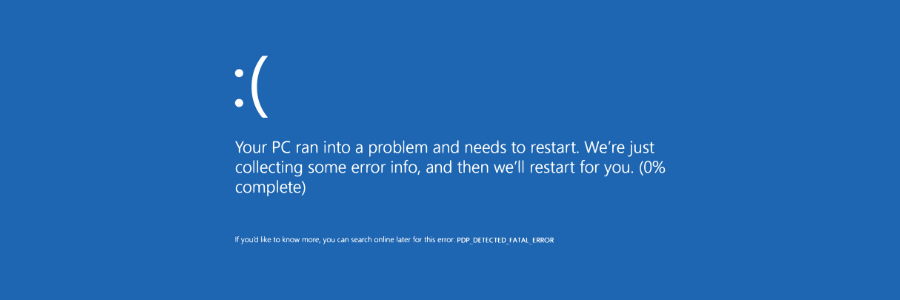
Microsoft’s operating system is one of the best on the market, but it does have flaws. Software updates have been a regular problem for Windows 10 and the April 2020 update is a little worse than usual. Here’s what you should know to minimize possible disruptions. What are the issues? The April Windows 10 update has a few problems. First, it is causing an abnormally high number of computers to crash and display the “Blue Screen of Death.” Although those issues are unfortunately common among Microsoft’s operating system updates, they’re worse this time around. In rarer cases, users are reporting that the update is deleting images, videos, and documents from their hard drives. There are also stories of the update causing computers to continually restart themselves or display the message “No operating system could be found.” How you can prevent a faulty update There are only a couple of options for avoiding this update and it’s crucial to understand that those options come with cybersecurity risks. As with most Windows 10 updates, April’s included several fixes for security vulnerabilities, and postponing the installation means avoiding important patches. Contact our team about data backups and network security before following these steps: Click the magnifying glass icon on your Windows taskbar. Type and then select “View your Update history.” Click Uninstall updates. Scroll to the Microsoft Windows segment at the bottom of the list. If one of the updates is KB4549951… The problematic update has already been installed on your computer. You can select it and click Uninstall to remove the update. However, if more than 10 days have passed, you cannot uninstall the update. If KB4549951 has not been installed yet… Click on the magnifying glass icon on your taskbar and type “Windows Update settings.” Then, you should see the option to Pause updates for 7 days. Alternatively, you can delay updates until a specific day (as long as it’s no longer than 35 days from today) from the Advanced options window. When in doubt, ask the experts Software updates should be installed as quickly as possible to prevent a data breach at your organization. If you’re concerned that installing a software update may slow down your computers or result in data loss, give us a call immediately. Our technicians can keep your data safe and your employees productive. Published with permission from TechAdvisory.org. Source.
Here’s what to look for when buying antivirus software

Because of the global pandemic, work from home is now a necessity. This has increased the potential entry points for cybercriminals to infiltrate your network. Now more than ever, businesses need better cybersecurity protection. That’s why it’s important to choose the right antivirus software for your needs. If you’re in the market for one, consider the following points. Not all antivirus software solutions are the same. If you’re considering getting one, you need to identify what you and your company needs. Then do your research among the available options in the market. Here are a few things to consider when you shop for antivirus software. #1 Cost There are free-to-use antivirus software products in the market, but they only offer basic protections that seasoned hackers can easily infiltrate. You’ll need to pay in order to upgrade and enjoy full protection. And there’s a danger that the free software contains adware, or that it collects data and sells them to third parties. Nowadays, nothing’s for free. The good news is that protection need not be expensive. If you partner with a managed IT services provider like us, we’ll figure out the right protection based on your needs and budget. #2 Speed and performance Not long ago, antivirus software consumed a lot of computer memory and slowed down devices. But thanks to new technology, the problem of speed has been addressed. Still, antivirus performance should take precedence over speed. What’s the point of a fast computer if it’s vulnerable to hackers and malware? #3 Compatibility with multiple devices These days, most people use or own more than one device, such as smartphones and tablets. Look for antivirus software that can protect all your devices, regardless of software version or date of purchase. It’ll be inconvenient and expensive to have different security software per device. #4 Comprehensive protection Your antivirus should protect your devices from a wide variety of threats. These should include popular malware and phishing attacks, as well as malicious downloads, denial-of-service (DoS) attacks, cryptojacking, and other damaging threats. #5 Customer support and service Take some time to learn more about the antivirus software manufacturer. Does the company have a solid reputation? Are they at the forefront of developing solutions against looming threats? Are they responsive to the changing cyberthreat landscape? And are they customer-driven? If they tick all the boxes, you’re sure that their products and services are worth your investment. Cybersecurity is not a luxury but a necessity for all businesses. If you’re looking for the right antivirus protection, then let our experts help you. We’ll provide you with the robust security your devices and network need. Published with permission from TechAdvisory.org. Source.
MacBook’s new feature promises longer battery life

Keeping your MacBook plugged in at all times shortens its battery life. A new feature, called Battery Health Management, will be released with the new macOS Catalina 10.15.5 update specifically to address this issue. It maintains your MacBook’s battery life by preventing chemical aging on its battery. It does this by not charging your device all the way up to 100 percent, even if it says so on your laptop screen. Apple has not revealed how much of the charge the new feature will reduce, but promises that it won’t have any severe impact on your device’s battery life. This strategy is not new nor is it unique to MacBooks. In fact, it’s something most modern phones are already doing. Even if you leave your phone to charge, it will avoid charging all the way to 100 percent until shortly before you wake it up. This is because too much charging wears your phone’s battery over time, leading it to lose power much faster the longer you use it. Which MacBook models will have Battery Health Management? The new feature is applicable to all MacBooks that support Thunderbolt 3, including MacBook Pro models from 2016 and later, and MacBook Air models from 2013 and later. It’s meant to be on by default, but you can turn it off on macOS’s power settings. In any case, Battery Health Management may have different effects per user as various factors determine your device’s battery health and optimal performance. These factors include your device’s charging history and battery temperature. If you’re worried about the feature gathering too much information from your MacBook, Apple has promised that all data is gathered and analyzed locally. The data will only be sent to Apple if you opt into it. Furthermore, all data will be kept confidential. It will take a few more months to reveal the full impact of this new feature, but it’s a step in the right direction. Considering how people are now more dependent on their laptops because they’re working remotely, extending the battery life of MacBooks will boost their productivity. What else can you do to extend your device’s battery life? In addition to using the Battery Health Management feature, you can take these steps to keep your MacBook’s battery in good condition longer: #1. Keep your software updated Apple constantly releases updates designed to address issues and boost the performance of its devices. Simply updating to the latest MacOS version equips your MacBook with the latest upgrades to help improve its battery life. #2. Avoid extreme temperatures Although MacBooks are designed to perform well in different ambient temperatures, using and charging them in extreme heat or cold will damage their batteries. MacBooks function optimally at room temperature — anything below 10 degrees Celsius and above 35 degrees Celsius is detrimental. Even storing your device’s battery in such temperatures should be avoided. #3. Be careful what case you use During charging, certain case styles and materials can raise your MacBook’s temperature. As stated above, high temperatures are not optimal and will damage your device’s battery. If you notice your computer heating up during charging and while its case is on, take the case off. Refrain from using the case while charging in the future. #4. Take the right storage precautions If you are storing your MacBook and won’t be using it for some time, then taking the following precautions will help preserve battery life. Keep your device’s battery half-charged. Draining its power completely or charging it fully prior to storage will result in battery issues. Turn off your device during storage as keeping it on will gradually drain its power. Keep your device in a dry environment with a temperature of less than 32 degrees Celsius. If you’re not using the device for an extended period, take it out every six months and charge it to 50 percent. Discover more ways to get the most out of your Apple computers by giving us a call today! Published with permission from TechAdvisory.org. Source.
Best laptops for remote working in 2020

If you recently started working from home, you must have realized that it isn’t as easy as you thought it would be. Apart from setting up your home office and managing your time efficiently, a slow and outdated laptop should be the least of your worries. If you’re thinking of buying a new one, here’s what you should be looking for. Size – When it comes to your laptop weapon of choice, size matters. Of course, this depends on what you’ll be doing with it. If you’re a graphic designer, you might want to have a bigger display. However, if your work mostly entails writing, blogging, or doing reports, you probably need a standard-sized (11.6- to 15.6-inch) laptop. Screen quality – For work, comfort is the main factor when it comes to screen quality since you’ll most probably be in front of your screen hours at a time. Fortunately, most laptops these days have full HD displays. A 1920×1080-pixel resolution (full HD) should be considered if you require plenty of space to line up windows and keep things in view. Keyboard quality – The quality and functionality of a keyboard drive productivity. If you need to type long hours and want to avoid finger fatigue, you’ll want a keyboard that has a comfortable layout. Make sure the keys have adequate travel on the downstroke and quick responsiveness when you type. CPU – By any given standards, Intel Core Processor offers the best performance, especially when it comes to multitasking and multimedia tasks. Core i3-based laptops are generally found in budget systems, while Core i5 makes up the majority of mainstream business computers. If you want top-of-the-line performance, a Core i7 or even Core i9 CPU is ideal for you. RAM – More RAM allows for more applications to run simultaneously, and for data to be quickly accessible by the system anytime. Nowadays, 8 GB is recommended for most users. But if you’re dealing with many applications and assets at any given time, consider 16 GB and above. Storage – We recommend a solid state drive (SSD), as it offers a lot more speed than a hard disk drive when it comes to booting your system and loading programs. It also runs silently and can be installed without adding too much weight and bulk to the laptop. Battery life – You might be plugged in the whole day since you’re working from home, but in the long run, it’s better to factor in the battery life of your laptop. Note that there are many variables that affect battery life such as screen resolution, brightness, number of applications running in the background. Look at the rating of the battery in watt-hours (Wh) or milliampere hours (mAh). The larger these digits are, the longer the battery can last. Now that you know what to look out for when purchasing your new laptop, here are a couple of recommendations to get you started: Chromebooks Chromebooks are budget-friendly laptops that guarantee long battery lives and come with fast processors for web browsing and running productivity apps. They’re lightweight and compact, which is perfect for those times you need to move around or switch places in your home. In addition, Chromebook laptops usually have quiet and ergonomic keyboards. With its built-in Chrome OS, you can expect a faster and more secure laptop that will keep you working efficiently. 2-in-1 laptops Lightweight laptops with a tablet touch screen allow for unparalleled flexibility and mobility. Most 2-in-1s also have HD displays backed by high-speed processors and integrated graphics to enhance your video conferencing experience. What’s more, they’re usually paired with a stylus, making them perfect for note-taking, photo editing, and other creative tasks. Microsoft Surface laptop Microsoft Surface laptops are considered top performers in the premium laptop market, as they offer great balance and portability. They handle general computing superbly with no slowdown and noise, even if you’re running 10 applications with plenty of tabs in your browser. Other great integrations include an excellent keyboard and trackpad and an ideal screen ratio that’s perfect for productivity tasks. Apple MacBook Pro MacBook Pro laptops are generally known for their safe and secure operating system, MacOS. They’re also popular for their powerful hardware that can run graphically intensive tasks. Plus, they can run other operating systems like Windows, UNIX, and Linux. If you need to do video editing, you can definitely take advantage of Mac-exclusive software like Final Cut Pro. One of the most remarkable features that Apple MacBook Pro laptops boast of is the switch from the former butterfly-like keyboard to the more traditional scissor mechanism. The new keys offer better travel and they also feel soft and clicky. If you’re after a good blend of portability and performance, a MacBook Pro laptop is probably your best bet. Any laptop is an investment, so you should know what to look for and what to consider. While it’s tempting to get all the great features, it’s still more important to have a laptop that’s reliable and that’s best suited for your needs, especially when you can’t afford to deal with hardware issues while working from home. Call us today to learn more. Published with permission from TechAdvisory.org. Source.
How to know if your VoIP system is being hacked

Most businesses today have made the switch from the traditional landline telephone system to a Voice over Internet Protocol (VoIP) system. This is because VoIP offers more benefits including cost reduction, mobility, and scalability. But just like any device that’s connected to the internet, VoIP phones can be targeted by hackers who want to steal valuable information. Here are some of the ways to tell if your VoIP system is being hacked. #1 Redirection of internet searches to malicious sites Being redirected to other — often potentially malicious — sites while performing an internet search is a telltale sign that your VoIP system is being hacked. Hackers may also install browser extensions and toolbars without your knowledge. To keep your VoIP system safe from cybercriminals, always log out and when not in use. #2 Irregularities in your call history If you notice a consistent pattern of calls being made or coming from an unknown location or unfamiliar numbers, it’s usually an indication that your VoIP system may be under attack. Ask for a detailed copy of your call logs from your service provider so you can identify calling patterns that will allow you to pinpoint any irregularities. #3 Fake antivirus messages pop-ups When you or your employees see pop-up messages that say your system is infected and needs to be scanned while your VoIP system is on, do not click on those messages. They may be a sign that a hacker has already infiltrated your system. It’s best to have your system administrator or managed IT services provider (MSP) shut down the network so they can identify the source of the pop-up and scan your system for any malware. #4 Webcams and microphones starting on their own Webcams and microphones make VoIP phones better than traditional landlines, but cybercriminals can use these features to illegally enter your network. Hackers can use your VoIP’s webcams and microphones to spy on your business, record conversations, and collect private information. If you notice your VoIP phone’s webcam and microphone behaving strangely, report it immediately to an IT specialist or your MSP to see if your VoIP system is being breached by a cybercriminal. #5 Sudden increase in your VoIP bills One benefit of having a VoIP system is a more affordable monthly bill compared to a landline service. So if you see a sudden spike in your monthly bill, it’s probably an indication that your VoIP system has been hacked. When cybercriminals infiltrate your VoIP network, they can make unauthorized calls to premium numbers without your knowledge. To keep your VoIP network safe from cybercriminals, invest in good VoIP security solutions and educate your employees on cybersecurity best practices. For more ways on how you can protect your VoIP system, contact us today. Published with permission from TechAdvisory.org. Source.
Secure Windows and Office for your work from home staff

Microsoft’s software offerings are filled with features that allow and even augment enterprise work from home (WFH) setups without sacrificing security. Here are some updates about the company’s applications, as well as other common third-party applications in the Windows and Office ecosystems, which will ensure data security when you’re working remotely. Before the pandemic broke out, companies across the United States had already been on the lookout for remote work possibilities, because of the flexibility and cost-effectiveness of the cloud. Back then, the technology was used to take advantage of market and location opportunities, but with entire cities going on lockdown to stem the transmission velocity of the coronavirus, enterprises across the continent have turned to digital solutions for their respective workforces to remain productive at home. Microsoft’s Windows and Office 365 engineers have geared both sets of software to be user-friendly across different platforms — and by extension, many Windows-ready third-party applications enjoy the same benefit. For many organizations, especially small- to medium-sized businesses (SMBs), this means no need to switch to a more remote-friendly system. But because of the suddenness of the transition, there are questions whether Windows, Office, and other supported software have ample security features in place. Windows 10 1709 Microsoft announced in mid-March that Windows 10 version 1709 (Fall Creators Update) will remain supported for six more months, in anticipation of the socioeconomic effects of the COVID-19 pandemic. The tech giant also stated that vital updates will continue for version 1709 through its regular channels, namely Windows Update, Windows Server Update Services (WSUS), and the Microsoft Update Catalog. Through the service coverage extension, Windows 10 version 1709 can still be managed through all supported versions of Microsoft Configuration Manager. This will allow users to retain existing management workflows until October 30, 2020. Remote-ready setups Virtual private networks (VPNs) and Remote Desktop Protocol (RDP) connections are necessities for work from home setups, but this has left many IT managers worried about security risks. Experts have suggested deploying a trial version of Windows Server 2016 or 2019 as a workaround. This server software has remote desktop services that are bundled with remote desktop gateway (RDG) and RDWeb technologies, ensuring encrypted remote access. Microsoft has also published optimization instructions for Office 365 users to properly implement VPN split tunneling for their remote work setups. Routing Office 365 applications — such as Teams, SharePoint Online, and Exchange Online — through a split VPN tunnel ensures that the most critical, high-volume Office 365 traffic is quickly patched through to the company server, and not left at risk of loss that stems from the common customer-performance and network capacity issues many enterprise-level clients report. Other practical tips for WFH Remote performance depends largely on home internet performance, so that matter boils down to the reliability and speed of your employees’ internet providers’ services. Your staff can take steps to limit their bandwidth loads, such as by not using video streaming services while working, cutting down the recording quality of home security cameras from HD to standard definition, and allowing office IT to remotely optimize the personal devices your employees intend to use for remote work. Lastly, consulting with your IT partner will surely put you in a better position to cope with the demands of remote work. Managed IT services providers (MSPs) like us are regular remote access practitioners. We handle remote services on a daily basis and provide you with valuable insights on how to keep your business running smoothly through these trying times. Contact us today to learn more. Published with permission from TechAdvisory.org. Source.
How much internet bandwidth do you need for remote work?

The COVID-19 pandemic has pushed businesses to adopt remote work setups. But with the sudden move, employees are finding out that they don’t have adequate resources to work from home, specifically due to poor or limited internet access. So that you don’t encounter the same issue, find out how much internet bandwidth you need to work from home. What is bandwidth? Bandwidth refers to the maximum data transfer rate possible in a network or internet connection. It indicates the amount of data that can be sent over a connection in a given amount of time, and is usually expressed in bits per second (bps) or bytes per second (Bps). Imagine two computers with the same internet speed at 100 megabit per second (Mbps): the first computer only has a 50 Mbps bandwidth, while the second one has 100 Mbps. If they were to download the same 500 Megabit (Mb) file, the first computer would be able to do it in 10 seconds, while the second one could do it in just five. This is because the first computer’s bandwidth is capped at 50 Mbps — even if the internet was fast, the limit of transfer would still be low. Therefore, the higher the bandwidth, the more data can be sent over a connection, contributing to faster uploads and downloads, and overall better internet experience. How much bandwidth do you need for remote working? The answer to this question isn’t clear cut. The biggest considerations are the type of work that you do and the apps that you use. If your job mostly consists of sending emails, editing and writing on Google Docs, and communicating on Slack, then you can do your job with ease even with a low bandwidth. On the other hand, if you frequently attend meetings through video calls, then you’d definitely need a plan with higher bandwidth. Once you have a clear picture of how much data you send and receive on an average work day, you can start looking for plans that can support your needs. And while you definitely don’t need to conduct virtual meetings in 4K quality, you also won’t want your clients and colleagues to appear pixelated during a meeting. Neither would you want a session that gets choppy or cut off mid-conversation. Here are the minimum requirements for the most common video chat apps used by remote workers today: Zoom For 1:1 video calling: 600 Kbps (up/down) for high-quality video 1.2 Mbps (up/down) for 720p HD video Receiving 1080p HD video requires 1.8 Mbps (up/down) Sending 1080p HD video requires 1.8 Mbps (up/down) For group video calling: 800 Kbps/1.0 Mbps (up/down) for high-quality video For 720p HD video: 1.5 Mbps (up/down) Receiving 1080p HD video requires 2.5 Mbps (up/down) Sending 1080p HD video requires 3.0 Mbps (up/down) Google Meet HD video quality Outbound signals must always meet a 3.2 Mbps bandwidth requirement. Inbound signals: 2.6 Mbps with two participants; 3.2 Mbps with five participants; and 4.0 Mbps with 10 participants Standard definition (SD) video quality Outbound signals must always meet a 1 Mbps bandwidth requirement. Inbound signals: 1 Mbps with two participants; 1.5 Mbps with five participants; and 2 Mbps with 10 participants Skype Video calling HD: 1.2 Mbps (up/down) SD: 400 Kbps (up/down) The more participants, the higher the bandwidth requirement for downloads: 512 Kbps for three participants; 2 Mbps for five participants; and 4 Mbps for seven people. Upload requirements remain constant at 128 Kbps. Microsoft Teams Teams requires the same upload and download internet bandwidth for the following scenarios: 30 Kbps for peer-to-peer audio calling 1.2 Mbps for peer-to-peer HD-quality video calling at 720p 1.5 Mbps for peer-to-peer HD-quality video calling at 1080p 500 Kbps/1 Mbps for group video calling If you’re worried about your internet bandwidth, you can opt for audio calls instead of video calls. This considerably helps lower the information you need to upload and download. For more tips and solutions on how you can work from home without a hitch, call us. We’d be happy to help. Published with permission from TechAdvisory.org. Source.