
Get the most out of your new laptop with these tips

Laptops are prized for their small size, manageable weight, and handiness, but they don’t lag behind desktop computers in terms of performance either. Higher-end laptops, in particular, are just as capable of handling heavy apps and complex tasks as their bulkier desktop counterparts. If you want to bring out your portable machine’s potential and get the most out of its power, here are things you need to do. 1. Update your laptop’s operating system One of the first things you should do before using your laptop is to update its operating system (OS). Assuming you did not purchase the laptop when it was first released, it will still be running an older OS. Because important patches and fixes are released with each new update, you must install the latest ones to ensure your laptop doesn’t have vulnerabilities that malicious third parties can exploit. 2. Remove bloatware When turning on your laptop for the first time, you might notice that there are several preloaded software in the system — some of which you will probably never use. These are known as bloatware. These apps take up a lot of your valuable drive space, so consider getting rid of them. The easiest way to do this is by downloading a bulk uninstaller, which allows you to check all the bloatware apps you don’t want and remove them in one fell swoop. 3. Install protection software It’s no secret that there are cybercriminals who would steal sensitive data, such as your account credentials, protected health information, and sensitive company files. It is therefore necessary to protect yourself from losing important data from your computer. The solution to this is very simple. By installing antivirus software that can scan your computer at a scheduled time or whenever you feel like it, you can thwart potential attacks. Not only is the data stored in your laptop vulnerable to cyberattacks, but there is always a chance that your laptop will get lost or stolen. While there are preventive steps you can take — such as being mindful while using your laptop in public places — installing anti-theft software like Find My Device for Windows 10 can help you locate your device if it’s ever stolen or misplaced. 4. Optimize your power settings One of the most frequent problems that laptop users have is that their batteries run out of juice too fast. However, you can actually extend the battery life by making a few tweaks to your power settings. Reduce your display brightness, but not so much that it causes eye and mental fatigue. Use the Sleep or Hibernate mode for your operating system. 5. Set up a backup plan Imagine spending months working on an important project and suddenly finding it corrupted because your laptop crashed. Deadlines will be missed. Profit margins will decrease. Customers will leave unhappy. And if worse comes to worst, you’ll be out of business. Why add stress if you can prevent it from happening in the first place? By setting up an automatic backup system, you can regularly save all your important files. This way, you’d still be able to recover your data should anything happen to the original file. You can also store all your important documents in the cloud, which ensures access whenever you need it, even if your laptop crashes or gets stolen. Getting a new laptop can be fun, but the joy might be short-lived if you don’t set up any preventive measures from the start. Call us for information on how we can help you secure your company’s laptops today. Published with permission from TechAdvisory.org. Source.
Optimize your phones by fixing these VoIP issues

When a technology that promises to halve your current expenses sounds too good to be true, it usually is. So when it comes to Voice over Internet Protocol (VoIP) and its claims of radically reducing phone costs, what’s the catch? Here are some issues you need to watch out for. Any of these VoIP issues can tarnish your company’s reputation and result in a profit loss, so it’s important to implement the following solutions. Jitter Jitter or crackly sounding calls result from electromagnetic interference, damaged equipment, or insufficient enough bandwidth. Here are some ways to fix this: Make sure the phone cables are not damaged Move your VoIP equipment far apart from each other to avoid electromagnetic interference Do a bandwidth speed test Echoes and audio delays Echoes and audio delays are common issues usually caused by network latency, headset lag, or the device itself. Here are tips to solve this problem: Make sure the device is properly plugged in and has the latest software updates. Unplug the phone and plug it back in. This will empty the buffers and allow the phone to re-sync with your internet connection. Try using a corded headset. Bluetooth headsets tend to lag, resulting in audio delays Make sure you have enough internet bandwidth. Dropped calls Some users experience calls being dropped after 11 minutes. This usually happens when phones are not using the latest firmware, or because of a user datagram protocol (UDP) timeout. Here’s how to fix these issues: Make sure your phones are using updated firmware. Adjust your router settings to avoid UDP timeouts, or use Transmission Control Protocol (TCP). Can’t make calls If you’re unable to make outbound calls, or if you see a big X on the VoIP phone’s screen, it could mean that you’re using two routers dropping critical packets of data. This issue is caused by your network layout. Disable your router’s Session Initiation Protocol Application-Level Gateway (SIP ALG). You also have to make sure that you’re not using two routers, as this can inhibit the flow of data packets. Another way to fix this issue is to connect your VoIP phones to a virtual local area network (VLAN). No sound Are your calls connecting but you can’t hear the person on the other line? Chances are, your firewall is blocking the Real-Time Transport Protocol (RTP) packets from coming through. To address this issue, you need to open some ports in your firewall. Calls are redirected to voicemail If you notice your VoIP phones are not ringing, it’s possible that the calls are being redirected to voicemail. To fix this, make sure that your phone is not set to Do Not Disturb (DND) mode. Also, check if your VoIP phones are still registered with your VoIP provider. If you need advice on installing a new VoIP system or fixing your current one, don’t hesitate to call us. Our experts can provide you with the consultation, support, and service that will enable your business to enjoy the cost savings and power of VoIP. Call us today. Published with permission from TechAdvisory.org. Source.
Gmail hacks for busy workers
Gmail is a staple for businesses nowadays; all stakeholders, from investors to clients to suppliers, use Gmail to manage their email. But despite its ubiquity, many users — especially smaller enterprises — can stand to improve their Gmail experience. The following tips can make your Gmail usage faster, simpler, and better for your needs. Undo Send In the fast-paced world of business, mistakes happen. And because everybody deserves a second chance at writing that email, Gmail has provided a way to recall sent emails — as long as you do it immediately after hitting Send. To recall your email, simply click on Undo or View Message > Undo beside the “Message Sent” prompt at the bottom left of your screen. Gmail templates Gmail templates, formerly known as canned responses, are pre-written email formats that you can use as is or as the starting point of a fresh email. These are great for regular messages that follow a specific template. Instead of writing the same lines of text over and over again, you can simply choose any of the customizable templates with a click of your mouse. Access your Gmail templates by composing a new email and clicking Templates > Insert Template. Send large attachments with Google Drive Need to send a high-resolution RAW image to a client but Gmail’s attachment size restrictions won’t let you? You can simply upload your files to Google Drive and click on Share to get a sharing link you can send to your client or your boss. Alternatively, you can click on the Google Drive icon at the bottom of your email composition window and choose the files you wish to send. Turn on Priority Inbox The Priority Inbox feature organizes your messages by their importance using machine learning. You’ll be able to divide your inbox into five sections, where the messages will be displayed in the following order: Important and unread messages Starred messages [Customizable section] [Customizable section] Everything else Enable advanced settings Configuring Gmail’s Advanced Settings is an excellent way to increase email efficiency. Some of these features include Multiple Inboxes, Preview Pane, and custom keyboard shortcuts. Access them by going to Settings > Advanced. Spending the right amount of time with emails while managing other crucial business areas is a balancing act many business owners find difficult. If you have questions or need further assistance regarding Gmail or IT in general, feel free to contact us. Published with permission from TechAdvisory.org. Source.
3 Disaster recovery myths, debunked

With advancements in cloud computing, disaster recovery (DR) has become more efficient and affordable than ever. But many business owners still cling to some DR myths that can safely be disregarded. Here are three of those myths, and the sooner you stop believing them, the better. Myth 1: Tape backups are the best DR solution Tape backups are physical objects that deteriorate over time. Try listening to a cassette tape from the ’90s. Its sound may be distorted already, or it probably doesn’t work at all. Similarly, your tape backups will start to fail as years pass. At first, only a few files will be affected, but you may gradually lose all your data. It is also a common practice to store another set of tape backups outside your premises so that they will be safe in case a natural disaster befalls your office. However, if your storage spaces themselves are unsafe from natural disasters, this could pose a problem. Unlike tape backups, cloud-based backups are safe from deterioration. They are also stored in multiple secured locations that are protected from natural disasters. This means your data backups are as safe as they can be. What’s more, cloud-based backups save you time in several ways. Data is automatically backed up online, so you don’t need to manually copy information onto your tapes. You also won’t need to manage boxes of tapes, freeing you to focus on your assigned tasks. Myth 2: The RTOs you want are too expensive Essential to any DR plan are recovery time objectives (RTOs), or the ideal length of time needed to get everything up and running again to avoid serious losses. Before the cloud, a “swift” recovery time would take days and cost up to six figures. Cloud and virtualization solutions have made this much more affordable and faster than ever before. Most DR providers can back up your critical data in an hour or two. And if you ever need to recover data, most services can do so in less than a day. Myth 3: Disaster recovery is for big businesses, not SMBs Because of the astronomical costs previously associated with DR, only big businesses could afford backup and recovery solutions. But now, the cloud has made these valuable services affordable for small- and medium-sized businesses (SMBs). From dental offices to small retail operations, SMBs can now take advantage of the best DR solutions in the market. Advances in IT and the cloud have also eliminated the obstacles of complexity, costs, and insufficient IT resources. We hope that by dispelling these myths, you’d be convinced to implement a disaster recovery plan (DRP) for your business. Not only is a DRP necessary to your business continuity, having one is also more affordable and efficient than ever. If you’d like to learn how our disaster recovery solutions can safeguard your business, send us a message and we’ll fill you in. Published with permission from TechAdvisory.org. Source.
Reasons you should switch to the new Microsoft Edge
Microsoft has just leveled the playing field for web browsers by bringing major changes to Microsoft Edge. The internet browser’s stunning new features help users stay organized and save time as well as protect their online data and identity. If you haven’t tried the upgraded browser yet, now is a great time to check it out. 1. Collections Collections allows you to gather information from different sites, then organize, export, or return to it at a later time. Doing these can be especially difficult if you’re working across several sites and multiple devices. To use this feature, simply click on the Collections button and a pane will open on the right side of your browser window. Here, you can easily drag and drop web pages, text, images, videos, and other elements into a group, which you can then import to a Word document or Excel workbook. 2. Vertical tabs Vertical tabs are a handy feature if you often find yourself opening dozens of tabs at once at any given time. Instead of having to hover over or click on one to see which page it’s on, you can easily find and manage your tabs on the side with a single click. You’ll never have to lose track of or accidentally close tabs again. 3. Smart Copy How often do you copy content from the web and paste it into a document only for it to become an ugly mess of text that needs to be cleaned up? This won’t be a problem if you use the new Microsoft Edge. The Smart Copy feature makes it easier to select, copy, and paste web content — including any images or links — while preserving its formatting. 4. Tracking prevention Whenever you visit a site, online trackers can collect information about your internet activity, including pages you visit, links you click on, your search history, and more. What’s alarming is that they can do this even when you’re not on the site. Companies then use the data collected to target you with personalized advertisements and experiences. This can seem highly intrusive, if not downright creepy. The new tracking prevention feature in Microsoft Edge is designed to keep you from being tracked by sites that you aren’t accessing directly. It’s enabled by default, and it gives you control over the types of third-party trackers to be detected and blocked, thereby enhancing your online privacy. 5. Password Monitor Millions of online personal credentials are frequently exposed due to data breaches and sold on the dark web. To keep your online accounts safe from hackers, Microsoft developed the Password Monitor. When enabled, this feature notifies you if the credentials you’ve saved to autofill is on the dark web. It then prompts you to take action, allowing you to view a list of all the leaked credentials and then leading you to the respective site to change your password. 6. InPrivate mode enhancements Sometimes, you may want extra online privacy when browsing the internet, especially if you’re sharing devices with other people. When you use the InPrivate mode, your history, cookies, and site data are automatically deleted once you finish a web browsing session. What’s more, your searches aren’t tied to your account, so you don’t have to go through the hassle of deleting your search or browser history. 7. Immersive Reader Built into the new Microsoft Edge, Immersive Reader makes reading online easier and more accessible by removing distractions on the page and creating a simplified environment that helps you to focus. This feature also gives you access to a variety of capabilities, including hearing text read aloud or adjusting the text size. 8. 4K and Dolby Audio If you enjoy binge-watching the latest series on Netflix or just want a high-definition entertainment experience when viewing content online, then this feature is for you. Microsoft Edge is the only browser on Windows 10 that lets you watch Netflix in stunning 4K resolution and supports Dolby Audio and Dolby Vision. 9. Give with Bing Bing now comes with a Give Mode feature that allows you to support the causes you care about by simply searching using the search engine. As part of the Microsoft Rewards program, you can earn reward points for searches and donate these points to one out of more than a million nonprofits to choose from. This includes the CDC Foundation and other organizations supporting the COVID-19 response. 10. Easy switching Microsoft Edge is available to download for Windows, Mac, iOS, and Android. What’s great is that you can easily copy or migrate your bookmarks, form fill information, passwords, and basic settings to the new Microsoft Edge with just a single click. If you want to learn more about the latest features of Microsoft Edge and how to enjoy these benefits on your business computers, give us a call today. Published with permission from TechAdvisory.org. Source.
Your password may not be secure — update it now

The National Institute of Standards and Technology (NIST) once said that a good password consisted of three things: upper- and lowercase letter, numbers, and symbols. However, the NIST recently reversed its stance on good passwords. Here’s why and what they are now recommending. The problem The issue isn’t that the NIST advised people to create easy-to-crack passwords, but their previous advice inadvertently made people create weak passwords using predictable capitalization, special characters, and numbers, like “P@ssW0rd1.” Such a password may seem secure, but the strings of characters and numbers could easily be compromised by hackers using common algorithms. What’s more, the NIST also recommended that people change their passwords regularly, but did not specify how and when to change them. Since many people thought their passwords were already secure because they’ve included special characters in them, most only added or changed one character. The NIST essentially forced everyone to use passwords that are hard for humans to remember but easy for a hacker’s algorithm to crack. Eventually, the institution admitted that this can cause more problems than solutions. It has reversed its stance on organizational password management requirements, and is now recommending banishing forced periodic password changes and getting rid of complexity requirements. The solution Security consultant Frank Abagnale and Chief Hacking Officer for KnowBe4 Kevin Mitnick both see a future without passwords. Both security experts advise enterprises to implement multifactor authentication in login policies. This requires a user to present two valid credentials aside from a password to gain access to an account. This could be a code sent to the account owner’s smartphone, a login prompt on a mobile device, or a facial or a fingerprint scan. This way, hackers’ login efforts are futile unless they fulfill the succeeding security requirements. Moreover, Mitnick recommended implementing long passphrases of 25 characters or more, such as “recedemarmaladecrockplacate” or “cavalryfigurineunderdoneexalted.” These are much more difficult to guess and less prone to hacking. As for the frequency of changing passphrases, it will depend on a company’s risk tolerance. Simply put, passwords should be longer and include nonsensical phrases and English words that make it almost impossible for an automated system to crack. You should also enforce the following security solutions within your company: Single sign-on – allows users to securely access multiple accounts with one set of credentials Account monitoring tools – recognizes suspicious activity and locks out hackers When it comes to security, ignorance is your business’s kryptonite. If you’d like to learn about what else you can do to remain secure, just give us a call. Published with permission from TechAdvisory.org. Source.
Outdated firmware: An overlooked threat
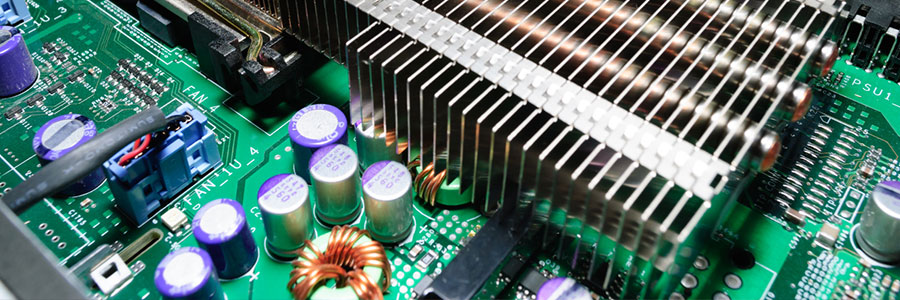
If your company is still using computers with outdated firmware, then you have a higher chance of experiencing a data breach. This is because failing to update your firmware exposes your business to major security risks. What is firmware? Firmware is a basic type of software that is embedded into every piece of hardware. It controls the device it’s installed on, cannot be uninstalled or removed, and is only compatible with the make and model of the hardware it is installed on. Think of it like a translator between your stiff and unchanging hardware and your fluid and evolving software. For example, the firmware of a TV remote control processes the button presses and sends that data into a format that the TV can understand. Why is firmware security important? To clearly explain the importance of firmware security, let’s use the firmware installed in a router as an example. When you buy a router and plug it in, its firmware allows it to connect devices to your wireless network with almost zero input from you. However, if the router manufacturer is outside of California, then they might still be using the same username and password for the same router model, if not for all router models. If you don’t change these default settings, you could be exposed to hackers. Default usernames and passwords is an example of a known vulnerability, and firmware could have other vulnerabilities that cybercriminals could exploit. Black hat hackers could use these to spy on you, steal or corrupt your data, or even damage your systems. Unfortunately, firmware exploits are not rare occurrences. Not too long ago, a cybersecurity professional discovered that sending a 33-character text message to a router generated an SMS response that included the administrator username and password. How do I protect myself? The best way to defend yourself from firmware exploits is to immediately roll out firmware updates from the device’s manufacturer. With that said, you need to keep in mind that every manufacturer has different procedures for checking and updating firmware. For instance, if you have a D-Link router, typing “192.168.0.1” into a web browser will allow you to access its firmware and update process, assuming you have the username and password. If you’re unfamiliar with your router manufacturer’s procedures, you can type “[manufacturer name] router firmware update” on any search engine like Google. But remember, routers are just one example of how firmware affects your cybersecurity posture. Hard drives, motherboards, and even mice and keyboards need to be checked as well. We understand this can be extremely tedious, and that’s why we highly recommend hiring an IT provider to take care of it for you. If you’re curious about what else we can do to help, give us a call today! Published with permission from TechAdvisory.org. Source.
How will 5G improve VoIP?

Much more of VoIP’s potential would be tapped by businesses, thanks to the enhancements that 5G will bring about. Mobile VoIP VoIP calls rely heavily on sufficient download and upload speeds. For example, when mobile VoIP users on 4G networks are limited to 12 Mbps upload and 2 Mbps download speeds, they experience unstable and poor call connectivity and clarity. These limitations could also lead to something called packet loss, which happens when one or more “packets” of data traveling across a computer network fail to reach their destination, typically caused by network congestion. Packet loss reduces audio/video quality and could even cause calls to be dropped. 5G’s greater speed prevents packet loss, but the tech has another feature that makes it better than 4G. 4G network providers set a fixed amount of bandwidth for every direction it transmits a signal to, but with 5G, the bandwidth can be adjusted on the fly. This means that 5G network providers can allocate bandwidth to mitigate congestion as soon as it manifests itself. In practical terms, businesses could reach their customers even if the latter are in packed places that normally max out 4G mobile network capacity constraints, like in football stadiums or airports. Improved video conferencing The major factor holding web and video conferencing back is how fast current networks can transmit data. Fortunately, innovations like Web Real-Time-Communications (WebRTC) and 5G networks will enhance VoIP for businesses. Providing open and stable streaming as well as sufficient transfer speeds will soon allow businesses to accommodate higher-quality, even 4K and 8K resolution, videos. Beyond improved streaming quality, 5G networks will also be able to support video calls with an increased number of participants. This means that businesses can serve more customers and conduct larger video meetings, which is timely, considering the current shift toward remote working. Virtual and augmented reality With 5G network speeds, virtual and augmented reality will become more common for SMBs. 5G will blow past 4G’s Gbps (gigabits per second) limit, which is currently holding back the adoption of virtual reality (VR) and augmented reality (AR) applications. VR and AR need to process significantly more data because of the visuals they must process as users move, and this puts an enormous strain on mobile networks. 5G is also set to ensure a better user experience by facilitating smoother connections and preventing network delays from affecting your bottom line. When your business decides to adopt the up-and-coming 5G network, you can expect to see significant VoIP improvements. Ensure the success of your SMB with increased network speeds, better call quality, and conversations with consistent connectivity. If you’re looking to set up a VoIP system for your business, call or email us today! Published with permission from TechAdvisory.org. Source.
Make the most out of Outlook with these tips

Millions of businesses worldwide use Microsoft Outlook, preferring the free web-based email and calendar service over its many competitors. Outlook also offers tasks and contacts management capabilities, among other nifty features that will help you work smarter and boost your efficiency. Let’s take a closer look at some tips to help you make the most of Outlook. Organize your inbox Is your Outlook inbox getting a little too cluttered for your liking? Use the Clean Up feature to tidy up your inbox. From your inbox, click the Home tab and choose from one of three Clean Up options: Clean Up Conversation – reviews an email thread or a conversation and deletes redundant messages Clean Up Folder – reviews conversations in a selected folder and deletes redundant messages Clean Up Folder & Subfolders – reviews all messages in a selected folder and any subfolders, and deletes redundant messages in all of them Ignore conversations Besides redundant messages, group conversations that aren’t relevant to you can clutter up your inbox. The Ignore button helps you organize your inbox and focus on relevant emails. To activate this feature, select a message, then click Home > Ignore > Ignore Conversation. You can also do this by opening a message in a new window and clicking Ignore under the Delete function. You can easily revert this action by going to the Deleted Items folder and clicking Ignore > Stop Ignoring Conversation. Send links to files This function is especially useful when you need to send large files to your coworkers or clients. You can send a link to the file instead of the file itself as well as set permissions to allow recipients to edit and collaborate on linked files in real time. To do this, upload the file you wish to send to OneDrive. Then from the message box, click Attach File > Browse web locations > OneDrive. Schedule a Teams meeting Teams is Microsoft’s unified communication and collaboration platform, and it includes the Outlook add-in. This feature allows you to set up Teams meetings directly from Outlook. It also lets you view, accept, or join meetings in either app. To schedule a Teams meeting on Outlook, follow these steps: Switch to the calendar view on Outlook. Click the New Teams Meeting tab. Add individual participants or entire contact groups to the Required or Optional fields. Type in the topic, start time, and end time of the meeting. There’s no need to add the dial-in phone numbers and conferencing IDs to the invite, as Outlook does this automatically for you. Create a message inviting the recipients to the meeting, then click Send. Tag contacts To get the attention of a specific person in a group email or meeting invite, use the @Mention function. This works particularly well for emails sent to multiple recipients or if you want to convey the urgency of your message. In the body of your email or invite message, type the @ symbol followed by the name of the person you want to tag (e.g., @johndoe). Doing so will highlight the name in the message and automatically add it to the To line of your message. You can also search for messages you’re tagged in by selecting Filter Email from the Home tab, and then clicking Mentioned. These are just some of the things you can do to improve your Outlook experience. For more on how to get the most out of Outlook and other Microsoft products, drop us a line today. Published with permission from TechAdvisory.org. Source.
Benefits of SaaS: What you should know

Technology continues to create more solutions that enable businesses to cut costs and improve efficiency. One of those solutions is Software-as-a-Service (SaaS). Learn more about what SaaS is, and how it benefits your business. What is SaaS and what makes it appealing? SaaS is a software delivery model that allows you, the user, to access software from any device through the internet. This gives you more flexibility since you don’t have to go to the office to use the software. You can work from anywhere as long as you can go online. As opposed to a traditional on-premises setup where software is stored locally, SaaS is hosted in the cloud. By transferring software hosting to a third party, you’re outsourcing all the responsibilities that come with maintenance, such as upgrades and troubleshooting. In a way, getting SaaS is like renting a car: somebody else owns and spends for upkeep of the vehicle, but you get to drive it. Shifting software ownership away from your business also changes how much you spend on it. With on-premises software, you purchase a license and pay yearly support fees, which can amount to 22% of the price of license fees (ouch!). With SaaS, you pay a monthly or annual subscription fee that covers licenses, support, and other fees. This is better since it allows you to spread out costs on a monthly basis, instead of purchasing expensive licenses outright and ending up with a huge maintenance bill every year. Will my data be safe? Some companies hesitate to switch to SaaS because of data security concerns. Who will own my data? Will my data be safe? What if the vendor goes out of business? Here’s something for your peace of mind and safety: when you’re outsourcing your software to a SaaS vendor, you have to sign a service level agreement (SLA). This should specify that you own the data and that the vendor is obliged to provide access to your data even if the vendor suffers from extreme circumstances like economic difficulty or disasters. Data hosted by a SaaS vendor will be more secure than that stored on the average SMB’s network. That’s because SaaS vendors regularly undergo strict security audits, forcing them to invest more in security, backup technology, and maintenance than a typical SMB. Should I switch to SaaS or stick to on-premises? SaaS is an ideal solution for small- and mid-sized businesses that want to reduce upfront costs. Large businesses or those with complex processes will benefit more from a traditional on-premises solution since it offers more functionality and allows for full customization. Still unsure about whether SaaS is the right answer for your organization? Want to know more about SaaS before making the transition? Call us today! Our experts are ready to answer any questions you may have about SaaS. Published with permission from TechAdvisory.org. Source.