
Useful tips to prolong your laptop battery life

It’s difficult to gain momentum at work when your laptop constantly notifies you that it’s running out of juice. And if there’s not a power outlet in sight, your device will soon be nothing more than a cold slab of metal and plastic. Here are some helpful tips to prolong your laptop battery life so you can work longer without interruption. Some truths about your laptop battery Most modern devices use lithium-based batteries that get damaged when they’re completely drained. But if your laptop uses an older type of battery that’s not made of lithium-ion or lithium-polymer, it’s best to let it discharge completely before recharging it. Laptop batteries also have limited life spans. So no matter what you do, yours will age from the very first time you charge it. This is because as time passes, the ions in your battery will become less efficient in flowing from the anode to the cathode, thereby reducing your battery’s capacity. What else can degrade your laptop battery? Besides being naturally prone to deterioration, your battery can degrade due to higher-than-normal voltages, which may happen when you keep your battery fully charged at all times. Even though a modern laptop battery cannot be overcharged, it will be damaged if you leave your laptop plugged in all the time. Both extremely high temperatures (above 70°F) and low temperatures (32–41°F) can also reduce battery capacity and damage components. The same goes for storing a battery for long periods of time, which can lead to extreme discharge. Another factor that can affect laptop battery life is physical damage. Remember that batteries are made of sensitive materials, and a shock from a fall or a similar incident can damage them. How can you prolong your laptop battery life? Now that you know some facts about your laptop battery, it’s time to learn how to delay its demise: Never leave your battery completely drained. Don’t expose your battery to extremely high or low temperatures. If possible, charge your battery at a lower voltage. If you need to use your laptop for a long period of time while it’s plugged into a power source, it’s best if you remove the battery from your device so it runs just like a desktop. This may not be applicable to newer laptop models that have built-in, non-removable batteries, however. When you need to store your battery for a few weeks, you should recharge your battery to 40% and, if possible, remove it from your laptop for storage. These are just a few tips on extending the life of your hardware. There are many more ways you can maximize hardware efficiency and extend longevity. Call our experts today to find out more! Published with permission from TechAdvisory.org. Source.
Calculating the total cost of a VoIP system

Cost is always an important factor to consider when it comes to technological investments. Especially with Voice over Internet Protocol (VoIP) phone systems, you have to be careful that investing in one doesn’t put you way over budget. Even if that phone system comes with a host of features, it’s important that you evaluate not only its upfront cost but also its total cost of ownership (TCO). TCO is the overall sum of procuring, deploying, and operating a VoIP system over its life cycle, which is typically five years. A VoIP expert should be able to give you an informed approximation, but here’s what to expect: Upfront costs Upfront costs are largely determined by whether you buy a VoIP system outright or rent it from a third party. Although the former carries a steep upfront cost, payment does not continue indefinitely. This makes sense for large, fully staffed corporations with massive budgets. Meanwhile, the latter option is better for small- and medium-sized businesses that prefer to pay a small monthly subscription rather than make a huge initial investment. Beyond the price of the VoIP package, upfront costs also include additional costs like headsets, webcams, and a stronger network connection to ensure crystal-clear calls. Implementation costs A majority of implementation costs go to the fees of the consultant or managed IT services provider that designs, deploys, and configures your VoIP system. But since you’re installing a completely new phone system, you also need to factor in costs associated with training employees on how to use the VoIP system effectively and securely. Operational costs This covers monthly recurring costs of voice and data plans. For example, some service providers charge local and long-distance calls per minute, while others offer unlimited local calls for a fixed monthly fee. If you’re managing your VoIP infrastructure yourself, you also have to take into account monthly power, cooling, and maintenance fees. If you opt for hosted VoIP services, however, you are only billed for maintenance. Upgrade costs You should also set aside some room in your budget for VoIP upgrades. For instance, to improve customer service, you may need to integrate customer relationship management (CRM) software with VoIP, but that requires the help of a certified CRM expert. Evaluating all the costs that apply to your business will give you a clear idea of how much you can expect to pay for your VoIP system. If you’re having difficulty calculating the actual costs of VoIP, call our experts today. We’ll help you figure out which VoIP solution is most ideal for your business and budget. Published with permission from TechAdvisory.org. Source.
The difference between Groups, Yammer, and Teams

Yammer, Outlook Groups, and Microsoft Teams have plenty in common. They’re all Microsoft 365 tools designed for sharing files and communicating with colleagues. So what differentiates them from one another, and when should you use which? Let’s take a quick look. Outlook Groups With Outlook Groups, every member gets a shared inbox, calendar, project planner, notebook, and document library. You can also connect to third-party apps such as Twitter, Trello, and Mailchimp, so notifications are sent directly to your shared inbox. This means all relevant messages and information are sent to one place, so if most of your conversations are done via email, Outlook Groups is ideal. What’s more, HR and sales departments that communicate with external parties will also find plenty of uses for its email features. A big downside of Outlook Groups, however, is email overload. Because all messages and notifications are sent to one inbox, users may become overwhelmed by the number of emails they have to sort through every day. Microsoft Teams Microsoft Teams, a chat-based collaboration platform similar to Slack, works with Skype for Business so you can text, call, video chat, and share files with colleagues. Thanks to its seamless integrations with other Microsoft 365 programs, you can even work on shared files without leaving the app. Unlike Groups, Microsoft Teams is designed for more advanced collaboration, making it great for completing projects with tight deadlines or other tasks requiring immediate feedback. Yammer Much like Groups and Teams, Yammer works well with other Microsoft 365 tools like Outlook and OneDrive. However, Yammer is a professional social media app designed to foster open communication and break down barriers between teams. With Yammer, important files and announcements can be shared with the entire company like an office bulletin board. Users can also see the most popular post on their feeds, follow it, and even comment. Yammer also takes design elements and features from social media apps like Facebook, making it a popular choice for companies with millennials in their workforce. Although we’ve discussed the fundamental differences between Groups, Teams, and Yammer, we’ve barely scratched the surface of what each app can do. To figure out which apps you need, you must understand how your employees work, how they prefer to collaborate, and what you want to achieve from such collaborations. But there’s another way to find the right app for your business: ask the experts. Contact us today for an IT assessment! Published with permission from TechAdvisory.org. Source.
Top 5 tips for a successful web conversion

Grabbing people’s attention and converting them to prospective customers is the goal of any professional website. To do that, you need to create a terrific-looking and user-friendly site that encourages visitors to sign up for eBooks, consultations, and other services. Be sure your website follows these five rules that make it easier to convert visitors. 1. Optimize your website for mobile devices More people are now surfing the web on the go via smartphones, tablets, and laptops. If you want a piece of this traffic, you need to make your website’s design responsive to all mobile devices. To give your visitors an enjoyable mobile experience, make sure your website design fits the screen of any device. Additionally, all elements of your website, including inner pages, resources, and call-to-action buttons should be easily accessible. If not, visitors will get frustrated and click away to a competitor. 2. Make it easy for customers to contact you This means displaying your phone number in the upper-right corner of every page and providing a simple, easy-to-find contact form. While some people prefer not to give up their email address for fear it will be picked off by spambots, it can serve as another contact option for those who hate web forms. Ideally, your customers will have more than one way to contact you. 3. Keep it simple People are always busy. They don’t have time to navigate a complicated website, dig through dozens of pages to find a contact number, or try and figure out what it is that you’re selling because your mobile site doesn’t display content properly. So when it comes to design, simplicity makes sense. When producing a simple website, every page, word, and image you create must have a singular purpose: to get visitors to contact you. Don’t distract them with excessive information, silly games, or flashy animations. Instead, have a nice clean layout so they can quickly understand what you’re offering and can contact you with a click. 4. Include custom photos whenever possible Say you have to choose between two different websites that sell the same thing and look virtually the same. The key difference is that one uses real photos of the owner and his or her staff, while the other uses generic stock images of business people. Assuming images from both sites are of the same quality, which one will you more likely choose? Undoubtedly, the one that looks more authentic. So the next time you need images for your website, invest some time and money in quality pictures taken by a professional photographer. 5. Move social media icons to the bottom of the page Everyone loves throwing social media icons on their websites. And while it’s not a bad idea to show your credibility, putting social media icons at the top of the page makes your visitors more likely to click on them immediately. When this happens, you just created an exit for them to leave your site and never return, and we all know how easy it is to get distracted on social media. Instead, place your social media icons at the bottom of the page or in the footer area. Remember, the goal of your website is to convert. If your visitors leave before they get a chance to explore your services, content, and offerings, you’ve lost them before you even had them. Need a website or another solution to enhance your digital presence? Give us a call and leverage our IT expertise for your business. Published with permission from TechAdvisory.org. Source.
5K Technical Services Ranked Among World’s Most Elite 501 Managed Service Providers

JULY 28, 2020: 5K Technical Services has been named as one of the world’s premier managed service providers on the prestigious 2020 annual Channel Futures MSP 501 rankings.
Choosing the best MSP for your business
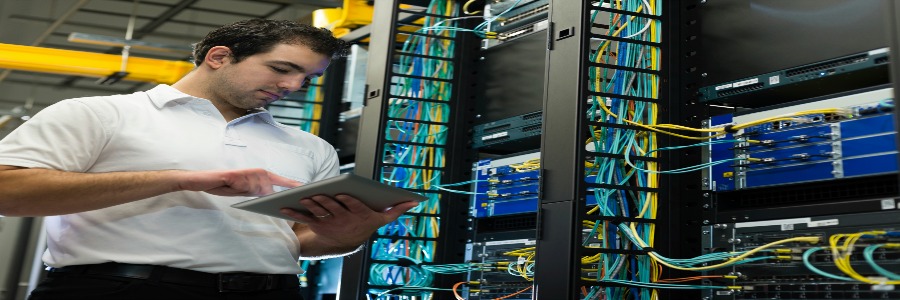
Technology underpins nearly every aspect of modern business processes. The problem is that managing technology can be complex and tedious. This is where managed IT services providers (MSPs) come in. Whether a company needs software to record customers’ data, network infrastructure management, or cloud technology, MSPs can provide these services and much more. MSPs defined MSPs are companies composed of specialists from various IT fields. They deliver various IT services (e.g., cloud computing, cybersecurity, backup and disaster recovery) and proactively manage their clients’ IT systems under a subscription model. Selecting the best MSP While there are many MSPs out there, not all of them are equipped to meet your company’s unique needs. You can only achieve optimum IT results by selecting the right MSP. Keep in mind these criteria when choosing an MSP: Depth of skills and experience – Any MSP should have the skills and experience that go beyond basic software installation, maintenance, and upgrades. They should also have strong expertise in advanced IT functions, such as database management, cloud technology, security, and cross-platform integration, so they can keep up with your company’s growing IT requirements. Financial stability – With IT being the backbone of your business operations, you need an IT partner who will be there for the long haul. Assess their stability by looking into their annual reports and financial statements. Check how many clients they have and their customer retention numbers. Also ask the MSP to provide customer references and testimonials. Competitive service level agreement (SLA) – An SLA is a contract that dictates the standards that your MSP should be able to meet. It should be able to answer these questions: Do they offer 24/7 support? Can they conduct remote and on-site support? What is their guaranteed response and resolution times? If they fail to meet their committed service levels, are there corresponding rebates or penalties. Third-party vendor partnerships – Pick an MSP with an ongoing relationship with the technology vendors (e.g., Microsoft, Oracle, Salesforce) whose products you already use in your IT environment. What type of partnership does the MSP have with those vendors? The higher the partnership level, the more vendor certifications the provider has, which means they can bring a lot of expertise to your business. Choosing the right provider is a very important step that will impact on the performance and success of your business. If you want to learn how MSPs can support your business, contact us today. Published with permission from TechAdvisory.org. Source.
Out of sight, out of mind (so clear your desktop now)

It’s simple, really: if your desktop is messy, then it’s more difficult to use. Don’t waste time and energy struggling to function — literally clean up your act by heeding our tips on decluttering your desktop. 1. Arrange, sort, and prioritize Before you go about deleting everything from your desktop, think about what you really want to keep. This will vary from person to person, but most people use their desktop for storing files, folders, and app shortcuts that they want to access quickly. Take the time to prioritize your files and folders. An easy way to do this is to right-click on an empty area of your desktop (where there are no icons) and select Auto arrange icons. This will organize your icons into a grid format that makes it easier for you to see and work with them. Then, right-click on the empty space and hover your mouse over Sort by and select Date modified to arrange the icons by the date they were last opened, with the latest on top. 2. Create a folder for holding files and another for keeping app shortcuts People often use their desktop to hold files like downloads, photos, screenshots, and even email attachments. This can lead to a messy desktop in a short period of time. In truth, you probably don’t need all these shortcuts on your desktop. Instead, create a folder on your desktop that will serve as your dumping ground for all your nonessential files and folders. If you don’t intend to keep a file, icon, photo, etc. for long, put it in this folder. Revisit this folder every once in a while to delete the files you no longer need. It also helps if you create a shortcut folder. When you install new programs on Windows, a shortcut icon is often automatically added to your desktop. However, these desktop shortcuts should be for frequently used programs only. Create a separate folder for programs that aren’t used that often. 3. Be ruthless in cleaning Once you have your folders set up, it’s time to get rid of the clutter. If you haven’t used a file, folder, etc. in the past two months or so, you should seriously consider getting rid of it. Examine your desktop and be ruthless in cleaning: Uninstall programs you no longer use. Delete unimportant files, such as screenshots you no longer need. Place the rest in relevant folders. Once you’ve completed these, check your browser to see where it stores downloaded files. If your browser downloads files onto your desktop by default, go to Settings and change the target location to the Downloads folder. 4. Maintain order Once you have decluttered your desktop, you must stick to the rules you’ve made. Whenever you download something, ask yourself whether this should go to the desktop, your dumping folder, or someplace else. Of course, sticking with these rules won’t always be easy, so take time once or twice a month to revisit your desktop and clean it up a bit. 5. Use the taskbar or Start menu for apps With Windows 10, you can pin apps to the Start menu and the taskbar. This is a great alternative to having program shortcuts on your desktop. To pin apps, open your apps list (i.e., click the Start menu icon at the bottom left corner of the screen) and right-click on the application you would like to pin. Simply select Pin to Start or Pin to taskbar for the option you want. 6. Choose a wallpaper you love looking at An interesting way to minimize clutter is to pick a wallpaper that you enjoy looking at — whether it’s your favorite slogan, a photo of your family, or a picture of your dream house, car, or destination. Having an image you like serves as a reminder to keep icons to a minimum, so if you can’t see the image anymore, then you have too many icons, and it may be time to get rid of a few. If you are looking to learn more about using Windows in your office, contact us today to see how we can help. Published with permission from TechAdvisory.org. Source.
Distributed spam distraction hides illegal activities

As annoying as spam email is, it’s usually pretty harmless. But hackers have been using a method called distributed spam distraction (DSD) where spam email is used to carry out illegal activities. Learn more about DSD and how you can safeguard your systems against it. What is DSD? DSD is a type of attack wherein cybercriminals inundate email inboxes with as many as 60,000 spam emails. These emails don’t contain dangerous links, ads, or attachments, just random excerpts of text taken from books and websites. But because of the sheer volume of these emails, deleting and blocking each one of them can be daunting. And worse, the email and IP addresses used to send them are all different, so victims can’t simply block a specific sender. While these spam messages may seem like harmless annoyances, their true purpose is to draw victims’ attention away from what hackers are doing behind the scenes — which is to steal and use your personally identifiable information to conduct a raft of illegal activities. These include stealing money from your bank account or making unauthorized purchases in your name. In a DSD attack, the thousands of spam emails you get serve as a smokescreen that hides payment confirmation messages. New tactics Over the years, hackers have developed new DSD tactics. Several reports show that instead of nonsensical emails, hackers are using automated software to have their targets sign up for thousands of free accounts and newsletters to distract them with authentic messages. This allows DSD blasts to slip past spam filters that weed out the malicious code and text used in traditional DSD attacks. Also, anyone can go on the dark web and pay for DSD services. For as little as $40, you can get a hacker to send out 20,000 spam emails to a specific target. All you need to do is provide the hacker with your target’s name, email address, and credit card number — all of which can also be purchased on the dark web. How to protect yourself from DSD DSD is a clear sign that your account has been hijacked, so whenever you receive dozens of emails in quick succession, contact your bank to cancel any unfamiliar transactions and change your login credentials as soon as possible. Also, you should update your anti-spam software (or get one if you don’t have one) to protect your inbox from future DSD attacks. Hackers only initiate DSD attacks after they’ve obtained their target’s email address and personal information, so make sure your accounts and identity are well protected online. You should regularly change your passwords and PINs, enable multifactor authentication, set up SMS and/or email alerts for whenever online purchases are made in your name, and be careful about sharing personal information with others. DSD is just one of many cyberthreats out there. For expert advice on how to ensure your safety and security online, get in touch with our team of IT professionals. Published with permission from TechAdvisory.org. Source.
Recommended malware removal on Android devices

Cybercriminals infect Android apps with their malware in order to infiltrate your devices. In fact, your Android smartphone or tablet may already be infected. If you want to minimize device, data, and business damages caused by malware, then follow these tips on how to remove malware from your Android device. Confirm the malware infection Android devices usually exhibit strange behavior when they’re infected with malware. Their speed may suddenly slow to a crawl or the battery may drain faster than expected. Other telltale signs include an abundance of pop-up ads, unusual apps installed on your home screen, unexplained data usage, and unauthorized in-app purchases. However, it’s not always easy to tell if your device has been compromised since hackers are becoming more proficient at concealing their actions. The best way to check for malware is to run an antivirus scan using a mobile security solution. How to get rid of malware If your device is infected with malware, the most important thing to do is quarantine the threat as soon as possible. Start by rebooting your device in safe mode, which can be selected when you hold down the power button. Not all versions of Android are the same though, so if this isn’t an option, try restarting your device and holding the volume-down button when the manufacturer’s logo appears. Once you’ve entered safe mode, go to Settings, then Apps, and uninstall any suspicious apps. Do a quick Google search or ask your cybersecurity technician to help you determine whether or not an app is dangerous. If you can’t uninstall the software, it may have administrative privileges. To fix this, open the Advanced settings menu from the Settings app, then select Security, then Device administrators, remove any app that shouldn’t have privileged access, and return to the Apps menu to uninstall it. Mobile security software should also be able to remove hidden malicious programs in your device. If the malware persists, you’ll have to do a factory reset. This option is usually located in the Backup & reset configurations within the Advanced settings menu. Keep in mind that you’ll lose the apps and files stored in your device, so it’s important to back up your data beforehand. Protecting your device from malware After you’ve successfully recovered from a mobile malware infection, make sure to update your device and security software to prevent another infection. Enabling Google Play Protect from within the app store also safeguards your device from rogue apps. Ultimately, the best defense is to develop good security habits. Be cautious of everything you see online. Make sure to thoroughly vet apps before downloading them, and don’t click on links from unsolicited texts and emails. Also, avoid public Wi-Fi networks or, at the very least, use a virtual private network (VPN) to secure the connection. Malware attacks can be devastating to your bottom line, but these tips should help mitigate the risks. If you want to learn more about how you can safeguard your Android devices, our experts are always willing to assist you. Contact us today. Published with permission from TechAdvisory.org. Source.
Tips for using external monitors with Mac computers

Using two monitors doesn’t just make working convenient, but it also makes you more productive. If you’re using a Mac Mini, Macbook Pro, or Macbook Air, you probably think your external monitor options are limited. Not quite. Here’s how to use external monitors as a second display for your Mac computers. First, check what displays your Mac device supports by doing the following: Click the Apple Menu (located on the left-hand side of the screen). Then click Support > Specifications. You will then be directed to an Apple web page indicating your device’s technical specifications. Under Graphics and Video Support, you will see some details similar to the following: Intel HD Graphics 6000 Dual display and video mirroring: Simultaneously supports full native resolution on the built-in display and up to 3840 by 2160 pixels on an external display, both at millions of colors Thunderbolt digital video output This is for a MacBook Air (13-inch, early 2015). Extended mode versus mirror mode Connecting to an external display lets you choose between: Extended mode – uses the external display to extend the image displayed on your main Mac device. To activate extended mode: Click Apple menu > System Preferences > Display > Arrangement. Untick the Mirror Displays checkbox. Note: This may not work on older Mac devices such as early 2015 models or older. Mirror mode – reflects or “mirrors” the exact same image on your main device onto the external screen. To activate video mirroring: Click Apple menu > System Preferences > Displays > Arrangement. Tick the Mirror Displays checkbox. AirPlay mode Those who have an Apple TV can use AirPlay to use their TV as a second screen. Apple TV is designed for use with TVs, but it can also be used to connect to HDMI-enabled computer monitors. To use AirPlay mode as a second display: Turn on your TV and Apple TV. In the menu bar (the topmost bar on the screen), select the AirPlay icon, the one with a rectangle intersected by a triangle. Select your Apple TV and enter the four-digit code appearing on your TV onto your Apple device. To enable AirPlay to mirror your main Mac device: Click the AirPlay icon and select Mirror Built-in Display. To use your TV as a separate display, click the AirPlay icon, then choose Use As Separate Display. To turn off AirPlay: Click the AirPlay icon, then select Turn AirPlay Off. Your Macbook Pro, Macbook Air, iPad, and other Apple devices have functionalities you may not have yet explored. To get more productivity hacks and/or hardware support, call our IT experts today. Published with permission from TechAdvisory.org. Source.