
Don’t believe these disaster recovery myths

Modern technology changes rapidly, but not all businesses can match its pace. When it comes to disaster recovery (DR), for instance, we see business owners clinging to ideas that no longer apply. It’s high time you learn the truth about the following DR myths so you can stop believing them. Myth 1: Tape backups are the best DR solution Tape backups are physical objects that deteriorate over time. Try listening to a cassette tape from the ’90s. Its sound may be distorted already, or it probably doesn’t work at all. Similarly, your tape backups will start to fail over time. At first, only a few files may be affected, but you will gradually lose all your data. It is also a common practice to store another set of tape backups outside your premises to secure them in case a natural disaster befalls your office. However, if your storage spaces themselves are unsafe from natural disasters, this could pose a problem. Unlike tape backups, cloud-based backups are safe from deterioration. They are also stored in multiple secured locations that are protected from natural disasters, so your data backups are as safe as they can be. What’s more, cloud-based backups save you time in many ways. Data is automatically backed up online, so you don’t need to manually copy information onto your tapes. You also won’t need to manage boxes of tapes, freeing you to focus on more valuable tasks. Myth 2: The RTOs you want are too expensive Essential to any DR plan is its recovery time objective (RTO), which is the ideal period when everything must be up and running again to avoid serious losses. Before the cloud, a “swift” recovery time would take days and cost up to six figures. Cloud and virtualization solutions have made this much faster and affordable than ever before. Most DR providers can back up your critical data in an hour or two. And if you ever need to recover data, most services can do so in less than a day. Myth 3: Disaster recovery is for big businesses, not SMBs Due to the astronomical costs previously associated with DR, only big businesses could afford backup and recovery solutions. Thanks to the cloud, however, these have become more affordable for small- and medium-sized businesses (SMBs). From dental offices to small retail operations, SMBs can now take advantage of the best DR solutions in the market. Advances in IT and the cloud have also eliminated the obstacles of complexity, costs, and insufficient IT resources. We hope that by dispelling these myths, you’d be convinced to implement a disaster recovery plan (DRP) for your business. Thanks to improvements in data storage technologies, it is now more affordable and efficient to implement a DRP, in turn making it easier to ensure BC. If you’d like to learn how our DR solutions can safeguard your business, send us a message and we’ll fill you in. Published with permission from TechAdvisory.org. Source.
Windows 11: New features and improvements

Windows 11 is Microsoft’s successor to their massively successful Windows 10 operating system (OS). Let’s take a look at the new OS’s enhancements that may prove valuable to your business. Security features Windows 11 continues what its predecessor has been doing, which is to provide apps that boost security and grant control over security and privacy settings. OS level: Security baselines Security requirements differ among different industries and organizations. For instance, a hospital must be HIPAA-compliant and maintain the privacy of patients’ health information, whereas a phone manufacturer would want to safeguard the fruits of its R&D department. Given the multitude of controls to set, security baselines help firms configure their own granular security settings and apply industry standards. App level: Windows application security When malware-laced apps and files are opened, malicious code may be executed alongside innocuous programming. Microsoft is well aware of how hackers abuse Office macros and turn these into cyberattack vectors, so it developed Windows application security to thwart such threats. Device level: Microsoft Defender for Endpoint and Endpoint Manager Defender for Endpoint is a security platform that keeps networks protected by detecting, analyzing, and responding to all types of cyberthreats. On the other hand, Endpoint Manager is an administrative tool for enforcing security compliance policies across all devices on your network. It helps an IT admin prevent data breaches and minimize their impact by isolating compromised devices. User and identity level: Windows Hello for Business As a security tool, passwords are obsolete because of how these have become easy to steal. Windows Hello for Business protects your organization at the end-user level by replacing passwords with biometrics or PINs that are kept locally in users’ devices. Hybrid work innovations, productivity enhancements, and other helpful features These innovations help users accomplish their tasks and provide nice-to-have conveniences: Virtual desktops Whether employees use company-issued devices or their own, they tend to use these for both work and personal tasks. Personal apps, files, and activities increase your organization’s exposure to cybersecurity risks, while the converse is also true: work apps, files, and activities may also expose an employee’s personal accounts to cybersecurity risks. With virtual desktops, users can compartmentalize the professional and the personal by creating a separate desktop for each one. This separation helps limit the impact of a cybersecurity event to the affected desktop. Plus, compartmentalization has the added benefit of helping employees avoid personal distractions while at work, and unplug from work when their shift is over. Windows Autopilot Autopilot automatically takes care of preparing a Windows PC or HoloLens 2 for use whenever you issue one to an employee. Just have the employee sign in to their account, then Autopilot automatically does the following in the background: Enrolls the device into Endpoint Manager, which then deploys work apps like Microsoft Teams Applies policies and settings Has the device join either Azure Active Directory or Active Directory Autopilot can also be used to reset, repurpose, and recover machines. Everything mentioned thus far can all be done without ever involving your IT admins, thereby allowing them to focus more on higher-value tasks. Widgets If there’s info that you consume regularly, such as news and weather reports, it’d be convenient to have a repository you can open with just one click. That’s what Widgets is for. Simply click on its icon on the taskbar to access your very own personalized information feed — no need to manually search in web browsers. Widgets can also contain small apps like calendars and calculators. These apps are ready to be used and do not need to be launched separately. Snap layouts Snap layouts allow users to arrange app windows for when they’re using multiple apps simultaneously on a single screen. To illustrate, a data analyst may place two data sources on the left side of the screen while they work on their report in a spreadsheet on the right side. Users can save a particular grouping of apps or layout into a Snap Group. This means that they can save a Snap Group for every task that requires a different set of apps. Therefore, when a user wants to perform a certain task, they can just open the related Snap Group to select the apps they need for that task. This is much faster than opening apps individually and setting your preferred layout every time. Furthermore, if a user has created multiple Snap Groups, they can easily switch to another Group when they have to perform a different task. Power Automate With Power Automate, users with practically no coding experience can leverage robotic process automation or RPA to automate repetitive processes and make their work tasks a lot easier. All a user has to do is to select from Power Automate’s 400-plus premade actions and utilize a recorder to keep track of keyboard functions and mouse actions. To illustrate, you can create automated email alerts that notify your team whenever a client submits a form, or you can automatically place purchase orders whenever supplies breach minimum quantity thresholds. If you wish to deploy Windows 11 in your organization, let our IT experts help you out. Tell us more about your business requirements today. Published with permission from TechAdvisory.org. Source.
A guide to implementing proactive cybersecurity measures

Running a business has always been a challenge, but the ever-evolving cybersecurity landscape has made it even more so. Every day, newer, more sophisticated cyberthreats emerge, putting businesses at risk of significant data, productivity, and financial losses. Implementing a proactive cybersecurity strategy is an effective way to keep these threats at bay and ensure continuous operations. Here’s how to do it. What is proactive cybersecurity? Traditional cybersecurity is reactive — your IT team or managed IT services provider (MSP) will be alerted of a cyberattack after it has happened, leaving them to alleviate the impacts. In contrast, proactive cybersecurity is preventative — it takes into account all potential threats and seeks to identify vulnerabilities so that they can be addressed before they lead to larger, downtime-causing issues. Many organizations have adopted proactive cybersecurity measures along with reactive ones and are now reaping the benefits, including the ability to stay one step ahead of cyberthreats and improved data compliance. How to implement proactive cybersecurity In adopting a proactive approach to cybersecurity in your organization, you must follow these steps: Understand the threats you’re facing Before you can work toward preventing cyberattacks, you must know exactly what you’re up against. Seek the help of your in-house IT staff or MSP in identifying the types of attacks that are most common in your industry. Reevaluate what it is you’re protecting Once you have a list of the biggest threats to your organization, you need to take stock of how each can damage the various components of your network. Map out every company device that connects to the internet, what type of data they have access to (regulated, mission-critical, low-importance, etc.), and what services are currently protecting those devices. Choose proactive cybersecurity measures to put in place Depending on the risks and assets uncovered in steps 1 and 2, your IT team or MSP may recommend any of the following measures: Proactive measure What it entails Security awareness seminars for all internal stakeholders Train everyone from the receptionist to the CEO about effective security practices such as password management, proper mobile device usage, and spam awareness. Updated anti-malware software or cloud-based service Protect your data and systems against the latest and most menacing malware. Routine software patches and upgrades Minimize the chances of leaving a backdoor to your network open. Web filtering services Blacklist dangerous and inappropriate sites for anyone on your network. Perimeter defenses (e.g., intrusion prevention systems and hardware firewalls) Scrutinize everything trying to sneak its way in through the borders of your network. Policy of least privilege Limit users’ access only to the data they need to fulfill their tasks. Data segmentation Rank data according to sensitivity and build micro-perimeters around high-value datasets. Full-disk encryption Make data stored in computers and portable devices unreadable so that if these machines are stolen, the files they have inside remain secure. Virtual private networks Make data transmitted across unsecured connections unreadable so that intercepting it would become futile. Strict access controls Prevent unauthorized access to accounts by using strong passwords, multifactor authentication, and auto screen locks and logouts for idle users. AI-powered network monitoring Identify suspicious user and software behaviors such as employees accessing files outside their departments. If you’re looking to implement a proactive cybersecurity strategy to protect your business’s critical systems, give our professionals a call today. We’ll assess your needs and recommend the best, most effective solutions to address them. Published with permission from TechAdvisory.org. Source.
What to consider when purchasing a mouse

Everyone is familiar with the traditional two-button mouse with a cord, but this type of mouse has become increasingly unpopular over time. Nowadays, many people prefer to use a wireless mouse, especially the new models that tend to provide more comfort and convenience over prolonged use. A wireless mouse is easy to carry around, which is particularly useful for those who work in different places. But if you are looking to buy a new mouse, there are other things you need to consider besides choosing between corded and wireless. Cabled or wireless? First of all, when planning to purchase a new mouse, it’s important to consider whether to get a wired or a wireless mouse. A wireless mouse is generally more comfortable to use since your range of movement isn’t limited by a cable, and it’s portable. However, a wireless mouse can have latency and connectivity issues, making it frustrating to use at times. Sometimes, a wireless mouse can also interfere with other wireless devices nearby. Using it requires batteries, which can cause problems when the battery gets drained. And if you use the same mouse for both work and home computers, you run the risk of losing the tiny USB receiver for your wireless mouse when you travel to and from the office. On the other hand, a wired mouse is cheaper and easy to plug and play. One major problem you’ll have to worry about is dealing with tangled wires. So when you’re deciding on a new mouse, think about whether you’re looking for comfort or convenience. Ergonomics matters You’re going to be using the new mouse for a while, so it’s important to choose one that feels comfortable in your hands. When deciding on the right mouse, focus on the size and the grip of the device. The size of the mouse usually comes down to hand size; someone with smaller hands will find a larger mouse quite unwieldy. Certain mice can also accommodate different types of grips — fingertip grip, palm grip, and claw grip. Users who want high-precision control of their cursor should opt for a mouse with fingertip grip, those who value comfort should get a palm grip mouse, and if you want both control and comfort, the claw grip mouse is the way to go. Many gaming mice have unusual designs aimed at improving response time and usage efficiency, so look into those as well. Dots per inch (dpi) Higher sensitivity is necessary for precise mouse movements, especially if you’re editing images, videos, or audio files. A mouse with 1200 dpi or greater guarantees finer, sharper control. Although mouse specifications like dots per inch might be the last thing on your mind when it comes to buying new hardware, it still pays to consider your own comfort. A good mouse with the right fit can make you more efficient and reduce the risk of injury. If you need assistance setting up the best hardware for your company, don’t hesitate to give us a call. We’ll be happy to help. Published with permission from TechAdvisory.org. Source.
5 Steps for securing your VoIP systems
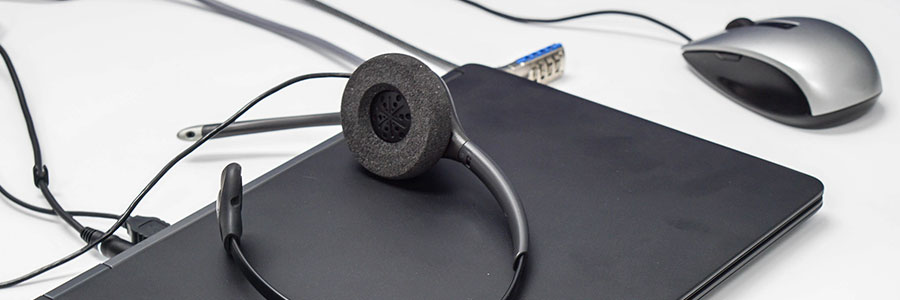
If your company’s Voice over Internet Protocol (VoIP) telephony systems are not equipped to weather disasters like wildfires and hurricanes, then they may fail when a calamity occurs. This could disrupt your operations and you may lose productivity, customers, and profit as a result. To avoid such losses, you must follow these important steps. Choose your provider wisely When choosing which VoIP system to adopt for your company, carefully evaluate the service level agreements offered by each provider. Inquire about the provider’s security and availability guarantees and how these will be achieved. Ideally, you must partner with the firm that can host your VoIP systems in facilities that are safe from local disasters such as flash floods or earthquakes. Your provider should also employ advanced network security solutions to protect your calls and data. Invest in VoIP monitoring services Before implementing any of the next two VoIP continuity solutions, install a third-party VoIP monitoring service to keep tabs on the status of your phone system. This tool will identify all network issues disrupting your phone system, enabling you to resolve them quickly. Have a backup broadband line Since VoIP solutions are dependent on internet connections, you should have a backup or alternate internet service provider (ISP) in case your main network goes down. Have one ISP dedicated to your VoIP service and another supporting your main computer network. Once you’ve installed both networks, you can then program them to automatically transfer services to the other should one network fail. Thus, if your main phone network goes down, your VoIP solution switches to the other network and suffers no interruptions. Of course, subscribing to two separate ISPs will increase your internet expenses. But if you perform a cost-benefit analysis, you’ll find that the cost to maintain both is far less than the cost of downtime in case your only ISP were to fail. Route calls to mobile devices Cloud-based VoIP solutions allow you to choose where you receive your calls with call forwarding — a feature that automatically reroutes incoming calls to other company-registered devices. This enables staff to receive work-related calls when they’re out of the office on a remote assignment, working at home, or when your main office is hit by a local disaster or network outage. To benefit from this feature, register all employee mobile devices to your VoIP system and configure such devices to receive rerouted calls. Don’t forget to set policies for remote working. For instance, you should forbid staff from connecting to public Wi-Fi networks because this can put them at risk of cybercriminals eavesdropping on VoIP conversations. Test your continuity measures regularly There’s little value in VoIP continuity and disaster recovery strategies if they end up failing when you need them the most. Test your VoIP service and check whether contact details are up to date, call forwarding features are routing calls to the right devices, and your backup internet service works. Ultimately, your goal is to find flaws in your strategies and make the necessary adjustments to avoid potential hiccups from occurring in the future. If managing VoIP is too time-consuming and complex, call our professionals today. We design, implement, test, and monitor powerful, disaster-proof VoIP phone systems to ensure your communications are always online. Published with permission from TechAdvisory.org. Source.
Maximize your Microsoft Word subscription with these tips

Microsoft Word is synonymous with document processing, which isn’t a surprise given its ubiquity and reputation for being user-friendly. Yet, many users are still surprised to learn that it has plenty of useful features, albeit ones that are hiding in plain sight. Here are some of them. Work online Don’t have the Word app on your computer, tablet, or smartphone? Go to office.com, sign in with your Microsoft account, and open Word Online, the web version of Word. This is particularly useful for users who have limited free storage space on their devices, as the Word app can be pretty hefty in terms of storage space (2.11 GB for Windows and 1.2 GB for Mac). It allows for the same level of functionality without the storage burden. Collaborate effectively You and your colleagues can now edit the same Word document simultaneously and in real time. Simply save the document to your Microsoft OneDrive account, click Share, and send the link to the file to your coworkers. People with the link can access and edit the document using the Word desktop app or Word Online. Maintain editorial control Use the Track Changes function of Word to monitor all edits made to your document. To turn on Track Changes, click on the Review tab, and then select Track Changes. You will then be able to view all changes made to the file by every user, and you will also have the ability to reject or accept suggestions and edits as you see fit. Use Smart Lookup for research The Smart Lookup feature helps you do online research while you’re working on a document — no need to open another tab and type in a query. Simply highlight and right-click the word or phrase you want to look up, and select Smart Lookup from the menu that appears. Word uses Microsoft’s Bing search engine to conduct a search on the selected word or phrase, and displays the results in a pane that appears on the right side of your screen. Format your documents The Styles gallery contains predefined formatting options for text. You can also add your own styles, or those you use frequently, to the gallery. By saving your own style preferences, you can apply them anytime without having to manually format everything. Just follow these steps: Select the text you want to format as a new style (e.g., a heading or a certain phrase). Specify the formatting you want on the mini toolbar that appears. For instance, click Bold and Red if you want the text to appear as such. Click the More arrow in the lower-right corner of the Styles gallery. Select Create a Style. This will open the Create New Style from Formatting dialog box. Give the style a name and click OK. Your new style will appear in the Styles gallery, ready for you to use anytime. Search and use images quickly With Word, there’s no need to open your browser to look for images for your document. Just place the cursor in the area where you want to insert the photo, click the Insert tab and select Online pictures (type “clip art” in the search box if that’s what you need), select an image, then click Insert. Edit PDFs Word’s PDF editing function allows you to make quick changes to PDF files without having to download and use a PDF editing app or software. But before you can edit a PDF file in Word, you have to convert it to a file format that Word can display. To do that, follow these steps: Click File > Open > Browse Choose the PDF file you want to edit, then click Open Click OK to make a copy of the PDF file and convert its contents into a format that can be opened in Word. (Note: The original PDF will be preserved.) Make edits to the copy of the PDF file. When you’re done, click File > Save as > PDF Microsoft is constantly rolling out nifty new features for its popular word processor. To stay updated on the latest Word features and functionalities, reach out to our Microsoft experts now. Published with permission from TechAdvisory.org. Source.
The ideal internet bandwidth allocation for WFH staff

Internet access is one of the most important resources people need to be able to work from home. However, poor internet quality can lead to poor job performance and a dip in productivity. If you want to know how much internet bandwidth is needed for remote work, this guide can help. What is bandwidth? Bandwidth refers to the maximum data transfer rate possible in a network or internet connection. It indicates the amount of data that can be sent over a connection in a given amount of time, and is usually expressed in bits per second (bps). Imagine two computers with the same internet speed at 100 megabits per second (Mbps): the first computer only has a 50 Mbps bandwidth, while the second one has 100 Mbps. If they were to download the same packet with 500 megabits (Mb), the first computer would be able to do it in 10 seconds, while the second one could do it in just 5. This is because the first computer’s bandwidth is capped at 50 Mbps — even with a high-speed internet service, the limit of transfer would still be low. Therefore, the higher the bandwidth, the more data can be sent over a connection, contributing to faster uploads and downloads and a better internet experience overall. How much bandwidth do you need for remote working? To answer this question, you need to factor in the type of work that you do and the apps that you use. If your job mostly consists of sending emails, editing and writing on Google Docs, and communicating on Slack, then you can do your job with ease even with a low bandwidth. On the other hand, if your day-to-day tasks consist of frequently attending meetings through video calls, then you’d need a plan with higher bandwidth. Once you have a clear picture of how much data you send and receive on an average workday, you can start looking for plans that can support your needs. And while you don’t need to conduct virtual meetings in 4K quality, you also won’t want your clients and colleagues to appear pixelated during a meeting. Neither would you want a session that gets choppy or cut off mid-conversation. Here are the minimum requirements for the most common video chat apps used by remote workers today: Zoom For 1:1 video calling: 600 Kbps (up/down) for high-quality video 1.2 Mbps (up/down) for 720p HD video Receiving 1080p HD video requires at least 1.8 Mbps (downspeed) Sending 1080p HD video requires at least 1.8 Mbps (upspeed) For group video calling: 800 Kbps/1.0 Mbps (up/down) for high-quality video For 720p HD video: 1.5 Mbps (up/down) Receiving 1080p HD video requires at least 2.5 Mbps (downspeed) Sending 1080p HD video requires at least 3.0 Mbps (upspeed) Google Meet HD video quality: Outbound signals must always meet a 3.2 Mbps minimum bandwidth requirement. Minimum inbound signals: 2.6 Mbps with two participants; 3.2 Mbps with five participants; and 4.0 Mbps with 10 participants Standard definition (SD) video quality: Outbound signals must always meet a 1 Mbps minimum bandwidth requirement. Minimum inbound signals: 1 Mbps with two participants; 1.5 Mbps with five participants; and 2 Mbps with 10 participants Skype Video calling: HD: 1.2 Mbps (up/down) SD: 400 Kbps (up/down) The more participants, the higher the bandwidth requirement for downloads: 512 Kbps for three participants; 2 Mbps for five participants; and 4 Mbps for seven people. Upload requirements remain constant at 128 Kbps. Microsoft Teams Teams requires the same upload and download internet bandwidth for the following scenarios: At least 30 Kbps for peer-to-peer audio calling At least 1.2 Mbps for peer-to-peer HD-quality video calling at 720p At least 1.5 Mbps for peer-to-peer HD-quality video calling at 1080p At least 500 Kbps/1 Mbps for group video calling If you’re worried about your internet bandwidth, you can opt for audio calls instead of video calls. This considerably helps lower the information you need to upload and download. For more tips and solutions on how you can work from home without a hitch, call us. We’d be happy to help. Published with permission from TechAdvisory.org. Source.
How to choose the best MSP for your business
More and more business owners are discovering the importance of adopting efficient, flexible, and cost-effective IT systems. But as customers’ expectations evolve, so too does IT —sometimes becoming far too complex and demanding for businesses to manage on their own. This is why many companies partner with a managed IT services provider (MSP). MSPs defined MSPs are companies composed of specialists from various IT fields. They deliver various IT services (e.g., cloud computing, cybersecurity, backup and disaster recovery) and proactively manage their clients’ IT systems under a subscription model. Selecting the best MSP While there are numerous MSPs out there, not all of them are equipped to meet your company’s unique needs. You can only achieve optimum IT results by selecting the right MSP. Here are some criteria to keep in mind: Depth of skills and experience – An MSP should have the skills and experience that go beyond basic software installation, maintenance, and upgrades. They should also have strong expertise in advanced IT functions, such as database management, cloud technology, security, and cross-platform integration, so they can keep pace with your company’s growing IT requirements. Financial stability – With IT being the backbone of your business operations, you need an IT partner who will be there for the long haul. Assess their stability by looking into their annual reports and financial statements. Check how many clients they have and their customer retention numbers. Also, read customer reviews and testimonials online customer reviews and testimonials. Competitive service level agreement (SLA) – An SLA is a contract that dictates the standards that your MSP must meet. It should be able to answer these questions: Do they offer 24/7 support? Can they conduct remote and on-site support? What are their guaranteed response and resolution times? If they fail to meet their committed service levels, do they offer rebates or money-back guarantees? Third-party vendor partnerships – Pick an MSP with an ongoing relationship with the technology vendors (e.g., Microsoft, Oracle, Salesforce) whose products you already use in your IT environment. Verify the partnership the MSP has with those vendors. The higher the partnership level, the more vendor certifications the provider has, which means they can provide plenty of expertise to your business. Choosing the right provider is a crucial decision that will impact your business’s performance and success. If you want to learn more about how MSPs can support your business, contact us today. Published with permission from TechAdvisory.org. Source.
5 Handy tips for organizing your desktop

Imagine a workstation with papers, folders, food, and electronics strewn all around, then having to scour through everything to find an unlabeled thumb drive containing an important sales report. This is practically the same hassle you and your staff suffer when you have cluttered desktops. Fortunately, there are a few simple things you can do to get organized again. 1. Arrange, sort, and prioritize Before you delete everything from your desktop, think about what you really want to keep. This will vary from person to person, but most people use their desktop for storing files, folders, and apps that they want to access quickly. Take the time to sort your files and folders. An easy way to do this is to right-click on an empty area of your desktop (where there are no icons), mouse over on View, and select Auto arrange icons. This will organize your icons into a grid format. Then, right-click on the empty space and hover your mouse over Sort by and select Date modified to arrange the icons by the date they were last opened, with the latest on top. 2. Create a folder for holding files and another for keeping app shortcuts People often use their desktop to store downloaded files, photos, screenshots, and even email attachments, which can lead to a messy desktop. However, you don’t need all these on your desktop. Instead, create a folder on your desktop that will serve as your dumping ground for all your nonessential files and folders. If you don’t intend to keep a file, icon, photo, etc. for long, put it in this folder. Revisit this folder every once in a while to delete the files you no longer need. It also helps if you create a shortcut folder. When you install new programs on Windows, a shortcut icon is often automatically added to your desktop. But these desktop shortcuts should be for frequently used programs only. Create a separate folder for programs that aren’t used that often. 3. Clear out unnecessary files Once you have your folders set up, it’s time to get rid of the clutter. If you haven’t used a file, folder, etc. in the past two months or so, get rid of it. Examine your desktop and uninstall programs you no longer use. You’ll also want to delete outdated files you no longer need and place the rest in relevant folders. 4. Use the taskbar or Start menu for apps In Windows 10, you can pin apps to the Start menu and the taskbar. This is a great alternative to having program shortcuts on your desktop. To pin apps, open your apps list (i.e., click the Start button at the bottom-left corner of the screen) and right-click on the application you would like to pin. Select Pin to Start or Pin to taskbar for the option you want. 5. Choose a wallpaper you love looking at An interesting way to minimize clutter is to pick a wallpaper that you enjoy looking at — whether it’s your favorite motivational quote, a photo of your family, or a picture of your dream house, car, or destination. Having an image you like serves as a reminder to keep icons to a minimum, so if you can’t see the image anymore, then you have too many icons, and it may be time to get rid of a few. If you are looking to learn more about how to use Windows more effectively, contact us today. Published with permission from TechAdvisory.org. Source.
Surefire ways to protect your email account
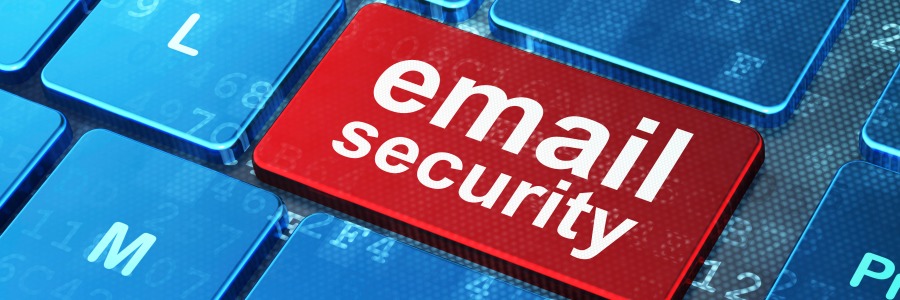
If you think your email is safe from hackers, think again. A lack of sufficient email security protocols can lead to data theft, unauthorized access to sensitive information, and successful malware attacks. Here are some tips to secure your email account from cyberthreats and the many troubles that come with them. Use separate email accounts Most people use a single email account for all their online tasks. As a result, all information from websites, newsletters, shopping deals, and messages from work gets sent to one inbox. But what happens when someone breaks into that email account? Hackers could gain access to all the stored information and connected online accounts and use these in fraudulent dealings. To prevent this from happening, create separate email accounts: a personal account to communicate with your friends and family, and a professional email account solely for work-related tasks. Set strong passwords Some email users often overlook the importance of having strong email account passwords. You might be surprised to learn how many people use weak passwords like “123456,” “qwerty,” and “password” and reuse passwords across multiple accounts. To keep all password-protected accounts safe, use strong passphrases that are unique to every account. You should also consider enabling multifactor authentication. This creates an extra layer of security by requesting another method to verify your identity, like a fingerprint scan or an answer to a security question. Beware of email attachments and embedded links When you see a link in an email, don’t click on it unless you’ve verified its authenticity. You never know where those links might lead you. Sometimes they are safe, but other times they can infect your computer with malware or send you to a compromised website. Be wary of downloading and opening email attachments as well. If the attachment is coming from strange email account names such as “@yahoo6753.com,” then it’s likely unsafe. Watch out for phishing scams In phishing scams, cybercriminals pretend to be someone else — commonly high-profile companies like Amazon, Facebook, or Bank of America — to trick you into performing actions that enable them to breach your accounts. They typically write emails intended to elicit panic, such as claiming that there’s an issue with your account and that you should send them information or click on a link to “confirm” your personal details. This link will either install malware on your device or lead you to a fraudulent site. It’s important to remember that legitimate companies would never ask such requests over email. If you get those types of messages, contact the company directly through a verified website or phone number — not the contact details in the email. Monitor account activity Periodically watch over your account activity. Check for any suspicious activities in your logs, such as unusual devices and IP addresses that have accessed your account. These indicate that hackers may have successfully broken into your account. If this is the case, sign out of all web sessions and change your password as soon as possible. Encrypt emails Email encryption ensures that any message you send can’t be understood by unauthorized users, even if they manage to intercept it. Keep all email security software up to date Install the latest updates for your anti-malware, firewalls, and email security software. This will filter potential email scams and fix any vulnerabilities that hackers could exploit. Implementing multiple email security measures can be daunting, but with our help, you can rest easy knowing that your email accounts will be protected from various cyberthreats. Talk to us today for all your cybersecurity needs. Published with permission from TechAdvisory.org. Source.