
Get rid of Windows 11 bloatware in just a few easy steps

Windows 11 is a great operating system, but it’s not perfect. One of the biggest complaints about Windows 11 is the number of bloatware it comes with. This can slow your computer down and take up valuable disk space. In this article, we will show you how to remove Windows 11 bloatware for good. What is bloatware? Bloatware is a term used for unwanted software that comes pre-installed on your Windows 11 computer. Bloatware apps take up hard drive space and consume system resources that slow down your PC. Some of the software that comes pre-installed on a new computer can be useful, like Calculator, Calendar, and Paint. But often, users find they don’t need or want the other extra programs. Fortunately, there are ways to easily remove bloatware from your Windows 11 computer to make it perform better. From the Control Panel If you want to get rid of bloatware on your Windows 11 PC, one way to do it is through the Programs and Features option in Control Panel. It works just like uninstalling any other type of application. Here are the steps: Open the Control Panel app. Choose the app you want to remove from a list of installed programs. Double click on the application you want to remove. You can also right click on the app and choose the uninstall option. Click Yes on the confirmation box to proceed with the uninstallation. From the Settings app Removing bloatware from the Settings app is the method preferred by most users because it displays all the pre-installed software that can be removed. Just follow these steps: Open the Settings app then go to Apps > Apps & features. On the App list, click on the three dots next to the bloatware you want to remove and click on Uninstall. If a confirmation message appears, just click on Uninstall again. Using PowerShell Some bloatware cannot be removed using the methods mentioned above. The best way to uninstall these types of applications is through Windows PowerShell. Note that PowerShell is extremely complex and should only be used by people with advanced technical skills and knowledge of PowerShell functions. Here are instructions for using PowerShell to remove bloatware. Run PowerShell with administrative rights. After Windows PowerShell opens, type get-appxpackage and press Enter. Scroll through the list of bloatware you want to remove. Once you find the bloatware you want to uninstall, type get-appxpackage | remove-appxpackage. is the name of the app you want to remove. For example, if you want to remove Skype, simply type get-appxpackage skypeapp | remove-appxpackage and hit Enter. To remove all bloatware at once, type get-appxpackage | remove-appxpackage and press Enter. Using a bloatware removal tool If manually removing bloatware takes too much time and effort, you can use bloatware removal tools. These programs are a quick and convenient way to automatically remove bloatware with a click of a button. Some bloatware removal tools can even detect malware hiding in pre-installed apps. Remember to restart your computer after removing bloatware to ensure the changes have taken effect. To learn more about optimizing Windows 11, give our specialists a call today. Published with permission from TechAdvisory.org. Source.
Ramp up your defenses with proactive cybersecurity

Cyberthreats are becoming more sophisticated every day, and if your business isn’t taking steps to protect itself from these threats, it faces a high risk of falling victim. This can cause you to lose valuable data or even go out of business. In this blog post, we will discuss what proactive cybersecurity is and how it can help protect your business against ever-evolving cyberthreats. Benefits of proactive cybersecurity Proactive cybersecurity is a strategic approach to protecting computer systems and networks from cyberthreats. It involves identifying potential vulnerabilities before cybercriminals can take advantage of them and implementing measures to prevent these vulnerabilities from being exploited. This approach is in contrast to reactive cybersecurity. Rather than attempting to prevent cyberattacks, reactive cybersecurity focuses on responding to and recovering from attacks that have already taken place. Having proactive security measures can provide your business with the following advantages: Avoid playing catch-up with threats Taking action every time there’s a threat can be exhausting for your security team and your other resources. If you’re always playing catch-up with threats, you’ll never be able to get ahead. By utilizing both preventive cybersecurity strategies alongside reactive measures, you will be able to best protect your data and networks. Improve security compliance Proactive cybersecurity measures can help you root out threats to your data and your clients’ data. This, in turn, enables you to meet data compliance requirements. Boost business reputation Customers are more security-conscious today than in the past. With many data breaches impacting companies, your customers will want assurance that you have measures to safeguard their personal information in place. Having a proactive cybersecurity culture will demonstrate your commitment to keeping customer data safe and give your business’s reputation a boost. Showing that you can be trusted with clients’ sensitive data will also give you a leg up over your competitors. Implementing proactive cybersecurity To effectively implement a proactive cybersecurity strategy, follow these steps: Determine the threats Work with your in-house IT staff or managed services provider (MSP) to identify the types of attacks that are most common in your industry. By being aware of the threats out there, you can take steps to protect your business and keep it running smoothly. Assess your resources After you identify the primary cyberthreats to your company, prioritize them by determining how each security issue can damage various parts of your network. You can start by listing company devices that connect to the internet. Check the security measures these devices have and the type of data (regulated, mission-critical, low-importance, etc.) each device has access to. Implement proactive cybersecurity measures Your IT team or MSP may recommend these security measures based on the risks and assets identified in steps 1 and 2: Proactive measure What to expect Conduct security awareness seminars Educate every employee about security best practices, including spam awareness, password management, proper mobile device usage, and the like. Regularly update anti-malware software or cloud-based services Keep your data and systems safe from the newest malware threats. Establish schedules dedicated for software patches and upgrades Patches and upgrades decrease the chances of someone getting unauthorized access to your network by exploiting software vulnerabilities. Recommend web filtering services Keep your network safe by blacklisting dangerous and inappropriate sites. Set up perimeter defenses (e.g., intrusion prevention systems and hardware firewalls) Watch out for anything and everything that tries to access your network. Initiate policy of least privilege Provide users access only to the data they need to complete their tasks. Determine data segmentation Assess and establish micro-perimeters to protect high-value data. Run full-disk encryption Encrypt data on electronic devices to prevent unauthorized access in case the devices are ever misplaced or stolen. Secure virtual private networks Encrypt data transmitted across unsecured connections to make it impossible to read if intercepted. Provide strict access controls Secure accounts from unauthorized access by using stronger passwords combined with multifactor authentication and automated screen locks that engage after a period of inactivity. Utilize AI-powered network monitoring Be on the lookout for suspicious user and software behaviors, like when employees access files outside their departments. Proactive cybersecurity is critical for businesses of all sizes. By taking steps to understand the threats your business faces and implementing measures to protect yourself, you can keep your data and your business safe. If you need help getting started, contact us today and our team of cybersecurity experts will be happy to guide you through the process of implementing proactive cybersecurity. Published with permission from TechAdvisory.org. Source.
A guide to choosing the perfect mouse for you

How do you know which mouse to buy when there are so many options on the market? In this guide, we will provide some tips on how to find the perfect mouse for your needs. Whether you’re a gamer, a graphic designer, or you just need a basic mouse for everyday use, we have you covered. Wireless or wired? Your needs and personal preferences are just one of the important factors to keep in mind when choosing between a wired and wireless mouse. Both wired and wireless mice generally offer the same core features. However, they have a few key differences, and taking note of these can help you make an informed decision when buying a mouse. It ultimately comes down to what your needs and priorities are as well as how much versatility and convenience you want from your mouse. For instance, if you’re a gamer, a wired gaming mouse may be the better choice since it typically includes dedicated gaming features that enhance performance, speed, and accuracy. On the other hand, if you value convenience and versatility, a wireless or cordless mouse may be more suitable. Wireless mice can be used on any device without needing to worry about tangle-prone cords or plugging in. Additionally, if you travel frequently or swap between multiple devices often, then a cordless mouse is probably your best option. It’s essential to note that a wireless mouse can have latency and connectivity issues, making it frustrating to use at times. Sometimes, a wireless mouse can also interfere with other wireless devices nearby. It also requires batteries, so you may experience issues when the battery gets drained. And if you use the same mouse in the office and at home, you run the risk of losing the tiny USB receiver for your wireless mouse when you travel to and from the office. On the other hand, a wired mouse is cheaper and easy to use: just plug it into your device and it’s good to go. One major problem you’ll have to worry about is dealing with tangled wires. Consider ergonomics For mice, ergonomics is vital because it can help prevent repetitive stress injuries. Some mice are more comfortable to use than others, and the best way to find out if a mouse is ergonomic without actually buying one and trying it out for yourself is to do research first. You can do this by watching product review videos or visiting a store and checking out some test units. Comfort is typically based on a mouse’s size and grip. The ideal size of a mouse typically depends on your hand size. If you have smaller hands, then you will find that a larger mouse is quite difficult to maneuver. Some mice can also fit different grips including fingertip grip, palm grip, and claw grip. If you want to have precise control over your cursor, you should get a mouse that has a fingertip grip. If you want comfort, a mouse with a palm grip might suit you better. And if you aim for both comfort and control, consider a mouse with a claw grip. Dots per inch A mouse’s DPI, or dots per inch, refers to the amount of detail that a mouse is able to capture and reproduce onscreen. This measure is important for graphic artists and photographers who rely on their mice to choose accurate colors, weights, and sizes when working on projects. In general, a higher DPI allows for more precise and accurate selections when working on images, videos, or audio files. For instance, a mouse with at least 1200 dpi provides better control and precision. However, choosing a DPI that is too high may result in slower response times from the mouse since it will have to process such fine detail. With so many mice on the market, it can be hard to choose the right one for you. But by keeping your needs and budget in mind, as well as considering the factors outlined in this guide, you’ll be able to find a mouse that’s a perfect fit for both your needs and your wallet. If you’re still unsure of what to purchase, contact us today and our experts will be happy to guide you. Published with permission from TechAdvisory.org. Source.
Tips to minimize VoIP downtime and increase productivity

Although Voice over Internet Protocol (VoIP) systems are more dependable than traditional landlines, there’s always a chance of downtime since the whole network is connected to the internet. If your internet connection fails, so does your business phone service. This article will provide you with helpful tips to minimize VoIP downtime. Choose a VoIP provider carefully VoIP providers aren’t created equal. Make sure to do your research and choose a provider that is reliable and offers the features you need. In case of an outage, what options does the provider offer? What steps have they taken to prevent or minimize phone system downtime in general? Also, be sure to ask about their security policies and where they host their VoIP systems. Have an alternative or backup internet service provider (ISP) In an ideal business setup, two separate internet connections should be used, with each connection being supported by a different ISP. This way, if one of the ISPs fails, you can automatically switch to the other and keep you phone services running with no interruption. Install VoIP monitoring services A VoIP monitoring service is an excellent way to monitor your VoIP system’s status. It can detect possible network issues that might cause problems. By constantly checking in on your system and warning users about issues, you can quickly deal with any problems that might cause VoIP network interruptions. Divert calls to other locations Simultaneous ring and sequential call forwarding are two great ways to make sure your calls always get answered. With simultaneous ring, you can route incoming calls to a single number to multiple devices. And with sequential forwarding, you can set up a list of numbers that will be called in sequence, so if the first person is busy, the call will automatically go to the next person on the list. This way, even if your main office or service center is unavailable, calls can still be routed and answered at other locations. Use VoIP on mobile devices If you’re experiencing power or internet outages, you can still use your VoIP phone service through your mobile device as a temporary solution. You can do this by downloading and installing a softphone app that would enable you to make and receive calls on your mobile device using your business phone number. By implementing these strategies, you can keep your business VoIP phone lines from going down. If you want to learn more about VoIP, get in touch with our experts today. Published with permission from TechAdvisory.org. Source.
Improve hybrid work with these new Microsoft 365 features
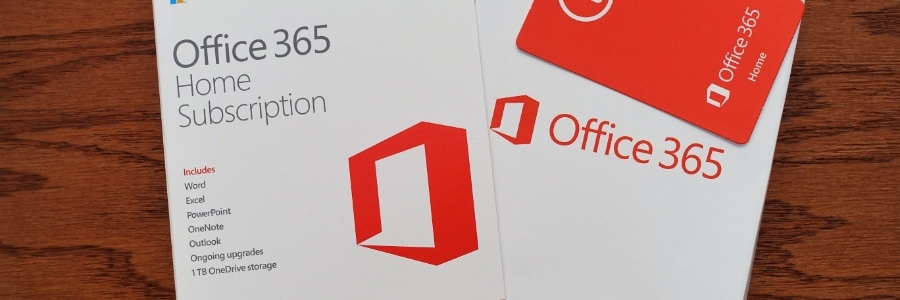
Today’s hybrid workplace poses many challenges, including maintaining employee productivity, streamlining communications, and facilitating collaboration. The good news is that Microsoft 365’s dynamic new features can help organizations overcome these problems. Let’s take a look at the productivity suite’s most promising upgrades, which make it better poised to support hybrid work than ever. Excel Live Last year, Microsoft introduced PowerPoint Live, a feature that allowed participants in a Microsoft Meeting to actively interact with presentations in real time. This year, Microsoft applies the same idea to the Excel app, giving us Excel Live. To access Excel Live, simply select the Share tray in Teams, scroll down to Excel Live, and select the Excel workbook you’d like to share with the meeting participants. Whether you’re working on a sales report or analyzing financial data, your team can process data in real-time and jump right in to edit a workbook without switching between apps and leaving the meeting screen. Microsoft Viva Microsoft Viva is an employee experience platform that fosters connection, growth, purpose, and insight. It is included in the Microsoft 365 subscription, but can also be purchased separately at $9.00 per user per month. Viva in Microsoft 365 offers two key services, Viva Connections and Viva Engage. Viva Connections Viva Connections provides employees with timely news, relevant conversations, and other resources all in one place. Not only does it offer a personalized and branded employee experience, but it also appears in the apps that employees use every day, like Microsoft Teams. By connecting everyone in the company, Viva Connections unites employees around the organization’s vision and mission and top priorities. Viva Connections can also be deployed with minimal effort, as it builds on Microsoft 365’s existing capabilities, like Yammer and SharePoint. Viva Engage Viva Engage bonds people throughout the company regardless of location or time. By using the Viva Engage app in Teams, organizations can strengthen community ties, leadership engagement, and knowledge sharing while employees build their own professional networks. Viva Engage can also serve as the platform where employees connect with mentors and colleagues, brainstorm or crowdsource ideas, highlight their experience, and find belongingness in various communities at work. Teams Connect Shared Channels With this feature, you can work together with people both in and out of your organization in one central space. It pushes the boundaries of what’s possible when it comes to collaboration, as it enables everyone to communicate, meet, share files and ideas, and create apps together regardless of location and which company they work for. To start collaborating with users from an external Microsoft 365 organization, you’ll need to set up B2B direct connect. Note that you need to configure this setting for every company you wish to communicate with. Another way to connect with all external organizations is to enable shared channels with them. Microsoft Digital Contact Center Platform The Microsoft Digital Contact Center Platform is a modern contact center solution that helps service teams engage customers through voice, video, and other digital channels. It is powered by trusted Microsoft services, such as Teams, Dynamics 365, Microsoft Power Platform, and Azure, taking engagement to the next level. In addition, Nuance’s conversational AI and automation bring faster issue resolution times and more personalized service to the contact center. Nuance can also help safeguard customer experiences by streamlining contact center security with integrated biometric authentication and fraud prevention. These are just some of the many new features in Microsoft 365 that cater to hybrid workers To get the latest updates on this topic, drop us a line. Our experts are always ready to help. Published with permission from TechAdvisory.org. Source.
Gmail productivity tips you should know

A study done by the McKinsey Global Institute found that employees spend an average of 13 hours every week checking their emails. You can bring that number down and spend more time focusing on essential tasks by trying these Gmail tips. Use keyboard shortcuts Keyboard shortcuts can help you go through your emails quickly. It lets you categorize your emails, add them to your task list, or report them as spam. And for those with vision or mobility disabilities, using keyboard shortcuts is easier than working with a mouse. You can turn on keyboard shortcuts by clicking on the gear icon and going to See all settings > General. Scroll down the page and select the “Keyboard shortcuts on” option. Once you’ve done that, you can quickly bring up the overview of all available shortcuts by hitting the ? key on your keyboard. Enable smart compose and smart reply Smart compose and smart reply are features that help you write emails faster by predicting what you want to say next based on your past emails and usage. For example, Gmail will provide predictions for you after a while if you consistently send the same type of email, such as a monthly invoice to your accounting team. The text suggested by Gmail will appear in a light gray type. If you want to add the suggested text, press the tab key on the keyboard. To enable or disable smart compose and smart reply, click on the gear icon and go to See all settings > General. Then, click on the checkbox next to the feature to activate it. Set email reminders with nudges Another helpful Gmail feature is nudges. If you forgot to reply to an email, this feature will automatically move the email back up to the top of your inbox and ask if you’d like to respond. Similarly, if you haven’t received a response to an email that you’ve previously sent, Gmail will prompt you to send a follow-up message. You can enable nudges by clicking the gear icon and then choosing See all settings > General. Toggle on the “Suggest emails to reply to” and “Suggest emails to follow up on” options. Label your messages With labels, you can organize your inbox by tagging every email you receive or send. You can even add labels to drafts. Labels are similar to folders; however, unlike folders, you can add more than one label to a single message. To add a label, select an email in your inbox then click on the label icon in the row of buttons at the top of your inbox. From there, you have the option to create a new label or add an email to an existing label. You can also do this by clicking the gear icon and selecting See all settings > Labels, or accessing Labels directly from the left sidebar of your inbox. By taking a moment to optimize your inbox, you can help save hours of work each month and become more productive. If you want to learn more Gmail tips and tricks, give us a call today. Published with permission from TechAdvisory.org. Source.
Be prepared for disasters: Business continuity planning for SMBs

A major crisis can happen to any business, at any time, so it’s important to be prepared for when things go wrong. One way to do this is by creating a business continuity plan (BCP). In this blog post, we will discuss the importance of having a BCP and how it can help you keep your small- or medium-sized business (SMB) running during a crisis. What is a business continuity plan? A business continuity plan, or BCP, is a document that provides detailed instructions on how to respond in the event of unexpected disruptions to normal operations. These operational disruptions can include anything from natural disasters like earthquakes and floods, to human-caused events like reputation crises and security breaches. A comprehensive BCP will address all aspects of a business, including IT, communications, facilities, and more, enabling the company to continue providing quality products or services to its customers, even in the face of difficult circumstances Potential risks to business continuity SMBs face a variety of threats that could potentially disrupt operations and cause significant losses. These include: Natural catastrophes – storms, floods, wildfires, and earthquakes Man-made disasters – intentional sabotage, human negligence, and cyberattacks Device and utility failures – power outages, internet disruptions, and communication service issues Creating an effective BCP A good BCP should not only be comprehensive, but it should also account for every possible emergency scenario your company could face. To ensure your plan is effective and covers all the bases, follow these steps: Assess the risks Identify the hazards or potential threats that could affect your operations. Consider the likelihood that these threats could lead to actual harm, and assess any potential consequences. This will help you determine the level of risk associated with each hazard and prioritize when deciding on ways to mitigate those risks. Make sure to collaborate with all departments within your company to get a well-rounded view of the risks. Conduct a business impact analysis (BIA) A BIA involves determining the critical functions and processes that are necessary to keep your business running smoothly. By analyzing which aspects of your operations are most important, you’ll be able to make informed decisions about how to best protect those functions in the event of a disaster. Determine your recovery options Ascertain what it would take to get your critical functions and processes up and running again after an unexpected event. This might include restoring data from backups, implementing workarounds for damaged equipment, or allowing employees to work from home. These recovery options should be feasible and achievable, so that your business can quickly resume normal operations. Outline the plan With all of the information gathered in the previous steps, you can now start putting together your BCP. Document the steps that need to be taken in the event of a disaster, and assign specific roles and responsibilities to employees. Be sure to include contact information for key personnel, as well as any vendors or partners that might be needed to assist with recovery efforts. Keep a copy of the plan in a safe location, and make sure that all employees are aware of its existence and know how to access it. Test, train, repeat It’s not enough to just have a BCP — you need to test it frequently too. By doing so, you and your team can identify any weaknesses or gaps in the plan, and make necessary adjustments. This will ensure that your plan will work when you need it most. Additionally, you should regularly train your employees on the contents of the BCP so that everyone is aware of their responsibilities and knows how to execute the plan successfully. If your business doesn’t have a BCP, now is the time to start thinking about creating one. Our team of experts can help you develop an effective plan that will ensure your business can quickly recover from a major incident. Give us a call today. Published with permission from TechAdvisory.org. Source.
Microsoft Edge: 9 Most useful features

There are plenty of reasons why Microsoft Edge is a great choice for professionals: its speed, security, and compatibility with Microsoft Office make it an ideal choice for business users. If you’re one of those who prefer Edge over other browsers, you might find more reasons to like it when you realize that it can do even more. Here, we list some of its most notable features and updates. Browser tab sharing Edge Workspaces is a new feature that enables teams to share browser tabs. This function makes it easier to share files and links within teams. Instead of giving members individual access to files and links, teams can simply save a single link on an Edge Workspace. This functionality will come in handy for teams that usually collaborate on projects and are bringing in new members to work on them. Vertical Tabs You’ll find Vertical Tabs to be a very useful feature if you often open numerous tabs at once. Instead of hovering over or clicking on a tab to see which page it’s on, you can easily find the tabs on the left edge of the browser where they’re much easier to see and manage. This makes opening and moving pinned tabs as well as creating new tabs much easier, so you never have to accidentally close or lose track of tabs again. With the recent Microsoft Edge update, users will be able to conceal the horizontal title bar at the top of the screen, giving them more vertical space to work with. To enable Vertical Tabs, go to Settings > Appearance > Customize toolbar and toggle on “Hide title bar while in vertical tabs.” Tab groups Microsoft Edge allows you to categorize related tabs so you can better organize your web browser. For instance, you can group all project-related tabs together and designate another tab group for YouTube video watching. To use tab groups, right-click on an open tab and select Add tab to a new group. Then, create a label and choose a color to identify the tab group. When the tab group is set up, you can add tabs to the group by clicking and dragging. Collections Collections allows you to gather information from different sites, then organize, export, or return to it at a later time. To use Collections, click on the Collections button at the top-right corner of the screen and a pane will open on the right side of your browser window. You can then drag and drop web pages, text, images, videos, and other elements into a group, which you can then import into an Excel workbook or a Word document. Tracking prevention Whenever you visit a site, online trackers can collect information about your internet activity, including the pages you visit, the links you click on, your search history, and more. Companies can then use the data collected to target you with personalized advertisements and experiences. The tracking prevention feature in Microsoft Edge is designed to keep you from being tracked by sites that you aren’t accessing directly. It’s enabled by default, and it gives you control over the types of third-party trackers to be detected and blocked, thereby enhancing your online privacy. Typo protection Users who type in the website on a browser’s address bar may sometimes misspell the website URL and be led to a fraudulent site. To prevent this, Microsoft Edge has introduced typo protection for website URLs, a security feature that many users will find most useful. Password Monitor Due to data breaches, millions of online personal credentials are frequently exposed and end up being sold on the dark web. To keep your online accounts safe from hackers, Microsoft developed the Password Monitor. When enabled, this feature notifies you if the credentials you’ve saved to autofill are on the dark web. It then prompts you to take action, allowing you to view a list of all the leaked credentials and then leading you to the respective sites to change your password. Immersive Reader Immersive Reader makes reading online easier and more accessible by removing clutter from the page and simplifying web page layouts. Built into the new Microsoft Edge, this feature also provides access to a variety of capabilities, including hearing text read aloud or adjusting the text size. This feature is specially designed for those who have dysgraphia and dyslexia. Easy switching You can download Microsoft Edge on your Windows, Mac, iOS, and/or Android device. What’s great is that you can easily copy or migrate your bookmarks, form-fill information, passwords, and basic settings to the new Microsoft Edge with just a single click. To learn more about the latest features of Microsoft Edge and how to enjoy their benefits on your business computers, give us a call today. Published with permission from TechAdvisory.org. Source.
Update your passwords now

If you’re like most people, you probably have passwords that are easy to remember or use the same one for multiple accounts. But by doing either of these, you could be putting yourself at risk to cyberattacks. To ensure the security of your online accounts, follow the latest password guidelines from the National Institute of Standards and Technology (NIST), which we’ve outlined for you in this blog. Outdated practices The previous NIST guidelines on password creation followed a conventional approach to password security. The guidelines recommended regular password resets and the use of long, complex passwords (i.e., required minimum number of characters, use of special characters and numbers, etc.). But these guidelines unintentionally led to people making weakening passwords using predictable capitalization, special characters, and numbers. And though users changed passwords on a regular basis, many assumed that they could simply add or change one or two characters in their password. These practices proved to be ineffective and resulted in the creation of passwords that hackers could easily crack via brute force. Stronger password for better security NIST eventually admitted that their initial recommendations only caused more difficulties than it resolved. In 2020, the organization updated its guidelines. Among the most notable changes are: Frequent password resets are no longer required. Resets are now only required in case a password is compromised or forgotten. Password complexity requirements have been dropped in favor of construction flexibility — NIST recommends the use of long passphrases instead of long, overly complex passwords. Mandatory screening of new passwords against lists of common or compromised passwords is highly recommended. The use of nonstandard characters, such as emoticons, is now allowed. The implementation of multifactor authentication (MFA) is encouraged. MFA has many advantages, which is why most cybersecurity experts advise businesses to adopt it in their login policies. By requiring multiple sources of authentication, MFA helps prevent unauthorized access to sensitive information and systems. Other password security solutions to consider Lastly, you should implement the following security solutions throughout your company: Single sign-on – enables users to access multiple accounts with one set of credentials, so they don’t have to remember numerous passwords and usernames Account monitoring tools – designed to automatically detect and prevent suspicious activity, keeping your network safe from potential hackers Updating your passwords may seem like a hassle, but it is one of the most important things you can do to boost your cybersecurity. By following the updated guidelines and making sure your passwords are secure, you can help protect yourself and your business from identity theft and other cyberthreats. If you need help creating a strong password or want more tips on how to improve your cybersecurity, call us now. Our team of experts is ready to answer any questions you have and help you create a plan to keep your business safe from cyberattacks. Published with permission from TechAdvisory.org. Source.
Android accessories you need to have

With the vast number of Android smartphones on the market, there are endless options for phone accessories. However, it’s difficult to determine which products are worth your time and money. To save you the trouble, we’ve compiled a list of the best Android smartphone accessories available. Camera lens add-ons Most smartphones have high-quality cameras, but a camera lens add-on can take your photography to new heights. These tiny lenses are significantly less bulky than a real camera and far more affordable. Want to mimic the look of a professionally taken photo? A fisheye lens or even a macro lens can provide stunning results. Waterproof pouch Have you ever wanted to go water skiing or kayaking? Most smartphones today are resistant to water, but they aren’t entirely waterproof. When going to the beach or on a boat, take a waterproof pouch with you to preserve precious moments without risking damage to your phone. Waterproof pouches function like Ziploc bags, sealing your device in and keeping water out. Some come with air cushions that ensure your phone will stay afloat in case you accidentally drop it in a pool or the ocean. Phone sling A phone sling is a versatile accessory that you can wear around your neck, across your body, or over your shoulder. Whether you’re taking a short stroll down the street or jogging in the park, this accessory lets you carry and access your smartphone without the need to reach into your bag or pockets. Motorized smartphone mount Have you ever wished a professional photographer could take beautiful photographs and videos for you? Have you ever wanted to make mind-blowing time-lapse films like those on Instagram? Perhaps you want a completely automated video recorder for your vlog or YouTube videos? If so, then you should get a motorized smartphone mount. These mounts come with a motorized head you can control using a remote or an app via Bluetooth. Its features include auto-tracking, 360-degree horizontal rotation, and smart capture. Wireless earphones With most current smartphones having no headphone jacks, getting a good set of wireless earphones is a must. There are various selections available, ranging from budget-friendly to more expensive ones. You can choose subtle, lightweight earphones or over-the-ear headphones that are excellent at noise cancellation. With wireless earphones, you can listen to your favorite album or podcast while traveling, working out, or relaxing without worrying about tangled wires. These Android accessories let you enhance the capabilities of your smartphone, whether it’s in terms of protection, music, or photography. They also let you customize your phone so that it reflects your personality and style. If you want to learn more about Android devices, call us today. Published with permission from TechAdvisory.org. Source.