
Virtual desktops vs. Containers

Even if you’re aware of virtualized containers, it’s probably difficult to explain how they differ from virtual desktops. Thankfully, all you really need to understand is whether containers are the better option for your business — and we can answer that in under ten minutes. What are virtual desktops? Imagine all you have is a computer monitor, keyboard, and mouse. Virtual desktop technology allows you to connect those devices to a server across either the internet or your office network. Once connected to the server, your monitor will display a fully functional operating system, and your keyboard and mouse will interact with that desktop with zero lag. The server you connect to could host dozens of virtual desktops that other users access simultaneously, each with their own storage space, files, and applications. This explanation is a bit of an oversimplification. You still need computer hardware (motherboard, CPU, RAM, etc.) to connect to a virtual desktop server, but the cheapest components available will do the trick. Everything you see on your monitor is really happening on the server, the computer at your desk is just an access point. What are containers? Let’s start with an example. Envision a business that provides video production services. All of its employees spend 20% of their time editing videos in one application. That application requires a lot of computing power, but this company can’t afford to buy everyone a high-end computer for a task they spend so little time on. Other production tasks are simple and don’t require expensive hardware, so virtual desktops aren’t necessary. With containers, employees could connect to the server from their mid-range desktops and use its hardware to run the resource-hogging application. As long as your server is fast enough, employees can connect, run the application, and go back to other programs on their local computer. Aside from using server resources more efficiently, containers are also exempt from operating system limitations. If a container is stored on a Windows-based server, there’s nothing stopping a Mac computer from working with the application stored inside the container. Are virtual desktops or containers better for my business? The biggest factor when choosing between these two technologies is the nature of your work. If employees are regularly switching between half a dozen applications, it’s probably smarter to go with virtual desktops since they are more flexible and open-ended. If most of your challenges are centered around one or two programs, containers are likely the smarter choice. Every business is different, and we’ll be the first ones to admit there are cases when it makes more sense to invest in high-end employee desktops, or create a virtual desktop for that one obnoxious application. Whatever the right answer is for you, we promise to give it to you straight! Give us a call today to hear our two cents on how you could be saving money with virtualization. Published with permission from TechAdvisory.org. Source.
VoIP Hardphones vs Softphones

You have just decided to use VoIP as your telephony solution, but now your technician is asking how you want to use it. Do you want traditional desk phones (hardphone) or software-based devices (softphone)? Read on to discover the benefits of each and which ones are most suitable for your needs. What’s a hardphone? A hardphone is a desk phone that is connected to your business’s IP network, just like a normal phone. There’s no learning curve associated with VoIP hardphones, and they allow your staff to call anyone worldwide at a more affordable price. The more advanced hardphones have built-in video displays and touch screens to accommodate video calls, eliminating the need of having separate equipment for video conferencing. What’s a softphone? A softphone is any electronic device that uses a software program that allows users to turn their PCs, laptops, and tablets into high-tech phones to make and receive local and international calls. Softphones let you dial a number on your computer or mobile device and speak through its embedded speakers and microphone, or through a headset with microphone, so you can make and take calls wherever you are. Which type is ideal for you? There are some things to consider when you’re choosing between hardphones and softphones: Are your employees always moving around? Do they require 24/7 connectivity? Does your company rely on having top-notch customer service? What’s your IT budget? Your answers to these questions will determine the type of equipment you need. If your employees are mostly in the office, hardphones may be better, especially since you probably already have them and they will be available for use with VoIP. But if your company requires a mobile workforce, adopting a softphone solution may be better. Softphones feature call routing which allows calls to be diverted to one or several specified internet-enabled devices, ensuring your clients have 24/7 access to your employees. Other features like transcribed voicemail messages also enable you to receive messages promptly, no matter whether you’re in a meeting or on the road. Costs Hardphones and softphones each have their advantages, so which one you choose may come down to your IT budget. For SMBs that have a limited IT budget, purchasing new hardphones for all their employees can be expensive, especially if you require hundreds of them. Softphones may be better if you’re on a tight budget. You just need to download an application and buy some headsets. If your budget permits you to spend more on telephony infrastructure, then a VoIP solution would be a great way to improve your users’ productivity and save money on your monthly phone bills. Our experts are available 24/7/365 to advise you on any questions you may have pertaining to VoIP, and especially about whether hardphones or softphones are best for you. If you’re interested in upgrading your telephony infrastructure, give us a call today. Published with permission from TechAdvisory.org. Source.
Tips for using Outlook more efficiently

Outlook is arguably the best tool that businesses use to manage their email, set up meetings, and coordinate projects. It’s much more than a basic email program and includes features that help you organize your work, contacts, and business communications. Let’s take a look at a few tips you may have missed. Clean Up your inbox No matter inbox how meticulously organized your Outlook inbox is, there’s always room for improvement. For a little computer-assisted help, try the ‘Clean Up’ feature. From your Inbox, click the Home tab and choose from Outlook’s three Clean Up options: Clean Up Conversation – Reviews an email thread or a conversation and deletes redundant messages. Clean Up Folder – Reviews conversations in a selected folder and deletes redundant messages. Clean Up Folder & Subfolders – Reviews all messages in a selected folder and its subfolder, and deletes redundant messages in all of them. Ignore (unnecessary) conversations An overstuffed inbox is often caused by group conversations that aren’t relevant to you. The Ignore button helps you organize your inbox and focus on relevant emails. Select a message, then click Home > Ignore > Ignore Conversation. You can also do this by opening a message in a new window and clicking Ignore under the Delete function. To recover an ignored message, go to the Deleted Items folder, and click Ignore > Stop Ignoring Conversation. Send links instead of a file copy Help your colleagues save storage by sending a link to a cloud version of a file instead of the file itself. This is particularly useful when sending massive files. You can also set permissions to allow recipients to edit and collaborate on linked files in real time. Upload the file you wish to send on OneDrive and send it to your recipients. From the message box, click Attach File > Browse web locations > OneDrive. Improve meetings with Skype and OneNote Outlook allows you to combine Skype’s HD video and screen-sharing features with OneNote’s organizational and project planning functions. It’s easy: Go to the Meeting tab in Outlook, then click Skype meeting and send the link to participants. After the meeting has started, select Meeting Notes (under the Meeting tab) and choose whether you want to Take notes on your own or Share notes with the meeting. Tag contacts To get the attention of a specific person in a group email message, use the @Mention function. This works particularly well for mails to multiple recipients or for if you simply want to convey the urgency of your message. In the email body or meeting request, type the ‘@’ symbol followed by the first and last name of the person you wish to tag (e.g., @firstnamelastname). To search for emails you’re tagged in, select Filter Email from the Home tab and choose Mentioned, then choose Mentioned. These are just a few strategies for getting more out of Microsoft’s email platform. To unlock Outlook’s true potential, you need the support of certified IT professionals. Give us a call today. Published with permission from TechAdvisory.org. Source.
Windows 10 Home, Pro, or 10 S?
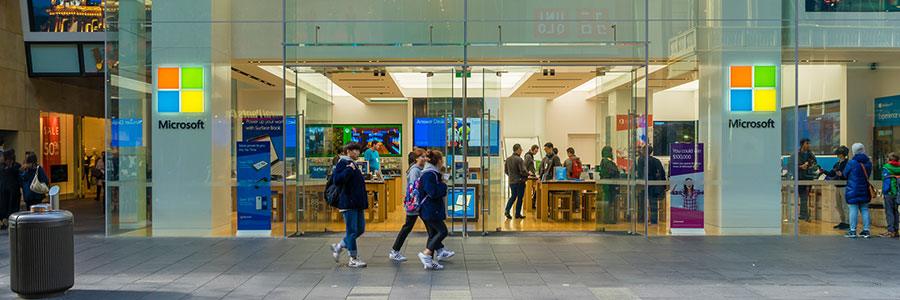
When buying new hardware, you have to choose which operating system (OS) to install. And if you go with Windows, you’ll have to make even more decisions, as there’re Windows 10 Home, Pro, and 10 S. Although they contain many similar features, there are significant differences between them. Here’s a quick rundown of each OS version. Windows 10 Home This version, as you may have guessed, is designed for home and personal use. It comes bundled with key Windows 10 features, including Microsoft Edge, Office 2016, smart pen support, and the Cortana voice assistant. Since Microsoft is pushing their cloud services, Home also provides 5GB of cloud storage in OneDrive for individual users. In terms of security, Home has fairly basic protections. It has Windows Defender Antivirus software, Windows Hello biometric logins that use face or fingerprint authentication, and rudimentary device encryption to minimize data breaches. Those with multiple Windows devices will also love the mobile device management app, which allows them to track and control app usage for connected smartphones and tablets. To explore new apps, Home users can sign up for the Windows Insider program, but since this version is light on features, there is usually a limited selection of early release apps to play with. Windows 10 Pro If you plan to use your computer for work, the Pro version is the right OS for you. One of its most notable features is Hyper-V, which allows you to create virtual machines (VMs) on Windows 10. These VMs can be used to deliver computing resources from a powerful computer to other machines connected to the network, making resource provisioning a breeze. Considering that businesses are usually targeted by cybercriminals, Pro offers more robust security than Home. In addition to Windows Defender, this version comes with whole disk encryption, Enterprise Data Protection, and Azure Active Directory — an identity management service used to set up and enforce access policies for apps and devices. Rolling out updates for all computers is also incredibly easy with Pro’s Windows Update for Business service. From a central console, you can manage how and when Windows 10 devices are updated while making sure that the bandwidth used doesn’t disrupt day-to-day operations. Windows 10 S Released in 2017, Windows 10 S is focused on simplicity, security, and speed. Feature-wise, it’s about the same as Home, offering Office productivity apps and Cortana. But it comes with Pro functions such as virtual machines and increased security, too. While it doesn’t possess as many features as Pro, Microsoft reported that 10 S-powered computers boot 15 seconds faster than Pro machines. Its relatively low hardware requirements also make it perfect for startups and schools that tend to purchase low-cost PCs. And if you want more features, 10 S allows you to upgrade to Pro at an affordable price. The big difference between 10 S and the other Windows 10 versions is that it can only run applications available on the Windows Store. Although this restriction means you don’t get to enjoy third-party apps, it actually protects users from downloading dangerous apps and helps Microsoft easily root out malware. So far, only a few devices — including the Surface Laptop, Lenovo V330, and HP Stream 14 Pro — are capable of running 10 S, but it’s only a matter of time before other devices are compatible. Still not sure about which Windows 10 version you should purchase? Contact our experts today to get more advice. We’ll even install and maintain Windows for you so you can focus on being productive! Published with permission from TechAdvisory.org. Source.
Tech support scam alarms Chrome users

With evolving technology comes evolving threats. Recently, a researcher revealed that a new type of scam freezes Google Chrome and tricks users into believing that their network security has been compromised. Little did they know that following instructions listed on the screen will lead to an actual security breach. The End Game The scam works by displaying an error message indicating a bogus security breach incident that renders a browser unusable. These scammers capitalize on the fact that a serious crash can’t be solved by simply closing the site, thereby sending the users into a panic. This encourages them to dial the number listed on the warning message. On the other end of the line, the scammers would pose as Microsoft or Apple representatives to convince users into surrendering their credit card details to repair a non-existing security issue. The scams are generally carried out through legitimate sites or malicious ads that have been hacked. The Ingenious Process This new scam operates against Chrome by corrupting the window.navigator.msSaveOrOpenBlob programming interface, which basically uses it as a form of distraction. The hackers manipulate the browser and forces it to save a random document on a disk repeatedly at super fast intervals that are impossible to notice. After five to 10 seconds, Chrome will be completely unresponsive. The Easy Fix To recover, Windows users simply have to open Windows Task Manager (press ctrl + shift + esc keys) and stop the process there. On the other hand, macOS users just need to wait until a system message prompts them to close the unresponsive Chrome tab. Typically, the latter is a more appealing option since users would have the freedom to close only the corrupted page. Manually closing the whole browser means possibly losing unsaved files in any open Windows. When faced with IT-related issues, you need to determine how you can approach them calmly. The threats in the digital world may be terrifying and intimidating, but causing a panic in your workplace isn’t the answer. Call us as soon as any problems arise, and we’ll help you as soon as we can. We can even hook you up with other security measures to beef up your network security. Published with permission from TechAdvisory.org. Source.
Protect your Mac from security threats

Mac users follow certain steps to maintain privacy and protect company data. But if you’re too busy or short on resources, you might place security lower on your to-do list. Whatever your reason, the threat is real and you need to take steps to protect yourself. Check your Privacy Settings Begin by making sure that your Mac settings are set up properly to keep your information safe. Click System Preferences (the gear icon along the bottom of your screen), then open the Security & Privacy pane, which contains four tabs that allow you to manage different security features. You should do this with an administrator account so the changes affect everyone who uses this computer. Take Advantage of the Firewall One of the biggest steps you can take to protect your computer is to enable macOS’s built-in firewall to block unwelcome network connections. Just go to the Firewall tab in the Security & Privacy settings, click on the padlock at the bottom of the screen, and key in your username and password. Then enable firewall by clicking on Turn On Firewall. To modify its settings, click on Firewall Options just below the Turn Off Firewall button. A dialog box will pop up and you can click on Enable Stealth Mode. Turning on Stealth Mode will make your Mac invisible on public networks (like an unsecured coffeeshop WiFi). In the Firewall Options, you will also find a list of services and apps that are allowed to receive inbound connections. If you want to add an app or service to the list, just click the ‘+’ button below the list itself. However, we recommend keeping this list as short as possible because any app connected to the list can be exploited. Set Up a Firmware Password Nowadays, macOS/Mac OS X automatically turns on FileVault encryption. This means that it encrypts the hard drive by default, and the only way it can be accessed is by logging in. Keep in mind, though, that this feature won’t necessarily save your account in case someone reinstalls macOS/OS X, or when they use a USB memory stick to boot the Mac and possibly remove all data from your hard disk. To increase protection, set up a firmware password. To do so, restart your computer, and then press and hold down Cmd+R before the Apple logo shows up on screen. You can let go of the keys once the progress bar pops up. Choose your location and language when asked, then click on the Utilities>Firmware Password Utility menu. Simply follow the instructions here, and make sure to never forget or misplace your password. Forgetting your firmware password can be quite a hassle because only Apple technicians can recover it. Ensure that your confidential data remains confidential simply by performing minor tweaks on the system settings. It takes only a few minutes of your time to ensure lasting online protection. If setting up a firewall or firmware password sounds a little too advanced for you, don’t hesitate to get in touch with our experts. Published with permission from TechAdvisory.org. Source.
Are hackers using your PC to mine Bitcoin?

Cryptocurrencies like Bitcoin and Monero are so popular because they’re secure and potentially worth thousands of dollars. But investors and consumers aren’t the only ones interested in them. Hackers are using malicious tactics to steal cryptocurrency, and they’re doing it with something called cryptojacking. Hijacked hardware Cryptojacking secretly uses your computer to calculate complex mathematical problems to generate cryptocurrency. They get inside by using phishing emails to lure victims into clicking on a link, which then runs malicious cryptomining programs on the computer. Any cryptocurrency produced then gets delivered to the hacker’s private server. But hackers have developed an even more insidious tactic. By infecting websites with ads and plugins that run cryptojacking code, any visitor who loads the web page instantly gets infected with the malware, sending their computer’s processor into overdrive trying to generate cryptocurrency. Unlike most malware, cryptojacking software won’t compromise your data. But it will hijack your hardware’s processing power, decreasing performance while increasing your power and cooling bills. So instead of paying for the computing power themselves, hackers can simply use thousands of compromised computers. Surge in cryptojacking It’s difficult to tell how much hackers are making with cryptojacking, but there’s a good chance that this type of attack will be as popular as ransomware was in 2017. In fact, for as little as $30, anyone can purchase a cryptojacking kit from the dark web to force other computers to generate Bitcoin or Monero for them. According to several reports, even sites like The Pirate Bay, Openload, and OnlineVideoConverter are allegedly using cryptojacking exploits to diversify their revenue streams. The biggest reason why this is becoming so popular is because it’s a low-risk, high-reward scheme. Instead of extorting money directly from the victim, hackers can secretly generate digital currencies without the victim knowing. If it is detected, it’s also very hard to track down who initiated the attack. And since nothing was actually “stolen” (other than a portion of computing power), victims have little incentive to apprehend the culprit. Prevention and response To avoid cryptojacking, you need to incorporate it into your monthly security training sessions. Teach your employees to practice extra caution with unsolicited emails and suspicious links. Using ad-blocker or anti-cryptomining extensions on web browsers is also a great way to stay protected. Beyond prevention, use network monitoring solutions to detect any unusual behavior with your computers. For example, if you notice a significant number of PCs running slower than usual, you should assume that cryptojacking is taking place. If you’ve confirmed that it is, advise your staff to close browser tabs and update browser extensions as soon as possible. Cryptojacking may seem less threatening than some malware we’ve discussed in the past, but it can incur real power, cooling, and performance costs to your business when several systems are compromised. To make sure you don’t end up enriching any hackers, call us today. We offer hardware solutions and cybersecurity tips to keep your business safe and sound. Published with permission from TechAdvisory.org. Source.
Improve Business Productivity with Cortana

As an entrepreneur, you understand how essential time is. There is always a need to come up with new processes or search for new technology to keep your office organized. If you use Windows 10, you already have an underutilized tool right in front of you. To take advantage of Cortana, you should enable it on your desktop first. The process is easy: Just press the Windows Key, type “cortana” and click on “Cortana settings.” From there, you can change whether it responds to your voice or get activated by a keyboard shortcut, and you can set other personal preferences. Voice Reminders, Notes and Alarms As soon as you enable “Hey, Cortana” on all your gadgets, you can begin using it to dictate notes, set alarms, and create reminders. Thanks to advancements in AI, Cortana should be able to recognize most natural-language requests, like “Wake me up at 9am tomorrow,” or “Remind me to pick up my dry cleaning tomorrow.” Meanwhile, you can use it as a voice recorder during meetings instead of writing down notes. Just say, “Hey Cortana, make a new note in OneNote,” and whatever is recorded will automatically be saved to OneNote! AI-Scheduled Meetings With Microsoft’s new Calendar.help feature, you can issue commands to a group email chain by saying things like, “Hey Cortana, can you help us book a 30-minute call next week?” Calendar.help will work with Cortana to contact each attendee individually, find out what times they are available, and pick the best option for the group. You would only need to email the details, including duration, agenda and location, before you cc Cortana and forward it to the people involved. At that point, Cortana will send invites and handle all email exchanges. For now the project is still in preview/beta, so you will need to sign up. Quick Conversions and Calculations There are times when you need to make some calculations, but Googling or using your phone’s calculator just takes too much time. Cortana can answer complicated math problems, even if they are stated in plain language. What’s more, Cortana is able to convert temperature, time zone, weight, and volume. Cortana will not only improve your business processes, but also help create a more relaxed workplace. And when employees are less stressed, everyone experiences more rewarding workdays. We’re experts in traditional office IT, but we’re also pretty savvy with exciting new tools like Cortana. Send us a message today to learn more tips on improving productivity in your workplace. Published with permission from TechAdvisory.org. Source.
What Is Single Sign-On and Who Is It For?

Statistics show that the average enterprise uses more than 90 cloud services. Even if small businesses use less than half that number, securely managing account logins is still a huge problem for users and administrators. Single Sign-On (SSO) is an excellent solution to this issue, so let’s dive into how it works. What is SSO? Single Sign-On solutions allow you to create one username and one password that thousands of websites will recognize. If you’ve ever clicked ‘Login with Google’ on a non-Google website, you’ve already enjoyed the benefits of SSO. It’s faster, simpler, and more secure. Now, small businesses can accomplish the same level of efficiency between their employees and cloud platforms. Instead of asking everyone in the office to track separate accounts for Office 365, Slack, Quickbooks, and whatever other cloud applications your company relies on, you can give them one set of credentials and manage what they have access to remotely. Employees come to work, enter their ACME Inc. username and password, and they’re set for the day. Why is SSO more secure? There are a number of ways to set up a small-business SSO solution, but most of them focus on removing login information from your servers or network storage. Usually, you’ll provide your employees’ logins to an SSO provider (sometimes referred to as an Identity-as-a-Service provider) and each employee will receive a single login paired with a secondary authentication — like a fingerprint or an SMS to a personal device. Each time one of your employees visits a cloud platform, such as Office 365, the SSO provider will verify the user’s identity and the security of the connection. If anything looks amiss, your IT provider will be notified. Should your network or any of its devices be compromised, hackers would find nothing but logins to your SSO accounts, which are meaningless without fingerprints or mobile devices. How to get started with SSO The first step when setting up a Single Sign-On solution is making sure you have a healthy and responsive IT support system in place. You need a team that is constantly available to review suspicious alerts and troubleshoot employee issues. If you don’t currently have that capacity, contact us today and we’ll help you out! Published with permission from TechAdvisory.org. Source.
Google Introduces New Features for February

As the patience and attention span of web users decline, a minor flaw in a website can make or break a business. People want to be impressed the moment they load a website, and that rarely happens in the presence of annoying ads and videos. Google recognizes this, and has upgraded the Chrome browser accordingly. Ad Blocking Android users will be pleased to hear that the newly updated Google Chrome comes with an ad blocking feature. Gone are the days when they have to manually close pop-ups, because Chrome will now automatically stop sites from opening new tabs or windows without users’ permission. This won’t necessarily block all ads, but it should improve your internet browsing experience. Meanwhile, Chrome will begin restricting certain ads: sticky ads (which remain in the same position even as you scroll), and ads that go over a particular size limit. Moreover, they won’t block static inline photo ads that show up in between two paragraphs in an article. All in all, this feature will prevent nine kinds of ads out of 55 potential ones. Muting Autoplay Videos In line with the ad blocking feature, Google has also decided to prevent sites from automatically playing video ads whenever a page loads. You can usually find these types of ads in between paragraphs when reading through an article in the site. This time around, Chrome won’t block video ads, but it will keep them on mute. This way, users can still continue reading the article without any unnecessary background noise. Marking HTTP Sites as Unsecured This particular feature should get the attention of small- and medium-sized businesses, as it will affect them personally. Google warns all sites without HTTPS protocol that they will be marked as “not secure” come July. They want to emphasize the importance of HTTPS encryption for web security, stating that it keeps the channel safe between your browser and the site you’re visiting. This guarantees that someone in the middle won’t spy on browsing activity or interfere with traffic. At the moment, these users can already see a “Secure” sign and a green lock icon on HTTPS-encrypted pages. By July, Chrome’s address bar will be notifying those who enter HTTP sites that they are in an unsecured page. Staying ahead of Google’s constant updates can be tiring. In the end, you have to realize that these improvements are often in the best interests of your customers and web users in general. If you need a little help with the IT side of things — give us a call today! Published with permission from TechAdvisory.org. Source.