
Which VoIP service is best for you?

Is it better for your company’s Voice over Internet Protocol (VoIP) system to be on-premise or cloud-based? What’s the difference between a mobile VoIP client and a software-based application? What VoIP service is best for your business? The following compilation of VoIP options will help you answer these questions and choose the ideal service for your enterprise. VoIP comes in a variety of forms. Do you rarely leave your house and office, or are you usually on the move? If you’re a business owner, what’s the size of your company, and what factors matter most to you? Let’s take a look at some of the VoIP services available on the market to help you make a better decision in choosing your means of telephony. Residential VoIP services For this type of VoIP, you use an adapter to connect your landline phone to a Wi-Fi modem to make and receive calls over the internet. Depending on the plan you choose, you’ll be billed each month for either unlimited services or for minutes you actually use. Examples: VoIP.com, Lingo Device-based VoIP services This involves purchasing a VoIP device from a service provider and plugging it into your existing phone set so that you can make free calls within the US. This means not having to pay a monthly bill, and you need no other devices besides your old landline telephone. Examples: MagicJack, Ooma Software-based VoIP services This is the most common type of VoIP, and many of us use it on a daily basis. You either access a web-based application online, or install it as software on your computer. Then you use your computer’s audio input and output device to talk and listen. Examples: Skype Mobile VoIP services Like software-based VoIP services, mobile VoIP is also an application. However, it is installed on mobile phones instead of computers, thus enabling you to make and receive calls no matter where you are as long as you have a good internet connection. Examples: Skype, WhatsApp, Google Hangouts Business VoIP services VoIP for business comes in two options: on-premises and cloud-based. Both provide much more cost-effective communication solutions than traditional landlines and have a variety of useful features for businesses. These include video and audio conferencing, screen-sharing, interactive voice response, automated attendants, call queues, and call reports, just to name a few. These features are scalable, and you’ll also get complete technical support. For on-premise VoIP systems, businesses need to purchase all the equipment and house it in their office. This requires huge capital expenses. Businesses also have to pay a monthly fee for SIP trunking or PRI circuit, as well as dedicate IT staff to maintain, repair, and upgrade the systems on a regular basis. The upside is you’ll have total control over your hardware. With cloud-based VoIP systems, you outsource the phone system to your VoIP provider. This means there’s no need to purchase hardware or invest in maintaining the systems since your provider will take care of everything for a fixed monthly fee. You can also add or remove users easily. The downside is that you’re not in total control of the hardware and need to rely on your provider’s expertise to ensure system reliability and security. Want more detailed information about VoIP to help you choose the most suitable VoIP provider? Talk to our professionals today. They have extensive knowledge about this efficient, low-cost communication technology and can explain everything to you in plain English! Published with permission from TechAdvisory.org. Source.
How do I create an effective Facebook ad?

Facebook has uses that go way beyond posting cat photos, complaining about restaurants, or stalking your ex — it’s also an incredibly effective advertising platform. From small businesses to big corporations, anyone can benefit from Facebook’s marketing tools. Read on to leverage Facebook to your advantage. Why advertise on Facebook? Above all else, the cost-effectiveness of Facebook advertising sets it apart from other marketing channels. The starting cost is as low as $1 per day, which is ideal for SMBs that want to test small campaigns before investing more. Beyond its affordability, Facebook advertising is also extremely effective. With 6 billion monthly active advertisers and the ability to nail down your audience to the most specific details — including their interests and online behavior — it’s no surprise that Facebook advertising has the best return on investment (ROI) compared with other social media platforms. Before you get started As with other traditional marketing campaigns, you need to determine your marketing objectives, audience, budget, and how you want your ads to look like. Once you have the answers to all those questions, you’re ready to create your first ad. Follow this step-by-step guide: 1. Choose your marketing objective From your business profile page, click Ad Center from the top menu. Then, click Create Ad on the page that appears. Choose your “marketing objective.” This is what you want people to do when they see your ads. You can pick only one from three options: brand awareness, lead generation, or store visits. Then, set up your advert account by selecting your account country, currency, and time zone. 2. Nail down your audience You can tailor your audience based on location, age, gender, language, interest and behavior, and the kind of relationship they already have with your page, app, or website. It’s best to be as specific as possible when selecting your audience. 3. Set up your budget and posting schedule Facebook allows you to set up a daily or lifetime budget. The latter is the maximum amount you plan to spend for an entire ad campaign. Then choose the frequency or the start and end dates in which your ads will appear. 4. Design how your ads will look Choose how your ad posts will look like to your audience, such as whether they will appear as an image carousel, a single image, a video, a slideshow, or a “canvas” (a new format for mobile users that combines video, carousels, images, and text into one interactive ad). Note that your ad will consist of five parts: an image, a headline, a block of text, a link description, and a call to action button such as “Buy now,” “Sign up today,” and the like. Tips on designing Facebook ads that grab people’s attention Your ads will appear in people’s newsfeeds, so make sure your content is interesting and succinct enough to grab their attention as they scroll past it. Each component of your ad — the image, headline, link description, and call to action — must stand out when surrounded by vacation photos that rarely receive more than a few seconds of attention. Creating a Facebook ad is simple, yet the beauty of it is that Facebook also allows for more advanced targeted advertising if you know how to take advantage of what the platform has to offer. Talk to our specialists today; they’ll be happy to share a few pointers on how to achieve the best results from your campaigns. Published with permission from TechAdvisory.org. Source.
New Windows operating system is on its way

Microsoft is reportedly working on a new, lightweight version of Windows. The operating system (OS), currently known as “Windows Lite,” is said to be Microsoft’s answer to Google’s Chrome OS. There are still plenty of unanswered questions about the OS, but here’s what we know so far. What is Windows Lite? Windows Lite is a more flexible, trimmed-down OS designed for casual, lightweight computing. This means users can expect shorter startup times, faster performance, and a less complex system. If it’s trying to compete with the likes of Chrome OS, then it’s possible that Lite will have syncing features that save your preferences, files, and settings across your personal devices. Windows Lite will initially be tied to a series of devices Microsoft has called Centaurus and Pegasus. The former refers to dual-screen, notebook-like devices, while the latter denotes compact laptops specifically designed to run the OS. From a design perspective, the OS won’t stray too far from the familiar taskbar and start button layout to avoid making the same mistakes as Windows 8. Also, users should expect somewhat limited windowing and multitasking features in Lite like in Chrome OS and other mobile operating systems. Due to this, tabs in Windows programs will likely be a common feature. Experts speculate that Windows Lite could be announced as early as the second half of 2019. It may even have a different name by the time it’s officially announced. What does this mean for businesses? Windows Lite may not have the features for heavy-duty computing, but it does have all the features required to work remotely. For starters, the OS has deep integrations with Office 365 apps, which provides users with Word, Excel, Outlook, and Teams. The OS also works with other cloud-based applications, including your favorite video streaming apps and social networking sites. Lite’s minimalistic and cloud-oriented features also make it much easier to manage, especially when compared to remote Windows 10 devices. All in all, the OS may significantly grow in popularity as more businesses rely on the cloud and adopt remote working policies. Keep in mind that these are early reports about the new OS, and they must be taken with a grain of salt. Microsoft will probably add even more features down the road, which is why it’s crucial to follow our blog on the latest Microsoft developments. In addition to providing news and tips, we’re also experts in managing various Microsoft products, so call us today if you need expert IT support! Published with permission from TechAdvisory.org. Source.
Cyberthreats and the finance sector

The financial sector has long been heavily targeted by cybercriminals. Over the years, the number of attacks that involved extortion, social engineering, and credential-stealing malware has surged rapidly. This means that financial institutions should strive to familiarize themselves with the threats and the agents behind them. Here are seven new threats and tactics, techniques, and procedures that security professionals should know about. Extortion Distributed denial of service (DDoS) attacks, which are typically delivered from massive botnets of zombie computers or internet of things (IoT) devices, have been used to bring down banking networks. This occurs when a targeted server or system is overwhelmed by multiple compromised networks. It’s essentially like a traffic jam clogging up the highway, preventing regular traffic from arriving at its intended destination. Some cybercriminals are relentless with DDoS attacks and follow them up with cyberextortion, demanding payment in return for release from costly downtime. Banks cannot defend against these attacks alone, so they rapidly share information among themselves through organizations such as FS-ISAC4 and rely upon the ability of their internet service provider to handle and redirect massive quantities of traffic. Social media attacks This happens when fraudsters use fake profiles to gather information for social engineering purposes. Thankfully, with new regulations such as the General Data Protection Regulation (GDPR), big companies like Facebook and Twitter have significantly enhanced their security and privacy policy with regards to their data handling practices. The unprecedented reach of social media is something companies cannot afford to ignore because of the possible implications a data breach can have on businesses. Spear phishing Spear phishing is an attack where cybercriminals send out targeted emails ostensibly from a known or trusted sender in order to trick the recipient into giving out confidential information. Over the years, hackers have upped their game and cast a bigger net, targeting unwitting employees to wire money. This attack is called business email compromise (BEC), where a fraudster will purport to be a CEO or CFO and request for large money transfers to bogus accounts. Point-of-sale (PoS) malware PoS malware targets PoS terminals to steal customer payment (especially credit card) data from retail checkout systems. Cybercriminals use a memory scraper that operates by instantly detecting unencrypted type 2 credit card data, which is then sent to the attacker’s computer to be sold on underground sites. ATM malware GreenDispenser is an ATM-specific malware that infects ATMs and allows criminals to extract large sums of money while avoiding detection. Recently, reverse ATM attacks have also emerged. Here, PoS terminals are compromised and money mules reverse transactions after money is withdrawn or sent to another bank account. In October 2015, issuers were mandated to shift to EMV or Chip-and-PIN system to address the weakness of the previous payment system. Credential theft Dridex, a well-known credential-stealing software, is a banking Trojan that is generally distributed through phishing emails. It infects computers, steal credentials, and obtain money from victims’ bank accounts. Other sophisticated threats Various data breach methods can be combined to extract data on a bigger scale. Targeting multiple geographies and sectors at once, this method normally involves an organized crime syndicate or someone with a highly sophisticated setup. For example, the group Carbanak primarily targeted financial institutions by infiltrating internal networks and installing software that would drain ATMs of cash. Additionally, with the rise of cryptocurrency, cybercriminals are utilizing cryptojacking, a method that involves the secret use of devices to mine cryptocurrency. The creation of defensive measures requires extensive knowledge of the lurking threats, and our team of experts is up to date on the latest security information. If you have any questions, feel free to contact us to find out more about TTPs and other weapons in the hacker’s toolbox. Published with permission from TechAdvisory.org. Source.
Think twice about selling or donating a Mac

Today’s computer users often forget or are unaware of how much sensitive information their devices store. The ability to save passwords, credit card numbers, and personal messages is undeniably convenient, but it’s also a huge liability. If you’re thinking about getting rid of your Mac, make sure to follow these steps first. Sign into all your accounts on a new computer Before you can ensure that your personal accounts are inaccessible on the Mac you’re getting rid of, you must be certain that you can access those accounts on another computer. If you need to recover a username or password, your options may be limited if the trusted computer has been wiped clean. Make sure to log in to these accounts on another device before moving forward: iTunes iCloud Apple ID iMessage It’s also important that you remember account credentials that you previously relied on your web browser to remember. If you use Safari, here are the steps to check all the accounts your browser has saved: Open Safari. Select Preferences from the menu directly next to the Apple icon in the upper left corner of the screen. Click the Passwords menu. Comb through the list and confirm that you can access all those accounts on another computer. Sign out of everything Even though deleting everything on your hard drive is covered later in this article, your personal information may not be completely erased. You can add another layer of certainty by deleting as many accounts as possible before formatting the storage disk. First, reopen your web browser’s saved accounts window and delete everything. Next, open iTunes, click Store, and then Deauthorize This Computer. You’ll also want to sign out of iCloud (after backing up all your data), so click the Apple icon in the upper left corner of the screen, then System Preferences, followed by iCloud, and then Sign Out. Finally, open the Messages app, click Messages, then Preferences, and Accounts. From there you can sign out of your Messages accounts. Remove the device from Apple Support Another thing that people often forget to do is revoke their Apple Support registration (unless you want the new owner of your Mac to receive free assistance from Apple Geniuses). Visit support.apple.com/my-support, sign in with your Apple ID and remove any device you plan to get rid of or no longer own. Format the drive When all your files are backed up and your accounts are accessible on other devices, you can wipe your Mac’s hard drive clean. It’s a fairly simple process that follows these basic steps: Confirm that your Mac has a stable internet connection. Restart the computer and hold down the command button (⌘) as well as the R key. Select Disk Utility from the list of options that appear and click Continue. Click your main drive and then Erase from the options along the top of the window. Choose MacOS Extended from the Format dropdown menu Open the Security Options window and choose which method you want to use. Click OK, then Erase to start the formatting process. Keep in mind that if you don’t choose the 7- or 35-Pass Erase option, some data on your hard drive may still be accessible by a skilled hacker. However, the 7-Pass Erase option takes well over 12 hours for a 500GB drive. Reinstall MacOS If you plan to sell or donate your Mac, it’s probably best to reinstall the operating system after formatting the drive. To do so, simply restart the computer while holding command + R, choose Reinstall macOS, and follow the instructions. All in all, this entire process can take a couple of days. Small businesses can save a lot of time by hiring an IT provider with Apple experts to take care of mundane tasks like wiping an old computer’s hard drive. Give us a call today to learn more about what we do. Published with permission from TechAdvisory.org. Source.
How to minimize Wi-Fi hiccups

Today, you simply can’t survive without a Wi-Fi connection. Businesses need fast, secure, and reliable internet to get work done and satisfy customers. But what about when you experience Wi-Fi issues? These fixes ought to do the trick! Range constraints Wi-Fi works via radio waves that are broadcast from a central hub, usually a piece of hardware known as a router. To avoid a weak signal in your office, make sure: Your router is placed in a centralized location and not tucked away in the corner. Your Wi-Fi antennae are either in a fully horizontal or vertical position for optimal signal distribution. Note that Wi-Fi range constraints can also occur from interference, so if your office is situated in a highly populated area, try changing your router’s channel. Slow speeds Despite a high-speed or fiber optic internet connection, slow load times can still occur for a number of reasons. To optimize speeds, try the following: Make sure your router is located in the same room as the devices connecting to it. Install more routers to better accommodate a high number of connected devices. Close bandwidth-intensive applications such as Skype, Dropbox, YouTube, and Facebook. Disable your router’s power-saving mode. Create a new router channel to avoid network bottlenecks. Connection issues We understand how frustrating it can be when the Wi-Fi network shows up on your device but still won’t connect. Before you give up, these solutions might help: Determine whether your Wi-Fi connection is the problem or if your internet is down by plugging your laptop directly into the router via an Ethernet cable. If you can’t get a connection, then Wi-Fi isn’t the culprit. Factory reset your router with a paperclip or a pen and hold down that tiny button for about 30 seconds. Try rebooting your device. Unstable connections Random hiccups in your Wi-Fi connection are normal from time to time. However, if they become a constant nuisance in your office, try the following quick fixes: Move your router to a different spot or even a different room. Avoid having too many routers in the same location, as that can confuse your device. Network not found Router glitches can result in your Wi-Fi network not appearing at all. Two solutions that can resolve this problem are: Disconnecting the router from the power source and waiting at least 30 seconds before reconnecting it. Replacing an old router; if it’s over three years old, you’re probably due for a replacement. When you experience Wi-Fi issues, these tips will help you avoid serious downtime. But if you’d rather have a dedicated technology provider take care of your hardware needs, give us a call and we’ll be happy to help. Published with permission from TechAdvisory.org. Source.
Why is HTTPS important?

Many internet users still do not understand what the padlock icon in their web browser’s address bar is for. It represents HTTPS, a security feature that authenticates websites and protects the information users submit to them. This is an important feature that lets users know whether the site they are visiting is secure or not. HTTPS Encryption When you visit a website that doesn’t use HTTPS, which is common with older websites that have been left on its domain with minimal intervention, everything you type or click on that website is sent across the network in plain text. So, if your bank’s website doesn’t use the latest protocols, your login information can be decrypted by anyone with even the most basic tools. HTTPS Certificates The other thing outdated web browsing lacks is publisher certificates. When you enter a web address into your browser, your computer uses an online directory to translate that text into numerical addresses then saves that information on your computer so it doesn’t need to check the online directory every time you visit a known website. The problem is that if your computer is hacked, it could be tricked into directing www.google.com to the address 8.8.8.255, for example, even if that’s a malicious website. Oftentimes, this strategy is implemented to send users to sites that look exactly like what they expected, but are actually false-front sites designed to trick you into providing your credentials. HTTPS creates a new ecosystem of certificates that are issued by the online directories mentioned earlier. These certificates make it impossible for you to be redirected to a fraudulent website. What this means for daily browsing Most people hop from site to site too quickly to check each one for padlocks and certificates. Unfortunately, HTTPS is way too important to ignore. Here are a few things to consider when browsing: If your browser marks a website as “unsafe”, it is always best to err on the side of caution; do not click “proceed anyway” unless you are absolutely certain nothing private will be transmitted. There are web browser extensions that create encrypted connections to unencrypted websites (HTTPS Everywhere is a reliable Firefox, Chrome, and Opera extension that encrypts your communications with websites). HTTPS certificates don’t mean anything if you don’t recognize the company’s name. For example, goog1e.com (with the “l” replaced with a one) could have a certificate, but that doesn’t mean it’s a trustworthy site. Many unscrupulous cybercriminals utilize similar spellings of legitimate websites to fool people into thinking that they are in a secure site. Always be vigilant. Avoid sites that don’t use the HTTPS protocol — it can be as simple as that. When you’re ready for IT support that handles the finer points of cybersecurity like safe web browsing, give our office a call. Published with permission from TechAdvisory.org. Source.
Lessons from a disaster recovery plan audit

Why do some companies fail their disaster recovery plan (DPR) audit? Perhaps because they did not get the right information for it. They say experience is the best teacher; thus, nothing beats what you can learn from real-world case studies. See what you can learn from the following case. Hosting certain types of data and managing a government network legally bind you to maintain DRPs. After an audit of the Michigan Department of Technology and Budget, several failures led to a trove of helpful tips for small- and medium-sized businesses attempting to create a bulletproof disaster recovery plan. Update and test your plan frequently What was one of the first and most obvious failures of the department’s DRP? It didn’t include plans to restore an essential piece of their infrastructure — the department’s intranet. Without it, the employees are unable to complete even the most basic of tasks. The reason for the oversight? The last time the plan was updated was in 2011, leaving out more than six years of IT advancements. If annual revisions sound like too much work, just consider all of the IT upgrades and improvements you’ve made in this year alone. If they’re not accounted for in your plan, you’re destined to fail. Keep your DRP in an easy-to-find location It may seem a bit ironic that the best way to store your top-of-the-line business continuity solution is in a binder, but the Michigan Department of Technology and Budget learned the hard way that the alternatives don’t work. Auditors found the DRP stored on the same network it was meant to restore. Which means if something had happened to the network, the plan would be totally inaccessible. Your company would do well to store electronic copies on more than one network in addition to physical copies around the office and off-site. Always prepare for a doomsday scenario The government office made suitable plans for restoring the local area network (LAN), but beyond that, there was no way for employees to get back to work within the 24-hour recovery time objective. Your organization needs to be prepared for the possibility that there may not be a LAN to go back to. Cloud backups and software are the best way to keep everything up and running when your office is flooded or crushed beneath a pile of rubble. Your DRP is more than just a pesky legal requirement. It’s the insurance plan that will keep you in business when disaster strikes. Our professionals know the importance of combining both academic and real-world resources to make your plan airtight when either auditors or blizzards strike. Message us today about bringing that expertise to your business. Published with permission from TechAdvisory.org. Source.
How to transfer files from Android via USB cable

You can use Wi-Fi to transfer files between your Android phone and your PC or Mac, but if an internet connection is unavailable or unstable, there’s another option: use your trusted USB cable. Read on to find out how your USB cable can help you move files between devices without a hitch. To transfer files from your Android device to your computer, you need the following: Your Android phone A computer with a USB port A USB cable Android file transfer for Windows 1. Unlock your phone. 2. Plug it into your computer’s USB port using a cable. 3. Your Android phone will display a “Charging this device via USB” notification. Tap on it. 4. Tapping on the notification will display other options. Select File Transfer under “Use USB for.” 5. Your computer will show a file transfer window. Drag and drop files from this window to your preferred location on your computer. 6. Once you’re done, eject your device from Windows by right-clicking the device and printers manager on the task bar and selecting your device’s name on the list. 7. Unplug your USB cable. Android file transfer for Mac For Mac users, there are several additional steps you need to do if you want to transfer files from your Android device, but the remaining steps are pretty much the same to Android file transfer for Windows. Download and install Android File Transfer on your computer. Take note that this app only works on Macs running on OS X 10.7 or later. Open the Android File Transfer app. You need to open it the first time you use it, but the next time you plug in your device, it will automatically open. Unlock your Android app and connect it to your Mac using your USB cable. On your phone, tap on the notification that says “Charging this device via USB.” Your phone will then display other USB options for your device. Under “Use USB for,” choose File Transfer. This will prompt your computer to display an Android File Transfer window. Drag and drop files from this window to your preferred location on your computer. After backing up your data, eject your USB by right-clicking the icon for the external device on your desktop and selecting “Eject [volume name].” Alternatively, you can drag the external volume icon into the trash can in the Dock. Unplug your USB cable. Transferring files from one device to another is a piece of cake, isn’t it? But data backup is more than just copying and moving files. Do you want to learn more about making your business devices and computers disaster-proof? Our dedicated IT experts can perform routine backup solutions that go beyond drag-and-drop. With their knowledge in security, data recovery, and business continuity, you never have to fear losing your data again. Call us today. Published with permission from TechAdvisory.org. Source.
Will virtual containers change IT?
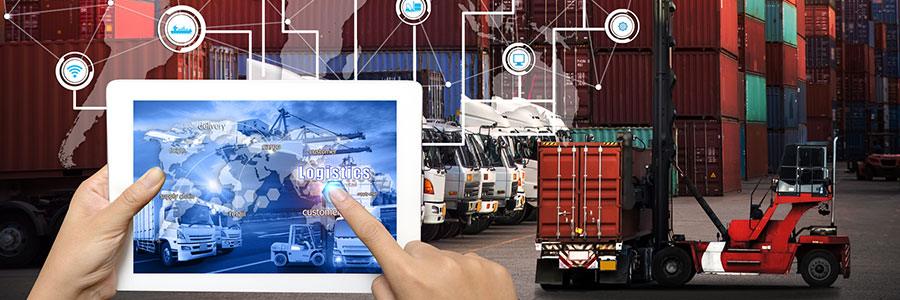
As technical as virtualization and virtual containers are, there’s no reason your company shouldn’t benefit from them. IT specialists all over the country are setting up and supporting these technologies for small businesses to increase efficiency and cut down on technology costs. What are containers and why are they so popular? Virtual containers are like digital versions of shipping containers, which use uniform packaging to simplify the portability and transportation of goods. Virtual desktops, the predecessors to virtual containers, let users simply log into a web-based desktop, complete with a Recycle bin, Start bar, you name it. They’re wonderfully convenient, but require a fair amount of computing power to run. The next logical step was to let users work from non-cloud desktops, but connect them to individual apps powered by servers across a local network or internet connection. A qualified IT professional just needs to gather everything an app needs to run, put it in a container, and give users a way to access it. The servers that make this possible are designed to do all the work so users don’t need high-end computers or specific operating systems to take full advantage of the app. What are the benefits of containers? The best thing about virtual containers is its simplicity. Your IT technicians can make important applications available to the entire office without having to install them on each computer. This also means you don’t need to worry about computers with limited hard drive space, incompatible operating systems, or slow processors. Furthermore, when containers are updated on the server, the changes are immediately applied to any computer connected to the app. The biggest obstacle to taking advantage of these benefits is the amount of technical expertise required to set them up and support them. It’s not something most in-house technicians can keep up with if they’re also in charge of day-to-day troubleshooting. Thankfully, the fact that containers can be accessed over the internet means IT providers can take care of most of the work remotely. Want to maximize your business potential through virtualization and containers but need outside help? Call us today. Published with permission from TechAdvisory.org. Source.