
Why using a VPN is more important than ever before

In the past, a simple antivirus software was all you needed to stay safe from online threats. Today, it takes more than that to protect your PC and the information stored on it. Whether you’re sending an important email or chatting with a coworker online, chances are your data can be easily intercepted. This is why you need a virtual private network (VPN). Here’s how a VPN can protect your online privacy and how to choose the best one for your needs. What is a VPN? A VPN creates a secure tunnel between your device and the websites you visit on the internet. Once you’ve established your PC’s connection to a VPN server, your computer acts as if it’s using the same local connection as the VPN, making it seem as if you’re in a different location. As far as websites are concerned, you’re browsing from that server’s geographical location and not your PC’s actual location. When you surf the web through a VPN, all the data transmitted and received is also encrypted, preventing anyone, from hackers to government agencies, from monitoring your online activities. Why should you have a VPN? Security and privacy are the main reasons you would want a VPN. For example, if you’re connected to a public Wi-Fi network — like the ones at local cafes and airports — using a VPN encrypts the information you’re sending or accessing online. This means your credit card details, login credentials, private conversations, or sensitive documents can’t be intercepted by a third party. VPNs are also useful for accessing geo-restricted websites. If you’re traveling abroad and certain US websites are blocked in that region, you can connect to a VPN located in the United States to access the sites you need. How do you choose a VPN? Given the increasing demand for secure online privacy, VPNs are surging in popularity. The following considerations can help you find the right one. 1. Cost While free VPNs are available, it’s best to avoid them as they could keep logs of your internet activity. In some cases, data collected by free VPNs are sold to data brokers or worse, cybercriminals. Additionally, maintaining a VPN service is also expensive, which means the free ones will likely plaster ads on your browser to make a quick buck. Paid VPNs like NordVPN and ExpressVPN often come with more robust features and configurations that keep you secure. Prices differ depending on a VPN’s features and subscription length, and how you pay is also important. Some VPNs offer anonymous payment systems like Bitcoin, while others allow you to use gift cards to avoid giving out your personal information. 2. Location The physical location of VPN servers is important if you want to access region-blocked websites. So if you’re planning on accessing a UK-based service, your VPN provider must at least have servers located in London. 3. Capacity Read through a VPN provider’s terms of service to determine how much data you’re allowed to use. If possible, find out how many servers a VPN provider has. If they have plenty of servers online, you can rest assured that they have the capacity to support your internet browsing. 4. Device compatibility Another important factor to consider is whether the VPN can be used across multiple devices. Nowadays, employees work on laptops, tablets, and smartphones, so you’ll want a VPN that’s compatible with various types of devices. 5. IP leaking Beyond the fundamental nuts and bolts of the VPN protocol, there are other challenges like dealing with leaky tunnels, which means your IP address could be tracked. A great way to evaluate a VPN service is to sign up for their free trial service and visit IP Leak. This will allow you to check whether your real IP address is being leaked. If it tracks your physical location, you should opt for a more reliable VPN service. VPNs are now a vital component of cybersecurity, and if you need help in selecting the right one for your business, consult with our security experts today. We also offer comprehensive cybersecurity services so no hacker or third party can get their hands on your data. Published with permission from TechAdvisory.org. Source.
How to reduce data usage on Android devices

If you don’t have an unlimited data plan for your Android device, uncontrolled download habits will result in a slower connection, poor battery life, and higher bills. But did you know that you can reduce your data consumption without affecting your mobile experience? Follow these handy tips. Delete data-draining apps Apps constantly consuming your mobile data can cause serious problems such as accelerated hardware deterioration and inefficient battery use. Facebook, Google Maps, and YouTube are prime examples of such apps. Consider deleting any app that consumes too much data. To identify these apps, go to Settings, then tap Data usage. From there, you can see which apps are consuming the most data, and you can delete the worst offenders. Restrict background data One of the biggest culprits of unnecessary data consumption is background data. This Android feature allows apps to use the data connection when the app isn’t open or the phone is locked to provide real-time updates. To prevent this from happening, go to the Data usage menu and tap Restrict Background Data. Beware of auto-updates It’s better to wait for an available Wi-Fi connection before updating your apps, unless there’s a security issue involved. You may not even realize updates are happening if you have the auto-update setting enabled. Turn it off by opening the Google Play Store, tapping the three horizontal lines in the upper left corner, opening Settings, selecting Auto-update apps, and tapping Over Wi-Fi only. Avoid streaming music Media streaming is another data-drainer, but it can actually be controlled. Some apps don’t put a cap on media resolution, so you could be wasting data on high-quality audio that’s barely better than the lower-resolution version. Go to the settings of each of your media-streaming apps to restrict these downloads or for options to download media over Wi-Fi for later offline use. Take your apps offline Some apps include an offline access option. For example, Google Docs lets you choose the documents you’d like to access while disconnected from the internet. Check regularly for offline access options and enable them whenever possible. These are some quick and easy tips for IT novices, but if you’re on the hunt for expert solutions and support for Android devices, get in touch with our team today. Published with permission from TechAdvisory.org. Source.
6 Crucial battery-saving tips for iPhone users

There’s nothing worse than having a low iPhone battery when you’re working remotely without an outlet nearby. Luckily, there are several tips you can use to add a few more hours to your battery life. Here are six that prove invaluable. 1. Activate Low Power Mode Low Power Mode can be activated with a single tap. When switched on, it automatically adjusts several settings to extend the life of your battery. For starters, it reduces the brightness of your screen and the amount of battery power your apps are using. It also disables the automatic fetching of new email and it powers off the display more quickly. To activate Low Power Mode, press Settings > Battery and then tap Low Power Mode so that the battery icon is yellow. 2. Lower the screen brightness The brighter your iPhone screen, the more battery it drains. And really, there isn’t much of a need to have an excessively bright screen because in most instances (being outside in the sunshine excluded) you can easily see everything on the screen at a lower brightness level. To adjust the brightness of your iPhone, flick the Control Center tab upward from the bottom of your screen. There, you’ll see a horizontal line with a circle in the middle and a sun symbol to the side of both ends. Move the circle left or right to adjust the brightness. Alternatively, you can adjust your iPhone’s brightness in Settings > Display & Brightness. On this screen, you also can turn off Auto-Brightness, which automatically adjusts the brightness of your phone. When you turn this setting off, you’ll be certain that your phone is not wasting any excessive battery power by automatically adjusting brightness on its own. 3. Switch off Wi-Fi As much as you love using the Wi-Fi on your phone, it is a proven battery life killer. The funny thing is, the degree it drains battery life varies by location. For instance, if you’re at home (where iPhone battery life is less of a problem to begin with), Wi-Fi will use less battery. But when you’re out and about, your phone is often searching for a Wi-Fi signal to connect to, and this drains battery. So if you can hold off on your mobile browsing and email till you get home, your phone will stay powered on quite a bit longer. 4. Switch off cellular data Like Wi-Fi, cellular data can also eat up battery quickly — especially if you’re in an area where there’s no cellular coverage. When this happens, your phone begins to search nonstop for a signal, and guess what this uses — battery. So if you’re short on battery and don’t need data, turn off your cellular data function. Doing this can easily provide an extra hour or two of additional battery life. 5. Activate airplane mode Desperate times call for desperate measures, and this is exactly when you need airplane mode. If you are down to 20-ish percent battery life and need your phone to last for a few hours longer, then airplane mode may just be your savior. By switching it on, your phone will shut down all wireless activity, including cellular, Bluetooth, and Wi-Fi. Doing this is obviously not ideal, but if you have little battery life and want your phone available in case of emergencies, this is your best option (next to switching it off). Once in Airplane mode, you can turn on individual wireless functions, such as Bluetooth, or Wi-Fi, individually, while staying in airplane mode. To switch on airplane mode, you can do so from the Control Center screen or by going to Settings and then clicking on Airplane mode. 6. Use a power bank Buying a power bank to charge your phone remotely is a great option if you intend to continue using Wi-Fi, cellular data, and other high-powered settings for long hours. These delightful battery saviors are continually shrinking in size, with some coming in half the size of the latest iPhone, so it’s no longer a hassle to carry them around. You can simply slide a power bank into your pocket and use it when needed. If you’re looking for more ways to get the most out of your iPhone or are looking to service your Apple technology, feel free to shoot us a message. We’re happy to help in any way possible. Published with permission from TechAdvisory.org. Source.
Upgrading to a dual monitor system

Small businesses are always seeking ways to ensure their employees make effective use of computers. But before you go out and buy bigger hard drives and faster processors, you should consider upgrading your desktops to a dual monitor system. Read on to find out about the advantages of using two monitors per desktop. Enhanced productivity A survey by Jon Peddie Research shows that working with dual monitors increases overall productivity by 20–30%. Computer programmers, for example, can use one screen for source coding and the other for programming. By using dual monitors, they no longer need to toggle back and forth between tabs. This frees up time to complete more projects. Better multitasking Efficient multitasking requires adequate screen space to keep multiple applications simultaneously visible — a view that single monitors alone simply cannot accommodate. With a dual monitor setup, workers like customer service reps and web designers would no longer waste time scrolling up and down and resizing windows to fit the limited space. Instead, the enhanced visibility that dual monitors bring lets them focus on completing their tasks accurately and efficiently. Easier layouting and image and video editing With dual monitors, the days of stacking numerous editing tools on top of the newsletter, slide presentation, image, or video you’re working on are long gone. Instead of your screen looking like a game of Mahjong, you can position the editing tools on one screen and use the other monitor for the file you’re working on. With better visibility, you’re less likely to commit errors and more likely to accomplish the task faster. Effortless product comparison Imagine that you want to buy a camera, and you have two models in mind. Of course you want to look up and compare their specs before making a final decision. If you had only one monitor, you’d need to go back and forth from one tab to another. But if you had two monitors, you could view the models side by side to help you clearly see their differences and make an informed purchase. Want a dual monitor setup for your employees? We can help you roll it out. Contact us today to get started. Published with permission from TechAdvisory.org. Source.
Steps to having ever-reliable VoIP service

Voice over Internet Protocol (VoIP) telephony systems are great for today’s businesses. They are more mobile, have greater functionality, and cost less than traditional landline phones. But as with any technology, VoIP is vulnerable to disruptions due to equipment failure, disasters, and cyberattacks. Follow these tips to make sure your VoIP system can continue to support operations despite unexpected circumstances. Choose your provider wisely When evaluating VoIP systems, you must verify your provider’s service level agreements. Ask them about their security and availability guarantees, and how they’re able to achieve them. Partner with the firm that can host your VoIP systems in facilities that are safe from local disasters such as flash floods or earthquakes. Your provider should also use advanced network security services to protect your calls. Invest in VoIP monitoring services Before implementing any of the two VoIP continuity solutions that follow, install a third-party VoIP monitoring service to keep tabs on the status of your phone system. This will identify all network issues disrupting your phone system, so you can resolve them quickly. Have a backup broadband line Because VoIP solutions are dependent on internet connections, you should have a backup or alternate internet service provider (ISP) in case your primary network goes down. Ideally, one ISP will be dedicated to your VoIP service, while another supports your main computer network. Once you’ve installed both networks, you can then program them to automatically transfer services to the other should one network fail. Thus, if your main phone network goes down, your VoIP solution switches to the other network so you can keep working. Of course, subscribing to two separate ISPs will increase your internet expenses, but if you perform a cost-benefit analysis, you’ll find that the cost to maintain both is far less than the cost of significant downtime. Route calls to mobile devices With a cloud-based VoIP solution, you can choose where to receive your calls with call forwarding — a feature that automatically reroutes incoming calls to other company-registered devices. This is an excellent feature for enabling staff to receive calls when they’re out of the office on a remote assignment, working at home, or when your main office is hit by a local disaster or network outage. Thanks to call forwarding, your employees can continue working from their mobile devices as normal. To benefit from this feature, make sure to register all employee mobile devices to your VoIP system and configure such devices to receive rerouted calls — and don’t forget to set policies for remote working. You should have rules that forbid staff from connecting to public Wi-Fi networks, as this can put them at risk of VoIP eavesdropping. Test your continuity measures regularly There’s little value in VoIP continuity and disaster recovery strategies if these end up failing when you need them the most. Test your VoIP service and check whether contact details are up to date, call forwarding features are routing calls to the right devices, and your backup internet service works. Ultimately, your goal is to find flaws in your strategies and make the necessary adjustments to avoid potential hiccups from occurring in the future. If managing VoIP is too time-consuming and complex, call our professionals today. We design, implement, test, and monitor powerful, disaster-proof VoIP phone systems to ensure your communications are always online. Published with permission from TechAdvisory.org. Source.
Boost productivity with these Microsoft Word tips

Microsoft Word is the go-to word processor for many businesses across all sectors. This popular tool is constantly updated with new features that make it even more useful and valuable for business use. Here are a few features that you should take advantage of to boost your productivity and efficiency at work. Work on Word Online Don’t have the Word app on your computer, tablet, or smartphone? Go to office.com, sign in with your Microsoft account, and open Word Online, the web version of Word. Collaborate on files You and your colleagues can now edit the same Word document simultaneously in real time. Simply save the document to your Microsoft OneDrive account, click Share, and send the link to the file to your coworkers. People with the link can access and edit the document using the Word desktop app or Word Online. Keep editorial control Use the Track Changes function of Word to monitor all edits made to your document. To turn on Track Changes, click on the Review tab then select Track Changes. When reviewing a colleague’s edits, click Accept or Reject as you see fit. Do quick research using Smart Lookup The Smart Lookup feature helps you do online research while you’re working on a document — no need to open another tab and type in a query. Simply highlight and right-click the word or phrase you want to look up, and select Smart Lookup from the menu that appears. Word uses Microsoft’s Bing search engine to conduct a search on the selected word or phrase, and displays the results in a pane that appears on the right side of your screen. Format your document The Styles gallery contains predefined formatting options for text. You can also add your own styles, or those you use frequently, to the gallery. By saving your own style preferences, you can apply them anytime without having to manually format everything. Just follow these steps: Select the text you want to format as a new style (e.g., a heading or a certain phrase). Specify the formatting you want on the mini toolbar that appears. For instance, click Bold and Red if you want the text to appear as such. Click the More arrow in the lower-right corner of the Styles gallery. Select Create a Style. This will open the Create New Style from Formatting dialog box. Give the style a name and click OK. Your new style will appear in the Styles gallery, ready for you to use anytime. Look for and insert images faster With Word, there’s no need to open your browser to look for images for your document. Just place the cursor in the area where you want to insert the photo, click the Insert tab and select Online pictures (type “clip art” in the search box if that’s what you need), select an image, then click Insert. Edit a PDF file Word’s PDF editing function allows you to make quick changes to PDF files without having to download and use a PDF editing app or software. But before you can edit a PDF file in Word, you have to convert it to a file format that Word can display. Follow these steps: Click File > Open > Browse. Choose the PDF file you want to edit, then click Open. Click OK to make a copy of the PDF file and convert its contents into a format that can be opened in Word. (Note: The original PDF will be preserved.) Make edits to the copy of the PDF file. When you’re done, click File > Save as > PDF. Microsoft is constantly rolling out nifty new features for its popular word processor. To stay updated on the latest Word features and functionalities, reach out to our Microsoft experts now. Published with permission from TechAdvisory.org. Source.
Quick tips to save on cloud costs
Small- and medium-sized businesses are adopting cloud technologies. However, some business owners may not be aware of certain hidden costs. These costs don’t seem much at first, but they can eventually snowball. Follow these five tips to keep the cloud from breaking the bank. No standalones Cloud services come in various shapes and sizes, many of which are standalone platforms with rates that increase over time. Opt for a cloud service provider that offers a suite of products that all work together. It is often less expensive than a group of standalone products. Another benefit of working with a cloud provider is that you receive a single point of contact to resolve your issues quickly and effectively. Experience matters If you plan on integrating a standalone cloud service into your system, make sure you hire an experienced integration consultant to facilitate a smooth transition. Integration mishaps can cause serious downtime and cost a lot of money. Backups are important Unnecessary or inefficient backups waste cloud storage space. Review your cloud storage data by asking yourself the following questions: How many versions of this data do I need to store long-term? The more versions I store, the more it’ll cost me. What regulatory demands do I need to meet? Some data may need to be accessible for up to three years, whereas other data can be deleted after 30 days. How quickly do I need to access my backups? If it can wait for a day or two, I can archive that data to a less expensive service or offline at the provider’s data center. Remove users Many cloud service providers charge by the number of users in your system. If you neglect to regularly manage the list of users, you’ll end up paying for people who no longer work for you. Implement processes that remove users when they leave the company and consider scheduling a regular audit. Ideally, conduct an audit once every six months to ensure your cloud user list is up to date. Monitor proactively Ask your cloud provider whether they can proactively monitor your account and notify you of potential issues before they escalate into major problems. This is especially important if you have a pay-as-you-go license that charges based on resource or storage consumption. Utilizing the right technology resources is vital to your business’s success, and so is knowing how to prevent such resources from racking up an overwhelming monthly bill. If you wish to enjoy all the benefits of cloud computing without breaking the bank, give us a call. We’ll be happy to help. Published with permission from TechAdvisory.org. Source.
Reasons to automate small-business marketing

Over the years, marketing automation has become more accessible to small businesses. Thanks to innovative cloud solutions, large and small enterprises can reap the benefits of automating tedious marketing tasks. Here are a few advantages to automating your small business’s marketing efforts. Inbound lead assignment When you have phone calls, emails, and meetings piling up, it’s hard to keep track of which customer needs what and who is working with them. With marketing automation software and tracking, customer service representatives are automatically assigned to inbound leads based on specialties and demographics so they can work on building profitable rapport right away. Instant responses to email requests If a customer or prospect sends your business an email via your website or a “Contact Us” form, any delay in response could ultimately cost you a sale. But if you have a marketing automation plan in place, you can customize automatic email responses to these leads as soon as an email is received. This either provides potential customers with the information they requested or informs them that you will be responding in greater detail soon. Stop leaving voicemails and start closing deals There’s a reason most people prefer to communicate via email: keeping in touch over the phone can be tough if both parties are always busy. An automated system solves this by logging information about the leads you have contacted and automatically emailing them about follow-up times. The call, email, and response are all logged in your CRM and calendar without a single minute wasted on inputting mundane information. Give and you shall receive Potential clients and leads get dozens, sometimes hundreds, of business emails every day. You need something to set your business apart from the rest. By offering valuable content such as how-to guides and total cost of ownership tools in exchange for contact information, you can create a win-win scenario. Prospects get the content they want, and you get the information you need to make a sale. All it takes is a web form and some creative writing that ultimately leads visitors back to your products and/or services. Your automation software delivers content to anyone who provides contact information, and it downloads metrics that can be tracked and analyzed by business analytics tools. Never type another phone number again Networking events mean new contacts and new leads. They used to mean having to keep track of thick stacks of business cards, but cutting-edge marketing tools now make it possible to take a picture of contact information and automatically store it as part of a cloud-based database. Call-ins, scanned business cards, and received emails are all organized into a single digital Rolodex with recommendations on whom to contact and when it is best to do so — without one minute of tedious data entry. Every business owner knows that automating mindless tasks is worth it. But not everyone knows what sort of tools are available to cut down on wasteful work. Our team specializes in using technology to add value to your business. Get in touch with us today to make your marketing technology work for you. Published with permission from TechAdvisory.org. Source.
7 Customization features to try on Windows 1o
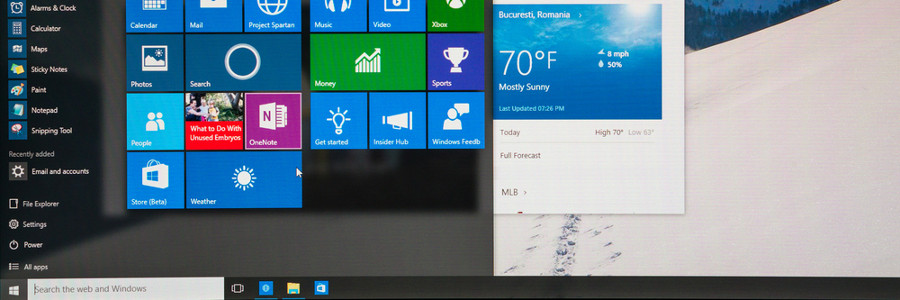
Windows 10 offers a wealth of customization features designed to provide users with a truly personalized and intuitive experience. Whether it’s changing the color of your windows or rearranging the tiles on the Start menu, these features will make your Windows PC a better match for your needs and preferences. Check out some of them below. Change your themes The most notable way to personalize Windows 10 is by changing your background and lock screen images. Do this by right-clicking anywhere on your desktop and choosing Personalize. Here, you can choose and preview different backgrounds and themes you can use. You can even add new themes by using images from your gallery or by clicking Get more themes in the Microsoft Store. Use dark mode Want to give your Windows 10 an edgier feel? Right-click on your desktop and choose Personalize. Go to Colors. Under Choose your color, select Dark. This changes the colors of your windows and menus from white or gray to black, and text from black to white. The colors on websites and third-party apps remain unchanged, however. To restore your default settings, repeat the process but click Light. Virtual desktops If you’re having trouble separating your work files from your personal files, try creating a virtual desktop. Press the Windows key + TAB to show all your open windows. Click on the Add a new desktop button at the upper left corner of your screen to create a virtual desktop. While viewing your open windows, you can click and drag windows from one desktop to another. To quickly switch between desktops, use the keyboard shortcut CTRL + Windows key + left/right arrow. Remove a virtual desktop by pressing Windows key + TAB. Click on the X button on the desktop you want to erase. App snapping App snapping is not exactly a new feature, but Windows 10 lets you snap any app in place. Snap an app window by dragging it into any of the four corners of your screen. This changes your window to a fourth of your screen size, allowing you to view multiple windows at once. You can have a maximum of four separate windows simultaneously open in your monitor. Reorganize your Start Menu To add a little more “you” to your Windows PC, you can customize how your apps are arranged on the Start menu. For one, you can resize the Start menu by simply dragging the top or right side of the menu. You can also resize the live tiles by right-clicking on them and selecting Resize. You can also rearrange application tiles by dragging them anywhere around the Start menu. If you won’t be using a particular application, simply right-click the tile and select Unpin from Start. On the other hand, if you want to pin applications to the Start menu, right-click on an app and choose Pin to Start. For even faster access to apps, simply pin the programs to the taskbar. Change color themes Is the plain black Start menu not doing it for you anymore? Just right-click on your desktop, choose Personalize, go to Color, and select any accent color that pleases you. Tick the checkboxes under Show accent color on the following surfaces if you want this color applied to the Start menu, taskbar, action center, and title bars. Disable notifications We don’t know where you stand on app notifications, but if you absolutely hate them and wish to never get them ever again, press the Windows key and click on the gear icon to open your Settings. Click System and select Notifications & Actions. Switch off whatever app notifications you don’t want. Switch up and personalize your Windows 10 however you like by using some or all of these options. If you want more ways to personalize your desktop or if you need information on anything Windows 10-related, give us a call and we’ll be happy to help. Published with permission from TechAdvisory.org. Source.
Helpful tips for keeping your email safe

Email is one of the best things the internet has given us. We use it to sign up for websites, apply for jobs, make payments, get in touch with friends and family, and many more. However, your email is also one of the platforms hackers can exploit to steal information or launch malware attacks. Here are crucial steps to take to safeguard your email account. Use separate email accounts Most people use a single email account for all their needs. As a result, information from websites, newsletters, shopping deals, and messages from work gets sent to one inbox. But what happens when someone breaks into it? There’s a good chance they could gain access to all the stored information and use them in fraudulent dealings. Having at least two separate email accounts will not only boost your security, but it will also increase your productivity. You can have a personal account to communicate with your friends and family, and a professional email account solely for work-related tasks. Set strong passwords Some email users often overlook the importance of having strong email account passwords. You might be surprised to learn that email passwords like “123456,” “qwerty,” and “password” are still the most common around. For the sake of security, set longer passwords or passphrases that contain a good mix of upper- and lowercase letters, numbers, and special characters. Make sure these passwords are unique to that account to keep all your other password-protected accounts safe. You should also consider enabling multifactor authentication (MFA). This creates an extra layer of security by requesting for another method to verify your identity, like a fingerprint scan or a temporary activation code sent to your mobile phone. Beware of email scams When you see a link in an email, don’t click on it unless you’ve assessed its authenticity. You never know where those links might lead you. Sometimes they are safe, but other times they can infect your computer with malware or send you to a compromised website. It’s always good to know who the email message is coming from. If you’re expecting a file from your friend or family, then go ahead and open the attachment. However, emails coming from unknown sources or those that have strange account names such as “@amazon6753.com” are most likely to be email scams. These types of attacks are known as phishing, and they can be remarkably clever. For example, cybercriminals may masquerade as high-profile companies like Amazon, Facebook, or Bank of America to catch their victims off guard. They create emails with a sense of urgency by claiming that there’s an issue with your account and that you should send them information or click on a link to “confirm” your personal details. This link will either install malware on your device or lead you to a fraudulent site. Even if there was a genuine issue with your account, legitimate companies would never ask something so suspicious over email. If you get these messages, contact the company directly through a verified website or phone number — not the contact details on the email. Monitor account activity Periodically watch over your account activity. Make sure to limit access privileges to apps if you want to ensure maximum privacy and security. Also, check for any suspicious activities in your logs, such as unusual devices and IP addresses that have accessed your account. This indicates that hackers may have successfully broken into your account. If this is the case, sign out of all web sessions and change your password as soon as possible. Encrypt emails and update your software Email encryption ensures that any message you send won’t be intercepted and viewed by unauthorized users. Meanwhile, installing the latest updates for your anti-malware, firewalls, and email security software filters potential email scams and fixes any vulnerabilities hackers can exploit. Protecting your email accounts from various threats can be a daunting process, but with the right support, it should be effortless. Talk to us today for all your cybersecurity needs. Published with permission from TechAdvisory.org. Source.