
The benefits of hosted Microsoft Exchange for your business

Servers can host almost every type of business program, with email being one of the most common. Businesses commonly install email servers on-site and use Microsoft Exchange as their software. But if you’re looking to save on infrastructure costs, consider hosted Exchange. Here’s what you need to know. What is Microsoft Exchange? Microsoft Exchange is a messaging system that offers businesses various services, such as email, calendar, task management, address lists, and more. By integrating Exchange into your business processes, you can access all of these services from any location, on almost any internet-connected device. Many companies that purchase Exchange install it on on-premises servers. This setup can be costly, especially for small businesses. Moreover, the server needed to host it can take up a significant amount of physical space. This is why other companies prefer to operate on cloud-based systems. What is hosted Exchange? To meet the demands of various businesses, many IT services providers started offering hosted Exchange. In this setup, your IT provider allocates some space on one of their servers. They then install Microsoft Exchange in a space accessible only to your company, over an internet connection. The provider is in charge of ensuring that the data stored is secure and accessible to you at all times. Some hosted Exchange providers also offer extra features like improved security, full-time management, and data backup. In other words, hosted Exchange is the cloud-based version of Microsoft Exchange. You and your employees will still be able to access hosted Exchange as if it were installed on an in-house server. Benefits of hosted Exchange Companies looking to integrate hosted Exchange into their business can enjoy the following benefits: Predictable and lower costs Like many other hosted services, the majority of hosted Exchange services are offered on a monthly, per-user basis, inclusive of hosting and maintenance. This makes costs predictable as you’ll be paying a fixed fee.Hosted Exchange also lowers overall costs. If you calculate the cost of purchasing a new server, Microsoft Exchange, and supporting infrastructure, plus maintenance fees, the total and per-user cost will add up quickly. For many small businesses, paying a fixed monthly fee will be far more cost-efficient than hosting a Microsoft Exchange solution in-house. What’s more, you save money on future expenses such as hardware replacements and new software licenses. Easier implementation Implementing Microsoft Exchange in your office would require you to allocate physical space for the server and to install the server and Microsoft Exchange. On top of this, you also have to manage Exchange and add new accounts and users. In case the service goes offline, you’ll have to troubleshoot it yourself. But with a hosted Exchange solution, your IT partner will take care of hosting, management, and installation, so you can focus on more important business matters. Flexible solutions Growing businesses may find it difficult to scale up or down on an in-house Microsoft Exchange solution due to the server’s limited capacity. With hosted Exchange, you can simply contact your provider whenever you need to adjust your server requirements. The hosted Exchange provider can also help scale your solutions in case you move offices. Looking to learn more about hosted Exchange and how your business can benefit from it? Talk to us today! Published with permission from TechAdvisory.org. Source.
5 Ways systems can be breached

When it comes to business IT security, many small- and medium-sized businesses like yours often struggle to protect their systems from cyberattacks. One primary step is to be aware of online threats. Here are five common ways your systems can be breached. 1. You are tricked into installing malicious software There are countless ways you can be tricked into downloading and installing malware. One is by downloading software from torrent websites. When you visit these sites, you are told to download software in order for the site to load properly. Once downloaded, the malware that came with the software infects your system. In other cases, hackers send emails with a malware-infected attachment. Luckily, there are steps you can take to avoid accidentally installing malware: Never download files from an untrusted source. If a website is asking you to download something, make sure it’s reputable and reliable. Double check the URL of the website as well, as hackers can spoof legitimate websites and use similar but slightly altered URLs, such as “www.g00gle.com” instead of “www.google.com.” If you are unsure, it’s best to avoid downloading and installing the software. Always look at the name of the file before downloading. A lot of malware is often deliberately given names similar to those of legitimate files, with only a slight spelling mistake or some unusual wording. If you are unsure about the file, then don’t download it. If you know the sender, you may contact them to verify the file’s authenticity. Always scan a file before installing it. Use your antivirus scanner to check downloaded files before opening them. Stay away from sites with torrents, adult content, or those that stream pirated videos. These sites often contain malware, so avoid them altogether. 2. Hackers obtain admin privileges Many users are logged into their computers as admins. Being an administrator allows you to change settings, install programs, and manage other accounts. The problem with this is that if a hacker manages to access your computer with you as the admin, they will have full access to your computer. This means they can install other malicious software, change settings, or even completely hijack the machine. Even worse is if a hacker gains access to a computer used to manage the overall IT network. Should this happen, they can control the entire network and do as they please. To avoid these unfortunate situations, limit the administrator role only to users who need to install applications or change settings on their computers. Installing antivirus software and keeping them up to date, as well as conducting regular scans, will also help reduce the chances of being infected. 3. Someone physically accesses your computer Your system can also get infected with malware or your data can get stolen because someone physically accessed your systems. Let’s say you leave your computer unlocked when you go out for lunch. Someone can just walk up to it and plug in a malware-infected USB drive, which can infect your system. They can also manually reset the password, thereby locking you out. An easy way to defend against this is to secure your computer with a password. You should also lock, turn off, or log off from your computer whenever you step away from it. You can also disable drives like CD/DVD and connections like USB if you don’t use them. Doing so will limit the chances of anyone using these removable media to infect your computer or steal data from it. 4. Someone from within the company infects the system A disgruntled employee can compromise your IT systems. They can do so much damage such as deleting essential data or introducing highly destructive malware. The most effective way to prevent this, aside from ensuring your employees are happy, is to limit access to systems. For example, you may find that people in marketing have access to finance files or even admin panels. Revoke unnecessary access rights and ensure that employees only have access to the files they need. 5. Your password is compromised Passwords are typically the main verification method businesses use to access their accounts and systems. The issue with this is that many people have weak passwords that are easy to crack. To make matters worse, many people even use the same password for multiple accounts, which could lead to a massive breach. It is therefore important to use strong and different passwords for your accounts. It’s best to also utilize multifactor authentication, which requires users to present more than one way to verify their identity such as a password plus a fingerprint or a one-time code. If you want to learn more about securing your systems, contact us today. Published with permission from TechAdvisory.org. Source.
Choosing your ideal keyboard

Keyboards come with different options, from joint-friendly ergonomic models to those built for typing efficiency. Considering the myriad of products out on the market, you might have difficulty choosing the best keyboard for you. While personal preferences will always be a factor in your decision, the ideal keyboard must have the following qualities. Ergonomics To keep carpal tunnel syndrome and repetitive stress injury at bay, use an ergonomic keyboard. Such keyboards keep your hands in a neutral position while typing. Not only do these provide greater comfort, but they also reduce joint and tendon stress. This prevents inflammation and pricey surgical procedures. Ergonomic features range from simple padded wrist-rests to elaborate curved and sloped keyboards. Connectivity If your computer mouse can go wireless, your keyboard can too. Wireless ones are powered by batteries and normally connect to your computer via Bluetooth or a radio frequency, whereas wired models draw power and transmit typed input via a USB connection. Your choice of keyboard will depend on what you’ll use the keyboard for. Gamers tend to prefer wired over wireless because they don’t have to deal with the lag and interference issues that the latter is prone to. On the other hand, people who like to switch locations or have to work remotely are likely to appreciate the portability of wireless keyboards. Some tablet users may find these to be more affordable or more pleasant to use than the keyboards specifically designed for their tablets. However, even if your computer is at a fixed location, a wireless keyboard — together with a wireless mouse and wireless headset — is great for creating a clean and modern look. Most models can be connected to your PC via a 2.4-GHz wireless dongle that can also be used for cordless phones and Wi-Fi, providing connectivity to multiple devices at once. And if you have a large enough screen, you can lie on the couch and type from across the room. The right type of key switches This aspect of keyboard design is widely mentioned in reviews, yet many people overlook the importance of the type of switches used for individual keys. Although the intricate mechanisms that hide beneath the keys may not excite you, the difference you feel from each type will. The three main types of key switches include silicone dome, scissor, and mechanical switches. Newer keyboards generally use silicone-dome switches, where two dimpled layers of silicone membrane form a grid of rubber bubbles that acts as the switch for each key. This requires you to press the key hard to type a letter, gradually diminishing its springiness and responsiveness over time. The newer laptops and ultrabooks use scissor switches, which have a mechanical stabilizer for uniformity. Moreover, under each keycap is a plunger that allows for shorter key travel. This causes scissor switch keyboards to have a shallow typing feel, making them more durable than silicone dome switches. What keyboard enthusiasts can’t get enough of are mechanical switch keyboards. Their advantages lie in the spring-loaded sliding keypost beneath each key. Several variations are available with slightly different sensations or sounds. Mechanical switches generally provide enhanced tactile feedback and have a clicking sound. Thanks to their sturdy switch mechanisms and durable springs, these keyboards last longer and can easily be repaired. Furthermore, each keystroke registers quickly, making them ideal for touch typists. It won’t take long to examine your current keyboard and see how well it works. Do not settle for anything but the best. If you need help finding the right keyboard, email us or drop us a line. We’re more than happy to hear from you. Published with permission from TechAdvisory.org. Source.
Selecting the right VoIP system for your business

Voice over Internet Protocol (VoIP) services are taking over communications in the digital age, making office landlines a thing of the past. More companies are starting to deploy VoIP because it is reliable and cost-effective. But before you get your own VoIP system, you should consider several factors. How much control over your network do you need? There are several ways to implement VoIP technologies, with managed VoIP and hosted VoIP being two of the most preferred setups. Managed VoIP means that your company is in charge of managing and maintaining an on-site VoIP system. While initial costs are generally greater due to hardware and maintenance fees, a managed VoIP system provides your business with more versatility and control over your network. On the other hand, with hosted VoIP systems, you leave the cost of new hardware and the maintenance of the telecommunications network entirely to a third party. This also frees your company from the burden of having to monitor and update your own telecommunications technologies. For many small businesses, a hosted VoIP option is the more attractive choice since they only pay for the services they use, and initial fees tend to be lower. Do you want to be more technically involved? Deciding between a managed and a hosted VoIP system depends on your preferred level of involvement in the management and maintenance of your VoIP setup. Generally, companies with limited IT knowledge choose hosted VoIP, while those who have more resources to customize their own telecommunications networks prefer a managed on-site VoIP setup. Have you considered mobile VoIP systems? With VoIP systems, telephony is no longer bound to a specific phone network. Modern employees now have a multitude of communication tools to choose from, all of which can be accessed securely from anywhere, at any time. Choosing VoIP systems that offer mobile integration can allow your workers to join video conference calls and answer direct calls even when they are working from home. Does your business intend to expand? When choosing the right VoIP system, you have to make sure that the service provider can complement your company’s plans for growth. With so many mobile devices being developed, selecting a VoIP service that is compatible with the latest technologies can keep you ahead of the game. Cloud-based solutions make scaling up easy, as your service provider will constantly update your telecommunications network for you. This means you never have to worry about your technology falling behind in functionality. Did you check your internet connection? Regardless of which VoIP provider you choose, a strong and stable internet connection is necessary to support your communications network. Before purchasing from a specific provider, you should find out if your company has a dedicated broadband or leased lines. While leased lines offer improved voice quality, opting for dedicated broadband services offer higher internet speeds. How much does it cost? To have an accurate estimate of how much VoIP will cost you, check the cost of the hardware and the installation of the service. Then, look at the provider’s fees for managing, updating, and maintaining your telecommunications system. Also, make sure that a VoIP provider’s services meet your company’s communication needs. If the provider is offering a bundle of services that your company doesn’t need, then choose a different provider. While picking and deploying a VoIP system can seem like daunting tasks, there’s no denying that VoIP technology brings in a host of business benefits. If you are planning to install a VoIP system, consider these factors to ensure you make the right decision. And of course, if you’re looking for a provider, our experts are happy to help you in any way possible. Published with permission from TechAdvisory.org. Source.
Microsoft 365 migration fail: 6 errors to avoid

More and more organizations across the globe are migrating their data and systems to Microsoft 365. If you’re thinking about making the move yourself, take note of the following common mistakes to ensure your migration is successful and hassle-free. Not having enough bandwidth Migrating your files and systems over to Microsoft 365 requires a large amount of bandwidth, which can result in slower internet speeds during the migration process. If the migration is carried out during business hours, you and your employees might struggle to do tasks online, such as sending emails and holding video conferences. To avoid this problem, schedule the migration after regular business hours or on a weekend. Also, if you are already noticing slow speeds and service interruptions before deploying Microsoft 365, note that these issues will likely get worse after implementation. This is because Microsoft 365 services require a large amount of bandwidth. Ask your internet service provider to check your existing network connection to ensure that it can handle the migration and the day-to-day operations of Microsoft 365. Lack of end-user involvement and buy-in User involvement is key to the success of any IT project, including migrating to Microsoft 365. Make sure your end users know what to expect during every stage of the migration process. For one, let them know how long migrating to Microsoft 365 will take and how it will affect their tasks. Starting the migration without informing users that their files and email will not be accessible during the process can lead to productivity loss and resentment toward the new platform. And to ensure you get your employees’ buy-in, train them on how to use the new platform. Introduce Microsoft 365’s apps and features, and explain how these can help them enhance their productivity and efficiency. This will ensure that everyone is familiar with the Microsoft 365 environment, preventing any disconnect or confusion, and pave the way for a seamless migration. Rushing the process While it’s tempting to try and migrate all your data at once, it would be foolish to do so. Successful migrations take months to plan, prepare, and execute. They are best done in stages. If you’re migrating your email accounts, for instance, it’s recommended that you move your emails to Exchange Online before gradually rolling out other apps. This way, all the data you need will be carried over to Microsoft 365 without any loss or corruption. Stuffed mailboxes and large files If your users have too many emails in their inboxes or have a lot of large files, the migration process could slow down significantly. Encourage your staff to archive their inboxes and delete large, unnecessary files to ensure that the process goes smoothly. Outdated software If your business is still using an older version of the Windows operating system (OS), such as Windows 7 or Windows XP, you’ll have trouble using Microsoft 365. The productivity suite works best with Windows 10, so if you’re planning to implement it, factor the cost, time, and effort it will take to upgrade your OS into your migration plan. Doing the process yourself On paper, migrating to Microsoft 365 seems like a simple and straightforward process. This leads many businesses to believe that they can do it on their own. However, without proper guidance from experts, you may run into problems that can harm critical business operations. Ensure an error-free migration by partnering with us today. We’ll show you the proper way of migrating your business’s systems to Microsoft 365 without affecting your day-to-day operations. Published with permission from TechAdvisory.org. Source.
Use these Firefox features to work more efficiently

Firefox isn’t the most popular browser today — that honor goes to Google Chrome. But Firefox has a devoted set of users who find it to be the better browser. If you’re one of those people, here are some tips to make the most of Firefox. Customizable Firefox toolbar Choose which tools you want to see on your Firefox toolbar and maybe even discover new ones you haven’t heard of. Click on the menu button on the top-right corner and then click Customize. Drag and drop desired items onto the toolbar, which is located along the address bar near the top of the browser page. Secret tweak interface Catering to more tech-savvy users, Firefox’s secret interface gives you a peek behind the curtain into the world of coding. This helps you make adjustments to improve browser performance. Primary password setup If you want greater privacy over your Firefox browser, set up a primary password, pronto. The primary password (formerly called Master Password) acts as a key that unlocks all your passwords and information that could be detrimental if left exposed. To enable this function, click on Menu > Preferences > Privacy & Security, or type about:preferences#privacy directly in the address bar. Then check the box next to “Use a Primary Password” and follow the directions in the pop-up window. Custom shortcuts Mozilla has plenty of keyboard shortcuts, but you may prefer using shortkeys you’re already familiar with or ones that you use for other browsers. To create your own shortcuts, click on Menu > Add-ons and install the Shortkeys add-on. URL autocomplete Firefox’s URL autocomplete feature lets you type the name of a website without having to type in URL prefixes and suffixes (https://www, .com, etc.) in the address bar. If you’re logging on to Facebook, for example, just type in “facebook” in the address bar, press Ctrl + Enter (Mac: Command + Enter), and you’ll be redirected to Facebook.com. Hardware acceleration If your computer’s speed is fine but Firefox is slowing down (especially after comparing it to other browsers’ speed), it could be a problem with Firefox. To fix this problem, turn on hardware acceleration. Go to Menu > Preferences > General, scroll down to Performance, and untick “Use recommended performance settings”. Then, tick “Use hardware acceleration when available” and you’ll observe a noticeable difference in performance. With every new version of Firefox, its features become smarter and more useful for business users. If you want to discover more ways to work more efficiently with better technologies, chat with our computer experts today. Published with permission from TechAdvisory.org. Source.
7 Types of video content for effective marketing

If you want to reach more potential customers, nothing beats creating a video to market your products and services, your brand, or your core business values. Here are seven types of video content you can take advantage of to appeal to your intended audience. Business introduction or behind-the-scenes If your company lacks an online presence, one of the best things you can do is give customers direct access to your staff and your product. Take your viewers on an office tour and show them how a product is made, or broadcast your business’s launch event. Make sure to invite as many viewers as you can, but remember that most live broadcasts can be saved and viewed later. You’ll likely want to keep the video available after the live broadcast has ended. News and trending topics Current and live event broadcasts are great not only because they’re fresh, but also because they give your audience something to share. Facebook Live and Instagram stories allow people and businesses to share recent information, trending news, and other relevant stories. For example, you can stream a live cooking show while engaging your viewers by hosting a Q and A in real time OR during the show. With these features, you can instantly reach millions of viewers in mere seconds. Ask me anything (AMA) You may be getting a lot of conceptual questions about innovative ways to use your product or service, what direction the company is heading, and so forth. There’s no better way to address these questions than to do a personal and unscripted AMA segment. Should you get a good turnout, make sure to keep questions and answers moving in a relevant and interesting direction. There’s nothing wrong with updating everyone on what you had for breakfast, but addressing service bugs or product feature requests will be a lot more beneficial for wider audiences. How-tos Whether it’s a soon-to-be-released product or a simple rehash of an existing one, there’s no better way to guide customers than by using how-to videos. Not only do these show existing clients the best way to use your product or service, but it also allows potential customers to see both your product and your customer service philosophy in action. Saving these videos can be invaluable as you continue to get questions about your products or services — it’s an easy way to build a video reference library for sales and support. Webinars Webinars are events held on the internet that are attended by an online audience. They allow for online participation, thanks to real-time audio and video feeds. In addition to video images, presentation slides can be broadcast and run in sync with the rest of the presentation. You can also make use of the screen capture functionality to show your viewers an application or a website. Webinars also offer various interactive opportunities such as chat, polls, surveys, and tests. Live broadcast announcements You can post live broadcast updates on social media platforms about an upcoming product, service, or event. These can make your announcement far more interesting and personal than a press release or faceless status update ever will. Text-based announcements and pre-recorded videos severely limit how you address the “fine print” questions from customers. Think of live broadcasts as a chance to hold your own personal press briefing and address questions after your scripted announcement. Social media reports indicate that Facebook users spend three times longer watching live broadcasts than pre-recorded videos. There are a handful of different services to use for live video broadcasting. Deciding which one is the best for you can depend on a lot of different variables, such as the length of your content and the demographics of your target audience. Promotional videos Use social media to offer a special promotion to anyone who tunes in to a live broadcast. Your promotional videos should portray your business in a positive light and make people want to do business with you. Nowadays, many companies use influencers to attract people. If you have someone who’s familiar to your audience promoting your business, you’re likely to get the attention of potential customers, especially those who are hearing about your product or service for the first time. Remember that promotional videos should be straight to the point and should last no longer than 10 – 15 minutes. Call us with any of your questions and we’ll be happy to assist you in adding value to your business with today’s best live video services. Published with permission from TechAdvisory.org. Source.
How to install Windows 10 on your laptop
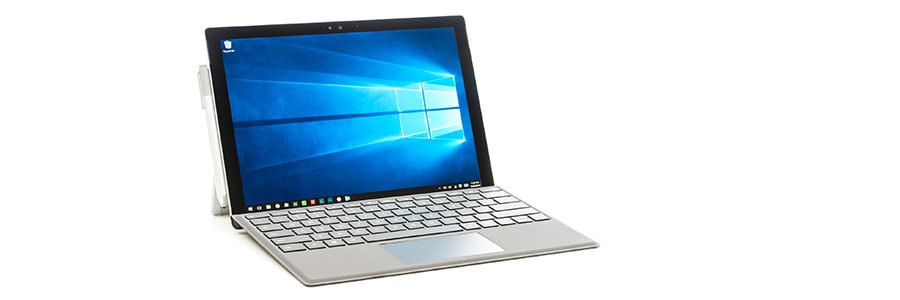
Unboxing a new Windows 10 laptop is exciting, but before you start using it, there are a few things you need to do. You can ask a technician for help in setting up your new device, but here are a few things you can do on your own. 1. Set up how your device checks for updates Your new laptop should check for updates automatically, but you can also do this manually. Just click the gear icon above the Start button to go to Settings, choose Update & Security > Windows Update, and then click Check for updates. You can also type “updates” into the search box and click Check for updates. 2. Choose a restore point If something goes wrong with your laptop, you can save a lot of time if you have a restore point, which is a backup of your entire operating system. To set up a restore point, type “restore” into the search bar and click Create a restore point. You’ll be taken to the System Protection tab of the System Properties window. From there, you can choose what you want to be included in the backup. Click the Configure button to apply your choices. Enable “Turn on system protection” if it’s not already on. You can choose how much disk space to reserve, usually no more than 2% or 3%. 3. Pick a power plan If you want to prolong your laptop’s battery life, you can choose from Windows 10’s Power Saver, High Performance, and Balanced power plans. Type power plan in the search button and choose either “Edit power plan” or “Choose a power plan.” Choosing the Edit power plan option allows you to set when the laptop display will be automatically turned off and when to put it to sleep. When you pick “Choose a power plan,” it will take you to a page where you can create and customize your plan. The default recommended plan is Balanced, but if you want to create your own, click on the “Create a power plan” option on the left part of the screen. You can choose from three options depending on how you plan to use your laptop: Balanced, Power Saver, and High Performance. After selecting your preferred plan, click on the Next button to set the display and sleep settings for your laptop. Once done, click on the Create button and you’re good to go. 4. App installation tolerance level To restrict which apps can be installed on your laptop, go to Settings > Apps > Apps & features and choose whether to permit installations from only the Windows Store, any app installations (with a warning), or unrestricted app installations. 5. Remove bloatware Vendors package new laptops with bundled apps and software, which are mostly unnecessary and unwanted programs called bloatware. Windows 10 offers an easy way to see which apps are installed on your new laptop and a quick way to uninstall those you don’t need. Head to Settings > Apps > Apps & features and peruse the list. If you don’t want an app and are 100% certain that your computer doesn’t need it, click the Uninstall button. 6. Anti-ransomware Ransomware is a form of malicious software (malware) that locks all your data until you pay a ransom to hackers. To minimize the risk of ransomware attacks, type “Windows Security” into the search bar at the bottom of your screen, click it, and go to “Virus & threat protection”. Here, you’ll be able to enable a new option called “Controlled folder access,” which protects you against ransomware attacks. By default, the Desktop, Documents, Music, Pictures, and Videos folders are protected, but you can add other folders too. There are myriad ways Windows 10 can be configured for optimization and security. This article barely scratches the surface of Window 10’s security and efficiency settings. Call us today for a quick chat with one of our Microsoft experts about taking your operating system to the next level. Published with permission from TechAdvisory.org. Source.
Here are some ransomware decryptor sites you should keep handy
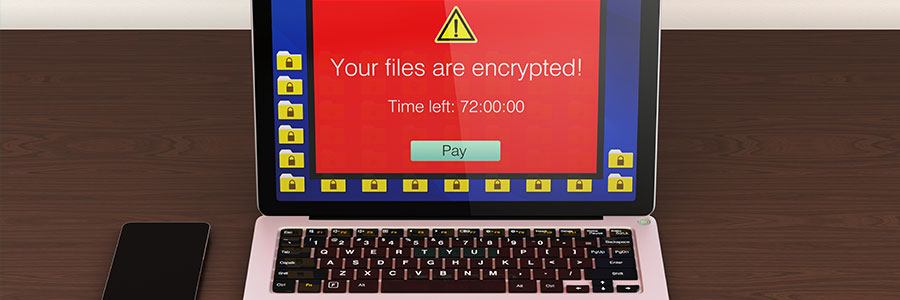
Ransomware is on the rise, but falling victim to one is not the end of the world. You can try some of these ransomware decryptors and maybe one of them will work. These are especially useful against automated “zombie” ransomware types. The state of ransomware in 2021 so far Businesses need to deal with ransomware both from outside and within. On one hand, there are more cybercriminals trying to infiltrate your network. On the other hand, careless and unknowing staff can easily let ransomware enter your network. For instance, employees may be tricked into providing their access credentials in phishing sites, or they may click links to websites that upload ransomware downloaders onto their machines. The statistics are sobering. Ransomware cost businesses more than $75 billion per year. Over the past two years, ransomware attacks have increased by over 97%. And compared to the first two months of 2017, ransomware campaigns that were initiated from phishing emails increased by 109% in the same span of time this year. According to studies, there will be a ransomware attack targeting a business every 11 seconds in 2021. That is up from every 14 seconds in 2019, and every 40 seconds in 2016. And the trend is that the rate will continue to increase over the years. Zombie ransomware is easy to defeat Not every type of infection is targeted to individual organizations. Some infections may result from self-propagating ransomware strains, while others may come from cyberattackers who are hoping targets become so scared that they pay up before doing any research on how dated the strain is and how to remove it. No matter what the circumstances of your infection are, always check the following lists to see whether free decryption tools have been released to save you a world of hurt: Kaspersky Lab’s No Ransom list Avast’s free decryption tools Trend Micro’s Ransomware File Decryptor Heimdal Security’s Free Ransomware Decryption Tools Prevention But even when you can get your data back for free, getting hit with ransomware is no walk in the park. There are essentially three basic approaches to prevent ransomware: First, train your employees about what they should and shouldn’t open when browsing the web and checking email. Second, back up your data as often as possible to quarantined storage. As long as access to your backed-up data is extremely limited and not directly connected to your network, you should be able to restore everything in case of an infection. Finally, regularly update all your software solutions (operating systems, productivity software, and antivirus). Most big-name vendors are quick to patch vulnerabilities, and you’ll prevent a large portion of infections just by staying up to date. Whether it’s dealing with an infection or preventing one, the best option is to always seek professional advice from seasoned IT technicians. It’s possible that you could decrypt your data with the tools listed above, but most ransomware strains destroy your data after a set time limit, and you may not be able to beat the clock. And even if you do, you probably won’t have the expertise to discern where your security was penetrated. Don’t waste time fighting a never-ending stream of cyberattacks — hand it over to us and be done with it. Call us today to find out more. Published with permission from TechAdvisory.org. Source.
How to keep your Android device protected

As of January 2021, Android is the leading mobile operating system in the market with a 71.9% market share. This is why Android devices are a prime target for cyberthreats and why Android users face a multitude of potential attacks. Fortunately, you can protect your Android device from attacks by following the tips in this guide. You don’t have to purchase expensive software to safeguard your device; most of the best protection against common Android threats is available for free. Here are inexpensive ways to secure your Android devices. Buy devices from vendors that release Android patches quickly Beware of handset makers that don’t immediately release Android patches. If you subscribe to a vendor that delays the release of such patches, your device will be vulnerable for a longer time to security threats like bugs and will have a higher risk of getting compromised. Always keep your apps updated Apps release updates from time to time. These updates improve security, add new features, and/or remove outdated ones. To install updates as soon as they’re released, you can choose to update Android apps automatically by following these instructions: Open the Google Play Store app. Go to Menu > Settings. Tap Auto-update apps. You can then select whether to update apps using Wi-Fi or mobile data. Lock your device Keeping your devices locked provides an extra layer of protection, as unlocking them requires entering a unique key such as a passcode or a pattern, or using your phone or tablet’s facial recognition feature The simplest way to lock your device is by using a personal identification number (PIN); however, make sure that you use a hard-to-guess but easy-to-remember combination. If you have a newer Android device, you can use fingerprint or face recognition technology to better ensure that only authorized people can access your device. Download apps only from the Google Play Store Google Play is the safest place to download apps for your Android device. Third-party sites may offer an interesting lineup of apps, but their software can contain malicious codes. Sometimes, though, bogus apps make it to the Google Play Store, so always read reviews before downloading apps to ensure their legitimacy. Use Google Play Protect Google Protect is a built-in malware scanner that monitors apps in the Google Play Store and on your device. It also runs a safety check on any app from the Google Play Store before you download it. Google Protect is turned on by default, but you can switch it off or on again by opening the Google Play Store app on your Android device and going to Menu > Settings > Scan apps with Play Protect. Use on-device encryption Every Android device running on Android 2.3 and above has an encryption feature that can render all your data unreadable to unauthorized entities until they provide the correct PIN or passcode. Whatever Android version your device is running, you can generally find encryption settings by going to Settings > Personal > Security. Use a virtual private network (VPN) When you’re connected to public Wi-Fi, there’s always a possibility that someone will intercept your data. Using a VPN encrypts your information so that even if someone steals your data, it will be completely unreadable and useless to them. There are numerous free VPNs on the Google Play Store. Compare their rankings and reviews before choosing one. Protect your Google account with two-factor authentication (2FA) Aside from protecting your Android device, you must also protect your Google account, which you can do using various methods, such as enabling 2FA. Just log in to your Google account, go to Security > 2-Step Verification > Get Started, then follow the succeeding prompts. You can choose to receive the verification codes on your phone via SMS or voice. Keep an eye on your devices Thieves are always on the lookout for potential victims. Treat your device as you would your cash, jewelry, and other valuables. Also, avoid using your device in areas with high crime rates to avoid attracting attention and getting robbed. Keep these tips in mind to safeguard your phone or tablet from physical and digital risks. If you have any comments, suggestions, or questions about your Android device, call us now. Our experts are here to help. Published with permission from TechAdvisory.org. Source.