
Maximize your efficiency with these Outlook tips

Countless companies prefer Microsoft Outlook over other web-based email and calendar services because of its ease of use and convenience. Aside from being handy for managing business communications and setting up meetings, it can also be used for coordinating projects and organizing contacts. Here’s a quick guide to making the most out of these and other nifty Outlook features. Organize your inbox Is your Outlook inbox getting a little too cluttered for your liking? Use the Clean Up feature to tidy up your inbox. From your inbox, click the Home tab and choose from one of three Clean Up options: Clean Up Conversation – reviews an email thread or a conversation and deletes redundant messages Clean Up Folder – reviews conversations in a selected folder and deletes redundant messages Clean Up Folder & Subfolders – reviews all messages in a selected folder and any subfolders, and deletes redundant messages in all of them Ignore conversations Besides redundant messages, group conversations that aren’t relevant to you can clutter up your inbox. The Ignore button helps you organize your inbox and focus on relevant emails. To activate this feature, select a message, then click Home > Ignore > Ignore Conversation. Alternatively, you can open a message in a new window and click Ignore under the Delete function. You can easily revert this action by going to the Deleted Items folder and clicking Ignore > Stop Ignoring Conversation. Send links to files This function is especially useful when you need to send large files to your coworkers or clients. You can send a link to the file instead of the file itself as well as set permissions to allow recipients to edit and collaborate on linked files in real time. To do this, upload the file you wish to send to OneDrive. Then from the message box, click Attach File > Browse web locations > OneDrive. Tag contacts To get the attention of a specific person in a group email or meeting invite, use the @Mention function. This works particularly well for emails sent to multiple recipients or if you want to convey the urgency of your message. In the body of your email or invite message, type the @ symbol followed by the name of the person you want to tag (e.g., @johndoe). Doing so will highlight the name in the message and automatically add it to the To line of your message. You can also search for messages you’re tagged in by selecting Filter Email from the Home tab, and then clicking Mentioned. Add notes to emails With Outlook, you can add sticky notes to specific parts of an email. To add a sticky note, simply drag your cursor to highlight your chosen text in the email, and then release the mouse button to trigger a pop-up object menu. On that object menu, select Add Note. This will open a OneNote feed within Outlook, where you can add text or images to your sticky note. Schedule a Teams meeting Teams is Microsoft’s unified communication and collaboration platform, and it includes the Outlook add-in. This feature allows you to set up Teams meetings directly from Outlook. It also lets you view, accept, or join meetings while in either app. To schedule a Teams meeting on Outlook, follow these steps: Switch to the calendar view on Outlook. Click the New Teams Meeting tab. Add individual participants or entire contact groups to the Required or Optional fields. Type in the topic, start time, and end time of the meeting. There’s no need to add the dial-in phone numbers and conferencing IDs to the invite, as Outlook does this automatically for you. Create a message inviting the recipients to the meeting, then click Send. Share emails to Teams With Outlook, you can easily share an email from your inbox directly to a specific Teams channel. To do that, follow these steps: Select the email you want to share. Click the Share to Teams button. On the Share to Microsoft Teams pop-up menu, type the name of the person or channel you want to share to. Check the “Include attachments” tickbox if you want to include the email’s attachments. These are just some of the things you can do to improve your Outlook experience. For more on how to get the most out of Outlook and other Microsoft products, drop us a line today. Published with permission from TechAdvisory.org. Source.
What you need to know about web hosting

Every business, regardless of size and industry, needs to have an online presence these days. One of the best ways to achieve this is to create your own website, and for that, you’ll need a web host. Here’s a quick overview of what a web host is and the two most common types of hosting. What is a web host? A web host sells or leases memory space on its servers so your website can have a virtual location on the internet. Their services include online storage for all of your site’s files and web pages. Many web hosts also offer domain name hosting, which creates a web address that users can type into a web browser to access your website (e.g., google.com, inc.com, etc.). Combine these two hosting services and you have the main foundations for your website. You can also get domain-based email addresses (e.g., robert@acmeenterprise.com) and website databases from web hosts. Essentially, your web host can store everything your website needs. When you sign up with a web host, you will usually pay a monthly fee, which the company uses to maintain and invest in new servers for hosting, increase access speeds, and provide better services. What are the two most common types of web hosting? There are hundreds, if not thousands, of web hosts around the world, but they usually fall into one of two categories: Shared hosting – Multiple, different websites are stored on one physical hosting server. Sites have their own partition (section of storage) that is kept separate from other sites on the same server. Dedicated hosting – One website is hosted per server. This means you have all of the server’s capacity to yourself. Which hosting type is best for my business website? Most websites use shared hosting because it’s more affordable while still offering generally stable access and access speeds. This is the ideal hosting type for most small- and medium-sized businesses with fairly simple websites. If your website is going to be large (e.g., thousands of pages) and you are going to host complex features like advanced eCommerce, streaming, communication portals, and other web applications, then it would be best to opt for a dedicated hosting service. Examples of large sites include Google, Amazon, and government sites, among others. With numerous web hosts out there, selecting the right fit can be quite challenging. But with our IT expertise and solutions, we can help you find the web host that will work best for your business needs. Contact us today to get started with your online presence. Published with permission from TechAdvisory.org. Source.
How embracing new tech can benefit your business
As a business owner, you understand the importance of upgrading your company’s technology infrastructure. You’re also aware that technology isn’t cheap, which is perhaps why you’re hesitant to invest in new hardware and software. But putting off or ignoring these upgrades altogether could mean missing out on benefits that add value to your business, including the following. Better efficiency Implementing new technologies introduces more efficient, flexible ways to carry out tasks, thus streamlining business processes. For instance, Voice over Internet Protocol phone systems and instant messaging apps enable your team to get in touch with one another, as well as with clients and business partners, whenever, wherever, on any internet-connected device. This makes relaying critical information much quicker and easier. Similarly, business process management solutions automate repetitive tasks, like those involved in accounts payable processes. With automation, your staff saves time and effort and can focus on other, more important tasks. Ability to address remote and hybrid work challenges Many businesses are still struggling to cope with the challenges brought about by the COVID-19 pandemic, including how to manage remote and hybrid workforces. These issues can be addressed by implementing modern communications and collaboration solutions. Such tools allow entire organizations to stay connected and on the same page. Managers can check in on employees, and coworkers can call or message one another regarding projects they’re working on together. Teams can also share documents and edit these at the same time, if needed. Additionally, they can use collaboration tools to set and track task progress so everyone’s always kept in the loop. Increased employee engagement and retention Issues with technology, especially if these happen frequently, hamper employee productivity. They also lead to poor employee engagement and experience. Over time, minor inconveniences like computers that constantly freeze or web browsers that take ages to load can add up and create discontent among your staff. Equipping your team with the latest hardware and software enables them to perform tasks smoothly and efficiently, without having to worry about the headaches associated with outdated technology. This also shows that you are invested in their comfort and employee experience, which increases their morale as well as their loyalty to your company. Reduced costs New technology pays off in the long run. The savings you will make from not having to constantly have your tech fixed or suffer productivity-draining downtime will far outweigh the costs associated with implementing new equipment and solutions. If you invest in the cloud, you can enjoy even more savings, as doing so eliminates costs related to managing your own hardware such as maintenance and utilities. Such expenses will all be shouldered by your cloud service provider, so you no longer have to worry about budgeting for them. Regardless of your business’s size and industry, there’s no doubt that new technology is critical for its growth. However, you need to ensure that any new hardware or software you decide to adopt is aligned with your company’s needs and goals. You must also make sure that it’s properly implemented so that you can make the most out of it. Our experts can help you do just that — drop us a line today to find out how. Published with permission from TechAdvisory.org. Source.
Missing features and capabilities in Windows 11
There’s plenty to like in Windows 11, Microsoft’s latest operating system. Many users will undoubtedly enjoy its cleaner, sleeker interface. The placement of the Start button in the middle of the taskbar, in particular, is an inspired choice, as this makes it easier for users to find the programs they use most often. However, some might find the lack of previously available features a slight letdown. Customizable taskbar In Windows 10, users can move the taskbar from its default horizontal position to the right or left edge or the top of the screen. In Windows 11, the taskbar stays at the bottom and there’s no option to customize its dimensions. Although the taskbar is commonly kept at the bottom of the screen, some users may want to change its position for different reasons. Additionally, there’s no longer an option to move the Date and Time on the taskbar. In Windows 10, users can move Date and Time, which is placed in the right-hand corner of the taskbar’s System Tray area, by toggling off Clock in Settings. Some users may be perfectly fine with the default taskbar settings, but others might prefer greater customizability. Drag and drop Also absent in Windows 11 is the ability to drag and drop a file on your desktop into a program on the taskbar. In Windows 10 and earlier versions, you can drag, say, an Excel document saved on your desktop onto the Excel icon on the taskbar, and it will open. You can’t do this anymore on Windows 11. Users can also no longer drag and drop/save a file or any program onto the taskbar. Live Tiles The Start Menu in Windows 11 comes with new features, mainly a refurbished design, the “Pinned” icons, and a “Recommended” section. But gone are Live Tiles, previously available in earlier Windows versions, beginning with Windows 10. Those who’ve updated to Windows 11 will get the new “Widgets” features in place of the Live Tiles, but the latter serves an entirely different function. Easier activation To activate Windows 11 Home, users must have a Microsoft account, a 64-bit processor, and an internet connection. These are part of Microsoft’s minimum system requirements to activate the OS — on top of the need for a device with at least 4 GB of memory and 64 GB of storage. On one hand, this can be useful. For one, business users signing into Windows with their Microsoft account automatically backs up their files through the company’s OneDrive storage device. However, for many users who don’t have a Microsoft account yet, it would be a lot easier not to have to connect a Microsoft account (or create one) when activating Windows 11. Cortana integration Cortana is a much less popular counterpart to the more established voice assistants of Apple (Siri), Amazon (Alexa), and Google (Google Assistant). But people who’ve gotten used to Windows’ very own assistant, which is integrated into Windows 10, might feel let down that Cortana is no longer part of the system setup nor can it be found within the Start Menu. Note, however, that the Cortana application is still available. You can find and enable it in Settings > Apps > Apps & Features > Cortana. Internet Explorer support To a lesser extent, some Windows 11 users will be disappointed by the absence of Internet Explorer, which will cease to receive support from June 15, 2022 onwards. Faster shutdown The slow shutdown of PCs running on Windows 10 is commonly attributed to Windows system files or corrupted drivers. Users would have liked to see faster shutdowns in Windows 11, but alas, that is not the case. Wake-from-sleep and restart times also remain unenhanced. Windows 11 is not going to please everyone, but its other new functions will nevertheless please others. If you want to maximize all that the new OS has to offer, give our team a call. Our IT professionals would be more than happy to make your new system work for you. Published with permission from TechAdvisory.org. Source.
Picking the right VPN for your business

Virtual private networks (VPNs) keep your online activities secure and private, which is especially useful if you’re using a public Wi-Fi network. But considering the variety of VPNs in the market today, it’s hard to find which one is the best for your business. Here are tips to help you make the right choice. What is a VPN? A VPN creates a secure tunnel between your device and the websites you visit, protecting you from hackers looking to intercept your data. All data transmitted and received through this secure connection is encrypted, preventing any third party from monitoring your online activities. VPNs can also disguise your location. Once you’ve established a connection to a VPN server, your computer acts as if it’s using the same local connection as the VPN. As far as websites are concerned, you are browsing from the server’s geographical area and not your actual location. Why should you have a VPN? VPNs augment your cybersecurity and help protect your privacy. For instance, it’s generally considered bad practice to connect to public Wi-Fi networks, like those in cafes, libraries, and airports. This is because all data transmitted through these networks are unencrypted and, thus, are susceptible to exposure and theft. If you must use public Wi-Fi, make sure to activate your VPN. The VPN encrypts your data and keeps your connection secure as you surf the internet. VPNs’ ability to mask your location also makes them ideal for accessing geo-restricted websites and content. If you’re traveling abroad and you find that critical documents or US websites are geo-blocked in your current location, just connect to a VPN server in the United States to regain access. How do you choose a VPN? Given the increasing demand for greater online privacy, VPNs are surging in popularity. When selecting which VPN to purchase, take the following into account: Cost There are free VPNs out there, but they likely keep logs of your internet activity or are filled with disruptive ads. That’s why it’s best to invest in paid VPNs like NordVPN and ExpressVPN. These paid options come with robust features, such as a large list of available servers, and configurations that bolster your data’s security. Location Where your VPN’s servers are located matters for several reasons. For one, the farther away the server you’re connected to is, the greater the likelihood that you’ll suffer latency issues. For a smooth surfing experience, it’s best to connect to the closest available server. Additionally, if you want to avoid geo-restrictions, you’d want to connect to servers in the same location as the content you’re looking to access. This means if you want to access research published in the United Kingdom, make sure your VPN has servers located in that country. Capacity Inquire with the provider or read their terms of service to determine how much data you’re allowed to use. If your tasks require a lot of online resources, then you should choose a VPN with a high data allocation. Also, find out how many of the VPN servers are online; a greater number of online servers means the VPN is capable of supporting resource-intensive tasks Device compatibility Choose a VPN that can be used across multiple devices. If you use your laptop, tablet, or smartphone to do your tasks, then you should invest in a VPN that’s compatible with all of these. IP leak Some VPN tunnels are not as secure as others. In some cases, the VPN could leak your IP address, enabling third parties to track your data and activities. Before buying a VPN, sign up for a free trial of the service if available. Activate the VPN and visit IP Leak. If the website says your IP address is being leaked, choose a different VPN. If you need help in selecting the right VPN for your business, consult with our security experts today. We also offer comprehensive cybersecurity services so no hacker or third party can get their hands on your data. Published with permission from TechAdvisory.org. Source.
Why you should consider using dual monitors

Some things come in pairs, such as glasses, shoes, and, for busy office workers, computer monitors. But while using two monitors at once may seem unconventional for some, it actually has a lot of advantages. If you’re hesitant about using two monitors simultaneously, perhaps the following benefits will change your mind. Enhanced productivity According to a survey by Jon Peddie Research, working with dual monitors can increase overall productivity by 20–30%. Bookkeepers, for instance, can have digital receipts displayed on one screen and accounting software on the other. This eliminates the need to toggle back and forth between tabs and saves employees time that they can use instead to complete other tasks. Better multitasking Efficient multitasking requires adequate screen space to keep multiple applications simultaneously visible — a view that single monitors alone simply cannot accommodate. With a dual monitor setup, workers like customer service reps and web designers would no longer waste time scrolling up and down and resizing windows to fit the information they need in the limited space. Instead, the enhanced visibility that dual monitors bring lets users focus on completing their tasks accurately and efficiently. Easier layouting and image and video editing With dual monitors, the days of stacking editing tools on top of slide presentations, images, or videos you’re working on are over. Instead of your screen looking like a game of Mahjong, you can use one monitor for your editing tools and the other monitor for the file you’re laying out or editing. With better visibility, you’re less likely to make mistakes and more likely to accomplish the task faster. Effortless product comparison Having two monitors makes it easy to compare things side by side. If you want to purchase a camera but you have two models in mind, for instance, you’d want to compare their specs first before making a final decision. If you had only one monitor, you’d need to go back and forth from one tab to another to compare the two models. But if you had two monitors, you could view the models side by side to help you clearly see their differences and make an informed purchase. Want a dual monitor setup for your employees? We can help you roll this upgrade out. Contact us today to get started. Published with permission from TechAdvisory.org. Source.
5K – MULTIFACTOR AUTHENTICATION INSTRUCTIONS
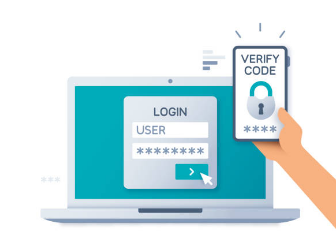
[img src=”/wp-content/uploads/2021/11/image1-5k-multifactor-authentication-instructions.png” class=”alignright”] What is Multi-Factor Authentication? Multi-Factor Authentication (otherwise known as MFA, 2FA or ‘two-step verification’) is a security feature that protects your Office 365 account. MFA effectively makes it far more difficult for hackers to access your account, thus providing a further layer of protection for your data. MFA differs from using only a traditional username and password in that it also requires confirmation of the device that you are accessing your account from. Two-factor verification is more secure than just a password because it relies on two forms of authentication: Something you know, like your password. Something you have, like a phone or other device that you carry. Two-factor verification can help stop malicious hackers from pretending to be you. Even if they have your password, the odds are that they don’t have your device, too. What You Will Need Your desktop/laptop Your email account password How To Setup Multi-Factor Authentication? https://prontomarketing.wistia.com/medias/rcb6esrno2?embedType=iframe&seo=false&videoFoam=true&videoWidth=800 Download and install the Microsoft Authenticator app. (It is available at Google Play or Apple Store) Go to www.microsoft.com. Click on Sign in, located on the right side of the webpage. Type your email address in the box provided. Type in your password. On more information required screen, click Next. On the Additional security verification page, select Mobile app from the Step 1: How should we contact you area. Select Receive notifications for verification from the How do you want to use the mobile app area, and then select Set up. The Configure mobile app page appears. Open the Microsoft Authenticator app, select Add account from the Customize and control icon in the upper-right, and then select Work or school account. *Note If this is the first time you’re setting up the Microsoft Authenticator app, you might receive a prompt asking whether to allow the app to access your camera (iOS) or to allow the app to take pictures and record video (Android). You must select Allow so the authenticator app can access your camera to take a picture of the QR code in the next step. If you don’t allow the camera, you can still set up the authenticator app, but you’ll need to add the code information manually. Use your device’s camera to scan the QR code from the Configure mobile app screen on your computer, and then choose Next. Return to your computer and the Additional security verification page, make sure you get the message that says your configuration was successful, and then select Next. The authenticator app will send a notification to your mobile device as a test. On your mobile device, select Approve. On your computer, add your mobile device phone number to the Step 3: In case you lose access to the mobile app area, and then select Next. **We strongly suggest adding your mobile device phone number to act as a backup if you’re unable to access or use the mobile app for any reason. Select Done. If you have any issues or need assistance, please call us at 469-656-3159.
5 Key security measures you need for VoIP

As a more convenient and less expensive alternative to traditional phone services, Voice over Internet Protocol (VoIP) technology is now a business necessity. But as with any other piece of technology that can connect to the internet, VoIP can and will be exploited by cybercriminals. That’s why it’s important to take the necessary steps to protect your company’s VoIP systems, which include implementing the following vital security measures. 24/7 monitoring VoIP security breaches usually take place outside operating hours. Attackers make phone calls using private accounts or access call records with confidential information on the sly. To avoid these security breaches, contract outsourced IT vendors to monitor network traffic for any abnormalities. Virtual private networks Virtual private networks (VPNs) create a secure connection between two points, as if they belong in the same closed network. It’s like building a safe secret tunnel between you and the person you’re calling. Using a VPN can also help overcome complications involving Session Initiation Protocol or SIP trunking, which is a recommended VoIP feature. VoIP firewalls Firewalls specifically designed for IP-based telephony curb the types of traffic that are allowed into your network. They ensure that every connection is properly terminated at the end of a session and identify suspicious calling patterns. Virtually every VoIP vendor provides these protocols, but you should always consult with your IT services provider as to how these protocols will be managed within your organization. Encryption tools VoIP systems that lack encryption can be easily broken into by hackers — even by amateur ones who can simply download and deploy tools to eavesdrop or intercept your calls. Some services claim to have built-in encryption, but companies still need to be vigilant and investigate how effective these are. Using encryption ensures that even if hackers successfully download audio or video, they still won’t be able to decode the file unless they have the decryption key. Password protection Using passwords to authenticate your access to private information is not as secure as it once was. Hackers can easily guess a password and use it for cyberattacks. Protecting the passwords themselves adds a layer of protection against threats. This can entail enabling multifactor authentication or using a password manager to generate and store an array of complex passwords. VoIP is as important as any of your other network security considerations. It requires a unique combination of protection measures, and we’d love to give you advice on these. Give us a call today to get started. Published with permission from TechAdvisory.org. Source.
Prevent phishing scams using Microsoft 365 Defender

Microsoft is an established provider of top-tier business productivity software — and its commitment to its subscribers’ cybersecurity is integral to that reputation. To combat phishing, one of today’s most prevalent cyberthreats, the software giant has equipped Microsoft 365 Defender with powerful features. Here are some of them. 1. Anti-phishing The most dangerous types of phishing scams involve emails that are disguised to appear like it’s from an entity. An attacker may use cunning tactics, such as referring to the victims by their nickname. They may even take over actual email accounts and use these to trick their victims. Through machine learning, Defender creates a list of contacts that users normally communicate with. It then employs an array of tools, including standard anti-malware solutions, to differentiate acceptable from suspicious behaviors. 2. Anti-spam Since common phishing campaigns utilize spam emails to victimize people, blocking spam is a great way to protect your company from such attacks. Defender’s anti-spam technology addresses the issue by examining both an email’s source and its contents. If an email is found to come from an untrustworthy source or has suspicious contents, it is automatically sent to the Spam folder. What’s more, this feature regularly checks the activity of people in your company to ensure that none of them sends out spam emails. 3. Anti-malware Malware, such as ransomware and spyware, can spread via phishing emails. Ransomware locks systems and files from users until a ransom is paid. Spyware, on the other hand, steals data by recording keystrokes, copying clipboards, and taking screenshots, among other methods. Defender employs a multilayered defense against both known and unknown types of malware. This covers the different stages of email transmission security, including filtering potentially harmful attachments, and real-time threat response. Microsoft also regularly deploys new definition updates to keep its defenses armed against the latest threats. 4. Sandbox It’s not uncommon for some users to accidentally open a malicious email attachment, especially if they’re not careful. Defender resolves this issue by opening all attachments in a sandbox first. This sandbox is an isolated environment, so if the attachment is malicious, it will only infect the sandbox and not your actual system. Microsoft will then warn you not to open the file. If it’s safe, you will be able to open it normally. 5. Safe Links Instead of attachments, some phishing emails contain URLs that lead to fraudulent websites — often made to look like legitimate ones — that require victims to provide their personal information. Some of these URLs also lead to pages that download malware into a computer. Through a process called URL detonation, Safe Links protects users by scanning the links in their emails and checking for malicious behavior, such as the transmission of malware. If the link opens a malicious website, Microsoft Defender will warn users not to visit it. Otherwise, users can open the destination URL normally. Even so, the service will rescan the link in the succeeding days and report any suspicious changes. What’s great about Safe Links is that it also scans links in emails from people within your company and works on files uploaded to Microsoft Teams and SharePoint. 6. User Submissions Defender allows you to set a specific mailbox to send emails you deem a threat. The User Submissions feature lets you set criteria for both malicious and safe email and identify mailboxes besides your spam folder to keep these messages in. This feature gives your administrators greater control over which emails to flag and which to report to Microsoft. 7. Enhanced Filtering If your company uses third-party services to route emails to your on-premises environment before they are sent to Microsoft 365, you will benefit from Enhanced Filtering for Connectors. Defender uses inbound connectors to determine the trustworthiness of email sources. The more complex your routing scenario is, the more likely that an email’s inbound connectors will not reflect its real source. Enhanced Filtering preserves authentication signals that may have been lost over the course of routing emails. This maximizes the effectiveness of Microsoft 365’s overall filtering capabilities, helping it detect spam and phishing emails. If you need an email service that promotes efficiency while protecting your business, we can deploy and manage Microsoft 365 for you. Call us today to get started. Published with permission from TechAdvisory.org. Source.
Basic web conversion strategies you need to use
Making sure your website is easy to use is crucial to attract prospects and convince them to buy your products or services. Here are five tips that improve user experience, site trustworthiness, and conversion rates. 1. Optimize your website for mobile devices More people are now surfing the web via smartphones and tablets. If you want a piece of this traffic, you need to make your website’s design responsive to all mobile devices. To give your visitors a seamless mobile experience, make sure your website design fits the screen of any device. Additionally, all elements of your website, including inner pages, resources, and call-to-action buttons should be easily accessible. If not, visitors will get frustrated and move to another site. 2. Make it easy for customers to contact you Displaying your phone number in the upper-right corner of every page and providing a simple contact form is crucial for conversions. While some people prefer not to give up their email address for fear it will be picked off by spambots, it can serve as another contact option for those who hate web forms. At the very least, your customers will have more than one way to contact you. 3. Keep it simple People don’t always have time to navigate a complicated website, dig through dozens of pages to find a contact number, or figure out what it is that you’re selling. So when it comes to design, simplicity makes sense. When producing a simple website, every page, word, and image you create must have a singular purpose: to get visitors to contact you. Don’t distract them with excessive information, silly games, or flashy animations. Instead, have a nice clean layout so they can quickly understand what you’re offering and can contact you in just a click. 4. Include original photos whenever possible Imagine having to choose between two different websites that sell the same thing and look virtually the same. The key difference is that one uses real photos of the owner and his or her staff, while the other uses stock images of business people. By using original and authentic photos, visitors can get a better sense of your company as well as its products and services. It also gives you better control over how you can compose your photos and determine how you want your company to be perceived. So the next time you need images for your website, invest some time and money in having quality pictures taken by a professional photographer. 5. Move social media icons to the bottom of the page Everyone loves throwing social media icons on their websites. And while it’s not a bad idea to show your credibility, putting social media icons at the top of the page makes your visitors more likely to click on them immediately. When this happens, you just gave them a reason to leave your site and never return, and we all know how easy it is to get distracted on social media. Instead, place your social media icons at the bottom of the page or in the footer area. Remember, the goal of your website is to convert. If your visitors leave before they get a chance to explore your services, content, and offerings, you’ve lost them before you even had them. For more tips on enhancing your digital presence, give us a call and leverage our IT expertise for your business today. Published with permission from TechAdvisory.org. Source.