
What is email automation and what are its benefits?
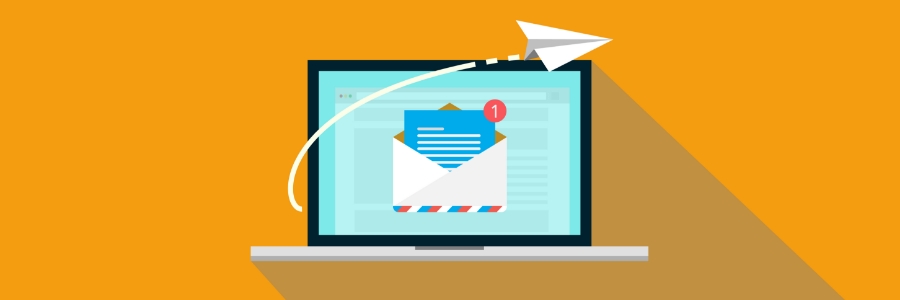
Email marketing is one of the most effective ways that businesses such as yours can communicate with clients and prospects. However, if you’re spending hours crafting emails for every customer or sending generic email blasts, then you may not efficiently and effectively achieve the results you want. You can resolve such issues by leveraging email automation. What is email automation? Email automation is a tool that allows businesses to automatically send relevant and personalized messages to subscribers at a predetermined time based on specific triggers or predefined criteria. Such criteria include payment reminders, subscriber birthdays, promos, monthly feedback requests, order confirmations, and more. What are the advantages of using email automation? Here are the key benefits of email automation. Adds a personal touch Email automation tools let you automatically insert a customer’s name and other details into an email. By using the customer’s name rather than using a generic salutation like “Dear valued customer,” you are able to make the email more personal, potentially increasing the chances that your customer will be more receptive to your marketing messages. According to Experian Marketing Services, personalized promotional emails have a 29% higher chance of being opened compared to non-personalized ones. In addition, consumers were also 25% more likely to engage with personalized triggered emails compared to those that are not. Helps segment contacts Email automation allows you to divide your customers and leads into groups based on their purchase behavior, demographics, and interests. For example, if your company sells mobile devices, you can use email automation to create unique messages for customers who’ve shown interest in either Apple or Android products. Segmenting contacts ensures recipients will only receive messages that align with their interests. This will help keep customers engaged and reduce the probability of them sending unwanted emails to the spam folder or unsubscribing from your mailing list. Improves productivity With email automation, your marketing team doesn’t have to spend too much time compiling email lists and creating and scheduling email campaigns. Email automation systems can automatically send out emails based on triggers, such as signing up for a monthly newsletter, or predefined events like birthdays. This will help free up your team to focus on more critical tasks instead of spending a huge chunk of time emailing clients and leads. Helps retain existing customers Selling to existing customers is easier and more cost-effective than converting a lead, so you need to keep your existing customers engaged. You can do this by sending them exclusive promos, feedback requests, and loyalty rewards via email. This will ensure that you reach more people, especially those that don’t use social media. When implemented properly, email automation can be a powerful marketing tool that frees up your team to do what they do best. If you want to learn more about email automation, give us a call today. Published with permission from TechAdvisory.org. Source.
6 Ways to customize your Windows 11 PC

Windows 11 offers a new and improved way to customize your PC. Whether you’re looking to improve your computer’s efficiency or just want to try different settings, there are plenty of options in Microsoft’s latest operating system that will suit you. Read on to find out the many ways you can personalize your Windows 11 PC. Change your theme The easiest way to customize Windows 11 is by changing your theme, including your desktop background and lock screen image. Just right-click anywhere on your desktop, then click on Personalize. This will lead you to the Personalization menu, where you can preview and choose different backgrounds and themes. You can even create new themes by using images from your gallery. You can also see more themes in the Microsoft Store by clicking “Browse more”. Use dark mode If light or bright colors are not your thing, Windows 11 is here to the rescue. To change your desktop’s colors, right-click on your desktop, choose Personalize, and click Colors. Then, select Dark under “Choose your default Windows mode”. This changes the colors of your taskbar and Start menu. If you want to change the color of your apps from white to black, pick Dark under “Choose your default app mode”. To restore your default settings, follow the same procedure under “Choose your default app mode” but click Light. Create virtual desktops Having trouble separating work files from personal files? Try creating a virtual desktop. You can do this by clicking on the Task view icon on the taskbar. This will display all your open windows. Just drag any window to the “New desktop” space on the lower part of the screen to create another desktop. Repeat the process if you want to add more windows to the new desktop. To add more virtual desktops, hover over the Task view icon and click on the + sign. To remove a virtual desktop, hover over the Task view icon and click the X button on the desktop you want to delete. Try snap layouts Snapping is not a new feature, but Windows 11 makes it more efficient by letting you snap any app or window wherever you are on your PC. Access snap layouts by hovering over a window’s maximize button or pressing Win + Z. You can then see which layouts are available to you, and pick the one that best suits your needs. Reorganize your Start Menu You can also personalize how your apps are arranged on the Start menu. For one, you can rearrange applications by dragging them anywhere around the Start menu. Or, if you won’t be using a particular application, simply right-click the tile and select Unpin from Start. On the other hand, if you want even faster access to your most-used apps, right-click on an app and choose Pin to taskbar. Disable all your notifications Some people prefer to receive notifications, but some don’t. If you’re one of the latter and wish to never see notifications ever again, click on the gear icon on the taskbar to open Settings. Then, choose System > Notifications. From there, you can switch off whatever app notifications you don’t want popping up on your screen. Personalize your Windows 11 PC however you like by using some or all of these options. If you want more ways to customize your device or if you need information on anything Windows 11-related, give us a call. Published with permission from TechAdvisory.org. Source.
Should employers monitor remote employees?

With remote work becoming the new normal for many businesses, employers can’t help but worry about how much work their employees are getting done. One way to determine this is by monitoring employees online. However, this practice can raise privacy concerns. This article will shed light on what employee monitoring is and how it can help your business. What is employee monitoring? Employee monitoring is the practice of using digital tools to track employee activity and performance, and the progress of their tasks. The data collected can be used to identify patterns, trends, and correlations across different teams allowing managers to gain insight into various work processes, and how they can be improved. What are the benefits of employee monitoring? Here are the key benefits of monitoring your employees online: Improved productivity Using employee monitoring tools can help you track how much time employees spend visiting non-work-related websites or chatting with friends. If an employee’s productivity goes down significantly because of these activities, you can address the issue by reminding that specific employee about the company’s policy regarding visiting non-work-related websites and/or limiting his/her internet access. When employees know that their activities are being monitored, they’re more likely to focus on their tasks and avoid inappropriate internet use. Better security According to Verizon’s 2021 Data Breach Investigations Report, 85% of breaches reported in 2020 were due to human error. Monitoring the online habits of employees can help employers track and flag instant messages and emails containing sensitive and private information. In addition, managers can block employees from visiting phishing sites or websites that automatically download malware onto unprotected computers and mobile devices. More efficient project management Monitoring employee activity provides managers with continuous reports on workers’ progress, allowing them to stay on top of multiple projects. These reports can help managers delegate tasks and adjust schedules to meet deadlines. What are the disadvantages of monitoring your employees online? Despite its benefits, employee monitoring also comes with some drawbacks, such as: Trust issues Employees may feel that their privacy is being violated. This can lead to low employee morale and reduced productivity, as well as distrust between and among colleagues. Legal issues States and countries may have varying policies on employee monitoring, but one thing is constant — an employee’s consent is needed before any type of monitoring can be done.Without the consent of an employee, an employer can be charged with privacy violations and discrimination if the information collected is used to harm that employee. To avoid potential problems that can arise from employee monitoring, employers should explain why monitoring is needed. A written policy should be created explaining how employees will be monitored, what information will be collected, and how that information will be protected. If you want to learn more about employee monitoring, give us a call today. Published with permission from TechAdvisory.org. Source.
5 Common causes of slow mobile internet and how to fix them

At one time or another, we’ve all experienced a slow internet connection on our mobile phones. This can be extremely frustrating, especially if we need to get something done urgently. In this blog post, we will discuss five common causes of slow internet on mobile phones and how to fix them. Router location One simple yet overlooked reason why your phone may be experiencing internet lag is because of your Wi-Fi router’s location. Although Wi-Fi has a range of up to 230 feet, the signal gets weaker the farther you are from the router. Large objects like doors and walls situated in between your phone and the router can also weaken the transmission. It’s recommended to place your router in a centralized location, preferably away from concrete and masonry walls or other big objects like a fireplace. As the router signal radiates from all sides, if it’s blocked by even just one large object, your Wi-Fi signal will weaken significantly and, consequently, impede your phone’s internet speed. Wi-Fi noise Electronic appliances typically emit wireless signals at a frequency similar to your router’s, which is 2.4 GHz. So if you live in an apartment complex or have a lot of electronic devices in your home, you may experience interference that can slow down your Wi-Fi. One way to fix this is to place your router in a central location away from other electronic devices. You can also try changing the frequency or channel that your router is broadcasting on. To do this, you will need to log in to your router’s settings page, then look for a page or tab that says “wireless settings” or “channel.” From there, you can select a different frequency. For most routers, this will be 5 GHz. But before you do this, make sure that your phone supports 5 GHz, otherwise, it won’t be able to connect to the Wi-Fi. Fluctuating network speed Another reason for your phone’s slow internet connection could be fluctuating network speeds. To check whether this is the cause of slow internet speeds, ask these questions: How many devices are connected to the router? What are these devices using the internet for? Increase your router’s internet bandwidth speed if there are many users and all of them are either streaming movies or downloading computer games or software updates. This will allow every phone connected to your network to enjoy faster internet speeds. Poor VPN connection Using a virtual private network (VPN) is a great way to improve your security and privacy when browsing the internet. But if your VPN connection is slow, it can also impact the speed of your internet connection. To fix this, try connecting to a different VPN server or switching to a different VPN protocol. You can also try disabling your VPN. This will make your browsing experience faster, but it will also make it less secure. So only do this if you are connected to a safe network, such as your home or office Wi-Fi. Full browser cache Your mobile browser’s cache saves data from earlier searches in order to display faster results of similar searches in the future. Although your phone becomes more efficient for that particular search, it also makes your phone much slower when you do other things that require connecting to the internet. You can clear your cache manually or use a cache cleaner app to get rid of useless data and optimize your phone’s internet speed. If you decide to download a cache cleaner app, make sure that it is trustworthy so you don’t accidentally download a malware-infected program. There are many reasons for your phone’s lagging internet speed. If your business relies heavily on a speedy mobile internet connection and you’re unable to fix the problem, call our experts today. We’re always ready to help you. Published with permission from TechAdvisory.org. Source.
Quality of Service: A VoIP system essential

Voice over Internet Protocol (VoIP) has become the top communication system of choice for many small- to medium-sized businesses. If your business is looking to switch to VoIP, make sure to ask potential providers about their Quality of Service (QoS). This is because the best QoS is essential for ensuring your company’s success. In this article, we will provide a quick overview of what QoS is and some important questions you should ask prospective VoIP providers. What is QoS? VoIP providers and IT experts define QoS as the overall performance of a VoIP system or network. This performance is usually measured by looking at objective statistics like bandwidth usage, transmission delay, call jitter, error rates, and the like. Subjective data, like what end users think of the system’s performance, is also factored in. Why does QoS vary among providers? QoS applies not only to VoIP but also to traditional phone systems. It would not be an exaggeration to say that the quality of landline calls is near perfect. This is because all traditional phone network providers invest in physical networks and connections that offer high QoS. This means switching from one provider to another doesn’t affect the quality of the calls. However, investments in physical networks are expensive, and customers end up shouldering the costs. The high cost of maintaining the transmission network is also why there are only a couple of phone providers in most areas. In other words, it’s just too costly for small companies to invest in a traditional phone network system. In comparison, VoIP systems are considerably cheaper to set up and maintain, leading to a high number of VoIP providers. And because anyone with capital can set up their VoIP systems without having to adhere to a standard, the QoS amongst providers can vary drastically. To find the provider with the best QoS, ask them these three questions: 1. What level of quality can you guarantee? The best providers will be able to guarantee a QoS that is comparable to or even better than traditional phone networks. This is especially important for businesses that are looking to switch to a full VoIP solution. Ask your prospective provider to run a few tests on your network and to give you a quality assurance. If the numbers are too low for your business needs, it’s best to look for another provider. 2. How much of the network infrastructure do you own? Almost every VoIP provider will rely on public infrastructure in order to transmit data. And usually, the bigger the company’s share in the infrastructure, the higher its QoS is. This is because the provider will have more control over the technology. As such, one of the best options is to look for facilities-based providers. These companies own almost all of the network that carries VoIP calls and can therefore offer better services and quality. 3. How much traffic will run over public internet? Some of the most popular solutions will use almost 100% public internet for their traffic, while other companies will use a mixture of public and private networks. The latter option allows better flexibility as these providers often use public internet for more affordable packages and private internet for high-end users. If you often use VoIP for functions that require heavy bandwidth like conference calling, then you may need to sign up for more expensive packages so the QoS doesn’t drop. Get in touch with our experts today if you want to know more about how VoIP can benefit your business and how to pick the best VoIP provider. Published with permission from TechAdvisory.org. Source.
Choosing the right Microsoft 365 plan for your business

Choosing the right Microsoft 365 plan for your business can be daunting due to the various benefits and limitations of each subscription. In this article, we’ll help you compare the prices and features of these plans to help you decide which one works best for you. Microsoft 365 plans for businesses Microsoft 365 for businesses comes in four different plans: Business Basic, Apps for business, Business Standard, and Business Premium. Plan Microsoft 365 Business Basic Microsoft 365 Apps Microsoft 365 Business Standard Microsoft 365 Business Premium Price $6.00 user/month $8.25 user/month $12.50 user/month $22.00 user/month Web-based and mobile versions of Microsoft apps Yes Yes, excluding Outlook Yes Yes 50GB email storage Yes No Yes Yes Microsoft Teams Yes No Yes Yes 1TB cloud storage Yes Yes Yes Yes Standard online security Yes No Yes Yes 24/7 online and phone support Yes Yes Yes Yes Microsoft Bookings No No Yes Yes MileIQ No No Yes Yes Microsoft Defender for Office 365 No No No Yes Information Rights Management No No No Yes Manage and wipe company devices remotely with Intune No No No Yes How to choose the right Microsoft 365 plan for your business Now that you have an idea of how much each Microsoft 365 plan costs and what features are included with each plan, it’s time to determine which one is right for your business. Here’s what you should do: Assess your current hardware and software It’s important to make sure your employees’ computers are capable of running Microsoft 365 applications before subscribing to a plan. Some features might not work as expected or have limited functionality if their hardware does not meet specific system requirements. Likewise, assessing your current software and apps is crucial to determining whether they will work effectively with Microsoft 365. Some third-party apps may not be compatible, limiting the usefulness of your subscription. Consider your needs When choosing a Microsoft 365 plan, consider your company’s needs and determine which features will offer you the most value. Try answering these questions to get an idea of your requirements: Are you looking for ways to improve collaboration and communication? Will your business benefit by shifting to the cloud? Are you looking for advanced protection from various threats? Asking questions like these can help you narrow down your options and find a plan that’s tailored to your business. Plan your budget When planning a budget for the Microsoft 365 plan of your choice, there are two things to consider: the number of users and the migration cost. For the number of users, try to overshoot your budget slightly to account for new employees. If you have in-house IT staff, you can let them handle the migration process to avoid additional expenses. By taking these factors into account, you can choose a subscription plan that fits well within your budget. If you’re still unsure about what Microsoft 365 plan you need, you can call our experts for advice or you can answer this questionnaire. Published with permission from TechAdvisory.org. Source.
5 Handy tips for optimizing website images
Did you know that images not only make your website more attractive and engaging to customers, but they’re also important for your site’s SEO? If optimized correctly, images can improve your site’s page loading speed and search engine ranking. Here are some tips for optimizing website images. What is image optimization? Image optimization is the process of delivering images in the correct size, format, resolution, and dimension without compromising their quality. The goal is to improve the loading speed of websites to give visitors a better browsing experience. How to optimize website images Here are helpful tips for optimizing the images on your website. 1. Choose the correct file format Digital images come in various formats, but the three most commonly used types for websites are: JPEGs – JPEGs are the most widely used format for website images because they have an enormous color palette that’s ideal for showing off images with complex patterns, gradients, shadows, and colors. PNGs – PNGs support a wider range of colors compared to JPEGS, making them ideal for images with more complex designs. PNGs are also the only format that can support transparent backgrounds perfect for logos and vector images. The only drawback is that PNG files are larger than JPEGs, which can make page loading times longer. GIFs – GIFs are hugely popular as animated memes on social media sites but are hardly used for static images on most websites because of the limited colors — only 256 — they support. Therefore, they are the best option for small images that require only a few colors. 2. Name your images properly It’s important to use relevant keywords when naming your website images because search engines like Google not only crawl the text on your website but also crawl image file names. Using keyword-rich and descriptive image file names will allow search engines to provide more accurate results to customers looking for a particular product or service. For example, if your website is selling used cars, naming an image Red-Ford-Mustang-LX-2012.jpg will get more search results compared to a generic file name like used-car.jpg or DCIMIMAGE001.jpg. 3. Use alt tags Alt tags are texts that appear in place of a website image that fails to load on a user’s screen. These tags allow screen-reading tools to describe website pictures to visually impaired visitors. In addition, alt tags help search engines crawl and rank your site better. Most of the time, alt tags are almost similar to image file names. 4. Resize your images Using the wrong image size on your site can negatively impact loading times. For example, featured images in WordPress are usually 1200 x 628 pixels. Images larger than 1200 x 628 pixels will decrease the loading speed of your site. This can lead to high abandonment rates. 5. Compress your images Image compression is the process of reducing an image’s file size without compromising its quality. This allows you to use more images on your site. The smaller image file size also helps in reducing the time needed to download or send an image over the internet. Image optimization is a vital part of building a successful website. If you want to learn more about optimizing website images, give our experts a call today. Published with permission from TechAdvisory.org. Source.
7 Types of video content to boost your marketing campaigns

More and more businesses are using video marketing to achieve their marketing goals. In fact, the Content Marketing Institute said that video will be the top investment for marketers in 2022. If you too are interested in creating effective videos, you first need to know the different types of video content that will help you connect and build deeper relationships with your target audience. Here are seven of them. Ask me anything (AMA) You may be getting a lot of conceptual questions about innovative ways to use your product or service, what direction your company is heading, what the latest trends are, and so forth. One of the best ways to address these questions is to record or stream a live personal and unscripted AMA segment. To get good engagement, make sure to keep questions and answers moving in a relevant and interesting direction. There’s nothing wrong with updating everyone on what you had for breakfast, but addressing service bugs or product feature requests will be a lot more beneficial for your target audiences. Business introduction or behind-the-scenes If your company wants to build an online presence, one of the best things you can do is to showcase your business. Create content that introduces your staff or provides information about your products or services. For instance, you can take your viewers on an office tour, show them how one of your products is made, or broadcast your business’s launch event. Make sure to invite as many viewers as you can, but remember that most live broadcasts can be recorded and saved. You’ll likely want to keep the video available after the live broadcast has ended so other potential customers can view it later. Live broadcast announcements You can hold live broadcasts on social media to update your customers about an upcoming product, service, or event. A live broadcast is a more interesting and personal way to make announcements compared to press releases and status updates. Text-based announcements and pre-recorded videos can limit how you address the “fine print” questions from customers. You can use live broadcasts as a chance to hold press briefings and address questions after your official announcement. Facebook is one of the most popular live streaming platforms today, but there are a handful of different services you can use for broadcasting live videos. Aside from Facebook, there are a handful of different services to use for live video broadcasting. Deciding which one is the best for you can depend on a lot of different variables, such as the length of your content and the demographics of your target audience. News and trending topics Current and live event broadcasts are great not only because they’re fresh, but also because they give your audience something to share. Facebook Live and Instagram stories allow people and businesses to share recent information, trending news, and other relevant stories. For example, you can stream a live cooking show while engaging your viewers by hosting a Q and A in real time. You can also offer a special discount to anyone who tunes in to a live broadcast. With these features, you can easily attract a wide audience and get them to consider your business. How-tos Whether you have a soon-to-be-released product or a simple rehash of an existing one, there’s no better way to introduce it to your customers than by using how-to videos. Not only do these show existing clients the best way to utilize your service or operate your product, but it also allows potential customers to see both your product and your customer service philosophy in action. Regularly monitoring these videos can be invaluable as you continue to get questions about your products or services over time. You can also use these how-to videos as another way to build a video reference library for your sales and support team. Promotional videos Your promotional videos should portray your business in a positive light and make people want to do business with you. You can feature your organization’s vision and mission, showcase outreach programs, highlight the positive impact of your business, and the like. Nowadays, many companies partner with influencers to attract customers. If you have someone who’s familiar to your audience promoting your business, you’re likely to get the attention of potential customers, especially those who are hearing about your product or service for the first time. Remember that promotional videos should be straight to the point and, ideally, should last no longer than 10–15 minutes. Webinars Webinars are online events that are attended by a virtual audience. They allow for online participation, thanks to real-time audio and video feeds. A series of images and videos can be broadcast and run in sync with the rest of your presentation. You can also make use of the screen sharing functionality to show your viewers an application or a website. Webinars also offer various interactive opportunities such as live chat, polls, surveys, and tests. Call us with any of your questions and we’ll be happy to assist you in adding value to your business with today’s best live video services. Published with permission from TechAdvisory.org. Source.
Keyboard shortcuts you can use in Windows 10 and 11

Technology makes work easier, and something as simple as keyboard shortcuts can save you a lot of time. If you have a Windows 10 or 11 computer, then you may find these keyboard shortcuts very handy. Snap Snap allows you to put two to four windows side by side, making it easier to compare documents or do two things at the same time. You can use Snap with these keyboard shortcuts: Windows Key + Left – snaps the current window to the left side of the screen Windows Key + Right – snaps the current window to the right side of the screen Windows Key + Alt + Up (Windows 11 only) – snaps the current window to the top half of the screen Windows Key + Alt + Down (Windows 11 only) – snaps the current window to the bottom half of the screen You can also select a snapped window and press Windows Key + Up/Down to move it to your desired corner of the screen. Taskbar You can also use keyboard shortcuts to navigate the Windows 10 or 11 taskbar. Here are the ones you need to know: Windows Key + T – cycle through opened and pinned apps on the taskbar Windows Key + (number) – open the app pinned to the taskbar in the position indicated by the number. If the app is already running, pressing this shortcut will switch to that app. Windows Key + Shift + (number) – start a new instance of the app pinned to the taskbar in the position indicated by the number, even if one is already open Task View This window management feature allows you to see all of your opened windows and browser tabs so you can quickly return to a specific program, document, or web page. This is particularly useful if you have multiple windows open at once. You can access Task View by clicking on its button on the taskbar or using these keyboard shortcuts: Windows Key + Tab – opens the Task View interface with windows from your current desktop Alt + Tab – switches between open windows and browser tabs on all desktops Ctrl + Alt + Tab – functions similarly to Alt + Tab but the thumbnails stay on the screen even after you release all the keys Virtual Desktop This handy feature enables you to create a new desktop that can display different open windows and apps. You can dedicate virtual desktops for certain functions. For instance, one virtual desktop could be used solely for work and another one for entertainment. You can quickly manage your virtual desktops using the following keyboard shortcuts: Windows Key + Ctrl + D – opens a new virtual desktop Windows Key + Ctrl + F4 – closes the current virtual desktop Windows Key + Ctrl + Left/Right – switches to the virtual desktop on the left or right If you’re looking for more time-saving technology tips or have any questions about how Windows 10 or 11 can help streamline your operations, just give us a call. Our IT experts are more than happy to assist you. Published with permission from TechAdvisory.org. Source.
The differences and benefits of two-factor and two-step authentication protocols
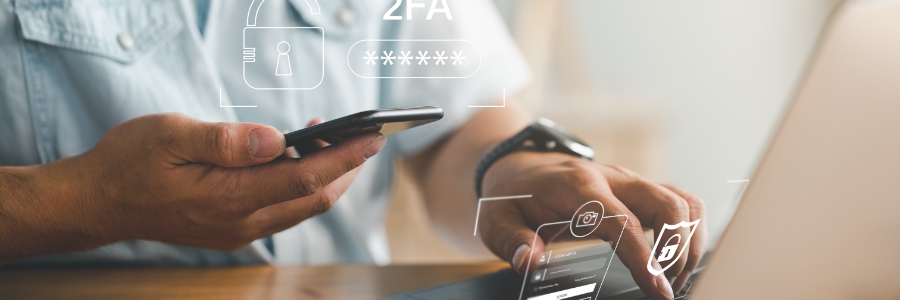
Both two-factor authentication and two-step authentication are processes that can help keep your business safe from data breaches. But while they serve the same purpose, these two methods are vastly different. In this blog post, we will discuss the differences between two-factor authentication and two-step authentication, as well as the benefits of each process. According to the Allianz Risk Barometer, businesses are more worried about cybersecurity threats compared to other business disruptions like supply chain issues, natural disasters, or even the COVID-19 pandemic. This is why business owners are ramping up data security measures. One way they do this is by implementing two-factor and two-step authentication. Many businesses use the two terms interchangeably, but these processes are quite different. Two-factor authentication Two-factor authentication (2FA) is a security measure used to ensure that people trying to access a system are who they say they are. 2FA requires users to provide two pieces of information before being granted access. When you try to log in to a system that uses 2FA, you’ll be asked to provide not only your password but also another piece of information or form of identification. This second factor can be something you know, like a PIN or a security question, or something you have, like a physical token or key fob. If you have the correct password and the second piece of information, then you’ll be granted access to the system. Because of the additional authentication information required, hackers would have great difficulty breaking into a network using a 2FA system. Two-step authentication Two-step authentication (2SA) is an extra layer of security that can be added to your online accounts. 2SA requires you to enter both your password and a code that is sent to your phone or email before you can log in. Adding 2SA to your online accounts can help protect your information from being hacked. Even if a hacker knows your username and password, they will still need the code that is sent to your phone or email before they can log in to your account. There are a few different ways to set up 2SA. Some websites, like Google and Facebook, offer 2SA as an additional security measure that is especially useful when you or someone else is trying to log in using a new or different device. Others, like Dropbox and Twitter, require you to set up your authentication profile in the settings page before you can use their app. A 2SA setup is typically quick and easy, and only requires you to have your phone or email immediately accessible when you log in. Which one is better? Relying on a single-factor authentication process is no longer sufficient in ensuring the safety of your network. Securing the authentication process and making it difficult for cybercriminals to access your network should be on top of your priorities. Deciding whether to use two-step or two-factor authentication largely depends on your business’s specific security requirements. To take the stress out of choosing which between the two methods better suits your needs, call us today for expert cybersecurity advice. Published with permission from TechAdvisory.org. Source.