
How to boost website conversion
If you want your website to achieve success, then you need to focus on conversions rather than simply website traffic. Without any conversion rates, all that web traffic will amount to your site visitors leaving without taking a conversion-oriented action such as subscribing to a newsletter or turning into buying customers. If you’re looking for some tips to help increase your conversion rate, look no further. In this blog post, we’ll discuss five strategies that are sure to help. 1. Implement a mobile-first design In an increasingly mobile world, a mobile-first design is essential for any business that wants to succeed online. A mobile-first design is an approach to web design and development that gives priority to the mobile user experience. This includes creating responsive websites that scale to fit smaller screens, as well as designing dedicated mobile apps. Not only should your website’s main pages be easily accessible, but so should any inner pages and call-to-action buttons. If not, then visitors will become frustrated and leave for another site. 2. Simplicity is key A website’s design should not have any unnecessary elements because it can often be confusing or time-consuming for users to have to sift through a bunch of information. Sometimes, less is more. The goal of every page, word, and image on a basic website should be to drive visitors to contact you. Avoid too much information, out-of-place games, and unnecessary animations that will only serve as a distraction. Instead, go for a clean layout so that visitors can quickly understand your offer and reach out to you with just one click. 3. Optimize placement of social media icons Placing social media icons helps add credibility to a business’s sites. However, this could be a double-edged sword. If you put these social media icons at the top of a page, it’s likely that visitors will click on them right away. This can be unfavorable, as visitors might leave your website and become sidetracked on social media. Keep in mind that the point of having a website is to get visitors to stay and explore what you have to offer. So, you should display social media icons at the bottom of the page or footer area instead. This will give you a chance to engage site visitors with your services and content. 4. Use captivating photos As the saying goes, “A picture is worth a thousand words.” This is especially true when it comes to website design. The right image can immediately grab the attention of visitors and make your site more memorable. When selecting images for your website, be sure to choose quality photos that are relevant to your content. In addition, avoid using stock photos whenever possible. Instead, try to use photos of your team and/or offerings. Using stock images can make your business look unprofessional and might leave a bad impression. But with original images, you have complete control over the message that your pictures send, allowing you to stand out from your competition. Also, keep in mind that consistency is key when trying to connect with your audience. Use a particular photographic or graphic style that they will easily be able to identify. Doing so will also help your brand become more trustworthy and relatable. 5. Be reachable Placing all the ways customers can reach you on your website can be beneficial. And remember to make sure your contact details are easily visible. This makes it simpler for customers to get in touch with you, whether they want more information or are ready to do business with you. Displaying your phone number and other contact details also provides people who may be hesitant to leave their email addresses on a web form with a way to get in touch with you. Encouraging conversion doesn’t have to be complicated. By following the tips we’ve outlined and paying attention to key website essentials, you can create a space that is both visually appealing and effective in driving conversions. If you have questions, contact us today and our experts will be glad to guide you.
The 3 biggest disaster recovery myths that businesses should ignore
Disaster recovery (DR) has undergone major changes for the better since cloud computing became popular. In particular, small- and medium-sized businesses have benefitted from cheaper and more reliable DR solutions. But there are still plenty of misconceptions about DR that are keeping many business owners from adopting the right DR strategies. Here are three myths that no longer ring true. Myth 1: Disaster recovery is expensive and not worth the investment Fact: DR solutions are not as expensive as they used to be. In the past, data recovery was a drawn-out process that could take days or even weeks and cost up to six figures. But with cloud and virtualization solutions, it’s now possible to back up data quickly and affordably. Outsourced DR providers, for instance, can now complete full backups in several hours and perform backup recovery processes in less than a day. Another fact: A sound disaster recovery strategy may require huge investments, but it’s’ worth it. However much you spend on DR, it will still be much less than the price you’ll pay for a data loss incident. For one, the cost of losing data is simply too steep. Per IBM, a data breach costs on average $4.35 million in 2022. This price can shut down any small- or medium-sized business (SMB). Myth 2: All disasters are created equal and I will need the same response for all of them Fact: Not all disasters are created equal. You will need a tailored response to the specific type of disaster that has occurred. For example, if your business is impacted by a power outage, you will need to take different steps than if you were hit by a ransomware attack. Because of this, you should have a comprehensive DR strategy that covers all potential disasters that can befall your business. Conducting a disaster risk assessment helps ensure that your organization is prepared to mitigate any catastrophe. Myth 3: Disasters only happen to big businesses, not to mine Fact: Disasters can happen to any business, no matter its size. Consider the 2017 California wildfires that affected all kinds of businesses, from mom-and-pop shops to large corporations. Some businesses had to stop operations for weeks or even months, while others were completely destroyed and had to close their doors for good. The bottom line is that no business is immune to natural or human-made disasters. Whether you’re an SMB or an enterprise, it’s important to be prepared and have a comprehensive DR strategy in place. This can help you mitigate the damage caused by any type of disaster and ensure business continuity even in the face of adversity. By learning the truth about these DR myths, we hope you’ll be encouraged to create a disaster recovery plan (DRP) for your business. There’s no longer an excuse not to have one, as DR technologies are now more affordable and easier than ever to implement. If you’re interested in learning more about our wide range of DR solutions and how they can help safeguard your data, send us a message and we’d be happy to fill you in on all the details.
Top tips to protect yourself from holiday hackers
As you focus on meeting the needs of holiday shoppers or taking time off to be with loved ones, hackers are looking to exploit any vulnerabilities in your business’s system. Keep these tips in mind to ward off hackers so you can fully enjoy this festive season. Change passwords frequently Change your business passwords every three months, at the bare minimum. Make sure these passwords are complex and not connected to any timely or popular events, occurrences, people, and activities that are easy to guess. If you find it difficult to manage multiple passwords, try using a secure password manager. It will help you create strong passwords and keep track of all of them. Use multifactor authentication (MFA) Use MFA, especially during the holidays when business spending using company credit cards is more common. You can set up MFA on your eCommerce accounts to better protect your business credit card information from being hacked or stolen. Be wary of email scams Watch out for emails from unknown sources that promise astronomical discounts, like 90% off on products or services, or contain suspicious links or attachments. These are fake emails created by scammers to collect your personal banking information or passwords. Do not click on any links or attachments in these types of email messages. If you want to check the legitimacy of the message, you can check the site directly. Use virtual private networks (VPN) Public Wi-Fi is a big security risk, which is why you should avoid using it. However, if you have no other choice but to use public Wi-Fi while traveling or working remotely over the holidays, use VPN software before connecting to a public Wi-Fi network. VPNs can encrypt your data and prevent hackers from monitoring your online activities. Make sure to update your software The best way to protect your business from online threats is to make sure you have the latest security software, web browser, and operating system. If you don’t update your software regularly, you fall behind in terms of security and miss out on new features that could help streamline your cybersecurity measures. Work with a trusted managed services provider (MSP) When you work with a managed services provider (MSP), you can rest easy during the holiday season. MSPs will see to it that your VPN connections are in place and that backups, antivirus software updates, and network monitoring are done frequently. Furthermore, an MSP will provide you with secure productivity tools to keep all documents and files safe in the cloud. They’ll also ensure that your files are backed up and accessible at any time. By following these tips, you can have a carefree holiday season while keeping your business safe from cyberthreats. For more information on how to keep your business safe from cybercriminals, call us today.
What you can do with the combined power of Android and Google

Google offers several features to help you stay organized and make the most of your digital life. One of these is being able to sync across devices, which allows you to access data stored on your phone, tablet, or computer, and makes it easy to manage tasks across multiple devices. Here are five things you can do when you sync your Android device with Google. Access browsing history and recently opened tabs When you sync your device with Google’s native browser Chrome, you can view and access your browsing history and recently opened tabs. This makes it easy to quickly find the websites you’ve visited and pick up where you left off. Here’s how to access your browsing history and recently opened tabs on your computer from your mobile device: Open the Chrome browser app on your device. Tap the menu button, or the three vertical dots at the top right corner of the screen. Select History if you want to access your browsing history or Recent Tabs if you want to view recently opened tabs. You can now sift through all the pages you’ve visited while logged into your Google account, regardless of which device you used to browse them. Remotely access your computer You can connect your Android device to your computer, regardless of its operating system, as long as you have the Chrome Remote Desktop app installed on your phone or tablet and the Chrome Remote Desktop extension on your computer or desktop. Keep in mind that for this feature to work, each device you want to connect must have Chrome installed and be signed into the same account. With this feature, you can control your computer from your phone or tablet and do things like rearrange the desktop, access and edit files, and even run programs. You can also use this feature to remotely help friends and family with their computer problems. Send directions directly to your phone or tablet You can use your computer to plan a route in Google Maps and then send it directly to your phone or tablet. All you need is an up-to-date web browser and operating system. This feature is very useful if you’re on the go and can’t bring a bulky laptop. To send directions directly to your Android device: Open Maps in your computer’s browser. Find the destination you want to send. Click the “Send to your phone” button below the search box, then choose the device you want to send the directions to. There’s also an option to send the directions via email or text message if there aren’t any listed devices. You’ll get a notification on your phone or tablet once the directions are sent. Set reminders via Google Assistant or Google Keep You can use Google Assistant or Google Keep to create reminders that sync across all connected devices. This is great if you need to set a reminder for yourself and want it to be accessible from all your available devices. To ask Google Assistant to set a reminder for you, speak into your device’s microphone and say something like, “Hey Google, set a reminder…” or “Hey Google, remind me to…” followed by the task you need to remember. The “Add a reminder” screen will pop up soon after, allowing you to change details like when and where you’d like to be notified. You can also set up a reminder by downloading the Google Keep extension for Chrome or the Google Keep app on your phone or tablet. To do so, open Google Keep and select Take a note. Type what you want to be reminded of and click the “Remind me” icon. You can then select the date, time, and place you’ll be notified. Find your lost device If you’ve misplaced your Android device but you’ve synced it with Chrome, you can easily find it by signing in to the same account on your computer. Once you’re signed in, type “find my phone” in the Google search bar. You’ll be presented with a list of devices associated with your account and their last known location. By syncing your Android device with Google Chrome, you can access a wide range of features and tools to make your life easier. For more helpful tech tips and tricks, contact our experts today.
Helpful tips for connecting your Mac to an external monitor

If you want to be more productive on your Mac, adding a second monitor is the best solution. You’ll be able to work on large spreadsheets and compare documents side by side more easily without cluttering up your primary screen. Follow these steps to connect your Mac computer to an external monitor. Check the ports on your Mac and monitor Before connecting your Mac to a monitor, take note of the ports each device has and whether you need any adapters to make them compatible. If you’re not sure which port to use with your external display, check your Mac’s model with these steps: Click the Apple menu > About This Mac, then double-click on your device’s serial number and press Command-C to copy it. Go to Apple’s Tech Specs page and press Command-V to enter your computer’s serial number on the search bar, then click Search. Click on the specs page for your Mac. You’ll see your Mac’s video output options, supported resolutions, and the kind of video adapters you need to use. Connect the external monitor Now that you know what ports, cables, and adapters to use for your Mac, you can connect it to your external monitor by following these steps: Plug in the external monitor. Turn your Mac on and log in to your account. Connect your Mac to the external monitor. The image appearing on the external monitor should mirror what you see on your Mac’s screen. While you can connect your Mac to the external monitor before turning your laptop or computer on, you won’t be able to see anything on the external monitor until you log in. If you want the external monitor to act as a secondary display instead of mirroring what’s on your Mac’s screen, simply follow the instructions below: Go to the Apple menu and click System Preferences > Displays > Arrangement. Uncheck the Mirror Displays box on the lower-left corner of the menu. If your Mac is not detecting the external monitor, try performing these troubleshooting steps: Make sure the cables and adapters are connected properly. Check if the monitor is plugged in. Check if your Mac’s software is updated. If you continue to experience problems after following the steps above, try the following: Go to System Preferences > Displays. Press the Alt/Option key to show the Detect Displays button, then click on it. Clicking on the Detect Displays button will let your Mac detect the external monitor. If your device still can’t find the monitor, you could have a hardware issue. It’s best to take your Mac to a licensed service center for checking. If you want to learn more productivity hacks for your Mac, call our experts today.
Advantages of dual monitor systems
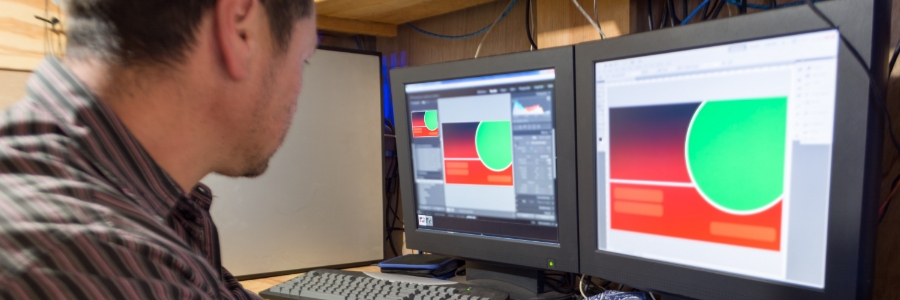
Dual monitor systems can be great investments for your small business. By using two monitors, you and your employees can increase your productivity and improve your workflow. Read on to learn more about the advantages of using dual monitors and how this setup can benefit your business. Efficient multitasking and enhanced productivity If you want to be an efficient multitasker, you need to be able to see multiple windows at once. One monitor might not be enough to give you the view that you need to do this. You’d probably end up spending valuable time scrolling up and down, switching tabs, or resizing windows, trying to make everything fit in a limited amount of space. Having two monitors gives you the ability to view multiple windows side by side, which makes it easier to compare documents, look up information on the web, and more. As a result, you get to work faster while making fewer errors. Better image and video editing experience With dual monitors, you can have your editing tools on one screen and the presentation, image, or video you’re working on on the other. This way, you can make changes and enhancements to the media without having to switch between windows or constantly resize them. This is especially helpful if your work tends to look like a game of Mahjong due to having too many open windows. Easy product comparison Having two monitors is incredibly useful for side-by-side comparisons. For example, when you’re trying to pick between two different camera models, you can have their information pages open on either screen. This way, you can easily compare the models’ specs, features, and prices without having to go back and forth between tabs. Improved ergonomics Having two monitors can make it easier on your neck and eyes, as you don’t need to constantly move your head closer to the screen or strain your eyes to view different windows. You can also adjust each monitor’s height and angle for better ergonomics, reducing strain on your body and allowing you to work longer and more comfortably. Investing in dual monitors is a great place to start if you’re looking to increase productivity and efficiency in your workplace. If you’re not sure how to get started, our team can help with the upgrade process from start to finish. Contact us today for more information. Published with permission from TechAdvisory.org. Source.
How to keep your VoIP systems safe

While investing in Voice over Internet Protocol (VoIP) systems is known to help businesses reduce their telecommunication costs, failing to secure these can nullify the financial advantages gained and even lead to some serious consequences. If VoIP systems are left vulnerable, hackers can eavesdrop on your conversations and steal sensitive information. It’s therefore crucial to take the necessary measures to protect your VoIP systems. Here are 6 solutions to help you do just that. Virtual private network (VPN) A VPN encrypts all the data passing through it, including voice and video calls. This makes it much more difficult for hackers to eavesdrop on conversations or steal sensitive information. VPNs are particularly useful when people are calling over public Wi-Fi networks, as they make it much more difficult for someone to intercept the data being transmitted. VoIP firewalls VoIP-specific firewalls can filter malicious network traffic based on known IP addresses, port numbers, and data packets. If a hacker is trying to access your VoIP system, a well-configured firewall will be able to block their attempts. This is especially important for stopping denial-of-service attacks, a common cyberthreat that involves flooding a system with so much traffic that it crashes. Firewalls can also be used to limit which devices are able to connect to your VoIP system, further increasing security. Intrusion prevention systems (IPS) An IPS complements firewalls by identifying and stopping malicious traffic that’s already gotten through. While firewalls block known threats, intrusion prevention systems are designed to closely inspect traffic for suspicious behavior like unusually high bandwidth usage or attempts to download massive volumes of data. If an IPS detects something suspicious, it can block the traffic and alert you so you can take further action. Call behavior monitoring Call behavior monitoring is a process of monitoring and analyzing the way users make and receive calls to identify any unusual or suspicious activity. For instance, if there are sudden spikes in the number of calls being made to a particular number or if calls are being made outside of normal office hours, this could indicate a security breach. Call behavior monitoring uses automated tools to help identify these patterns and can be a useful way to keep an eye on activity without having to constantly monitor calls manually. Multifactor authentication (MFA) VoIP accounts are often protected with just a username and password, which isn’t enough to deter the most determined hackers. Even if users set strong passwords, these can still be stolen using brute force attacks or social engineering. MFA can make it much more difficult for hackers to gain access to VoIP accounts. With MFA in place, users have to provide additional verification, such as a one-time code from a mobile app, in order to log in. This means that even if hackers manage to steal a password, they won’t be able to access the account without the additional authentication factor. Physical security It’s important to properly secure VoIP phone systems and networks tied to physical devices. Network routers and switches, in particular, need to be kept in a secure location under lock and key. They should also be password-protected and regularly updated with the latest security patches. The same applies to any device used for VoIP, such as IP phones, smartphones, and laptops. These devices should be treated with the utmost care, especially if users are carrying them around outside the office. Protecting your VoIP system requires a comprehensive and multilayered approach. If you need any help securing your system, our team of VoIP experts can provide expert advice. We can also carry out a full security audit to identify any vulnerabilities and recommend the best course of action to address them. Call us today. Published with permission from TechAdvisory.org. Source.
Microsoft 365 Defender: Protecting users from phishing attacks
Microsoft 365 Defender is a powerful cybersecurity tool that helps protect users from phishing attacks. In this blog post, we will discuss how Microsoft 365 Defender works and why you should consider implementing it in your business. Phishing is one of the most common methods used by cybercriminals to steal sensitive information such as login credentials and credit card numbers. Phishers typically send out emails purportedly from a legitimate source such as a bank or government agency. To gain their victims’ trust, they may use underhanded tactics, such as referring to the victims by their nicknames. These scammers may even take control of email accounts to further deceive their targets. Microsoft 365 Defender has a variety of tools and features to help businesses defend against phishing attacks, including standard anti-malware solutions, to distinguish between acceptable and suspicious behaviors. Defender uses machine learning to create a list of contacts that users communicate with most frequently. Anti-malware Emails containing malware, such as ransomware and spyware, can infect your computer when opened. Ransomware locks users out of their systems and files until a ransom is paid. Spyware, on the other hand, steals data by recording keystrokes, copying clipboards, taking screenshots, and more. Unlike other security programs that only use one line of defense, Defender utilizes multiple layers to protect against known and unknown malware. This not only filters harmful attachments but also aids in real-time threat response. Microsoft regularly releases updates to keep its defenses effective against the most current threats. Anti-spam As mentioned, phishing attacks typically use spam emails to dupe victims. By blocking spam emails, you can greatly reduce your chances of falling prey to such an attack. Defender’s advanced anti-spam technology works by analyzing both an email’s source and contents. Emails from untrustworthy or suspected sources are automatically moved to the Spam folder. In addition, this feature monitors company activity regularly to prevent anyone from sending spam emails. Sandbox Unfortunately, people sometimes open email attachments without thinking, which can cause harmful software to enter their computers. Defender protects you from this threat by sandboxing all email attachments. Microsoft will send you a warning message if the file appears to be unsafe so you don’t click on or download it. However, if it’s safe, you’ll be able to open it without any issues. Safe Links Some phishing emails contain URLs that lead to fraudulent websites that are made to steal your personal information. Other times, these URLs will lead you to a page laden with malware. But with Microsoft 365 Defender’s Safe Links feature, you can avoid being compromised by files linked to malicious URLs. Safe Links scans email links for known malicious hyperlinks to protect users. If the link takes users to a malicious website, Defender will issue a warning to not proceed. If the destination URL is safe, users can open it normally. And even if users don’t report any changes, Defender will rescan links and report anything that looks suspicious. If you’re not sure how to get started with Microsoft 365 Defender, our team of experts can help. Contact us today and we’ll be happy to guide you through the process of setting up Defender and protecting your data. Published with permission from TechAdvisory.org. Source.
What’s the ideal internet bandwidth for remote working?
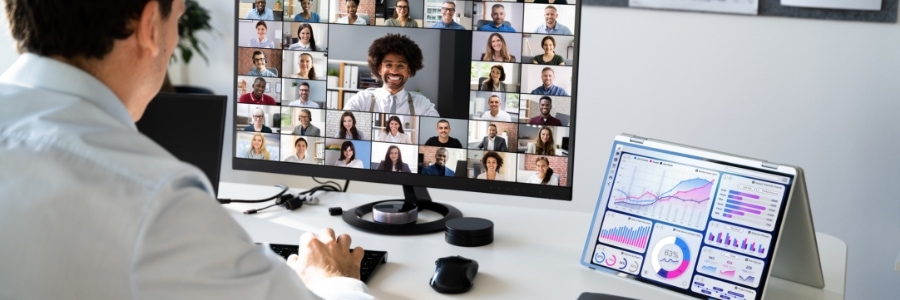
As remote work becomes more popular, internet bandwidth becomes increasingly important to an employee’s productivity. If you’re finding it difficult to be as productive at home as you are in the office despite having a strong and stable internet connection, it might be because you don’t have enough bandwidth. Here’s how much you need for different types of tasks. What is internet bandwidth? Bandwidth is how much data your internet connection can transfer in a second. A higher bandwidth allows more data to be transferred at once. Most internet providers have different bandwidth limits for downloads and uploads. Data transfer speed is calculated in megabytes per second (Mbps) or bytes per second (Bps), which indicates the maximum amount of data that can be sent through your home internet connection. How much internet bandwidth is needed for remote work? Several factors affect how much internet bandwidth you need to work remotely, like the type of job you have and which apps/programs you use. Simple tasks such as checking your email, chatting online, or creating documents don’t use too much bandwidth. However, if your tasks require more complex processes, like video calling, then you’ll need higher bandwidth to complete them. Below is a list of commonly used apps by remote workers, and the bandwidth required to use them effectively. Google Meet Google Meet needs access to enough concurrent bandwidth for HD meetings, as well as supplemental bandwidth in order to support other needs, such as live streaming. If there isn’t enough bandwidth for a video conference, the app will automatically switch to audio-only mode. Below are the minimum bandwidth requirements for Google Meet. Average bandwidth requirement per participant Type of meeting Inbound Outbound HD video conference 1.6 Mbps 2.2 Mbps Audio-only mode 18 Kbps 12 Kbps Average bandwidth requirements per live stream viewer Video setting Required inbound bandwidth 720p 2.6 Mbps 480p 1.5 Mbps 360p 1.0 Mbps 240p 0.5 Mbps Zoom Zoom will adjust its bandwidth usage for the best experience possible based on the participant’s network, whether it be 3G, Wi-Fi, or wired. Here are the bandwidth requirements for different types of Zoom meetings. 1-on-1 video call Video setting Required bandwidth High-quality video 600 Kbps (up/down) 720p HD video 1.2 Mbps (up/down) 1080p HD video 3.8 Mbps/3.0 Mbps (up/down) Group video call Video setting Required bandwidth High-quality video 1.0M Bps/600 Kbps (up/down) 720p HD video 2.6 Mbps/1.8 Mbps (up/down) 1080p HD video 3.8 Mbps/3.0 Mbps (up/down) Gallery view receiving 2.0 Mbps (25 views), 4.0 Mbps (49 views) Webinar participants Video setting Required bandwidth High-quality video 600 Kbps (down) 720p HD video 1.2‒1.8 Mbps (down) 1080p HD video 2–3 Mbps (down) Microsoft Teams No matter the condition of your internet connection, Teams guarantees the best audio, video, and content sharing experience. If you have insufficient bandwidth, Teams will prioritize audio quality over video quality. This table details how much bandwidth Teams uses. Bandwidth Requirement for Audio Only Type of meeting Minimum Recommended Optimum One-on-one 10 Kbps/10 Kbps (up/down) 58 Kbps/58 Kbps (up/down) 76 Kbps/76 Kbps (up/down) Group 1.2‒1.8 Mbps (down) 58kbps/58kbps (up/down) 76 Kbps/76 Kbps (up/down) Bandwidth Requirement for Video Type of meeting Minimum Recommended Optimum One-on-one 150 Kbps/150 Kbps (up/down) 1.5 Mbps/1.5 Mbps (up/down) 4.0 Mbps/4.0 Mbps (up/down) Group 150 Kbps/200 Kbps (up/down) 2.5 Mbps/4.0 Mbps (up/down) 4.0 Mbps/4.0 Mbps (up/down) Bandwidth Requirement for Screen sharing Type of meeting Minimum Recommended Optimum One-on-one 200 Kbps/200 Kbps (up/down) 1.5 Mbps/1.5 Mbps (up/down) 4.0 Mbps/4.0 Mbps (up/down) Group 250 Kbps/250 Kbps (up/down) 2.5 Mbps/2.5 Mbps (up/down) 4.0 Mbps/4.0 Mbps (up/down) Bandwidth Requirement for Together mode Type of meeting Minimum Recommended Optimum One-on-one N/A N/A N/A Group 1.0 Mbps/1.5 Mbps (up/down) 1.5 Mbps/2.5 Mbps (up/down) 2.5 Mbps/4.0 Mbps (up/down) For more helpful tips on how you can optimize your remote work setup, call us today. Published with permission from TechAdvisory.org. Source.
What to consider when selecting an MSP

When it comes to running their company, one thing business owners often overlook is IT management. This is because they mistakenly assume they can handle IT on their own. But in reality, they’re better off outsourcing their IT requirements to a managed IT services provider (MSP). What is an MSP? An MSP is a company that offers comprehensive IT support and management for businesses. They can typically provide everything from 24/7 help desk support to network monitoring to data backup and disaster recovery services. They also offer other IT services, such as cybersecurity and cloud computing. Unlike traditional IT services providers, MSPs proactively manage their clients’ IT systems for a flat monthly rate. What should you look for in an MSP? With so many MSPs out there, you may have difficulty choosing the one that’s best equipped to handle your business’s unique needs. To help you pick the right MSP, consider the following criteria: Expertise – The MSP should not only be able to handle basic software installation, maintenance, and upgrades, but they must also have vast knowledge in other complex IT areas, such as cloud technology, security, and cross-platform integration. This will enable them to keep pace with your business’s changing IT requirements. Experience – Check whether the MSP has experience in supporting businesses of the same size and industry as yours. This tells you that they’re familiar with supporting the technologies you use. Service level agreement (SLA) – Make sure the MSP offers a competitive SLA. An SLA outlines the terms of their services, including response times, uptime guarantees, and coverage hours. Communication – The MSP should communicate clearly and concisely without using technical jargon. They should also be responsive to your questions and concerns. Third-party vendor partnerships – Ensure the MSP is partnered with the technology vendors (e.g., Microsoft, Oracle, Salesforce) whose products you use in your IT environment. The higher the partnership level, the more expertise the provider has to offer your business. Financial stability – Technology plays a crucial role in the success of your business, so you need an MSP that can be with you in the long run. You can evaluate their stability by taking a look at their annual reports and financial statements. See how many clients they have and check their customer retention numbers. Reputation – Read online reviews and testimonials of the MSP’s past and current clients. This will give you a good idea of what it’s like to work with the MSP. Flexibility – Your business is constantly evolving, so you need an MSP that can change with you. They should be able to scale up or down their services according to your current needs. Choosing an MSP is a big decision — but it doesn’t have to be a difficult one. By keeping these criteria in mind, you can narrow down your choices and find an MSP that’s a good fit for your business. To learn more about how an MSP can benefit your company, get in touch with us today. Published with permission from TechAdvisory.org. Source.