
Google studies effects of leaked logins
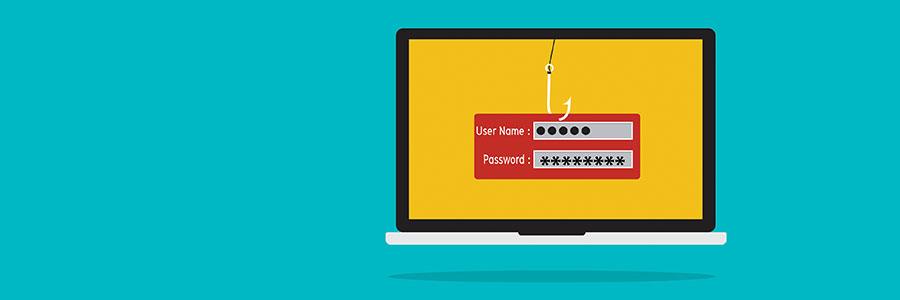
Passwords are your first line of defense against hackers. But over the years, they have developed plenty of methods to steal them. To gain a deeper understanding of how cybercriminals operate, Google analyzed the causes of leaked login credentials. Here are the results. The results From March 2016 to March 2017, Google and UC Berkeley researchers examined three main ways hackers hijack accounts: Keylogging software – a malicious program that records computer users’ keystrokes Phishing emails – to lead people into dangerous websites Stolen passwords – available to the highest bidder In just one year, Google found 788,000 successful keylogging attacks, 12.4 million victims of phishing attacks, and 1.9 billion accounts exposed via login credentials sold on the black market. Researchers suggest the reason so many accounts are hacked is because people tend to reuse their passwords, which means if one set of login credentials is exposed, other accounts could be compromised. Phishing is also a big threat because it targets users — the weakest links in your cybersecurity. The strongest password or security system won’t mean anything if your employees constantly fall for online scams. Protecting your accounts There are several things you can do thwart account hijacking. For starters, you should set strong and unique passwords for each account to minimize data breaches. While the general rule in the past was to set a complex password — a mix of letters, numbers, and symbols — recent studies suggest that longer, 20-character “passphrases” are much tougher to crack. If you find it difficult to remember several passwords, consider using a password manager, which not only stores all your passwords, but can generate strong passwords, too. To deal with phishing attacks, you should activate multi-factor authentication on your accounts. This adds an extra layer of identity verification to your password (e.g., a fingerprint scan or a temporary security key sent to your phone), making your login details ‘unphishable.’ Security training is also crucial. This includes teaching your employees about what phishing attacks look like and instructing them on password protection best practices so they never fall victim to account hijacking. The bottom line is not only that strong password security requires strong defense mechanisms; you and your employees must be vigilant, too. Need more advice on keeping your business safe? Call us today! We provide critical security updates and comprehensive support services to help you stay well ahead of cybercriminals. Published with permission from TechAdvisory.org. Source.
Windows Hello makes logging in simple

In another example of sci-fi technology becoming reality, Microsoft’s biometric logins can now recognize your face, fingerprint, or eyes when you attempt to access your device. It’s exciting as well as convenient and we’ve got everything you need to get started, right here. Say hello to fingerprint, iris, and facial scans Windows Hello is an advanced biometric identity and access control feature in Windows 10. With it, there’s no need to enter a password; all it needs is your fingerprint, eye scan, or just your face. For those who are worried about privacy, the feature stores your biometric data only on your device, never on Microsoft’s servers. Microsoft has also made it clear that third parties cannot access your biometric data, although, as with every new technology, it’s best to treat this with caution. How to set up Windows Hello All you need to get started is a laptop or desktop with Windows 10 and a compatible webcam (there is a full list here). First, go to Settings > Account > Sign-in options. Then, under the Windows Hello section, you’ll see setup options for face, iris, or fingerprint scans. Select which method you want to set up and follow the prompts to create a login profile. You can also save your biometric data or scan more than once to boost accuracy. Each time you scan, the system collects more data, so it’s worth completing a few scans before enabling the login feature. However, passwords are still an option when using Windows Hello and should always be configured in case your camera isn’t operational. Once one account is set up, you can start adding family members who share the same device. Each of them can set up their own biometric profile in a separate account. There are many features in Windows that can make your life easier. Our IT experts can help you get more out of your Windows devices. Contact us today! Published with permission from TechAdvisory.org. Source.
Essential macOS High Sierra updates
The macOS 10.13.1 High Sierra update “improves the security, stability, and reliability of your Mac and is recommended for all users.” This is a standard message in most operating system updates, but users seldom pay heed. This time, however, Apple’s latest Mac OS includes a security update that’s essential to keeping your devices safe from KRACK. Why you should update now Foremost on Apple’s list of macOS updates is the addition of 70 new emojis. Although this is exciting to some, the most compelling reason to update to the latest OS is the security patch for the KRACK WiFi security flaw. For those who are unfamiliar, KRACK or “Key Reinstallation AttaCK” was discovered in October by researchers who found a serious vulnerability in almost any device that can connect to WiFi (not just Macs). It compromises WPA2, a standard security protocol that protects most WiFi networks, and intercepts data that passes between a wireless device and the router. This exposes private messages, login credentials, and other sensitive data to attackers. Aside from compromising your data, a successful KRACK attack could also infect your systems with ransomware and other malware. Updating to the latest OS ensures your device gets the latest security patch needed to shield it from KRACK. Other relevant macOS updates Aside from important security updates, the new macOS also fixes a bug that makes Bluetooth unavailable when performing Apple Pay transactions, improves the syncing of Microsoft Exchange messages in the Mail app, solves a keyboard bug with the search feature Spotlight, and improves Touch ID accessibility settings. The macOS 10.13.1 High Sierra update coincides with updates for Apple’s other line of products, including iPhones (iOS 11.1), Apple watch (watchOS 4.1), and Apple TV (tvOS 11.1), all of which get security and performance improvements in their latest operating systems. To install the update, launch the App Store, then click the Updates tab. Available updates will appear in the topmost section of the app. Updating to the latest operating system as soon as it becomes available lets you enjoy a better-performing system and stay safe from the exploits of emerging vulnerabilities like KRACK. Whether you need assistance with automating your devices’ updates or improving your systems’ overall security, our technicians can provide professional advice. Get in touch with us. Published with permission from TechAdvisory.org. Source.
Google My Business now accepts appointments

There are countless platforms that showcase, review and link to small businesses, but few have as much impact as Google does. Although business owners can’t choose where their site ranks in the search results, they can edit information that is displayed and insert some flashy new features. How to edit your business’s Google listing When someone types your business’s name and location into Google.com, a “Knowledge Panel” is displayed on the righthand side of the search results with information about your office. If your business doesn’t have a Knowledge Panel, you can change that by opening a free Google My Business (GMB) account. The GMB platform lets you link to your website, update office information (address, hours, phone number, etc.) and choose which photos Google associates with your company. GMB also gives you data about how many people: Saw your business’s Knowledge Panel in search results Visited your website by clicking somewhere in the Knowledge Panel Asked for directions via the Knowledge Panel What’s new with GMB? In the summer of 2017, Google announced that business owners could customize “Posts” in their Knowledge Panel. Posts are made up of a 100-300 word caption, an image and a call-to-action button, such as Learn More, Sign Up, Buy, etc. Posts automatically expire after seven days, which makes them perfect for sales, events and content marketing. More recently, Google added another exciting feature: the ability to schedule appointments from inside the Knowledge Panel. If your website uses one of the 22 accepted plugins, you can connect it with GMB to make it easier for searchers to book a reservation at your location. Google is in the process of rolling out this feature to gyms, beauty salons and restaurants, but a wider release is on the way. How do I enable Bookings? Adding this feature to your GMB page is an easy four-step process: Log in to Google My Business Click on the Sign Up For Bookings icon below your business’s profile Choose your booking provider from the list of approved vendors and sign up on its site Check back in a few days and start tracking your appointments with GMB! If your business accepts reservations, this feature will be an indispensable tool for improving your customers’ experiences. For more information on low-cost technology solutions that add value to your business — give us a call today. Published with permission from TechAdvisory.org. Source.
OneDrive’s new feature helps you save space

Don’t you just hate it when your PC gives a warning message that it’s running out of space? You’re then forced to go through all your files to figure out which are important and which ones can be deleted. Sometimes you manage to get a few megabytes back, but oftentimes you end up grabbing your external disks. But with OneDrive Files On-Demand, the issue will become a thing of the past. Microsoft has launched OneDrive’s new feature called “OneDrive Files On-Demand,” which comes with Windows 10 Fall Creators Update. This new feature allows users to transfer files to Microsoft’s cloud storage, thus saving some space on their local hard drive. What’s great about this feature is that you can open and view the online-only files quickly and conveniently as if you’re opening them from your local hard drive. How to get the new feature When you upgrade to Windows 10 Fall Creators Update, the OneDrive Files On-Demand feature should be enabled by default. But if it’s not, all you need to do is turn it on by: Opening OneDrive Clicking the cloud icon on the right side of your taskbar Selecting Settings and clicking the Setting tab In the Files On-Demand section, make sure the Save space and download files as you use them box is checked What do these icons mean? In the OneDrive folder in File Explorer, you’ll see three types of icons (look at the Status column). Here’s what they mean: Blue cloud: files that are stored online only Green checkmark in white circle: files that are stored locally and will be made online-only when you’re running out of space White checkmark in green circle: files that are stored locally even when you’re running out of space How to download online-only files You can download files stored online to your local disk by simply opening them, whereupon a green checkmark will appear on the file. You can also make those files always-available offline (white checkmark) by right-clicking the files and selecting Always keep on this device. How to upload local files to the cloud Just right click the files — whether they’re files with green or white check marks — and select Free up space. Microsoft’s OneDrive Files On-Demand feature is another proof of how cloud technology can help optimize your IT resources. For more ways to make the most of your technology investment, talk to our cloud experts today. Published with permission from TechAdvisory.org. Source.
Android introduces Fast Pair

As seen with Apple’s AirPods, people today are quickly growing accustomed to wireless pairing between their smartphones and headphones. Of course, Google has been working on a solution of its own, and it has just made it to the market. What is Fast Pair? Fast Pair is Android’s new connectivity solution which uses Bluetooth technology and the smartphone’s proximity to let you connect to Fast Pair-enabled Bluetooth devices with just a single tap. How does it work? When a Fast Pair-enabled device is nearby, your Android smartphone will automatically retrieve the device’s product image and name from Google’s servers and display it on the screen. After tapping the image, a confirmation message will appear to let you know a pairing has been made successfully. Fast Pair also comes with useful companion apps. An example would be the equalizer app that comes with certain Bluetooth headphones. It lets users optimize their sound experience whenever using Fast Pair to connect to Bluetooth devices. Note that Fast Pair only works with Google Play Services version 11.7. And while Google may not have introduced a completely new technology, you can expect a broader range of wireless coverage and faster connectivity as more wireless devices get Bluetooth 5 features. Does it support all existing Bluetooth gadgets? Not for the time being; Bluetooth device manufacturers will need to adopt Fast Pair by registering with Android first. Currently, the following headphones are Fast Pair compatible: Google’s Pixel Buds, Libratone’s Q Adapt On-Ear, and Plantronics Voyager 8200-series wireless headsets. Support for Fast Pair extends back to Android Marshmallow. And as more Android phones are losing the headphone jack, Google has made the right move to support the change in demand. As the world of technology moves forward, you can expect even more hardware designed to make life easier. And as always, you can count on us to keep you up to date about all of it. If you have any other questions, just give us a call. Published with permission from TechAdvisory.org. Source.
Google reviews: how to make them count

Google has recently modified their search results to display ratings from review sites like Facebook and Yelp. While this may seem like a small change, it has actually made reviews more important than ever in terms of SEO. With the following tips, your company can shine in the Google search results. How Google changed search results Google’s new search algorithm is designed to lead people to high-quality products and services. For instance, if you search “Acme Group Inc.”, Google will show you something called a Knowledge Panel. Displayed on the right side of the search results, this panel includes information like address, hours, web address and more. Over the last year, Google has been automatically aggregating and including online reviews to display in the Knowledge Panel. Which review sites does Google include? Relevant sites vary from industry to industry, so if you manage a restaurant, reviews from Yelp or Zagat will likely be displayed next to your online listings. If your business is a bit more niche, however, there are a few steps to determine which review sites affect you. Go to Google and search for the following: “[your company name] reviews” – to locate sites that already have reviews on your business “[industry] reviews” – to determine industry review sites that you should be listed on “[industry + location] reviews” – to find review boards where you can boost your local presence Then, record all the review sites you found on the first page of each search query and categorize them based on their search ranking and the current rating your company has on them. Once you’ve produced a comprehensive list, write down an objective for each review site. This can range from getting listed on the site to improving your rating. To narrow it down even further, focus your review generating efforts on the five most popular websites on your list, especially any that include disappointing reviews. Getting reviews Of course, all this doesn’t matter if people aren’t writing reviews about your products and services. With that in mind, here are a few strategies that encourage people to rave about your business. 1. Send follow-up emails After a customer has made a purchase, it’s a good idea to send a thank you email that includes a request to review your service. 2. Simplify the review process Many customers opt to skip writing a review because there are too many steps to express their opinion. Simplify this process by having a review site already opened on your smart tablet and asking your customers to comment on your service before they leave your venue. 3. Offer rewards for reviews Another way to encourage people to rate your business is by presenting them with a chance to win free goods or services if they submit a review. Though there’s a lot of steps involved in managing your online reputation, starting early will enhance your SEO, attract new customers, and improve your bottom line. If you need more advice on climbing up Google’s search rankings or tips on social media management, contact us today. Published with permission from TechAdvisory.org. Source.
Key security enhancements in Android 8.0

Oreo is Android’s latest and greatest operating software to date. With sleek new enhancements such as a picture-in-picture functionality, smarter Wi-Fi toggling, customizable application notifications, and more, Android users have plenty to get excited about. However, its key security updates aren’t getting as much attention even though they’re just as important to the all-new Android interface. More secure booting Android’s Verified Boot feature was introduced in 2013 and has been fine-tuned since. In Oreo, it performs a quick inspection of a device’s software before it starts up. The Verified Boot functionality prevents the device from starting if it detects that its OS reverted to an older version, which can expose it to security risks resulting from the older version’s vulnerabilities. With this upgrade, any attempts to exploit your device and data can be foiled by a system reboot. Chip-embedded security If you’re worried about physical attacks compromising your device’s security, Oreo covers that front by enabling a chip-based feature that fortifies security for Android devices. Integrating chip technology into supported devices’ security system makes tampering and other forms of physical intrusion extremely challenging for hackers, giving users greater protection. Stricter app permissions It’s tempting to simply click ‘OK’ whenever downloaded apps request permission to access your data and perform certain functions during installation. Android has limited what apps can actually gain access to your data with the System Alert Window feature. The system alerts on previous Android OS were supposed to allow apps and programs to interact with the users by sending pop-up boxes and similar elements that usually cover up the device’s entire screen. However, Android developers detected a potential for its abuse. For example, hackers can easily use similar pop-up boxes that purport to be from legitimate apps. With the new System Alert Window in Oreo, the pop-up boxes have been modified so that they’re easier to dismiss, limiting what malicious apps can do to trick users into clicking them. Two-factor authentication support Two-factor verification has become a standard feature in cyber security because it adds a much-needed layer of protection in accessing a password-protected account. It typically works by prompting a user to enter another piece of information in a separate device (e.g., a smartphone) or any physical token, which only the account owner would have. Android 8.0 integrates a two-step verification that allows the use of a security key, which can easily connect to an Android device. Currently, it works only on apps that support it, but it won’t be long before more apps adopt it as an essential security protocol. Stronger Sandboxing Sandboxing essentially does one crucial thing for security: isolate compromised or problematic areas within a software or system so that they don’t infect the rest of the system. Android Oreo beefs up its sandboxing capability by deploying a filter that prevents malicious apps from accessing the OS’s command center, thereby limiting their interaction with the system and other safe apps. These security improvements aren’t the most noticeable features in Android Oreo, but they’re worth paying attention to. If you need to learn more about your systems’ and devices’ security features, get in touch with us today. Published with permission from TechAdvisory.org. Source.
What is “serverless” computing?

Thanks to economies of scale, cloud computing resources are cheaper and more stable than those on a local area network, but the cloud is still made up of servers that require expert configuration. Serverless computing is one way to reduce management burdens. What is it? Outsourcing workloads to the cloud — like websites and apps — requires just as much hardware as if the computations were performed in an on-site server. The only difference is the location of the server. Office 365 or Google Docs are great examples of this model. Thousands of servers are set up to run these apps so there is always enough capacity to handle the millions of people who use these apps at any given moment. Microsoft and Google need to manage and maintain these servers 24/7 to keep up with demand so they’re always on and always ready to handle more workloads, even during off-peak hours. Serverless computing changes everything by allowing developers to create apps and websites that use cloud resources only when they’re needed. So, if you were to create a web app, you wouldn’t need to pay for a dedicated cloud server. The cloud provider would host your app’s programming code and run it only when a user requested it. The cloud provider would take care of allocating the appropriate resources and charge by the second for what you use. Who can benefit from it? Serverless computing is for users who use cloud resources for processing power. If you’re using the cloud only to store files, serverless services aren’t going to help you. However, if you use the cloud to process information and turn it into something more useful, serverless computing will help you immensely. An everyday example of this is Amazon’s Alexa. Every command the AI assistant responds to is nothing more than an app that sits dormant until a user tells Alexa to run it. Small businesses are creating apps in Amazon’s cloud that can be processed by the voice assistant without the burden of setting up a dedicated server. Serverless computing isn’t about getting rid of servers; it’s about using their raw computing power without being forced to fine tune them first. It falls under the umbrella of virtualization technology and is another step in the right direction for small businesses working with limited budgets. For more information about how virtualization can help you lower costs and increase efficiencies, give us a call today. Published with permission from TechAdvisory.org. Source.
Unified Communications Explained

There was a time when “voice” was the sole business communication solution. Then, we were introduced to emails, texts, and chats, all of which are extremely useful and are here to stay. But wouldn’t it be nice if there was a communication solution that integrated everything — voice, messaging, video — into one platform? That’s where unified communications come in. What is unified communications? Unified communications (UC) allow you to manage all your communications from one architecture rather than separately. It integrates computer-related communication technologies, like instant messaging and video conferencing, with voice over internet protocol (VoIP) which allows you to make and receive calls using the internet. What can be integrated? Just about everything can be integrated. This includes voice communication in all its forms — voicemail, email, or fax — as well as multimedia services like video chat and web conferencing. Real-time communication like call screening and call conferencing can also be integrated. But what many might not know is the fact that even data services and transactions like e-commerce and online banking can also be added to the UC system. What are the benefits of UC to small businesses? One of the most evident benefits is that you’ll have a single and flexible communication infrastructure that allows you to streamline and enhance business communication, and easily manage all the components. Features can be scaled up or down to support your business needs without hassle. Other benefits include: Hypermobility UC gives access to your office via a wide array of smart devices, like laptops, smartphones, tablets, and more. This means you can literally create your office environment and satisfy customers from anywhere you please. This opens up a world of opportunity for employing remote workers. Improved productivity Your employees will be equipped with productivity-enhancing communication features, like call info, call routing, and more, that allow them to work more efficiently and better tend to customers’ needs. Web and video conferencing calls, for instance, not only allow for real-time interactivity, but also for better collaboration. Delayed response times and gaps between dispersed teams are also minimized. Real-time updates You and your employees will be able to see important presence updates in real time, including how to contact colleagues and how to see their locations. This makes getting the right information from the right person at the right time quick and easy. Single contact point Clearly defined points of contact ensures that stakeholders can reach you by email, phone, SMS, and more regardless of the channel they’re doing it from — softphone, IP phone, email, or IM. Reduced costs UC eliminates the cost of travel and reduces your monthly phone bill since it uses the internet to make calls. It also limits the need for expensive on-site hardware as one UC server keeps everyone connected using the aforementioned communication features. Even better, you can potentially save thousands of dollars on office overheads by allowing employees to work from home since they’ll remain connected with their softphones even when they’re not at your office. It’s only a matter of time before unified communications become the norm for day-to-day office interactions. If you’re interested in learning more about how UC or VoIP can transform your business, just give us a call. We’re happy to explain everything to you in plain English. Published with permission from TechAdvisory.org. Source.