
5 ways to improve security on your Android

If you get separation anxiety at phone-prohibited events or you’re one of those people who sleeps next to their phone, then you’re probably emotionally attached to your smartphone. And just like every other thing we hold dear, we should put up some walls and protect it. So, if you value your apps, personal data, and everything else stored in your Android, it’s time to take its security to a whole new level with these features you can enable right now. Set a strong screen lock The single most important thing any smartphone owner can do is use a strong, unique passcode or swipe pattern to prevent unwanted access to their device. Avoid using obvious codes such as your birthday or pet’s name; instead, use alphanumeric combinations that are much harder to crack. To enable a screen lock, simply head over to Settings > Security. Select Screen Lock and pick your preferred password lock type and set Automatic Lock after a certain period of time. From then, you will need to enter your passcode or swipe pattern each time you try to access your phone. Use alternative unlocking methods Newer Android devices have advanced security tools for an extra layer of protection. These include features like fingerprint authentication, iris scanning, and facial recognition. To see what features can be enabled on your phone, go to Settings > Security. In addition, if you are a Google Nexus or Pixel user, your device is equipped with a range of Smart Lock options that when activated, keeps your phone unlocked when it’s detected to be on your body or near a trusted Bluetooth device. These settings can also be found under Security. Enable Find My Device Google’s Find My Device is a locator service that lets you track or wipe data from a lost or stolen Android phone, tablet, or wearable. All you need to do is add your Google account to your Android device and turn on the location feature to enable the service. To locate your device remotely, install the Find My Device app or access it via web browser. Once you’re logged in, a dashboard will show an approximate location of your phone and provide you with four options: locate your device, play sound, lock your device (and add a short note), or erase device that permanently deletes all data stored. Revisit Your App Permissions Did that photo-editing app you just downloaded really need access to your Contact list? If you sometimes wonder why some apps need so many permissions or why they request to access data unrelated to their purpose, then you are asking the right questions. Remember to take control of the features that you allow your apps to access, especially from dubious developers who might stealthily steal your information. If you have Marshmallow or later versions of Android, go to Settings > Apps and then select the app. Click on Permissions and revoke all those permissions you’re uncomfortable with. Encrypt Your Phone Device encryption protects your data by converting it into a format that prevents unauthorized individuals from accessing it without the key. This is particularly important if someone manages to find a way around your lock screen and pull data from your device. Android handsets running on Lollipop or higher has full encryption enabled by default. But if you’re using an older device, encryption options can also be found under Security. It never hurts to take extra steps to make sure your information is protected. Some of these might take time, but trust us, it’s totally worth the extra minutes. If you need more tips to secure your personal or even your company’s files, email, or data, we’ll be happy to help. Security is what we do best, so give us a call today! Published with permission from TechAdvisory.org. Source.
Virtualization best practices for newbies

The benefits of virtualization are so significant that deciding whether to jump on board is a no-brainer. It offers centralized IT management, faster hardware resources, improved business continuity, and reduced overhead costs. But in order to experience these benefits, there are a few best practices you need to consider. Conduct an assessment Evaluating your IT environment is an important step in the implementation process. After all, you can’t just go around virtualizing everything without a plan. An IT assessment performed by an impartial managed services provider (MSP) like us helps you understand what type of virtualization solution you need. For example, if the report found that computers don’t have enough processing power to run certain apps, desktop virtualization — which consolidates operating systems and apps into a single powerful server — is an ideal solution. From there, you should be able to estimate costs and set realistic timelines for the implementation. Don’t forget about hardware Just because virtualization frees up space in your server room, does not mean hardware is no longer an issue. No matter what type of solution you opt for, the servers you use must be strong enough to support the entire company’s computing demands. This means you must take stock of your apps and their hardware requirements and make sure your server has all the processing power, RAM, network capacity, and storage necessary to run them. Underutilized servers are excellent candidates for virtualization, but purchasing new equipment may pay dividends in the long run. If you choose the latter option, ask your provider for recommendations. Chances are they’re partnered with virtualization-optimized hardware vendors that offer top-of-the-line servers. Prevent VM sprawl Virtualization allows you to deliver computing resources to workstations in your network via virtual machines (VMs), which can be created on a server in just a few minutes. While this lets you scale and provision resources quickly, there are risks if you don’t have someone regularly reviewing which VMs are worthwhile and which are outdated. You could be losing out on cost savings and efficiency benefits. When too many VMs are created, they can quickly consume all server resources and complicate licensing and asset management. To prevent sprawl, you must establish policies and restrictions for VM creation. For instance, users must have a good justification for creating a VM (e.g., testing software or provisioning apps for new users). Prioritize business continuity You must also protect the hardware running your virtual servers. Make sure to lock up server rooms and have secondary servers available in case the first one breaks down. While you’re at it, take advantage of automated backup solutions that make copies of your VMs and their files regularly. Work with experts Building and maintaining a virtual infrastructure is no simple task. That’s why you’ll want to work with a virtualization specialist who can guarantee a seamless implementation and provide ongoing management services. For more tips on virtualization, call our experts today! Published with permission from TechAdvisory.org. Source.
How to choose the right VoIP solution

Basic internet-based phone calls aren’t new to many of our readers. Skype has been around for over a decade and there are dozens of other free apps with limited features. Picking a voice over IP (VoIP) solution for a small business is still a tricky prospect, though. Let’s take a look at what it entails. Total cost of ownership The most pressing concern when adopting new technology is the price tag, but calculating the total cost of ownership for a VoIP solution involves a number of variables that will change from year to year. Before signing on the dotted line, ask for an estimate of each cost over a three-to-five-year period based on your growth plan. Important items include: Basic subscription costs (How many numbers will you need in year one vs. year three?) Feature upgrades (Do you plan to add new components as you expand?) Office moves (How much will a VoIP relocation cost? Will there be significant downtime?) Hardware costs (Will you need to purchase new handsets?) By partnering with a managed IT services provider (MSP) like us, you can drastically reduce routine VoIP security and maintenance costs by rolling them into your monthly service plan. Customer service Another reason to sign up for an internet-based telecom through an MSP is personalization, which is especially important for a solution that is often used outside the office. IT providers guarantee their availability and response times with service level agreements so you know exactly what kind of support you’ll receive every time you make a request. Imagine the difference in service between a VoIP vendor and your local MSP if a remote employee were struggling to connect to a sales call. One is going to connect you to a call center hundreds of miles away for help, while the other already knows your business before picking up — which provider do you think is going to offer better long-term support? Features Aside from the cost savings, advanced call features are the leading advantage of VoIP over traditional landlines. Most providers offer similar features, but there may be small differences. Take a look at all the options and rank them by priority before choosing a provider. Consider things like: Call recording Voicemail transcription Text messaging Video conferencing Phone numbers that can be used on multiple devices is foundational to internet-based phones, and although nine out of ten vendors will hit all the mobility benchmarks, make sure to double-check you won’t be missing out on any basic features. Our team has partnered with the best VoIP providers in the industry to produce a hassle-free solution for small businesses. To learn about the customer service, costs, and features included in our VoIP solutions, give us a call today. Published with permission from TechAdvisory.org. Source.
Microsoft updates Office 365 apps for Apple

Microsoft recently updated Office 365 for iOS and Mac to enhance user experience. Office apps are now better integrated into the Apple ecosystem, which means iPhone, iPad, and Mac users can expect a more seamless experience when creating, accessing, or storing Office documents. Co-authoring in Word, Excel, PowerPoint Apple users can now co-edit documents in Word, Excel, PowerPoint, and Outlook. This new feature for Apple products allows several users to work, edit, or view changes in a document at once, whether from a PC, Mac, or mobile device. This feature also allows co-authors to track and identify other users who are making changes in real time. Autosave documents in the cloud The latest updates also come with an autosave feature for Apple users. This functionality not only automatically saves files, but also lets users view and restore previous versions of their content, similar to the autosave function in Google Docs, Sheets, and Slides. OneDrive support for iOS’s Files app iOS’s Files app, which was introduced in the iOS 11 update, made searching and organizing documents more convenient for iPhone and iPad users. However, it’s only now that Microsoft has integrated its own cloud storage platform with the Apple app. OneDrive for iOS now supports the Files app, which means users can access and edit all their files in OneDrive or Sharepoint, and easily classify them via a new tagging feature. File type preview enhancements The improved list view in OneDrive for iOS makes viewing file names and relevant details and sorting files much easier. This view option includes thumbnails on file previews and support for 130 file types that can be opened, viewed, or shared within OneDrive. Drag-and-drop functionality A drag-and-drop capability is nothing new in iOS, but it was previously limited to moving around files from non-Office sources and apps. With the latest update, Apple users can drag and drop files from various sources that now includes OneDrive, Office, and other Microsoft sources. This capability saves users’ time when adding photos, graphs, and other files into documents or presentations on their iPad, iPhone or Mac. Better search function in Outlook Microsoft has also improved searching in Outlook for iOS because the search function now has its own tab in the navigation bar. The search feature is now more intuitive; tapping on the tab gives you instant access to top contacts, upcoming travel itineraries and deliveries, and recently accessed attachments. These recent updates to Microsoft’s productivity tools aim to make users’ life much easier regardless of the device they use. But there’s way more Office 365 apps and programs to help you work more efficiently, and we have Microsoft consultants who can help you maximize all of them. Just give us a call. Published with permission from TechAdvisory.org. Source.
Facebook makes space for more relevant posts

Social media has proven to be very influential in shaping people’s lives, affecting everything from one’s mental health to people’s views on certain political parties. To limit this, Facebook has made a decision to limit the posts from business accounts on your News Feed to make room for more meaningful posts shared by your friends and families. Potential outcome for Facebook One of the main sources of revenue for the social media giant is from its advertising program. But with the changes set to take place, there’s a high possibility that users will spend less time on its platform. This would mean comparatively less effective advertising than before, thus fewer advertisement signups from businesses. While they do admit this move may potentially hurt profitability, Facebook hopes this change will improve user experience, which in the long-run may translate into higher profits. Reason for News Feed change Users enjoy learning about what’s happening in their social circles. Whether what’s shared is as mundane as what someone recently baked, or as momentous as a wedding, every day millions of users like and comment about each other’s lives. For this reason, Facebook has decided to spotlight images and videos that are more meaningful to people on a personal level. Such posts have greater power to deepen human bonds. Weighing the pros and cons of the News Feed change However, research has found that constant use of Facebook can cause people to feel alienated and inadequate, reducing people’s overall well-being in the long run. According to the American Academy of Pediatrics, teenagers are especially liable to “Facebook depression,” as they constantly compare themselves with their peers. On the other hand, several researchers believe that an individual’s personality has a greater impact on the type of response he or she will have. If you feel your life is very fulfilling, seeing your friend or family member having fun would make you happy. By contrast, if you’re unhappy or feeling insecure with life, seeing other people’s happier moments will depress you even more. Effectiveness of change It’s still too early to tell whether this move will change society for the better and, at the same time, salvage Facebook’s reputation of being a platform that helps people connect with each other. Only time will tell. Besides Facebook, there are other online channels that can improve your business reputation. If you’re interested in building a stronger web presence, contact us today and we’ll help you get started. Published with permission from TechAdvisory.org. Source.
Disable Windows 10’s intrusive settings
Windows 10 is undoubtedly Microsoft’s most accepted operating system since Windows XP. But that doesn’t make it faultless, many users have been complaining about the intrusive privacy settings the operating system enables by default. To reclaim your privacy, follow these tips on turning off its intrusive settings Turn personalized advertising off For those unaware, Windows 10 assigns each user an ‘advertising ID’ which it uses to personalize your ad experience based on your recent browser history. If you’re someone who is okay with seeing generic ads targeted to you based on demographics rather than your ID, we recommend turning this feature off. To do so, head into your settings by clicking on the magnifying glass symbol next to the Windows logo, at the bottom left of your screen. Next, type in Privacy — click on it, and select General. Then, slide the option which states ‘let apps use my advertising ID for experience across apps’ to Off. Lastly, open your web browser and go to this link. Once there, select Off for ‘Personalized ads wherever I use my Microsoft account’ and ‘Personalized ads in this browser.’ This resets your ad ID, allowing you to experience the joys of web surfing without the creepy targeted advertisements. Disable Cortana Voice-controlled digital assistants have become big business. Microsoft aims to capitalize on this market with Cortana, an incredibly resourceful, built-in assistant that allows to you quickly set reminders, schedule events and send email, among many other intuitive features. It uses the information it collects similar to how Google’s Android-based assistant does it. However, it can become overbearing at times. To turn it off, click on the Cortana icon in the taskbar, followed by the notebook icon on the left hand side of the pop-up panel. Click on Settings, this should present you with the first option which says, ‘Cortana can give you suggestions, ideas, reminders, alerts and more’, you can slide that to Off. Once disabled, the Cortana option disappears and you’re now presented with a search bar which you can use to search for things online or on your desktop. Stop peer-to-peer file-sharing With P2P file-sharing enabled, Windows 10 shares downloaded updates to your PC with other Windows 10 users by default. This helps other users update their systems faster, and speeds up your upgrade downloads, as well. However, if you are unhappy with your files being utilized by other users, you can turn it off. Head over to Settings once again. Click on ‘Update and Security’, followed by ‘Windows Update’, then ‘Advanced Options’ and finally select ‘Choose how updates are delivered.’ By default, the ‘Updates from more than one place’ is on, followed by two options: distribute updates only to PCs on local network, and shut off P2P updates entirely. If you want to disable this feature entirely without worrying about specifics, then move the slider to Off. If you want to share your files with PCs on your in-house network only, leave the the slider in the On position and select the button which says ‘PCs on my local network.’ For more detailed instructions on how to stop P2P updates, click here. Blunt Microsoft’s Edge Remember Internet Explorer? Think of Microsoft Edge as the same, just on steroids. The tech giant’s fancy new browser is chock full of features — such as Cortana Integration and typing prediction — which may make you uncomfortable, since all the features send data back to Microsoft. To turn off these intrusive functionalities, open Edge and click on the menu icon in the far right corner (three horizontal dots). Once in, click on ‘View Advanced Settings’. There you have the option to disable Adobe Flash — which stops those Flash cookies from going anywhere. You’ll also encounter a bunch of settings you might want to disable under the ‘Privacy and Services’ section. These simple security tips will stop Microsoft from tracking your online movements for good! In case you’re interested in protecting your privacy, don’t hesitate to contact us today for all matters security related. Published with permission from TechAdvisory.org. Source.
The dangers of distributed spam distraction
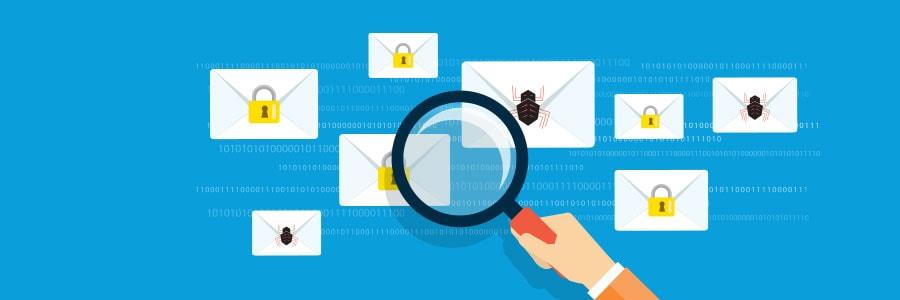
Users get around 200 emails in their inbox a day, including work messages, automated payment slips, and everyone’s least favorite email, spam. Spam messages are mostly harmless, but when you get more than 10,000 of them flooding your inbox, you’re probably the victim of a special type of spam attack. Understanding DSD Distributed Spam Distraction (DSD) is designed to inundate your inbox with thousands of nonsense emails. There are no dangerous links, ads, or attachments involved, just random excerpts of text stolen from books and websites. What’s more, the email and IP addresses used are all different so victims can’t simply block a specific sender. These attacks last anywhere from 12 to 24 hours and can flood inboxes with as many as 60,000 messages. While they may seem like harmless annoyances, the true purpose of DSD is to draw victims’ attention away from what hackers are doing behind the scenes. And what they’re doing is exploiting your personally identifiable information (PII) to make unauthorized purchases or pilfer cash directly from your accounts. The DSD acts as a sort of smokescreen to hide payment confirmation messages behind a deluge of spam messages. New tactics Over the years, hackers have developed new tactics involving DSD. Several reports have shown that, instead of nonsensical emails, hackers are using automated software to have their targets sign up for thousands of free accounts and newsletters to distract them with authentic messages. This allows DSD blasts to slip past spam filters that have been designed to weed out malicious code and gibberish text used by traditional DSD attacks. What’s even more worrying is that any ill-intentioned individual can go to the dark web and pay for DSD services. They just have to provide a hacker with their target’s name, email address, and credit card numbers — all of which can also be purchased in the dark web — and pay as little as $40 to send 20,000 spam messages. How to stop it DSD is a clear sign that one of your accounts has been hijacked, so whenever you receive dozens of emails in quick succession, contact your financial institutions to cancel any unfamiliar transactions and change your login credentials as soon as possible. It’s also important to update your anti-spam software (or get one if you don’t have one already) to protect your inbox from future DSD attacks. Hackers only initiate DSD attacks after they’ve obtained their target’s email address and personal information, so make sure your accounts and identity are well protected. This means you should regularly change your passwords and pins, enable multi-factor authentication, set up text alerts for whenever online purchases are made in your name, and be careful about sharing personal information. For more tips on how to deal with DSDs or other cyberattacks, call us today. We offer powerful tools and expert advice that will ensure your business’s safety. Published with permission from TechAdvisory.org. Source.
Useful business features in Apple’s iOS 11.3

A new iOS release usually means system performance updates, a redesigned interface, and some application enhancements. However, not all major updates are well-received, and such is the case with iOS 11, which came with a feature that drained battery life fast. Fortunately, Apple is offering a remedy along with other features in the upcoming iOS 11.3. Battery management features You might recall the infamous iOS software update in 2016 that deliberately slowed down iPhones. Apple claims that this update was meant to prevent devices from an unexpected shutdown in case of low battery charge, old batteries, or extremely cold temperatures. Unsurprisingly, many users were unhappy about this, which is why Apple is including another battery management capability in its latest iOS update. When you update to iOS 11.3, your devices’ battery life wouldn’t necessarily be longer; rather, you’ll have an option to disable the feature that slows down the phone. That means you can keep your phone running at peak or have your phone running slow with an extended battery life. Business chat With the Business chat feature, a user can ping a company’s customer service representative via the iMessage app to make an inquiry or purchase a product using Apple Pay. This could offer great convenience to customers, as they no longer have to call a company’s hotline or search for their contact details online. But there’s a catch: This functionality is available only in selected business apps, including Wells Fargo, Lowe’s, Discover, and a few other brands. Read and delete iMessages Another iMessage update is the syncing of read and deleted messages. In the new OS, messages will more seamlessly sync across all devices, including iPhone, iPad and Mac. This makes it easier for you to organize your messages, ensures you’re all caught up on new messages, and keeps deleted messages deleted on all synced devices. Augmented reality enhancements ARKit, Apple’s augmented reality (AR) platform, allows developers to create AR applications for iPhones and iPads running on iOS 11 or higher. However, apps developed on this platform were limited to recognizing horizontal surfaces and regular-shaped objects. That means AR-capable apps will work only when used to capture a virtual object horizontally. In iOS 11.3, the AR capability extends to vertical surfaces and irregularly shaped objects like spherical or other multi-dimensional items, and recognize flat-surface objects like signs and posters. This gives AR developers greater capability to build more complex apps. Other key updates The Health app also gets a new feature called Health Records, which consolidates your medical records from hospitals and clinics that allow patient records integration with the Apple app. Users can also expect key updates on Apple Music, Apple News, mobile location functionality, and other usability improvements. As with any OS releases, iOS 11.3 will come with security updates and other enhancements that can be highly relevant to businesses using Apple devices. Our technology consultants can help you make the most of these updates and features. Call us for mobile productivity tips and tricks. Published with permission from TechAdvisory.org. Source.
5 things to do to your new laptop

Getting a new laptop can be very exciting. It guarantees a more seamless user experience with faster speed, more memory, and better battery life. But it’s all for naught if you don’t take certain preventive steps before using your new machine. Discover five things you should do before you start exploring your new toy. 1. Update your laptop’s operating system One of the first things you should do before using your laptop is upgrade its operating system. Assuming you did not purchase the laptop right when it was released, your laptop will still be running an older operating system. With important patches and fixes released in each new update, it is recommended that you install the latest one to ensure your laptop is free of any vulnerabilities. 2. Remove bloatware Opening your laptop for the first time, you might notice that there are already several preloaded software in the system — some of which you will probably never use. These are known as bloatware. These apps take up a lot of your valuable drive space, so consider getting rid of them. The easiest way to do this is by downloading a bulk uninstaller, which allows you to check all the bloatware apps you don’t want and remove them in one fell swoop. 3. Install protection software It’s no secret that the world we live in is unsafe. And with so much confidential information nowadays becoming digitalized, it is necessary to protect yourself against losing important data from your computer. The solution to this is very simple. By installing antivirus software that can automatically — or manually — scan your computer at a scheduled time, potential attacks can be thwarted before they become more serious. Not only is your laptop’s data vulnerable to cyberattacks, there is always a chance your laptop can get lost or stolen. While there are preventive steps you can take — such as being mindful while using your laptop in public places — another solution would be to install anti-theft software. Security features such as “Find My Device” for Windows 10 and “Prey” for other operating systems can help you locate your device if it’s ever stolen or misplaced. 4. Optimize your power settings One of the most frequent problems that laptop users have is that their batteries run out of juice too fast. However, you can actually extend the battery life by making a few tweaks to your power settings. Reduce your display brightness, but not so much that it causes eye and mental fatigue Use the Sleep or Hibernate mode for your operating system 5. Set up a backup plan Imagine spending months working on an important project and suddenly finding it nonexistent the next day just because your laptop crashed. Deadlines will be missed. Profit margins will decrease. Customers will leave unhappy. And if worse comes to worst, you’ll be out of business. Why add more unnecessary stress if you can prevent it from happening in the first place? By setting up an automatic backup system, you can regularly save all your important files; that way, you’d still have access to the data anytime were anything to happen to the original file. You can also store all your important documents in the cloud, which ensures access whenever you need, even if your laptop crashed or got stolen. Getting a new laptop can be fun, but the joy might be short-lived if you don’t set up any preventive measures from the start. Call us for information on how we can help you secure your company’s laptop today. Published with permission from TechAdvisory.org. Source.
Fighting ransomware with virtualization

Ransomware takes your data hostage and demands a payment for its recovery. While it may seem like there’s no other choice but to pay the ransom, you should never give in to the hacker’s demands. Before the next wave of ransomware comes around, it’s important to protect your business with virtual disaster recovery solutions. Virtual DR Virtual DR solutions allow you to create point-in-time copies, or “snapshots,” of operating systems, data, and virtual machines as they appear at a given point in time. These snapshots can then be loaded onto any workstation with everything still intact. In the event of a ransomware attack, administrators can essentially roll back the system to a point before the malware hit. What’s great about point-in-time copy features is that they are automated. Just schedule the snapshots, and your virtual DR software will do the rest. And although virtual DR solutions vary, most of them have the capacity to store thousands of point-in-time copies, giving you plenty of restore points to choose from. Why virtual DR trumps traditional DR Traditional DR methods don’t have these features. Even though most computer operating systems have a system restore functionality, modern ransomware strains are designed to disable them. On the other hand, virtual DR software isolates point-in-time copies and restore functionality from virtual machines, which means they can’t be affected if one virtual machine was compromised with ransomware. Another reason why traditional DR is not a great option is because there is a lot of manual labor involved. You have to copy all your data into a backup drive, reinstall applications, and reconfigure hardware. By the time you’ve recovered from the ransomware attack, the financial and reputational damage caused by downtime will have taken its toll on your business. When recovering your system, you want as little hassle as possible. With virtual DR, you can load a clean, ransomware-free snapshot onto your system in less than 30 minutes. However, implementing virtual DR can be complex, especially if you don’t have much IT expertise. But if you partner with us, this won’t be a problem! Call us today to get robust solutions that guarantee business continuity. Published with permission from TechAdvisory.org. Source.