
How WP security updates impact your site

WordPress (WP) websites require routine updates to keep up with user demands. Some of WP’s most critical updates are security patches, which protect sites from various cyberattacks. But why does your website sometimes act up when you finish running an update, and how can you prevent it? Be cautious with updates In 2017, WP issued 21 updates and 33% of these focused on security. Despite their many benefits, these updates caused some sites to crash and caused downtime related plugin incompatibilities. To take advantage of updates without experiencing any drawbacks, our technicians shared the following tips: Check plugin compatibility A typical WP site has anywhere from 10 to 50 plugins installed that enable additional functionality. Some are supported by developers who constantly update these plugins while others are not. For a fully functional website, always choose plugins that are backed by certified development teams, and be wary of error-prone free plugins. We know how difficult it is to designate a portion of your business expenses on improving your site, but in the long run, you’ll realize that relying on free plugins will generate more website crashes than website leads. Choose how you update Every time WP releases a new version, you get a notification in the dashboard. There, you are given an option to select a manual or automatic one-click update. Consider the effect of either option before you update. With manual updates, you can fix incompatible site features, customize plugin update settings, and view your updated website in a controlled environment. Keep in mind that this process is technical and complicated, but gives you more flexibility with the way your update is managed. With automatic updates, you have three options: automate the process with custom programming, click the “Update Now” button, or download an automatic update plugin. Option number three may seem ideal, but sweeping automatic updates will make it difficult for you to single out which add-on caused your site to crash. Unless you’re certain of the best option for updating your WP site, you need a managed services provider to help you navigate this complicated process. We’ll keep your site secure and lend a hand in case it breaks down. Give us a call today to get started! Published with permission from TechAdvisory.org. Source.
How AI improves customer service
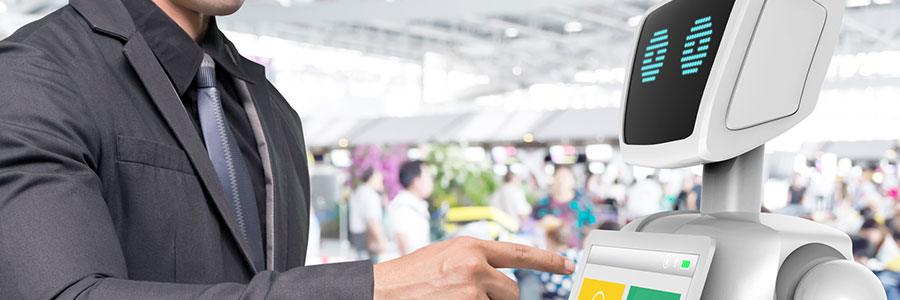
Exceptional customer service should be solution-driven, accurate, and fast. For many companies, that means recruiting the best crop of talents who can quickly learn their systems. But nowadays, businesses are turning to artificial intelligence (AI) to improve customer service. How AI capabilities enhance customer service AI has two capabilities that enhance customer service: machine learning and natural language processing. Machine learning studies historical customer data in your systems and equips your customer service staff with all the information they need to address concerns much faster and provide personalized product suggestions, discounts, and offers. It’s the same mechanism that enables Facebook to suggest friends and brands to add or follow, and allows Amazon to personalize product recommendations. On the other hand, AI’s natural language processing capabilities make it possible for businesses to deploy computerized customer service systems that don’t require human support staff. AI-enabled systems can ‘talk’ to customers via software similar to that of Apple’s Siri, Google’s Alexa, and Windows’ Cortana. Automated, accurate, and agile responses Although well-trained employees can multitask and solve customer problems, humans make mistakes. Automated systems like chatbots provide accurate and quick responses because they can be programmed to respond rapidly and accurately, handle large volumes of queries, and be available 24/7. For example, a restaurant chain that often receives queries about a branch’s opening hours can use a chatbot to handle questions about store hours, reservations, and other simple concerns. A retail store chatbot can also make online ordering seamless by answering questions about product sizes and/or availability. Overall, AI-enabled chatbots can reduce or eliminate pain points commonly encountered with human customer service representatives, such as long wait times, inefficient escalation of complex concerns, and negative human emotions from irate customers, all of which affect customer satisfaction levels. Cost-efficient support Businesses spend thousands of dollars to hire and train customer service representatives. But based on studies, the high attrition rates in the call center industry cost them a lot of money. Some companies even let operations staff handle customer support, which then affects productivity and reduces profitability. AI-powered platforms reduce the time and money spent on customer service because you don’t need to hire more support staff in case of business expansion. Instead, you can reprogram customer service software so that queries about new products or new business locations can be easily addressed. Many customers still prefer to have their problems solved by humans. And for banks, hotels, hospitals, and businesses where complicated concerns require human customer service agents, an AI-powered support system can facilitate seamless issue resolutions. Fortunately, there are plenty of technology options to make customer service and other functions more efficient. Call us today for innovative business technology solutions. Published with permission from TechAdvisory.org. Source.
Android P: Features to Look Forward To
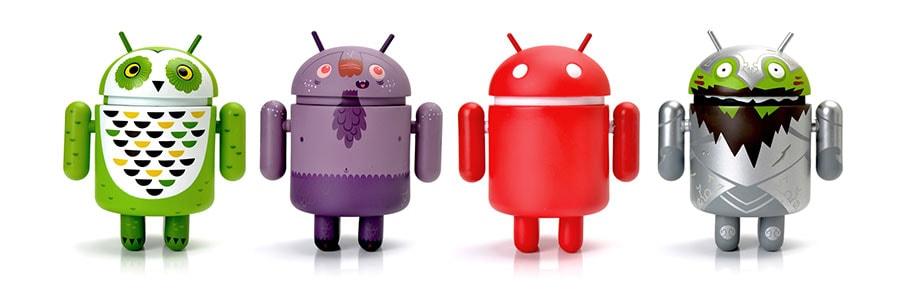
Fans of Android mobile devices look forward to each new version of Google’s operating system as it shows off new features. Aside from being easier and more efficient for developers to create applications on it, there are some improvements for consumers to look forward to when they update or buy a device that runs the new Android P. App Actions and Slices App Actions aim to anticipate the next thing you may do on your smartphone. Actions such as beginning a workout or giving your spouse a call will appear in notification bubbles on top of the screen as suggestions for what activity it thinks you will do next. It uses machine learning techniques to predict your actions according to your usage habits. For example, if you go jogging at 7:30 am each day, your phone will suggest that you use an installed fitness app during that time. Slices offer a smaller version of an installed app when you do a Google Search, providing you with various app functions without activating the full app. For example, if you type “I want to book a flight” in the search bar, Search will display a basic version of an installed travel app. If you type “Philippines” in the search bar, Google Search will dig through your Google Photos for related images. These functions will not work if the developers do not implement them on your favorite apps. App Timers and Android Dashboard Android P comes equipped with App Timers which help you control how long you use certain apps (especially games and social media) so that it reduces the compulsive need to check the phone often. Once the time limit expires on an app, it changes the launcher icon to a grey color for the rest of the day. In line with App Timers, the Android Dashboard shows you how long you’ve been using your phone to help you with your “digital well-being.” It keeps track of the apps you often use, how many notifications you get, and how many times you unlock the device during the day. Android Shush and other silent modes Android P adds a new “do not disturb” mode in the device known as Shush. Place your phone on a flat surface with the screen down. Only notifications and calls from contacts that you specify will show on-screen. Another way to activate this feature is to push the power and volume up buttons simultaneously. There is a setting that lets you choose between placing your device in “vibrate” mode or keeping the phone quiet. Android P also introduces Wind Down, a “do not disturb” mode that turns on a night light in dark areas. Once the device detects that it’s time for bed, Wind Down forces the screen to enter a gray-scale mode while silencing notifications and phone calls. Battery-saving features Adaptive Brightness learns the apps you use and the level of light in your current location. This makes sure that the screen is not too dim or bright at all times, helping the battery last longer. Adaptive battery uses artificial intelligence to anticipate what apps you may use in the next hour and those you will not. This should save processing power as well as battery power as the CPU of the device will not be used often. App Standby Buckets groups installed apps into which ones you use more and cleverly sets aside battery power for them. This will basically cut down on device resources like the battery and the CPU according to your usage patterns. If you need more information on how the latest version of Android and its functionalities can fit into your workplace, give us a call today! Published with permission from TechAdvisory.org. Source.
The lowdown on virtualization and the cloud

Virtualization and cloud computing are sometimes used interchangeably, and it’s easy to see why people confuse the two. To set the record straight, virtualization is NOT cloud computing. But these two revolutionary technologies often overlap. Virtualization Imagine a company with five servers, each assigned a single task such as storage, email, etc. If one day there were a spike in email traffic, the email server might become overwhelmed, causing it to slow down. Adding another server would remedy the issue, but it would be expensive and inefficient on days with less traffic. With virtualization software, you can combine the resources of all five of the servers in our example. So if the email server got bogged down, it could borrow resources from any of the other servers with extra capacity. The process is not as simple as it sounds, and businesses often turn to an experienced IT service provider to set up a virtualized environment. Because virtualization software can be installed on a server in your office, it is totally independent of cloud technology. Sometimes, people misunderstand the difference because the vast majority of cloud solutions use virtualization to improve their services. Cloud Computing With cloud computing, users can edit documents, save files, and interact with apps that aren’t actually on their computer. Instead, they access these items by connecting to a server via a network or internet connection. If your organization can get the information you need when you need it, you already gain a competitive edge. To carry out its purpose, a cloud platform sometimes uses several virtualized servers to provide users with a simple system that appears to be all their own, even though it’s actually shared with several other users and servers. There’s no need to purchase additional servers, and you can also save valuable office space by not having to deploy bulky equipment in-house. Obviously, scalability is critical in today’s ever-changing business conditions. What cloud computing does is make it easier to manage business tasks to maximize productivity. What’s more, it helps streamline operations as more cloud services are integrated. Businesses don’t have to worry about infrastructure maintenance because it is covered by the cloud service provider. Virtualization and cloud computing are both economical technologies that small businesses should take advantage of. If you want to see what they can do for you, give our team of experts a call today! Published with permission from TechAdvisory.org. Source.
How long should business phone systems last?
The phone remains one of the first points of contact businesses have with their customers. That’s why so many companies are upgrading to affordable and hi-tech “VoIP” systems. Voice over IP solutions are a smart investment given their longevity and more. Different phone systems Phones have come a long way, from analog landlines to digital handhelds. Today’s businesses need a phone system that can service their numerous needs, and in most cases, VoIP phones are the answer. VoIP, or Voice over Internet Protocol, is a system of hardware and software that uses the internet instead of wired circuits to transmit data. VoIP does more than just transmit audio; it can also send a variety of data (video, multimedia, SMS, etc.) and perform other tasks as well. A VoIP system’s hardware (phone units, cables, CPUs, etc.) and software (one or more applications that run the system) can be either on-premises or hosted. On-Premises — Their hardware and software are physically housed within the premises of the company. Hosted — Some of the hardware, like phone units and other equipment, can be found within the premises. But most, if not all, of the software are hosted online. Service providers look after hosted systems for their clients. Lifecycles: On-premises vs. hosted With hardware, it doesn’t matter whether it’s on-premises or hosted. Hardware is affected by the wear-and-tear of daily usage. Barring any accidents or physical damage, VoIP hardware should last as long as analog handsets, usually several years. It’s another matter with software, which needs constant updating. It’s faster and cheaper to update software that’s hosted in the cloud versus one that’s on-premises. The differences in longevity between the two should be negligible; both can last upwards of 10 years, depending on your IT support. Technology today vs. before Cloud technology has fundamentally changed the way IT solutions are produced. In the past, hardware and software were built to last. Today, they’re built to adapt and change. The effect of this shift on hardware and software is dramatic. Most hardware components are very similar, with replacements and upgrades coming every 5-8 years on average. Cloud software is faster, easier, and costs less to upgrade. Critical updates can be released almost constantly, with complete overhauls taking no longer than 2-3 years. As your business grows, your phone system should be able to adapt to rapid growth, the need for more speed, and integration with the other systems in your business, like email or management software. Be a step ahead Your business cannot afford dropped or missed calls. Imagine what one day of phone downtime would do to your company. The time to replace your phone system is not after it fails. The best time is before that, when you can plan and budget properly. Nowadays, it’s not longevity that’s important; it’s staying ahead of the curve. Call our experts today so you can always be a step ahead. Published with permission from TechAdvisory.org. Source.
5 new features for Outlook

Lately, Microsoft has given some love to Outlook — not just the desktop app, but also the web and app versions. In fact, they just released a bunch of new and improved features. Let’s take a look. #1 RSVP Outlook makes it fairly simple to invite people to a meeting, but now it will also keep tabs on who’s coming. Just click the new “Tracking” option under “Meeting Occurrence” and see who has committed to the meeting and who hasn’t. RSVP isn’t just available for the meeting organizer, but the attendees, too. #2 Multiple time zones Traveling internationally and trying to sync appointments on different continents? Not fun. But now you can set up event start times and end times across different zones. Outlook now allows you to show multiple time zones – three within Windows, and one within Outlook for Mac. In Outlook for Windows, add one by clicking File > Options > Calendar Time Zones and clicking “Show a second time zone”. In Mac, add one additional time zone under Outlook > Preferences > Calendar Time Zones. For Outlook on the web, click the “Time Zone” drop-down arrow in your Calendar meeting invite to add an additional time zone. #3 BCC warning If you’re on the receiving end of a blind carbon copy (bcc) email, that means the other recipients didn’t know you were copied on it. In Outlook for Windows, you’ll now get an alert if you attempt to reply to that message, such as “You were bcc’d, so perhaps you should reply only to the sender?” That way you’ll remain anonymous. #4 Office Lens for Android If you use Outlook for Android, the app will integrate the Microsoft Office Lens feature. When that happens, you can tap the photo icon while composing a message, then take a snapshot of a whiteboard, document, photo or the like. Outlook will optimize it and then embed it into the email. #5 Bill-pay reminders What about your bills? Outlook will identify them in your inbox, show you a summary card at the top of your email each day, send an email to remind you two days before the due date, and automatically add an event to your calendar so you don’t forget to pay on the actual day. If you want to learn more about these new and improved features, with more on the way, just call us today for a quick chat with one of our Microsoft Office experts. Published with permission from TechAdvisory.org. Source.
Highlights from Google I/O 2018
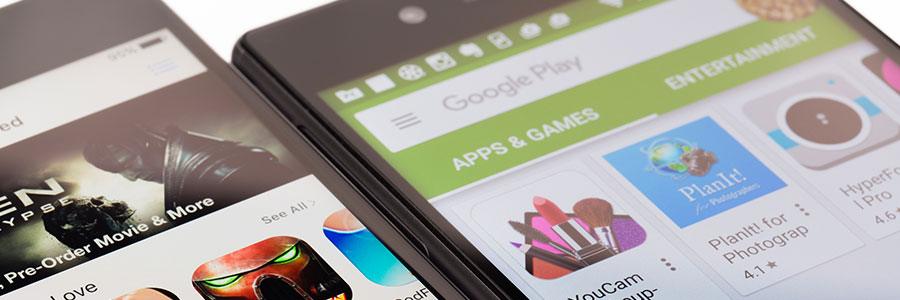
The Google I/O event brings major executives, engineers, and platform developers together to talk about the latest features and developments. This year’s conference just ended, and it looks like consumers have plenty to look forward to. What happened at Google I/O 2018? While the primary focus of the Google I/O conference was on the developers, every tech enthusiast in the audience had the opportunity to see what the future holds for their favorite Google products and the upcoming Android P. This year’s developer conference focused on software and new mobile technologies that will be released later in the year. Machine learning and artificial intelligence The keynote was kicked off by CEO Sundar Pichai, who talked about Google’s mission and how it is linked to AI. He stated that AI will help industries like healthcare predict certain events. Pichai also stated that machine learning will play a major role in enhancing closed captioning’s ability to figure out who is talking when there are multiple people speaking on-screen. However, tech enthusiasts were extremely excited when the Google CEO announced the following features and upgrades: Google Assistant will soon get 6 new voices, including one from singer and songwriter John Legend. Users will only need to say “Hey Google” to start a conversation with the product, instead of each time it is addressed. Google Assistant can now process more than one request at a time, and it can make phone calls to book reservations and appointments for the user with a feature called ‘Duplex.’ Google Maps can now suggest restaurants and other noteworthy locations for the user, differentiate between car and motorbike routes, and add businesses to the map by combining satellite images and AI. Augmented reality will be integrated into Street View so that users can easily track the direction they are facing or heading toward. Google News will display its top five stories as soon as the app opens. Advanced AI will push stories that it thinks are relevant to the user. Google Photos will have the Suggested Actions feature which offers to add color to images that are black and white, convert documents to PDF, tweak the brightness on underexposed photos, and instantly share images with the people who are in the picture. Gmail will get the Smart Compose feature that will utilize machine learning to suggest phrases when writing an email. Public beta of Android P The test version of Android P is currently available on Oppo, Sony, Mi, OnePlus, Essential Phone and Google Pixel handsets. The search engine giant announced that they will release the first retail version around summer this year. Beta testers enjoyed the refreshing look of Android P, where most interactions such as switching between apps were done by gestures. A new Dashboard feature shows how long the user has been on the device, including the number of notifications received, how many times the phone was unlocked, and the time spent in a particular app. Users will also be able to set a time limit if they want to stop themselves from habitually staring at their phones. Availability of Google Lens In last year’s event, Google announced AI-powered technology called Google Lens which uses a mix of machine learning and the smartphone’s camera to detect a specific object, know what the object is, and provide results based on what it knows about the object. At the time, this feature was available only in Google Pixel phones, but the search engine giant announced that more smartphones will soon have this feature built in. Google continues to innovate and improve on its products, and we are here to help you make sense of all the tech so you can adapt it to your lifestyle. Get in touch with us today so we can discuss this tech and how you can benefit from it. Published with permission from TechAdvisory.org. Source.
Windows 10 makes it easy to back up files

Businesses rely on computers for their daily operations, so getting afflicted by ransomware is devastating. It blocks access to all data, which can result in financial losses and the company closing down temporarily or permanently. Fortunately, Windows offers built-in tools and cloud storage options so you won’t have to fear data loss. File History Is Back for Windows 10 Users would be glad to know that Windows brought the same functionality of File History from Windows 8 (and 8.1) to Windows 10. Apart from the slight design changes, there really isn’t much difference, which is fine. Serving as the main backup utility, File History enables users to regularly schedule backing up of files on their PC and store them on an external drive. That means you can connect your PC to a network or USB drive and make backups as needed. However, you must be sure to regularly connect the external drive if you opt to set File History to back up to it. Otherwise, Windows will prompt you that your files have not been backed up for every day that you forget. You can neglect this warning at your own risk. If you back up to a mapped network that is unavailable, File History will back up to the local disk, until the network drive becomes available. Setting Up File History Turning File History on is not rocket science. After all, it was designed to make data backup and recovery easy for users. By default, File History backs up the main file folders, but you may also pick which folders you want to back up and bring in folders from other parts of the PC to back up. From the Start menu, click on Settings > select Update & Security > click on the Backup section You will see an option for Back Up Using File History. Below it is an option to Add A Drive. Click on + to see a list of external hard drives connected to your PC and choose one. When you return to the Backup section, you will see that the Add A Drive option has changed to Automatically Back Up My Files (by default). This allows backups to be created at periodic intervals, which you can set to anywhere from every 10 minutes to once a day (default option is once every hour). You may also set how long to keep the backups (default option is forever). Restoring files that have already been backed up is just as easy. Simply click on the Start menu and type File History in the Search bar. Then, you will see the Restore Your Files With File History option. Select this, and a new window showing the folders backed up onto your external drives will appear. A word of advice: Be sure to back up files using a network drive or the cloud, not locally. Making System Image Backups Backing up your entire operating system, along with all the programs, settings, and files, is possible with Windows 10. To use this feature, you need to access the Backup and Restore (Windows 7) option from the Control Panel. Click on Create a System Image and choose where to store the backup (external hard drive, network drive, or DVD) and which drives to back up. You will then be asked to make a system repair disc which you can use to start a PC and restore the image backup. Setting Up Your OneDrive Backup Option Use OneDrive to store and sync your files in the public cloud. While it isn’t exactly a backup solution, OneDrive can serve as a destination for your backups. Microsoft offers plans ranging from at least 5 GB to 50 GB (monthly) and 1 TB (yearly) of storage space. Published with permission from TechAdvisory.org. Source.
Don’t give social media hackers a chance

Pranksters, malicious attackers, extremists — hackers come in different forms, but they all have one thing in mind: compromising your online privacy and security. Some of them specialize in hacking social media, but don’t fret; there are several things you can do to protect your Facebook or Twitter account. Lockscreens exist for a reason Make sure all your computing devices lock the moment you stop using them. This way, you are safe from the simplest hack of all: someone opening a browser on your computer that has your social media login saved. As long as your password isn’t your birthday or anniversary, you’ll be forcing hackers to work for access to your account. Strong passwords are never out of fashion Unlocking your phone may be limited to a six-digit passcode, but you’ll need something much more complicated for your account password. The first thing you’ll need to do is create a password that isn’t used for any other account. Because data breaches have become such a regular occurrence, hackers probably have a long list of your favorite passwords from other websites and platforms. In this case, it is best to use a password manager like an app or online service that allows you to generate and retrieve complex passwords. Another thing you can do is enable something called two-factor authentication, which requires you to type in a secondary code sent to your phone. Even if hackers have your password, they won’t be able to log in without your phone. Make use of social media features Facebook offers functions that help you keep tabs on who’s accessing your account and from where. To use this feature, click the down arrow in the upper right corner of your Newsfeed and select Settings. Then click Security and Login to get more information. If you sense an imposter, click the right-hand icon to give you the option of logging out remotely or reporting the person. From there, turn on Get alerts about unrecognized logins to be notified via Facebook, Messenger, or email if someone is logged into your account from an unrecognized browser. Unfortunately, Twitter doesn’t have the same option (that makes the two-factor authentication extremely necessary). While it may be difficult for a hacker to barge into your Facebook or Twitter account through a third-party service that you have given access to your profile, it’s still advisable that you check what you have approved. Facebook: Go to Settings > Apps and Websites to view and manage outside service with access to your account Twitter: Go to Settings and Privacy > Apps to check and edit the list Last, be sure to check the permissions mobile apps like Facebook and Twitter have on your smartphone or tablet. Android: Go to Settings > Apps > tap the icon in the upper right and then tap App permissions iOS: Go to Settings > Privacy to manage which service can access which parts of your phone Less personal info, fewer problems These steps are just the beginning of what you should be doing. The next thing you should consider is limiting the personal data you input into your social media accounts. If you have to put a ton of information, then be sure you read this blog from the top. With a little practical knowledge, you can prevent Facebook and Twitter hackers from doing what they do. Cybersecurity is a sprawling issue and social media privacy is such a small sliver of what you need to stay on top of. For 24/7 support, call our team of experts today. Published with permission from TechAdvisory.org. Source.
How much does Apple know about you?

Google. Facebook. Amazon. These tech giants collect data from us the moment we sign up for their products and services. Some information we willingly surrender (like our name and email address) and others they collect from the services we use (like the sites we visit or the people we contact). Does Apple collect as much information about you as other companies do? What Facebook & Google Know Let’s first look at what Facebook knows about you. As the biggest social network in the world, Facebook makes a lot of money through advertising. The more data it gathers about you, the more able they are to target you with relevant ads. Aside from the information you provide when you open an account, Facebook also tracks your browsing history, knows your social circle, and keeps note of your general interests. Facebook also retains the names and numbers of people in your contact list who are not yet on Facebook to create “shadow profiles.” When they sign up for the social network, these contacts appear in your “People You May Know” recommendations. Facebook’s Messenger app keeps a record of all your conversations, contacts, and even SMS messages (if you give Messenger permission to manage them). Google also gathers data to target users with promotions and advertising. But they have more data to collate and play with, thanks to their other services like Google Maps, AdSense, and YouTube. They know the places you’ve been, the things you buy online, and the music you like. What Apple Knows Compared with Facebook and Google, Apple knows little about you. They know your name, home address, email address, all the apps and songs you’ve downloaded, and anything you’ve purchased in the Apple Store. Facebook, Google, and Apple all allow you to download a file that reveals what they know about you. The files from Facebook and Google are often massive, sometimes containing gigabytes’ worth of data. Apple’s files are a lot smaller, and they make it more difficult for you or a hacker to download and see all the information they have on you. Protecting your privacy online doesn’t mean you have to swear off Facebook or stop using Google’s services, but knowing how these companies collect information about you is the first step. If you want to learn more about how Apple collects information on you, don’t hesitate to give our experts a call. Published with permission from TechAdvisory.org. Source.