
7 Ways to personalize your Windows 10
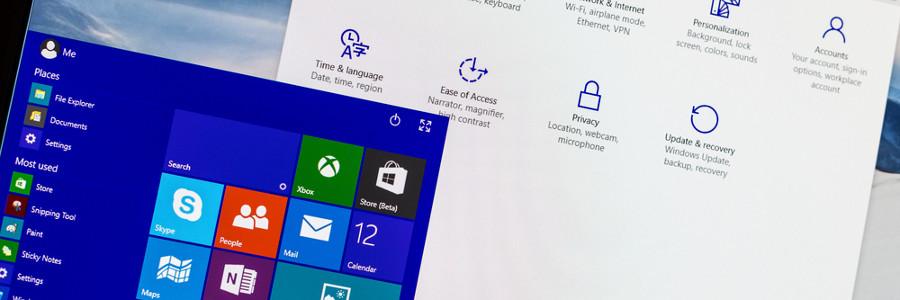
Whether you want to have a darker color scheme, run several apps at the same time, or display multiple desktops, Windows 10 gives you many options to personalize your PC. And while some customization options are less obvious than others, it is worth the effort to get your Windows 10 to look and function the way you want it to. Here are a few things you can do to personalize your PC. Change your themes The most obvious way to personalize Windows 10 is by changing your background and lock screen images. Do this by right-clicking anywhere on your desktop and choosing the Personalization settings. Here you can choose and preview different backgrounds and themes you can use. You can even add new themes by using images from your gallery or by clicking the Get more themes online option. Use dark mode Want to give your Windows 10 an edgier feel? Replace those white backgrounds with dark mode. Click on the Windows icon on your taskbar and select the gear icon for Settings. Choose Personalization and go to Colors. Scroll down until you see “Choose your default app mode”. Clicking on Dark sets your screens to dark mode. Clicking on Light, meanwhile, restores the default white background settings. Virtual desktops If you’re having trouble separating your work files from your personal files, try creating a virtual desktop. Press the Windows key + TAB to show all your open windows. At the bottom right corner of your screen, you’ll notice an option to add a new desktop. Simply click on it to create a new virtual desktop. Drag the windows you want to move to this new desktop, and immediately enjoy looking up your personal interests on one desktop while strictly doing business on the other. To quickly switch between desktops, use the keyboard shortcut CTRL + Windows key + left/right arrow. App snapping App snapping is not exactly a new feature, but with Windows 10, you can now snap any app in place. For people who like to multitask, this feature is for you. Snap any app window by dragging it into any of the four corners of your screen. You can have a maximum of four separate windows simultaneously open in your monitor, for when you want to browse the internet while you’re filling out spreadsheets and doing other tasks. Reorganize your Start Menu To add a little more “you” into your Windows PC, you can customize how your apps are arranged on the Start Menu. For one, you can resize the Start Menu by simply dragging the top or right side of the menu to resize. You can also resize the live tiles by right-clicking on them and selecting the Resize option. You can also rearrange application tiles by dragging them anywhere around the Start Menu. If you won’t be using a particular application, simply right click the tile and select Unpin from Start. On the other hand, you can pin applications to the Start Menu by right-clicking an app and choosing Pin to Start. For even faster access to apps, simply pin the programs to the taskbar. Change color themes Is the plain black Start Menu not doing it for you anymore? Just right-click on your desktop, choose Personalize > Color, and select any accent color that pleases you. Tick the checkboxes under “How accent color on the following surfaces” if you want this color applied to the start menu, taskbar, action center, and title bars. Disable notifications We don’t know where you stand on app notifications, but if you absolutely hate them and wish to never get them ever again, simply click Start > Settings > System > Notifications & Actions and switch off whatever app notifications you don’t want. Goodbye, annoying reminders. Switch up and personalize your Windows 10 however you like by using some or all of these options, and hopefully you get the settings that are just right for you. If you would like to know about more ways to personalize your desktop, or if you need information on anything Windows 10-related, give us a call and we’ll be happy to help. Published with permission from TechAdvisory.org. Source.
4 Security risks of the BYOD strategy

Taking work home, or practically anywhere, has never been easier. The bring your own device (BYOD) strategy has become a popular approach for many businesses to conduct work more efficiently and flexibly. But this strategy is not without risks. BYOD, if not implemented correctly, can make your system susceptible to a number of attacks. Here are a few security hazards you should keep a close eye on. Data leakage The biggest reason businesses are wary of implementing a BYOD strategy is because it can leave the company’s system vulnerable to data breaches. Personal devices are not part of your business’s IT infrastructure, which means that these devices are not protected by company firewalls and security systems. Employees might also take work with them to places outside of your company premises that don’t have adequate security settings, thus leaving your system vulnerable to inherent security risks. Lost devices Another risk your company has to deal with is the possibility that employees will lose their personal devices. If devices with sensitive business information get lost and fall into the wrong hands, anyone can gain unauthorized access to valuable company data stored in that particular device. Therefore, you should consider countermeasures and protocols for lost devices, like remotely wiping a device of information as soon as an employee reports it missing or stolen. Possible hacking Personal devices tend to lack adequate data encryption to keep other people from snooping on private information. On top of this, your employees might not regularly update their devices’ software, rendering their devices and your IT infrastructure susceptible to infiltration. Connecting to open WiFi spots in public places also makes your company vulnerable and open to hackers, because hackers may have created those hotspots to trick people into connecting. Once the device owner has connected to a malicious hotspot, attackers can see your web activity, usernames, and passwords in plain text Vulnerability to malware Viruses are also a big problem when implementing BYOD strategies. If your employees use their personal devices, they can access sites or download mobile apps that your business would normally restrict to protect your system. As your employees have the freedom to choose whatever device they want to work with, the process of keeping track of vulnerabilities and updates is considerably harder. So if you’re thinking about implementing BYOD strategies, make sure your IT department is prepared for an array of potential malware attacks on different devices. BYOD will help your business grow, but it comes with IT security risks that you should be prepared to handle. Need help mitigating these BYOD risks? Call us today, and let’s find the best IT security solutions for your company. Published with permission from TechAdvisory.org. Source.
How to install the newest iOS smoothly
When a new iOS update is released, you may get so amped that you immediately tap on that Download and Install button. The next thing you know, you’re saddled with new software that causes headache after headache. To avoid this fate, here are six tips to ensure that your next iOS update goes without a hitch. Consider waiting Just because a new iOS update is released doesn’t mean you must install it right away. In fact, users who install the software early have to deal with the imperfections and the bugs of the newly released update. For example, when iOS 11.3 was released, many users suffered from autocorrect bugs, unstable bluetooth connections, and shorter battery life. Do your research before updating to a new version of iOS to be on the safe side. Get feedback from users who have already upgraded to the latest software, read Apple forums, watch YouTube tutorials, and do a Google search about the pros and cons of upgrading to the newly released iOS. Ready login credentials When downloading and installing an iOS update, you will be asked for your Apple ID. To save time, prepare your password and passcode beforehand. Keep them handy, since an iOS update sometimes automatically logs you out of your favorite apps and services. Backup your phone Updating your iOS can be tricky. Important files can get lost during an iOS update, and if you store important business or personal information on your device, you don’t want to lose it during an update. Avoid losing precious files by creating a backup of your phone data either through iTunes or iCloud before you start the update. Power your battery & connect to WiFi If you choose to install the new iOS Over-the-Air (OTA) rather than plugging your device into a desktop, you should be aware of two things. First, your battery must be charged to at least 50% or plugged into an outlet before you can start the update. Second, you cannot update using a cellular connection — you must be connected to WiFi. In other words, make sure to charge your phone and find a reliable WiFi connection before starting the update. You don’t want your phone to run out of battery during the update. Neither do you want your connection to be unstable, since any slight interruptions will make you lose all your update’s progress. Don’t panic Most users face no issues after the update, but some may encounter inconveniences such as shorter battery life, unresponsive touchscreens, and difficulties connecting to WiFi. If these issues happen to you, don’t panic. It is more than likely that answers to your problems are already posted on the web. Whatever your issue might be, a quick Google search should turn up multiple solutions for it. You can also look for answers in forums specifically dedicated to Apple products. You can downgrade if you want If you’ve installed the update but have come to regret the decision for one reason or another, there’s good news. You can downgrade for a short period of time after an update is released. There is one catch, though. You can only downgrade to a limited number of previous versions. For example, if you recently updated to iOS 11.4.1, you’ll only be able to downgrade to iOS 11.4 or iOS 11.3.1. You cannot downgrade to any versions older than these, so think carefully before choosing whether or not to upgrade. These tips are useful not only for the latest iOS update. Apple follows the same installation procedures for new software releases, so you can still use these tips when you upgrade to future iOS releases. Need help installing the newest iOS on your device? Or maybe something more complex, like setting up an Apple server? Drop us a line today. Published with permission from TechAdvisory.org. Source.
Perks of using dual monitors
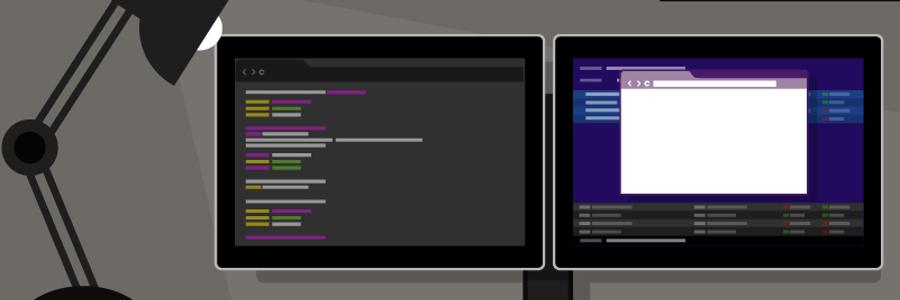
Many employees are uncomfortable using two monitors at their desk, so it’s no surprise that dual monitor setups aren’t as popular as single monitor setups. But working with two screens provides ways for employees to work more productively. Here’s a look at some of the main reasons why your employees’ desktops should be upgraded to two monitors. Enhanced productivity Published studies conclude that by working with dual monitors, overall productivity increases by 20-50%. Computer programmers, for example, can use one screen for source coding and the other for programming; by using dual monitors, they no longer need to toggle back and forth between tabs. This reduces error and frees up time to complete more projects. Better multitasking Efficient multitasking requires adequate screen space to keep multiple applications simultaneously visible — a view that single monitors alone simply cannot accommodate. Workers who require computers, like customer service reps and web designers, would no longer waste time switching between tabs and resizing windows to fit the limited space; they could now focus on completing their tasks accurately and efficiently. Easier cutting and pasting This reason resonates with jobs that call for creating newsletters or PowerPoint presentations. Dual monitors would eliminate the need for alternating between tabs and scrolling up and down as you work. Also, the enhanced visibility reduces chances of making mistakes and thus losing more time fixing them. Image and video editing With dual monitors, the days of stacking numerous editing tools on top of the image or video you’re working on are long gone. Instead of your screen looking like a game of Mahjong, you can put the editing tools on one screen and leave the image on the other. With better visibility, you’re less likely to commit errors and more likely to be finessed, and you’re not sacrificing valuable working time in the process. Product comparison You want to buy a camera, and you have two models in mind. It’s time to make a decision, so you have to compare their specs. If you had only one monitor, you’d need to go back and forth from one tab to another. But if you had two monitors, you could view the models side-by-side to help you clearly see their differences and make an informed purchase. Dual monitors benefit almost every industry because of the enhanced visibility, larger screen space, and how you can briefly nap behind them without getting caught Using dual monitors can enhance even your leisure time activities as well. Broaden your horizons by getting in touch with us. We’ll answer any questions you have. Published with permission from TechAdvisory.org. Source.
G Suite Apps Basics

Cloud computing is a trend among businesses, and one company that’s leading it is Google. After years of development and upgrades, they’ve released a cloud-based productivity suite known as G Suite. G Suite puts all of Google’s most popular apps into one package. Let’s take a closer look at all it has to offer. Gmail Gmail is Google’s webmail service, with over 1 billion users worldwide. Although Gmail is available free of charge, you can get extended features for a low monthly fee, including custom company email addresses, unlimited group addresses, 30GB of inbox storage, and 24/7 help desk support. Hangouts Hangouts offers instant messaging, audio/video chat, and screen sharing features. It allows you to create virtual rooms where employees can share files, organize projects, and even conduct virtual presentations for video conferences. Hangouts runs on any internet-enabled device with a camera, speakers, and microphone. Calendar Google Calendar allows you to stay in sync with your colleagues from anywhere, and on any device. These shareable calendars integrate seamlessly with Gmail, Drive, and Hangouts, so you can easily manage events, view and edit your schedule, and check your coworkers’ availability. Google+ Google+ is a social network platform designed to help you connect, share, and collaborate with your team members. You can customize and filter the dashboard’s contents to display the news and updates that are relevant to you. Drive Google Drive is an online cloud storage platform that can be accessed by authorized users within your company from any device. It gives you as much storage space as you need and allows you to view common file formats without having to install extra software on your device. Docs With Google Docs, you and your colleagues can work on the same documents in real time, allowing for better collaboration and efficiency. You can also leave comments and communicate through a built-in chat box. What’s more, edits and changes are automatically saved, and you can restore previous versions of the document if necessary. Sheets Google Sheets is a cloud-based spreadsheet. Whether you’re looking to create tables and charts, perform calculations, or generate pivot table reports, Sheets has all these capabilities and so much more. Forms Forms allow you to build professional-looking surveys and questionnaires. You can collect answers by sending the URL to respondents. You can even track and analyze responses in real time to gain valuable insights from your surveys. Slides With Slides, you can work on a single presentation online with your colleague, your whole team, or even external contacts. It comes with a wide variety of design templates and custom animations to add some flair to your presentations. Just like Sheets and Docs, you can control who gets the permission to edit or view the slides with just a few clicks. Sites Want to build a project site for your team? These can be done easily, and without any prior coding experience. Simply choose a template from Sites and determine what needs to be put in place to make your website successful. Google is constantly adding new features to each of these apps, so if you want to learn more about any of them, give our cloud computing professionals a call. Published with permission from TechAdvisory.org. Source.
What you need to know about e-commerce & AI

Many business owners are looking to artificial intelligence (AI, or “machine learning”) for its potential to improve communications with their customers. It is predicted that by 2020, 85% of all interactions will originate from machine learning “bots.” If you operate an e-commerce business and are wondering how you can benefit from bots, you’re in luck. We’ve compiled a few of the most important reasons to adopt AI for e-commerce. Predicting what your customers want There are many ways AI can benefit businesses and consumers. For example, machine learning algorithms can identify customers’ habits and their interests, simply based on their search histories. Properly configured, AI can analyze customers’ shopping behaviors to customize the online experience based on a variety of factors like browsing pattern and purchase history. Product recommendations, pairings, and promotions can also be targeted to individuals, improving the customer experience and your bottom line. More intuitive product recommendations Machine learning is also great for cataloging products. In the past, businesses would send out cumbersome product catalogs that made it difficult for customers to find what they were looking for. In the near future, customers will be able to upload photographs of clothing that’s similar to what they want to purchase. Through AI, a website will be able to analyze the photographs and create a catalog of suggestions based on the uploaded image. Customers can still talk to a “representative” With advances in “plain language” systems, more and more users will rely on e-commerce over face-to-face sales interactions. Machine learning is getting better at interpreting conversations, and answering with natural-sounding responses. If the choice is either searching “Blue summer dress,” or “Billowy summer dress in a warm blue color,” which do you think would make customers’ shopping experience better? By replicating the in-person shopping experience over the internet, businesses can shift away from brick and mortar overheads to an e-commerce-centered structure. They will realize significant savings on capital expenditures and human resource investment, as well as reduce costly human errors. If you’re ready to begin integrating more “machine learning” into your business model, we already have the means to make that happen. Contact us as soon as you’re ready to transform your e-commerce business into a money-making powerhouse! Published with permission from TechAdvisory.org. Source.
The pitfalls of business continuity planning

Your service provider, tasked with looking after your company’s IT, has kept your business up and running for the past 10 years. Unfortunately, that kind of longevity in developing continuity plans can result in some providers overlooking or underestimating certain issues. Here are some of them. Over-optimistic testing The initial testing attempt is usually the most important. It’s when IT service providers can pinpoint possible weak points in the recovery plan. However, what usually happens is that they test the system in full, instead of via a step-by-step process. This results in them missing out specific points, with too many factors overwhelming them all at the same time. Insufficient remote user licenses A remote user license is given by service providers to businesses so that when a disaster strikes, employees can log in to a remote desktop software. However, a provider may only have a limited number of licenses. In some cases, more employees will need to have access to the remote desktop software than a provider’s license can allow. Lost digital IDs When a disaster strikes, employees will usually need their digital IDs so they can log in to the provider’s remote system while their own system at the office is being restored. However, digital IDs are tied to an employee’s desktop, and when a desktop is being backed up, they are not automatically saved. So when an employee goes back to using their ‘ready and restored’ desktop, they are unable to access the system with their previous digital ID. Absence of a communications strategy IT service providers will use email to notify and communicate with business owners and their employees when a disaster happens. However, this form of communication may not always be reliable in certain cases, such as when the Internet is cut off, or there are spam intrusions. Third-party notification systems are available, but they are quite expensive, and some providers sell them as a pricey add-on service. Backups that require labored validation After a system has been restored, IT technicians and business owners need to check whether the restoration is thorough and complete. This validation becomes a waste of time and effort when the log reports are not easy to compare. This usually happens when IT service providers utilize backup applications that do not come with their own log modules, and have to be acquired separately. These are just some reasons why business continuity plans fail. It is important for business owners to be involved with any process that pertains to their IT infrastructure. Just because you believe something works doesn’t necessarily mean that it works correctly or effectively. If you have questions regarding your business continuity plan, get in touch with our experts today. Published with permission from TechAdvisory.org. Source.
Android repurposing: 5 awesome ideas
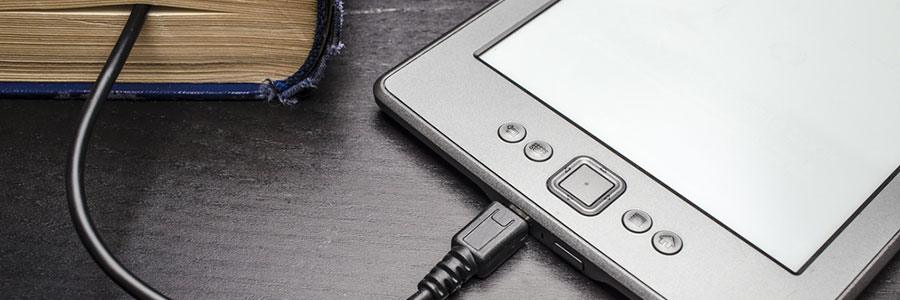
It’s a fact of life that electronic devices don’t stay on top of the market for very long. That nice new Android tablet with all the latest apps and games will soon be replaced with a newer version, and you have the decision to upgrade or be left with a useless piece of metal and plastic. Fortunately, there are five ways to repurpose that old Android tablet into something useful. With new technological devices released almost on a daily basis, your new Android tablet can become obsolete before you’ve even gotten any productive use out of it. But instead of tossing it into the drawer with your other gadgets, you should recycle it into something you can use long into the future. It doesn’t take long for your stylish new electronic device to become just another outdated model in the waste pile. Your once-fresh Android tablet might have done its due a long time ago, but there’s no need to discard it. There are many things you can do to repurpose your old Android tablet and make it fresh again. Read on to find five popular new uses for your old Android tablet! Security camera As long as your Android has a workable battery and screen, you can turn it into a webcam security system. Simply download a security app like Salient Eye (easily found on Google Play) or AtHome Video Streamer, set it up, and place it strategically. It can even be rigged to turn on as it senses movement. Digital camera photo frame Don’t spend $30 on a digital picture frame when you can use an old Android tablet. Again you will have to visit Google Play, search for a program similar to Photo Slides, plug the Android into a wall socket, and you have pictures you can scroll through and display on your mantel. Portable reference library You have probably used your Android for book storage already, so why not turn it into a functional library? Visit Amazon Kindle or Google Play Books and download your choice of reference books and eBooks. Kwix, the offline version of Wikipedia, can provide you with encyclopedia-like entries without having to go online. Radio or wireless-only device You can download Pandora or iHeartRadio, and use your Android to play your favorite music without interfering with other open computer programs and without using valuable memory. Universal remote It is so easy to lose the remote in the folds of the couch or slots in a magazine rack. By contrast, it’s not so easy to lose an Android tablet. By installing a universal remote app like Peel Smart Remote, AnyMote, or Irdroid, you can use your old Android as a universal remote for televisions and other electronic systems in the office. There is no reason to throw your old Android tablet into a drawer when you upgrade because there are many apps that can help you repurpose it. For more information on how to recycle your old tech devices, give us a call. We’ll be glad to help you save money and find a new use for your old tablet. Published with permission from TechAdvisory.org. Source.
Virtualization security risks & management
While virtualization security is often viewed as an afterthought, it is nevertheless important. Like all technology, securing your virtualized infrastructure is vital to your business’s success. Let’s take a look at some of the security risks posed by virtualization and how you can manage them. Security risks of virtualization Complex infrastructure – Much like virtualization itself, the infrastructure of a virtualization solution can oftentimes be confusing to small businesses. In fact, the complex configuration alone can be a big headache for it’s more difficult to spot anomalies and unusual events happening in your virtual machines and network. Dynamic design – Virtualized environments are dynamic by nature and constantly changing. Unlike adding physical equipment, the addition of virtual machines can go almost completely unnoticed as they’re created in a matter of minutes and aren’t visible in your workspace. The danger here is the age old adage, “out of sight out of mind.” And if you add too many, they can easily become difficult to manage and protect, creating security holes in the process. Quick moving workloads – As your virtualized infrastructure grows, there will come a time when you need to move data from one machine to another. While this may sound harmless, the real issue is that your virtual machines will likely require different levels of security. And when you’re juggling multiple workloads over multiple virtual machines, you may accidentally move mission critical data to a machine that has minimal protection. How to mitigate risks While these three risks may sound alarming, they can all be mitigated. The key behind effectively securing your virtual machines all comes down to process. Put some thought into your security processes and then implement them. Here are a few areas to cover: Organization – Decide how and where to separate your test, development, and production virtual machines. Audit – Develop a system to regularly audit your virtual machine security. Whenever possible, use tools to automate your security checks, balances, and processes. Patches – Perform regular security maintenance to ensure the patches are up-to-date for all virtual machines. Overflow management – Create a system to monitor all your virtual machines, identify what each of them is used for, and manage them accordingly. Responsibility – Designate an IT technician to watch over your virtual machines to ensure zero security gaps.If you prioritize proper management of your virtual machines, security doesn’t have to be an issue. Get in touch with us if you’re interested in getting additional assistance for your virtualized infrastructure or if you’re planning to implement a new virtualization solution. Call us today! Published with permission from TechAdvisory.org. Source.
7 ways to more retweets

It can be discouraging for any business to post a thoughtful tweet in the morning just to see that it barely has any retweets by the end of the day. To maximize your tweets’ exposure, consider these 7 ways to increase your retweets. Schedule your tweets There is absolutely no point in tweeting out any content if your audience isn’t even awake for it. That’s why it’s important for you to tweet at the right time to get the most retweets. Most people are likely to retweet between 2pm and 6pm. However, if your followers live in different time zones and countries, the time you should be tweeting may vary. Twitter tools like Tweriod track down the geographical distribution of your audience and pinpoints the optimal time you should be tweeting to get the most retweets. Use links The next time you tweet out something, try embedding a link in your post. Whether it’s news, sports, or celebrity updates, people will put some effort in staying up to date with their interests. Studies have also shown that links to instructional posts get the most amount of retweets as well. The problem is, 140 characters is not enough content for your followers. So by satisfying your audience’s curiosity, you motivate them to pay you back by sharing your tweet out to their friends. Ask for retweets This is perhaps the most obvious tactic to get some retweets. Using call to action phrases such as “please retweet” significantly increases your chances of a retweet. Of course, you probably aren’t the only one asking for retweets. Adding something to sweeten deal, like a prize for one lucky person who retweets you, gives people incentive to do so. Use visuals Intriguing images can inspire retweets. Images are a great way to convey a lot of information in a short amount of time, and social media users love that. Some have found that using colorful images and infographics in their tweets significantly increased their engagement rates and led to more followers retweeting their content. It’s probably because there’s just more content to engage with compared to a brief 140 character thought. Use retweetable words Research has shown that some words are more retweetable than others. Words like you, twitter, please, retweet, post, blog, social, free, media, help are the top 10 most retweetable words. However common-use words in any conversation such as “lol, haha, work, sleep or watching” are less likely to get retweeted. Unless you’re someone incredibly famous, it’s best to avoid using conversation filler words and stick to the buzzwords that encourage people to share your tweets out to everyone they know. Use quotes Quotes express a lot in one simple line, making it perfect for any Twitter posts. Depending on your audience, a thoughtful quote can really move their fingers to click that retweet button. The next time you’re running out of ideas for tweets, dig up some good quotes relevant to your topic to get those retweets going. However, don’t continuously plug in quotes into your tweets. The trick is to do it occasionally, so you don’t risk people tuning out of your tweets. #Hashtag You’ll notice that the more popular tweets tend to have at least one hashtag. Using hashtags on keywords helps categorize your tweets with similar ones, giving your posts a bit more reach and, hopefully, more retweets. Just make sure you don’t overdo it as #thiscanbequiteannoying. We get that small business may find it tough getting their name discovered among so many social media accounts. But if you consider some or all of these Twitter tactics, you have a better chance of getting more eyes on your tweets. If you want to learn more about useful Twitter tactics to increase your exposure and engagement, give us a call today. Published with permission from TechAdvisory.org. Source.