
What’s new with the iPhone XS

Good news iPhone users, Apple has released the iPhone XS and XS Max. The company also has plans to release an iPhone XR in the future, but for now, let’s examine the latest iteration of Apple’s smartphone, the iPhone XS. Like most Apple smartphones, the iPhone XS is expensive, especially when compared to other smartphones. Yet its improvements aren’t as big a leap from the iPhone X that came before it. On the inside The main differences between the iPhone XS and its predecessor lie on the inside. With every release, Apple claims faster speeds and better performance upgrades. And this latest is no exception. #1 A12 Bionic chipset This is one of the most powerful chipsets of any smartphone, providing snappier responses to simple tasks like web browsing or sending messages. But the power of this faster chip is best felt when running apps and games using augmented reality (AR). AR apps still have a way to go in improving its visual polish, but the A12 chip is ready for their future. #2 Face ID Apple’s Face ID technology may not be as fast at unlocking your phone as a passcode or fingerprint scan, but Apple claims the facial recognition features are faster and more accurate than ever before. And it’s incredibly secure. #3 iOS12 Using the latest iOS with the iPhone XS is a smooth and enjoyable user experience. The new iOS also has several nifty new features, including: Group notifications – Notifications are lumped into groups, so when you check your handset after an hour or two, you won’t be flooded with a long list of notifications. Screen Time – This feature allows you to monitor how much time you spend on your phone, what apps take up most of your time, etc. On the outside Outside, the iPhone XS is almost identical to the iPhone X. However, Apple did make a few tweaks to its design and performance. #1 Tougher glass case Apple has upgraded its protective glass case, making it harder and tougher against accidental drops. It is also more waterproof, so you never need to worry about spills or getting caught in a storm. #2 Improved screen While the resolution (2436 x 1125) and pixel density (458 pixels per inch) on the XS are similar to its predecessor, there more colors thanks to the improvement of the dynamic range of its display. #3 Improved camera It has the same dual 12MP sensor as the iPhone X. But pixel size has been increased for better low-light photos. The Smart HDR (high dynamic range) mode also improves the details and brightness of your photos. #4 Improved battery Compared to the batteries in other smartphones on the market, the iPhone’s battery life has often been considered a little below average. But compared to the other iPhone batteries, the XS and XS Max are far better. The verdict Thanks to hardware improvements, the iPhone XS is still Apple’s most powerful phone to date, with faster speeds and improved cameras. Its battery life is so-so, it doesn’t sport a new design, and it’s still quite expensive. If you need help safely integrating Apple devices in your team’s daily operations, contact our team today. Published with permission from TechAdvisory.org. Source.
How to choose the right mouse

If you’re tired of using an uncomfortable mouse or struggling with your laptop’s trackpad, it’s time to buy a new one. But with so many brands and models out there, where would you even start looking? Here are a few tips that will help you decide on the right mouse. Cable or wireless? Choosing between a wired or a wireless mouse is a factor you have to consider if you’re planning on purchasing a new mouse. Wireless mice are generally more comfortable since your range of movement isn’t limited by a cable and they’re usually travel friendly. However, they tend to be less responsive, which can be frustrating. In some cases, wireless mice can also interfere with other wireless devices nearby, and most require batteries, which can create problems when they run out of juice. And, if you use the same mouse for both work and home, you run the risk of losing the tiny USB receiver for your wireless mouse when you travel. On the other hand, wired mice are cheaper and easy to plug-and-play. The only problem you’ll have to worry about is dealing with tangled wires. So when you’re deciding on a new mouse, think about whether you’re looking for comfort or convenience. Ergonomics matters You’re going to be using the new mouse for a while, so it’s important to choose one that feels comfortable in your hands. When deciding on the right mouse, focus on the size and the grip of the device. The size of the mouse usually comes down to hand size. For example, someone with smaller hands might find larger mice quite unwieldy. Certain mice can also accommodate different types of grips — fingertip grip, palm grip, and claw grip. Users who want high-precision control of their cursor should opt for a mouse with fingertip grip, those needing comfort should get a palm grip mouse, and if you want both control and comfort, the claw grip mouse is the way to go. DPI (dots per inch) Higher sensitivity is necessary for precise mouse movements, especially if you’re editing images, videos, or audio files. Mice with 1200 DPI or greater guarantee finer control. Although mouse specifications like DPI might be the last thing on your mind when it comes to buying new hardware, your comfort is important. A good mouse with the right fit can make you more efficient and reduce the risk of injury. If you need assistance setting up the best hardware for your company, give us a call. We’re happy to help. Published with permission from TechAdvisory.org. Source.
Which web browser is perfect for you?

The battle of the web browsers has raged on for years. While the classic rivalry between Netscape Navigator and Microsoft Internet Explorer has long passed, we are now facing a broader field of competition. There are currently four web browsers competing for space in your hard drive, and we’ve drawn up this list of their advantages and disadvantages to help you choose. Google Chrome By just about any metric, Google Chrome has been the browser of choice for most internet users over the last couple years. It’s easy to use and its graphics interface has a low profile. However, if you want to customize Chrome with extensions and apps, there are more than enough options. The bottom line is: this is the best browser for users who spend a lot of time in G-Suite documents, or want the security benefits of frequent patches and updates. Apple Safari We might as well start off with the one, glaring drawback of Safari: It’s available only to Apple users. However, if you are working on a macOS or iOS device, Safari has a lot going for it. Ad blocking is built right into the browser, as well as RSS support for aggregating lots of information in one place. And because tabs can be automatically synced across all your Apple devices, we highly recommend Safari for anyone in a Mac environment. Microsoft Edge Note that Edge is a different browser than Internet Explorer. The latter still exists, but we’ve decided to skip it for various reasons. Although Edge works only on Windows 10 systems, it has two things going for it. First, Microsoft has announced a feature that will incorporate virtualization into Edge to quarantine downloads for testing before they’re opened on your computer. Second, the Windows 10 browser comes with some fantastic Office 365 integration. We highly recommend Edge for users working in a business enterprise environment. Opera We’ve saved the most controversial for last. The Opera browser isn’t one of the most popular browsers around, but it does deserve consideration. Although it requires more customization and under-the-hood-work than its competitors, its privacy settings are unmatched. With a built-in virtual private network feature and some of the most robust ad blocking on the market, Opera is a great way to take a break from cookies and targeted advertisements. Choosing a web browser may seem like such an inconsequential thing, but just think about the rate of cloud adoption. If you plan on utilizing more software-as-a-service solutions in the coming years, one tiny feature in a browser could make all the difference. Contact us today about planning your cloud deployment over the coming years. Published with permission from TechAdvisory.org. Source.
Boost user productivity with MyAnalytics

Machine learning is all the rage nowadays, and few vendors are providing as many solutions powered by this new technology as Microsoft does. Office 365 includes “intelligent” functionality for analyzing your employees’ time and coaching them on how to use it more efficiently. What is MyAnalytics? MyAnalytics apply machine learning technology to your employees’ Office 365 data. By utilizing extremely powerful computing processes to analyze huge blocks of information, MyAnalytics can uncover trends and correlations that may be too complex for human discovery. Every day, Office 365 users create several thousand new data points across Microsoft’s productivity suite, and there’s a lot of potential to rearrange meetings, project goals, and employee tasks to increase efficiency. The most obvious improvement is with Outlook calendar. MyAnalytics tracks how much time you’re spending with each person in your office as well as the time you’re investing in specific projects. After sufficient information has been gathered, your Office 365 dashboard will begin coaching you on how to organize meetings and project goals based on your habits and past successes. How can it improve your office? Have you ever worked on a huge project that required multiple contributors? Did you all meet regularly to update each other? Users who add contacts — from both inside the company and out — and projects to MyAnalytics get reminders to stay in touch with co-workers most vital to project completion. Every metric tracked by MyAnalytics can be shared with your team to make sure everyone is on the same page. So MyAnalytics is more than just a motivational tool, because sharing these metrics allows your team to identify bottlenecks and trends to smoothen the workflow process. Response time is another key metric your employees are probably only vaguely aware of. MyAnalytics calculates average email response times — both from you and from contacts — to identify what time of day you’re best at communicating, and how you can adapt your schedule to get more work done in the same amount of time. Privacy concerns One of the greatest things about MyAnalytics is that it doesn’t introduce any new privacy concerns for business owners. All the data it uses to create customized coaching and advice is publicly available to everyone at your business — via calendar appointments, email content, and message timestamps. The only difference is that Microsoft is lending you the previously prohibitive computing power to sift through all of it. Availability This wonderful new tool comes with any Enterprise E5 plan, but can also be added on to E1 and E3 Enterprise plans for just a few dollars per month. Increasing employee productivity is never as clear cut as it is with MyAnalytics. Install a solution, follow its advice, and start brainstorming about what to do with all your extra time. We’ve got plenty of other great solutions for streamlining your business processes — call us today to find out! Published with permission from TechAdvisory.org. Source.
Useful Google Assistant commands

Google Assistant is a significant change to Google’s search features on mobile devices. Like Apple’s Siri, Google Assistant interacts with your Android device to do a wide range of tasks. If you’ve got an Android phone, pick it up and give a few of our favorite voice commands a whirl! Before you can start playing with Google’s AI, you need to turn on the service. On your Android device, press and hold the home key at the bottom of the screen. This will open the Google Assistant interface. Tap Next on the “Meet your personal Google Assistant” screen, then tap Continue on the next screen to enable permissions. If you’re prompted to configure voice activation, simply repeat “OK Google” three times and you’re good to go! Turn it on and try some of the examples below. Tip #1: Reminders Google Assistant helps with information discovery, but what about when you just need a little help managing your calendar? The phrase “Remind me to [action] + [time]” is all you need to set a quick reminder before you have a chance to manually add it to your calendar. And if you’re not sure when you need to be reminded, ask Google to set the notification based on location. If you have location services enabled, your phone will prompt you next time you’re near the store. For instance, if you set a reminder to get eggs at the supermarket, your phone will prompt you next time you’re near one. Tip #2: Anything involving your clock app Whether you want to “Set an alarm/time for [time]” to achieve productivity goals, or you need to know “What time is it in [location]” before calling a client in another time zone, Google Assistant can essentially perform any task from your native clock app with a simple request. Tip #3: Convert/calculate anything You can even command Google Assistant to calculate currencies, units of measurement, and simple sums. For example, “What is X dollars in euros?” could help you easily convert the price of an invoice, or “How many feet are in X yards?” could shorten the time required to calculate how much material you need to order for a new product. Tip #4: Retrieve documents from Gmail You may have also noticed that important documents from your email account occasionally show up at the top of a search page. That’s because Google can recognize official documents such as flight itineraries, hotel receipts, and utility bills. Just say “Show me my flight to Phoenix” and Google Assistant will pull it up immediately. Tip #5: Basic phone commands The majority of the applications that came with your phone can receive voice commands. “Take a photo,” “Open acme.com,” “Turn on Wi-Fi,” and “Open Salesforce1,” are just some of the ways you can minimize the time you spend tapping your phone. Believe it or not, there are dozens more commands that can make your life easier. Spend a few moments tinkering with your Google Assistant and give us a call today to find out more. Published with permission from TechAdvisory.org. Source.
4 Tips to improve your SMB’s Google indexing

Google receives millions of search requests everyday. It’s no surprise that people have dedicated their entire careers to mastering how this process takes place and how they can boost sites’ ranking for their own financial gain. Here are four quick tips and tricks for improving your Google search ranking. Make sure you’re indexed by Google Go to Google.com and search ‘site:’ with your website domain listed after the colon (example: ‘site:acme.com’). If you don’t see any results from your page listed, that means Google hasn’t added your site to its search results yet. Although some advisers recommend filling out a request form that Google offers, there is a much faster way to get recognized by the search giant. Google is constantly scanning web pages for updates in content to include in their search results. When they see a link to an external site on one of their already indexed pages, Google will add that link to the queue of new sites to be scanned and indexed. If you can get your domain name linked on a popular or trusted page, you’ll start seeing your page in the search results in no time. Go out and get more links The more links to your site from external pages, the higher you climb in the search results. Other than getting affiliate businesses to link you on their pages, consider managing a blog or RSS feed. Content generation not only promotes interest and traffic in your site, it also lets you submit yourself to blog directories or news aggregator sites like Feedly and Alltop which compile source materials and get you those external links. Fine-tune your content Be very careful not to change any of your core ‘permalinks’. If users have links that direct them to pages that can’t be found, it could affect your site’s ranking. Keep your pages live, and keep them named efficiently. Some website platforms, like WordPress, use default link structures that create complicated, number-based links that can be off-putting to users and confusing to administrators and search engine indexers. If possible, make sure your links use category and page title references for more appealing links and organizational structure. Measure and track your ranking Just because you believe your site has achieved a desirable ranking on Google doesn’t mean it will stay there. Stay proactive and never let yourself get lazy with your content production, site management, and SEO monitoring — it could mean the difference between moving up the search page, and disappearing from it altogether. Online tools like Cyfe and Google Analytics give you a more in-depth look at your site traffic and external links so you’re always ahead of the competition. Optimizing your Google page indexing can be daunting. For more information on how to get your site moving up the ladder. Contact us today. Published with permission from TechAdvisory.org. Source.
Choose from these 5 virtualization options
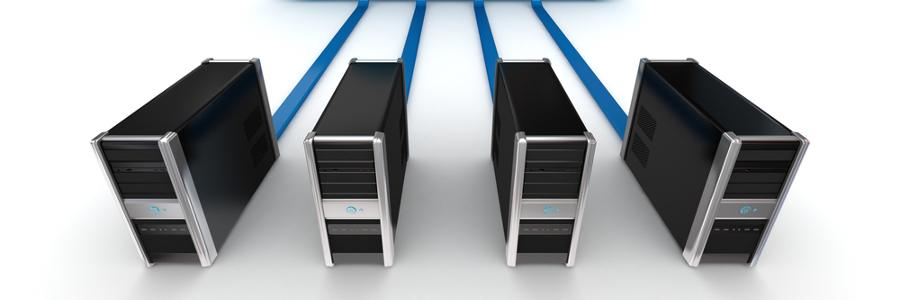
Keeping up with tech trends as a small- or medium-sized business owner is tough. Virtualization is a great example of this. From the boost to network security and ability to scale your workstations and servers according to your business growth, it’s time to start learning more about it. One of the first steps towards virtualizing your business is picking a software provider, and you can pick one from this list of the five most prominent virtualization platforms. VMware Any conversation about virtualization for small- and medium-sized businesses (SMBs) usually starts around VMware. VMware is the company that really put office virtualization on everyone’s action item list. The company offers a number of different solutions for different-sized businesses with a wide variety of needs. Its ease of use and robust security features have secured its reputation as one of the best options for virtualization for SMBs. Citrix The average user may not recognize the company name but probably knows their popular remote access tools, GoToMyPC and GoToMeeting. Citrix has specifically geared their virtualization software XenApp, XenDesktop, and VDI-in-a-box toward SMBs and even claims that non-IT staff can easily manage and administer the services. They even provide a free trial to prove it. Microsoft Although it may be a little more difficult to manage without an in-house or outsourced IT staff, Microsoft’s Hyper-V option is hard to ignore, considering its integration with the popular cloud platform Azure. Whether you’re a Microsoft loyalist or you just want to minimize the number of vendors in your network, Hyper-V offers everything you need from a virtualization service. Oracle Specializing in marketing software, Oracle also offers database management, cloud storage, and customer relationship management software. If you’re using any of their services already, there could be benefits to enlisting their virtualization services as well. Oracle does everything — server, desktop, and app virtualization — and they believe that consolidating all of these into one solution is what sets them apart. Amazon Since we’re on the topic of household names, let’s talk about Amazon’s EC2 platform, which hosts scalable virtual private servers. The ability to scale and configure capacity is definitely EC2’s biggest draw for SMBs preparing for the possibility of rapid growth. Although almost any virtualization service is rooted in scalability, Amazon is leading the pack in how quickly and finely you can adjust your solution to your individual needs. Virtualization is a really hard topic for most SMBs to tackle. This list only covers the most popular vendors, and there are plenty more out there. Choosing one based on its application possibilities and management requirements is not a subject for the lighthearted. Get in touch with us today so we can break down all of the technobabble into easy-to-understand advice. Published with permission from TechAdvisory.org. Source.
Irate customers? VoIP features can calm them

When customers call your help desk, one of the the first things they hear is your automated on-hold message. This message can either uplift or worsen their moods, so you should choose wisely. Follow these simple steps to ensure you don’t frustrate your customers more than they already were. Hire professionals to record your on-hold message On-hold messages are your customers’ first point of contact with your business when they need help, so your messages should be professionally recorded. You may be tempted to have an in-house production because it will initially cost less than hiring a professional voice talent and renting a studio, but in the long run, professionally recorded messages in your company’s Interactive Voice Response (IVR) systems will be more beneficial. Voice talents have the skills and equipment to give your phone system that professional, friendly, and pleasant feel. If you want to sound sincere about helping your customers with their issues, invest in professionally recorded on-hold messages. Use calming on-hold music to keep callers engaged Another strategy to keep customers from hanging up while they’re on hold is putting on music while they’re waiting. The trick for keeping callers calm is picking the right music. You might think that your choice of music is a minute detail, but it can make or break whether customers decide to leave or stay. You need to find a balance between engaging and relaxing, which is much easier when you have the power to pick or change tunes in just a few minutes. Cloud-based phone systems allow you to do exactly this by letting you test out different tunes. Provide clear and useful information Not everyone who calls your customer service hotline has a problem. Sometimes, people just need a piece of information. Use your IVRs to help callers find non-critical, frequently asked information such as business operating hours, special offers, and minor account updates. You can also deploy a more complicated system that redirects customers to specific concerns, like account management and payment instructions. This frees customer service representatives to take care of issues that need actual human interactions, like walkthroughs and policy misunderstandings. Connect the call to a real person According to a study, 83% of customers prefer human interaction over automated channels when solving customer service issues. Your automated recordings may lessen customers’ agitation or frustration, but nothing beats talking to a real person. Always provide an immediate option to talk to a customer service representative in your IVR. Most companies dedicate a particular number during calls to be connected to a real person who can help them with their concerns.This shows that you are serious in addressing your customers’ problems. There are so many ways a VoIP system can help your business reach new heights. Our team of trained technicians can install affordable, cutting-edge phone solutions that are easy to use. Give us a call today to learn more. Published with permission from TechAdvisory.org. Source.
3 Microsoft Excel tips to master

Every computer user must be well-versed in various office programs, including Microsoft Excel. If you only know a few basic commands, you haven’t fully mastered Excel. Here are a few features that can make your life easier. Pie and Sunburst Charts Everyone knows that bombarding stakeholders with endless numbers and decimal points is the wrong approach. You need to compile data and develop comprehensive pie or sunburst charts to make life easier for clients and investors. Here’s how to create a pie chart: Select your data. Click on the Recommended Charts tool to see different style chart suggestions for your data. Click on the Chart Styles, Chart Filters, or Chart Elements button in the upper-right corner of the chart to personalize its overall look or add chart elements, such as data labels or axis titles. Steps to create a sunburst chart: Select all your data. Click Insert > Insert Hierarchy Chart > Sunburst. Go to the Design and Format tabs to tailor its overall look. Pivot Tables Pivot Tables might be one of the most powerful yet intimidating data analysis tools in Excel’s arsenal. It allows you to summarize huge chunks of data in lists or tables without using a formula. All you need to do is to: Select the data, which must only have a single-row heading without empty columns or rows. Click Insert > PivotTable. Under Choose the data that you want to analyze, click Select a table or range. In the Table/Range box, validate the cell range. Under Choose where you want the PivotTable report to be placed, click New worksheet, or Existing worksheet and enter the location where you want to place the PivotTable. Conditional Formatting This tool highlights essential information within your dataset. For instance, you’re presenting the latest numbers on project efficiency and you use Conditional Formatting to highlight any number lower than 80%. The highlighted data will capture the audience’s attention, allowing them to identify the bottlenecks in your projects. To customize how the data is displayed, simply: Select the cell. Click Home > Conditional Formatting. Click Format. Change your formatting preference in the Color or Font style box. Excel is one of the most commonly used business software on the market, yet not everyone knows how to fully utilize it. If you want to learn more about other handy Excel features, give us a call today and we’ll elevate your user status from beginner to pro. Published with permission from TechAdvisory.org. Source.
3 Tips on managing Windows 10 notifications
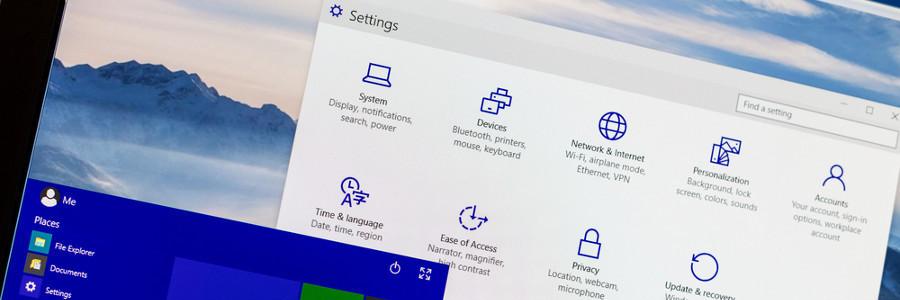
Microsoft has equipped Windows 10 users with a comprehensive set of tools to get their action center settings under control. Unfortunately, most desktops come with an abundance of software and features that result in more notifications. If you’ve reached the point of oversaturation, these three tips can help you better manage your action center. Overarching action center settings First of all, you should customize your Windows 10 system-wide notifications settings. To view these: Click on the Cortana icon on your taskbar and type ‘Notifications’. Click ‘Notifications & actions settings’. Here, you can turn off alerts entirely or customize the alerts for core functions such as alarms, reminders, and incoming VoIP calls. Settings for individual applications If you want to take a far more nuanced approach to your notifications, there are advanced options to create rules on an app-by-app basis. At the bottom of the ‘Notifications & actions’ setting screen is a section titled ‘Get notifications from these senders.’ By enabling any of the items in this list, you can open a new window full of more graded notifications options. From here, users can specify lock screen, sound, and priority settings for individual software. You can also adjust the amount of notifications of a particular app in the ‘Number of notifications visible in action center’ setting. To do so, click on the app’s name and select the amount of notifications you’d like to receive at any given time. Although the default amount is three, you can choose to get up to 20 notifications. Closing the blinds For users who have no interest whatsoever in the Windows 10 action center, you can banish it entirely. To do this: Open Cortana and search ‘Notification area’. Click ‘Turn system icons on or off’. Toggle the Action Center option to remove the icon from your taskbar. You can also choose which apps to remove from your taskbar entirely. To do so, click the back arrow to return to the ‘Notification area’ window and choose ‘Select which icons appear on the taskbar’. If artists have tools unique to their style, why shouldn’t the tools of your trade be tailored to your preferences? Get in touch with us today to speak with one of our tech-savvy specialists about your technology goals to start achieving new levels of productivity and efficiency on your Windows machine today. Published with permission from TechAdvisory.org. Source.