
Simple hacks to extend your Android’s battery life

Android phones are at the forefront of innovation in the smartphone industry. However, many of their cutting-edge features and applications are real energy sinkers. Even though the battery life of Android phones is improving with each passing year, it’s still not enough to keep pace with all the power-hungry applications and hardware. Here are some tips to make the most out of every charge. Use power saving mode The quickest way to conserve your battery life is by activating the power saving mode found in the settings of most Android phones. As of this writing, you can do this by going to Settings > Device maintenance, then tapping the Battery icon at the bottom left corner. This mode limits your phone’s processor and reduces the screen’s brightness display, thereby using only the bare minimum power to keep its critical functions running. This means that even with the power saving mode on, you’ll still have access to apps for texting, web browsing, and social media. What’s more, this feature can be set to automatically activate when your Android phone’s battery drops to a certain level, so you can implement this tip once and enjoy longer battery life without worrying about it again. Set brightness manually While using auto-brightness on your Android phone is convenient, it also drains your battery faster, because the system actually sets the brightness at a higher level than what you really need. To extend your battery life, adjust the brightness manually by going to Settings > Display. To save even more power, you can set the screen timeout interval to be as short as 15 seconds, so that your phone screen goes back to black faster when not in use. Offload unused or infrequently used apps The more apps there are on your phone, the more power your phone uses to keep them running in the background. If you want to extend your battery life, then you’ll have keep your apps to a minimum. Do you really need four photo editors? Do you need separate news site apps when you can access them all on Twitter? You can delete unnecessary, redundant, or infrequently used apps by going to Settings > Apps. From the complete list of all your applications, choose the ones that you can live without, and uninstall them. Organize your home screen Since most Android phone users don’t realize that a cluttered home screen sucks away their battery life, they load it with tons of apps and widgets. Don’t fall into this trap by keeping your home screen minimalist. Only keep the essential apps on your screen and do away with live wallpapers, as those consume more battery than regular pictures. A completely black wallpaper is also known to reduce battery life considerably in newer Android phone models. Turn off sound and vibration Sounds and vibration lets you know about incoming calls, messages, and notifications. But in some cases, too much of these can drain your battery life. If you have a very active group chat, for example, or if you subscribe to a lot of feeds, then you should consider turning off the sound and vibration for these apps. Anyway, even if you have them turned off, you can still see notifications via banners or message previews. Eliminate sound and vibration options by going to Settings > Sounds and Vibrations. Hide all notifications If you want to further extend your battery life, then turn off notifications completely. Ask yourself, “Do you need to know every time someone posts to or comments on your Facebook page? Do you want to hear about the latest deals and offers from your application?” If you don’t really need to be notified about these things, then do away with them by going to Settings > Notifications, then toggle off the All apps setting. Check your location services settings Some apps like Google Maps and Waze require you to turn on location services to display your surroundings and give you directions. But location services chip away at your battery life very quickly and you should turn it on only for as long as you need to. If you have to really use location services but you’re running out of juice, you can go for lower location accuracy by going to Settings > Connections > Location > Locating method, then tick the Battery saving option. Battery power shortage can be a frustrating issue for Android phone users, but following the simple hacks above can help you extend your battery life and avoid emotional breakdowns because of technology. To learn more about how to preserve battery life on your Android devices, give us a call today. Published with permission from TechAdvisory.org. Source.
Running Windows on Macs through VMs

If you own an Apple computer, you might think it’s impossible to install Windows-based software on it. But with operating system (OS) virtualization, you can run any application you want and enjoy exciting new cross-platform features. Configure an entire machine with a few clicks With programs like VMware and Parallels, installing Microsoft’s OS on your Mac is almost as easy as creating a new document in Office. The process varies between vendors, but it’s usually akin to clicking File and New and then choosing between Windows XP, 7, 8 or 10, and typing in your product key. Deciding how much hard drive space and RAM get devoted to your virtual machine is also simple and user-friendly. For example, allocating memory to your Windows partition is done by sliding a marker along a scale that is color-coded based on the recommendations of your virtualization software. Once you’ve completed these simple steps, click Finish and the rest will be configured for you. Picture-in-picture computing Older OS virtualization solutions forced you to choose which platform you would use by presenting the options while the computer was still booting up. Once you picked one OS, there was no way to switch without restarting the computer. Now, you can open Windows as if it were just another desktop application. This is especially useful when you need to work in both OSs simultaneously. Just adjust your Windows screen to half the size of your monitor and use the other half for MacOS applications. Another reason this is so important is because it allows you to run multiple versions of Windows at the same time. Half of your screen could be running an outdated application in Windows XP while the other half is working in Windows 10. Touchbar support The customizable touchscreen that was added to Apple’s flagship laptop line is a great way to create shortcuts and increase productivity. Virtualization applications have added Touch Bar support so you can use it to interact with Windows applications. For example, a Touch Bar button for opening Cortana — Microsoft’s AI assistant — is included in the Parallels virtualization software. Alternatively, you can also use Apple’s keyboard-based touch screen to toggle between virtual OSs or interact with your Mac while still working in Windows. Single Application Mode Containers are a popular subset of virtualization solutions that allow you to give users access to a single application rather than an entire OS. Unfortunately, they are incredibly difficult to set up and manage. Updates to Mac virtualization software have simplified the process with a “Single Application Mode” whereby administrators can grant employees access to pre-configured Windows partitions with only one program installed. Snapshots Regardless of whether you’re a certified virtualization professional or a consumer trying to make it work with low-cost software, everyone makes mistakes. With saved configurations of Windows installs known as Snapshots, you can start over without having to set up everything from scratch. If one of your Windows partitions becomes infected with malware, loading a Snapshot rolls everything back to its original state so you don’t have to configure the virtual hardware or retype the Windows product key. Best of all, restoring a Snapshot is much quicker than a fresh install. Taking advantage of everything virtualization has to offer involves a lot of IT planning and maintenance. Fortunately, it’s all within reach for small- and medium-sized businesses that partner with a managed IT services provider. Contact us today to learn more. Published with permission from TechAdvisory.org. Source.
5G’s impact in the evolution of VoIP
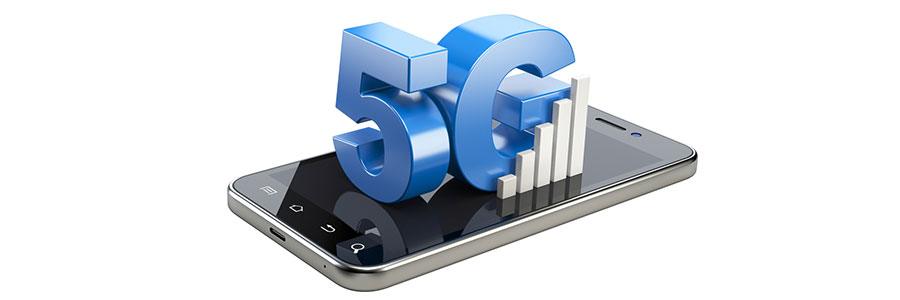
Mobile connectivity is a top priority for personal and business users alike. 5G, or fifth-generation wireless systems, will change not only people’s daily routines but also the way small- and medium-sized businesses (SMBs) operate. Here are three main ways that 5G will change VoIP for SMBs. Improved Video Conferencing The major factor holding web and video conferencing back is how fast current networks can transmit data. Fortunately, innovations like Web Real-Time-Communications (WebRTC) and 5G networks will enhance VoIP for businesses. Providing open and stable streaming as well as sufficient transfer speeds will soon allow businesses to accommodate higher-quality, even 4K and 8K resolution, videos. Virtual and augmented reality With 5G network speeds, virtual and augmented reality will become more common for SMBs. 5G will blow past 4G’s Gbps (gigabits per second) limit, which is currently holding back the adoption of virtual reality (VR) and augmented reality (AR) applications. VR and AR need to process significantly more data because of the visuals they must process as users move, and this puts an enormous strain on mobile networks. 5G is also set to ensure a better user experience by facilitating smoother connections and preventing network delays from affecting your bottom line. Mobile VoIP VoIP calls rely heavily on sufficient download and upload speeds. For example, when mobile VoIP users on 4G networks are limited to 12Mbps upload and 2Mbps download speeds, they experience unstable and poor call connectivity and clarity. These limitations could also lead to something called packet loss, which happens when one or more “packets” of data traveling across a computer network fail to reach their destination, typically caused by network congestion. When your business decides to adopt the up-and-coming 5G network, you can expect to see significant VoIP improvements. Ensure the success of your SMB with increased network speeds, better call quality and conversations with consistent connectivity. If you’re looking to set up a VoIP system for your business, call or email us today! Published with permission from TechAdvisory.org. Source.
Get the most out of Office 365 with these tricks

Does your organization need to optimize its migration and provision of Office 365? Here are 6 strategies for managing and making the most out of your subscription to Microsoft’s premium cloud-based productivity suite. Declutter your inbox If you’re having trouble managing the overwhelming amount of emails in your inbox, then using Office 365’s “Clutter” feature can clear up some space. To enable this feature, go to Settings > Options > Mail > Automatic processing > Clutter then select Separate items identified as Clutter. Once activated, mark any unwanted messages as “clutter.” After learning your email preferences, Office 365 will automatically move low-priority messages into your “Clutter” folder, helping you focus on more important emails. Ignore group emails Want to keep messages from an email thread you don’t want to be part of out of your inbox? If so, simply go to the message and find the Ignore setting. Doing this will automatically move future reply-alls to the trash so they never bother you again. Of course, if you ever change your mind, you could un-ignore the message; just find the email in your trash folder and click Stop ignoring. Unsend emails In case you sent a message to the wrong recipient or attached the wrong file, use Office 365’s message recall function. Simply open your sent message, click Actions, and select Recall this message. From here, you can either “Delete unread copies of this message” or “Delete unread copies and replace with a new message.” Bear in mind that this applies only to unread messages and for Outlook users within the same company domain. Work offline Whenever you’re working outside the office or in an area with unstable internet, it’s a good idea to enable Offline Access. Found under the Settings menu, this feature allows you to continue working on documents offline and syncs any changes made when you have an internet connection. Offline access is also available in your SharePoint Online document libraries. Use Outlook plugins Aside from sending and receiving emails, Outlook also has some awesome third-party plugins. Some of our favorite integrations include PayPal, which allows you to send money securely via email; and Uber, which lets you set up an Uber ride reminder for any calendar event. Find more productivity-boosting plugins in the Office Store. Tell Office applications what to do If you’re not a fan of sifting through menus and options, you can always take advantage of the Tell Me function in your Office apps. When you press Alt + Q, you bring up a search bar that allows you to look for the functions you need. Suppose you need to put a wall of text into columns on Word but can’t find where it is specifically, just type “column” in the search bar and Microsoft will help you with the rest. These tricks and features will definitely increase productivity. And fortunately, there’s more coming. Microsoft is continuously expanding Office 365’s capabilities, and if you truly want to make the most out of the software, don’t be afraid to explore its newly released features. For more Office 365 tips and updates, get in touch with us today. Published with permission from TechAdvisory.org. Source.
Get rid of these 5 types of PC clutter

Is your PC running slowly? It could be because of all the digital clutter it has to deal with. Clutter can impede your computer’s performance and eat away at its memory. To have your computer performing at top speed again, you need to get rid of these five types of clutter. Here’s how to do it using built-in tools from Windows. There are five types of clutter that may be causing your computer to perform so slowly. Usually, simply resetting or refreshing Windows will help you solve these issues. Windows updates – includes failed update downloads. While Windows will delete some of these corrupted and unusable files, others will hang around forever unless you reset Windows. Registry bloat – includes files and applications you’ve deleted in addition to every action performed in Windows, which is recorded in your computer’s registry. Redundant entries bog down your PC, and the solution is to reset Windows. Error logs – log files kept by Windows whenever software in your system encounters errors in processing or crashes altogether. And, as with registry bloat, these log files accumulate and slow down your computer. To remove these space-eating files, reset Windows. User bloat – refers to large numbers of your own files, especially if they’re unorganized. Refreshing Windows will take care of this problem. Bloatware – refers to unwanted preinstalled software. It takes up tons of CPU, RAM, and disk space, as well as poses a raft of security risks. To get rid of it, use Windows 10’s Fresh Start feature, which basically reinstalls Windows 10 while backing up your data, settings, and native apps. It will get rid of most apps from your system, including bloatware. As mentioned, you can either reset or refresh Windows to remove clutter of all types. When you reset, a brand new copy of Windows 10 is installed and your system is “reset” to its original state, which may include non-Microsoft apps and bloatware added by the hardware manufacturer. On the other hand, when you refresh, your PC reinstalls Windows 10 free of any bloatware. Both will delete Windows 10 apps and your customized settings, and will give you choices of keeping your old files or deleting them. To get started, go to Start > Settings > Update and Recovery > Recovery. If you want to reset Windows, choose Reset this PC > Get Started and then follow the instructions. If you want to refresh Windows, you first need to find out what your Windows update version is, since the processes are a bit different. For the Windows 10 Anniversary Update, start by going to Settings app > Recovery > Reset this PC. This will reinstall Windows from local system files and not the latest version. This also gives you the option of deleting all your data. For the Windows 10 Creators update, begin the refresh process by following the same procedure as above. But this update also has the Fresh Start feature, which you’ll find by going to Windows Defender > Device Performance & health. You’ll find Fresh Start toward the bottom of the menu; click Additional info > Get started. With Fresh Start, you’ll get the latest version of Windows plus all the updates. There are innumerable ways to make your computer perform faster and more efficiently, and our Windows experts are equipped with all the tricks of the trade. Give us a call today. Published with permission from TechAdvisory.org. Source.
Not all hackers are cybercriminals
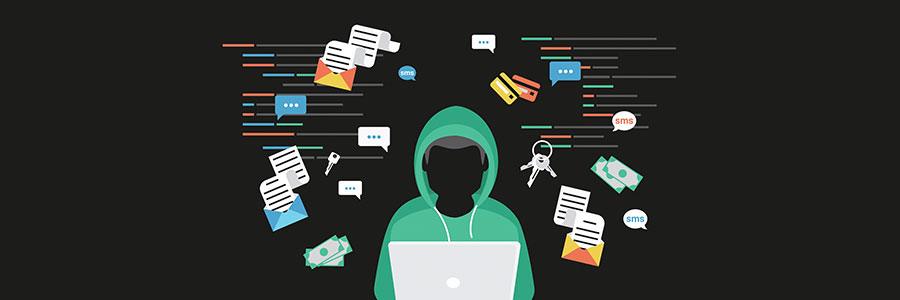
Newspaper headlines and Hollywood movies have shaped our understanding of computer hackers, but in the real world it’s not so simple. Some hackers are making massive contributions to the field of cybersecurity, it just depends on which hat they’re wearing that day. Take a few minutes to learn about white, black, and gray hat hackers. A complicated history In the 1950s, the term ‘hacker’ was vaguely defined. As computers and the people who worked with them became more accessible, the word was used to describe someone who explored the details and limits of technology by testing them from a variety of angles. But by the 1980s, hackers became associated with teenagers who were being caught breaking into government computer systems — partially because that is what they called themselves, and partially because the word hacker has an inherently aggressive ring to it. Today, several of those pioneering hackers run multimillion-dollar cybersecurity consulting businesses. So what should you call someone who uses their knowledge for good? “White hat” hackers Sometimes referred to as ethical hackers, or plain old network security specialists, these are the good guys. Whether it’s selling what they find to hardware and software vendors in “bug bounty” programs or working as full-time technicians, white hat hackers are just interested in making an honest buck. Linus Torvalds is a great example of a white hat hacker. After years of experimenting with the operating system on his computer, he finally released Linux, a secure open-source operating system. “Black hat” hackers Closer to the definition that most people outside the IT world know and use, black hat hackers create programs and campaigns solely for causing damage. This may be anything from stealing information using malware to forcefully shutting down networks using denial-of-service attacks. Kevin Mitnick was the most infamous black hat hacker in the world. During the 1990s, Mitnick went on a two and half year hacking spree where he committed wire fraud and stole millions of dollars of data from telecom companies and the National Defense warning system. “Gray hat” hackers Whether someone is a security specialist or a cybercriminal, the majority of their work is usually conducted over the internet. This anonymity affords them opportunities to try their hand at both white hat and black hat hacking. For example, Marcus Hutchins is a known gray hat hacker. He’s most famous for testing the WannaCry ransomware until he found a way to stop it. During the day, Hutchins works for the Kryptos Logic cybersecurity firm, but the US government believes he spent his free time creating the Kronos banking malware. He has been arrested and branded a “gray hat” hacker. The world of cybersecurity is far more complicated than the stylized hacking in Hollywood movies. Internet-based warfare is not as simple as good guys vs. bad guys, and it certainly doesn’t give small businesses a pass. If you need a team of experienced professionals to help you tackle the complexities of modern cybersecurity, call us today. Published with permission from TechAdvisory.org. Source.
Mac time-saving checklist for 2018

In the IT industry, continuous improvement is the name of the game. Whatever makes a business work faster, smarter, and more effectively is a welcome competitive advantage. If you’re a Mac user, do you think you’re taking advantage of all of the best time-saving tips out there? Here’s a checklist you can use to find out how well you’re using your machine. Declutter with Desktop Stacks Because of enhanced syncing capabilities, the Mac Desktop is the best place for making files accessible from all your synced devices, be they on macOS or iOS. However, clutter can quickly build up on the Desktop, and it’s such a time-consuming hassle to organize everything. Thankfully, Stacks can declutter your screen with just a few mouse clicks. Simply click on the desktop, then click View > Use Stacks. Or you can Control-click (right-click) on the desktop, then click Use Stacks. Stacks will then group files of the same kind together by default. Images will be in one pile, while docs, PDFs, and presentations will be in their own separate piles. Of course, you may use a different filing method. Click on the desktop, then View > Group Stacks By, then choose a category, such as tag or date modified, among others. Use Universal Copy and Paste Ever had an image or piece of text that you found on one device and wanted to use in a program opened in another computer? We had to send ourselves emails or instant messages just for those juicy bits of content! Thankfully, Apple’s new universal copy and paste feature makes things easier. Assuming you’re logged on to multiple devices using one iCloud account, you can just copy stuff from one device and then paste it onto another — no other extra steps required! Reduce clicks further by just dragging text Within the same device, you can highlight text in one app window, then drag-and-paste it directly onto another app window — no need to copy or cut. You can also drag the text to the desktop to create a new text clip document. Converse with Siri on your Mac Now that Siri’s on the Mac, you can use the personal assistant to perform side tasks while you complete your spreadsheets or polish your presentation without being sidetracked. There are many ways to activate Siri: Click the Siri icon found in the menu bar, Dock, or Touch bar. Simultaneously press and hold the Command key and Spacebar until Siri responds. If Siri is already up, click the Siri icon or the mic icon in the Siri window. Just say “Hey, Siri.” (This only works on 2018 MacBook Pro models, and only when the computer lid is open). With Siri open, you can then ask it to describe the weather in Maui, locate taco joints near you, and invite more participants to your 2:00 p.m. meeting by name, among many other things. Run Windows While this tip may be unpalatable for Mac purists, having Windows as an extra operating system gives users access to software that macOS doesn’t have. Obviously, this eliminates the hassle of having to rely on busy Windows-using teammates to help you out. You can use a virtualization app such as Parallels Desktop, VMware Fusion, or VirtualBox to run Windows alongside macOS. Alternatively, you can partition your hard drive and use Boot Camp Assistant to install Windows on your hardware. To recap, here’s our time-saving checklist: Declutter your desktop with Stacks Take advantage of universal copy and paste Simply drag text across app windows Multitask with Siri (Optional) Use Windows alongside macOS Curious about how to make the most out of your Macs? Talk to us — we’d be more than happy to complete your checklist and more to help your business become more efficient. Published with permission from TechAdvisory.org. Source.
Security tips for your IoT devices

Major companies like Google, Apple, and Microsoft are investing a lot of money in the Internet of Things (IoT). But just like any other technological trend, it comes with minor bugs and setbacks. Because of the diversity in IoT, developers have yet to develop large-scale security solutions. In the meantime, here are some things you can do to keep IoT cyberattacks at bay. Set passwords Not many people know they can set passwords for IoT devices, making their gadgets easy to hack. You have to make sure to set new and strong passwords — preferably with a combination of upper- and lowercase letters, numbers, and symbols. Then, use a password manager to keep track of all your passwords. Disable Universal Plug and Play (UPnP) UPnP helps IoT gadgets discover and connect to other network devices. But this feature also serves as a gateway for hackers to infiltrate your devices and network. To prevent this, disable this feature. Create a separate network It’s a good idea to keep your IoT devices connected to their own network that’s separate from your main office network. This way, gadgets can connect to the internet but won’t have access to mission-critical files. You can also invest in device access management tools. These allow you to control which devices can access what data, and prevent unauthorized access. Update your firmware You need to keep your software up to date if you want to secure your devices against cyberattacks. Manufacturers are always releasing new patches for the latest vulnerabilities, so make it a habit to check and install IoT firmware updates regularly. If you have several devices, use patch management software to automate patch distribution and schedule regular updates. Unplug it Simply disconnecting your devices or turning them off when not in use can significantly reduce your vulnerability to cyberattacks. It removes potential entry points into your network and minimizes the chances of unauthorized access to your network. With the advent of IoT devices in homes and offices, hackers also developed more cunning ways to exploit them. Adopting the abovementioned security habits can prevent a variety of IoT attacks, but if you need to beef up your security, contact us today. We have robust security solutions to keep your hardware and systems safe. Published with permission from TechAdvisory.org. Source.
Start using these six Gmail tips now

Twenty-four hours seem to pass by in the blink of an eye, especially if you’re a small business owner. In order to stand a chance against the competition, the last thing you should do is bury yourself in a pile of endless emails. With the following Gmail tips and tricks, you’ll spend less time with your inbox and more time driving business growth. Undo Send We’ve all had an email or two we wish we could take back. Gmail has a neat feature that gives you a short period of time to recall a mistakenly sent message. Simply click the Undo link that appears to the right of the “Your message has been sent” notification. Canned Responses Dubbed as “email for the truly lazy,” Canned Responses is a new feature that allows you to save time and reuse an email that you designate as a Canned Response. Similar to an email template, it saves copious amounts of time since you won’t have to retype the same responses over and over again. It comes in handy for businesses that send plenty of routine emails. To do this, go to Settings, open the Advanced tab, and enable Canned Responses (Templates). Send large attachments with Google Drive With Gmail, users can easily send attachments up to 25 MB. But say you have a huge zip file for a photo shoot that a client wants to review — you’re going to need more space. If you use Google Drive with your Google account, you can send larger files in Gmail. Copy the large file to your Google Drive, then click Compose in Gmail and type your message. When you’re ready to attach the large file, click the Google Drive icon (next to the emoji icon that looks like a smiling face). Insert the files you want to attach and send your message. Turn on Priority Inbox Priority Inbox organizes your messages by their importance using machine learning. You’ll be able to divide your inbox into five sections, where the messages will be displayed in the following order: Important and unread messages Starred messages [Customizable section] [Customizable section] Everything else To enable Priority Inbox, hover your mouse over the Inbox button in the upper left corner of the screen until a dropdown arrow appears. Click on it, and choose Priority Inbox. Back up your messages If you ever need to back up or migrate your Gmail messages, Gmvault can help. It’s an open source solution that can back up your entire Gmail directory or just a handful of messages. The email data is then available whenever you need to restore or recreate your Gmail folders. You can also use it to migrate messages from one account to another. Enable advanced settings Configuring Gmail’s Advanced Settings is an excellent way to increase email efficiency. Some of these features include Multiple Inboxes, Preview Pane, and custom keyboard shortcuts. Access them by going to Settings and clicking on the Advanced tab. Spending the right amount of time with emails while managing other crucial business areas is a balancing act many business owners find difficult. If you have questions or need further assistance regarding Gmail or IT in general, feel free to contact us. Published with permission from TechAdvisory.org. Source.
Reasons to back up your mobile devices

Companies such as Apple, Samsung, and others have turned mobile phones into mini-computers that can serve as a substitute for your laptop, or as a storage device. If you’re using a smartphone as a communications and storage device, backing up now would be a wise move. Malware on mobile More than two-thirds of the world’s population use a mobile phone with internet connection, so dangers in these handy devices are to be expected. Scarier than the thought of being offline is being online and exposed to malware. If you use your mobile devices as extensions of your work computers, backing them up is a must. Mobile phones have become as vulnerable to malware as laptops and desktops are, especially if you consider the fact that many professionals and business owners use them for emailing confidential documents and storing business-critical files. Device disasters Malware isn’t the only disaster that can hurt your smartphone. Because you carry it wherever you go, your device can easily be stolen, misplaced, or damaged. They may be easily replaceable, but the data they contain is not. Here are some security threats to look out for: Data leakage Something as simple as transferring files onto a public cloud storage service, or pasting confidential information in the wrong place could compromise your business. In fact, according to specialist insurance provider Beazley, “unintended disclosure” accounted for 41% of data breaches reported by healthcare organizations during the first three quarters of 2017. Social engineering Tricking people online into handing over their personal and financial data is no longer confined to desktops, as this trend is already happening on mobile devices. In a report by IBM, it was found out that users are three times more vulnerable to fall for phishing attacks on mobile devices compared to desktops. This is because phones are where people will most likely see a message first, making them a popular attack vector by cybercriminals. Wi-Fi interference When we connect our devices to public Wi-Fi networks, we are putting critical information at risk. According to Wandera, nearly a quarter of devices in 2017 connected to potentially insecure networks, and some even encountered a man-in-the-middle attack, where someone anonymously intercepts communication between two parties. Out-of-date devices A vast majority of manufacturers, most particularly on the Android front, are ineffective at providing updates for their devices. This can inconvenience end users, as this exposes them to the many threats lurking online. Some smartphones and tablets may receive a security patch from time to time, but manufacturers eventually stop doing so after a while. Physical device breaches While this may seem unlikely for some, lost or unattended devices can still become a major security risk, especially if they are not employing proper security measures such as PIN codes and encryption. Backup options Performing backups on iOS and Android devices is a quick and painless process. For example, companies that use Office 365 or Google’s G Suite enable company-wide backup settings from a single dashboard. Apple’s backup settings usually need to be configured on each device, but it’s a pretty simple process. There are also robust third-party options to back up all your organization’s mobile devices. The best of these are cloud backup services that sync devices and back up contacts, photos, videos, and other critical files in one neat system. These mobile backup tools are offered on monthly or lifetime subscription schemes, which provides small businesses with enough flexibility to ensure long-term protection. Our experts can provide practical advice on security for your business’s computers and mobile devices. Call us to ask about mobile backup and other security solutions today. Published with permission from TechAdvisory.org. Source.